
HTML Viewer: Preview and Render HTML Offline
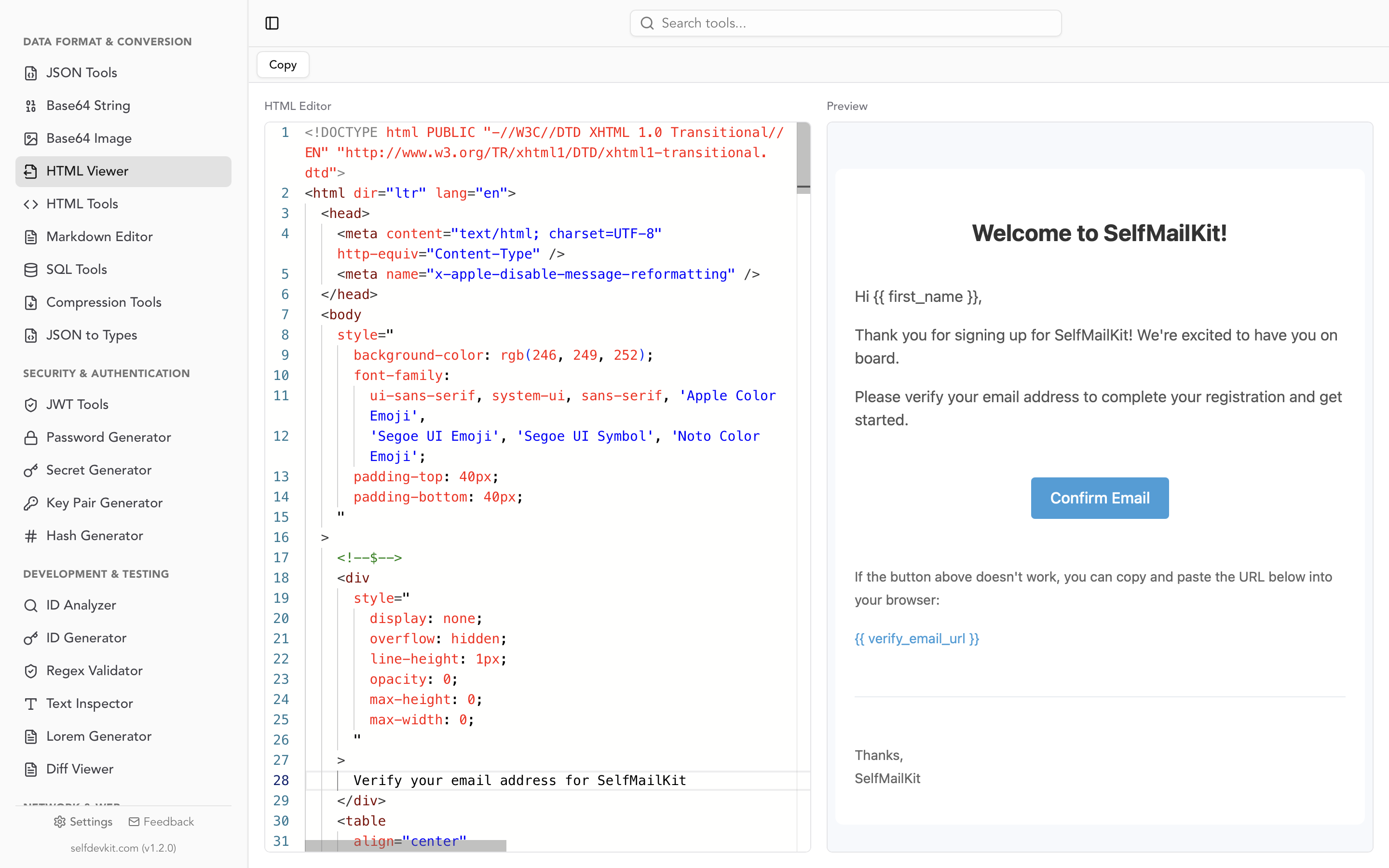
Paste HTML into the editor and see it rendered live beside the source. Scripts stay off and remote trackers stay blocked, so you can preview email templates and untrusted markup on your own machine.
What an HTML Viewer Does
An HTML viewer renders raw markup the way a browser would, so you see the page instead of the tags. Under the hood it paints your markup inside an iframe using the srcdoc attribute. The browser engine does the rendering; the viewer decides what that frame is allowed to do.
That is different from reading the source (a view-source: URL or a text editor) and from the live DOM in DevTools, which shows the document after JavaScript has changed it.
How to Use the HTML Viewer
- Paste your HTML into the Monaco editor (the editor behind VS Code), with syntax highlighting, line numbers and code folding.
- Watch the preview update as you type.
- Switch to Responsive mode to check Desktop, Tablet (768px) and Mobile (375px) widths, with zoom from 25% to 200%.
- Copy the edited markup when you are done.
What the Preview Runs and What It Loads
The preview frame is sandboxed without allow-scripts, so <script> blocks do not run. Inline event handlers such as onerror and onclick are scripts too, and they do not fire either. With scripting off, <noscript> fallback content is shown, so a "Please enable JavaScript" message in the preview is expected, not a bug in your markup.
A sandbox alone does not stop network requests. A script-free frame will still fetch remote images and stylesheets. What blocks them is a Content Security Policy, and a srcdoc document inherits the policy of the page that embeds it. The SelfDevKit app's policy only allows images from data: URIs, the app itself and selfdevkit.com, so a tracking pixel in a pasted email does not load and a stylesheet on a third-party CDN is not fetched.
That matters for email. Marketing and phishing emails often embed a unique image URL per recipient; loading it tells the sender when the message was opened and from which IP address.
Why a Preview Can Look Different From the Real Page
- Relative paths resolve against the viewer. A
srcdocdocument uses the embedding page's URL as its base, soimages/logo.pngnever reaches your project folder. Use absolute URLs or inline small images asdata:URIs with the Base64 image tools. - Remote stylesheets and web fonts are blocked. Inline the CSS you need in a
<style>block. - JavaScript-built pages show nothing. A React or Vue build is mostly an empty root element plus a bundle. Run the dev server in a browser instead.
- Missing doctype behaves differently. The HTML parsing rules exempt srcdoc documents from quirks mode, so a fragment without
<!DOCTYPE html>renders in standards mode here but in quirks mode when saved and opened as a standalone file. Start real pages with the doctype.
Building a Safe HTML Preview Yourself
A safe preview for untrusted markup needs two layers: an empty sandbox attribute to block scripts, forms and popups, and a CSP to block network requests.
function renderUntrustedHtml(container, untrustedHtml) {
  const frame = document.createElement('iframe');

  // Empty sandbox = every restriction on: no scripts, no forms,
  // no popups, unique opaque origin.
  frame.setAttribute('sandbox', '');

  // CSP placed first in the document. Allows inline styles and
  // data: images, blocks every network fetch.
  const csp =
    '<meta http-equiv="Content-Security-Policy" ' +
    'content="default-src \'none\'; img-src data:; style-src \'unsafe-inline\'">';

  frame.srcdoc = csp + untrustedHtml;
  container.append(frame);
}
Put the CSP first so the parser places it in the document head. Never combine allow-scripts with allow-same-origin for same-origin content: MDN warns that the pair lets the embedded document remove its own sandbox. If a preview must run scripts, serve it from a separate origin.
Viewing an HTML File From the Terminal
To open a local HTML file in your default browser, use the platform command. Serve the folder over HTTP when the page loads relative assets or type="module" scripts, which Chrome blocks on file:// pages.
open page.html          # macOS
xdg-open page.html      # Linux
start page.html         # Windows (cmd)

# Serve the folder when the page uses relative assets or ES modules
python3 -m http.server 8000
# then open http://localhost:8000/page.html
A browser runs the page's JavaScript, so keep untrusted markup out of this path.
Common Use Cases
- Transactional email templates: inline styles and table layouts render faithfully; check them at mobile width before sending a test.
- Suspicious HTML attachments: see what the page looks like without running its scripts or loading its tracker.
- Generated markup: preview template engine or Markdown-to-HTML output before it ships.
The HTML Viewer does not format or validate markup; use the HTML Tools for that. To test JavaScript behavior, use a real browser.
Related Developer Tools
Preview HTML Without Sending It Anywhere
Download SelfDevKit and get the HTML viewer alongside 50+ developer tools, all running offline on macOS, Windows and Linux.
Download SelfDevKit