To convert GIF to PNG, decode the GIF's palette-indexed pixels and write them into a PNG. Both formats are lossless, so a correct conversion produces exactly the same pixels. It does not add colors, smooth jagged edges, or "improve quality". What it can do, depending on the tool, is double your file size or quietly give you a pile of cropped animation frames.
Both problems are avoidable. This guide covers the quick methods first, then the two decisions that actually matter: keeping the palette (file size) and compositing frames (animated GIFs).
Every number in the tables below comes from converting five GIFs from Wikimedia Commons (a dithered photo, two diagrams, and two animations) plus a generated four-color logo, run locally in October 2026 with ImageMagick 7.1.2, ffmpeg 8.1.3, Pillow 12.3.0, sharp 0.35.4 and oxipng 10.2.1. SelfDevKit's results come from building a small program against the same Rust crate versions its converter uses (image 0.24.9) and running the same encode path. They describe these files and versions, not every GIF on earth.
How to convert GIF to PNG
The fastest way to convert GIF to PNG is a single command or one line of code. Pick the row that matches where you are:
| Where you are | Command or action | Palette kept? | Animated GIF |
|---|---|---|---|
| SelfDevKit (any OS) | Image Converter, output format PNG | No, writes RGBA | First frame |
| ImageMagick | magick 'in.gif[0]' out.png |
Yes | [0] = first frame |
| ffmpeg | ffmpeg -i in.gif -frames:v 1 out.png |
No, writes RGBA | First frame |
| Python (Pillow) | Image.open("in.gif").save("out.png") |
Yes | First frame |
| Node (sharp) | sharp("in.gif").png({ palette: true }) |
Only with palette: true |
First frame |
| Browser | drawImage() on a canvas, then toBlob(cb, "image/png") |
No, writes RGBA | First frame |
Two of those rows have a catch worth knowing up front.
With ffmpeg 8.1.3, the obvious ffmpeg -i in.gif out.png wrote the file but exited with code 234 and a "Cannot write more than one file with the same name" error, even for a single-frame GIF. A shell script that checks exit codes will treat that as a failure. Adding -frames:v 1 (or -update 1) made it exit cleanly.
The browser row works because the HTML spec says that when canvas draws an animated image, it must use the format's default image or, if there is none, "the first frame of the animation". You get frame one whether you want it or not.
Does converting GIF to PNG improve quality?
No. Converting GIF to PNG copies the pixels exactly, so the PNG looks identical to the GIF. SelfDevKit, ImageMagick, ffmpeg, Pillow and sharp all produced output that matched the source GIF pixel for pixel on every test file, compared with a pixel-difference check in Pillow.
A GIF stores at most 256 colors per frame. The GIF89a spec caps each color table at 256 entries. When you convert to PNG, those same 256 (or fewer) colors land in the new file. PNG can store millions of colors, but nothing in the conversion invents them. Dithering noise stays. Banding stays. The jagged edges a GIF logo gets from its one-bit transparency stay too.
If you need a better image, go back to the source: the original screenshot, the SVG logo, the video the GIF was cut from. Converting the GIF is only worth it for compatibility, editing, or extracting frames.
Why your PNG is bigger than the GIF
A PNG converted from a GIF gets bigger than the original when the tool throws away the palette and writes full-color RGB or RGBA pixels. Keep the palette and the PNG can come out smaller than the GIF, as it did for every static file tested here, because PNG's Deflate compression with per-row filters often beats GIF's LZW.
Here is what each tool produced, in KB, with the ratio to the original GIF:
| File | GIF | SelfDevKit | ffmpeg | sharp default | ImageMagick | Pillow | oxipng after SelfDevKit |
|---|---|---|---|---|---|---|---|
| Sunflower (dithered photo) | 57.3 | 144.5 (2.52×) | 136.9 (2.39×) | 69.6 (1.22×) | 53.7 (0.94×) | 53.5 (0.93×) | 49.4 (0.86×) |
| Anticline diagram | 14.8 | 29.2 (1.97×) | 30.1 (2.04×) | 17.6 (1.19×) | 12.6 (0.85×) | 13.1 (0.89×) | 11.8 (0.80×) |
| Normal fault diagram | 14.4 | 30.2 (2.10×) | 31.4 (2.18×) | 17.9 (1.24×) | 12.8 (0.89×) | 12.9 (0.89×) | 11.6 (0.80×) |
| 4-color transparent logo | 2.7 | 3.9 (1.42×) | 4.0 (1.45×) | 5.8 (2.12×) | 1.7 (0.63×) | 2.1 (0.75×) | 1.2 (0.42×) |
The split is clean. ImageMagick and Pillow wrote 8-bit palette PNGs (the logo even dropped to 2-bit) and came out 6% to 37% smaller than the GIF. SelfDevKit and ffmpeg wrote RGBA, four bytes per pixel instead of one, and grew to 1.4× to 2.5× the GIF's size. sharp's default wrote 24-bit RGB for opaque files and RGBA for the logo.
The last column is the fix. oxipng is a lossless PNG optimizer. It noticed that each RGBA file used 256 or fewer colors, converted it back to a palette PNG, and beat every converter:
oxipng -o 4 --strip safe out.png
The pixels stayed identical; the check above confirmed it. So the practical rule: convert with whatever you like, then run a lossless optimizer if size matters. optipng is an older tool built for the same job, and most Linux package managers ship it.
Two smaller notes from the same runs. ImageMagick added tEXt, tIME, bKGD and cHRM chunks (timestamps, a background color hint and color primaries), which --strip safe removes. And sharp's palette: true kept the pixels exact here only because the source already had 256 colors or fewer. That option runs a quantizer, which is lossy on images with more colors.
Converting an animated GIF to PNG
An animated GIF can't fit in a regular PNG, so converting one gives you three choices: keep the first frame, export every frame as its own PNG, or produce an animated PNG (APNG). Most single-file tools, SelfDevKit included, silently pick the first one.
Exporting every frame: the ImageMagick cropping trap
Many animated GIFs are frame-optimized. After the first frame, each frame stores only the rectangle that changed, positioned at an offset on the canvas. Both test animations worked this way. The rotating earth's second frame is a 280×281 patch placed at +59+31 on a 400×400 canvas.
Run the intuitive ImageMagick command and you get those patches, not frames:
magick earth.gif frame_%03d.png      # 43 of 44 files are cropped patches
magick earth.gif -coalesce frame_%03d.png   # 44 full 400×400 frames
Without -coalesce, only 1 of 44 earth frames and 1 of 36 Newton's cradle frames came out at full size. ImageMagick records the offset in a private caNv chunk that normal image viewers ignore, so the files look like random crops of the animation. -coalesce composites each patch onto the previous frame first.
ffmpeg and Pillow composite by default:
ffmpeg -i earth.gif -fps_mode passthrough frame_%03d.png
from PIL import Image, ImageSequence

with Image.open("earth.gif") as im:
    for i, frame in enumerate(ImageSequence.Iterator(im)):
        frame.save(f"frame_{i:03d}.png")
On both test animations, all three approaches (coalesced ImageMagick, ffmpeg, Pillow) produced pixel-identical frames. Keep -fps_mode passthrough: without it, ffmpeg pads GIFs with mixed frame delays to a constant frame rate, and the 36-frame Newton's cradle came out as 82 files, mostly duplicates. Pillow has its own edge case: on a synthetic GIF whose opaque first frame was followed by a frame using "restore to background" disposal, it filled the cleared area with opaque black where ImageMagick, ffmpeg and Chrome left it transparent. Watch the numbering, too: ffmpeg starts at 001 and ImageMagick at 000, which breaks any script that assumes one convention.
File size differed a lot. The 44 earth frames totaled 1.34 MB from ImageMagick (palette PNGs), 2.06 MB from Pillow, and 2.47 MB from ffmpeg (RGBA). Pillow writes the first frame in palette mode and every later frame as RGB, which is where its extra size comes from. Run oxipng over the folder if that matters.
Converting to APNG: mind the loop count and frame timing
APNG is the animated version of PNG, and since the PNG Third Edition became a W3C Recommendation in June 2025, it is part of the official spec rather than an extension. It's the right target when you want a PNG that still animates.
ffmpeg -i in.gif -plays 0 -f apng out.png
Image.open("in.gif").save("out.png", save_all=True)
The -plays 0 matters. The PNG spec says that when num_plays is 0, "the animation should play indefinitely". ffmpeg's APNG muxer defaults to plays=1. Without the flag, the Newton's cradle GIF, which loops forever, became an APNG that played once and stopped. Pillow copied the GIF's loop count across on its own.
Frame timing survived in ffmpeg and Pillow. GIF stores delays in hundredths of a second, and the cradle's mix of 20, 40 and 50 ms delays came through intact. ImageMagick 7.1.2 hands APNG encoding to ffmpeg, and that path did worse. It flattened every cradle delay to 50 ms, so the animation played at the wrong speed. For the earth GIF, ImageMagick passed ffmpeg a loop count of 65536, one above what its APNG muxer accepts, so the step failed with an "Invalid argument" error, and magick still exited with status 0 without writing any file.
Expect APNG to be bigger than the GIF:
| Animation | GIF | ffmpeg APNG | Pillow APNG | ImageMagick APNG |
|---|---|---|---|---|
| Rotating earth (44 frames) | 1,002 KB | 1,693 KB (1.69×) | 1,440 KB (1.44×) | No file written |
| Newton's cradle (36 frames) | 308 KB | 583 KB (1.89×) | 1,102 KB (3.58×) | 2,546 KB (8.26×), timing lost |
If the goal is a smaller animated file, APNG did not deliver that here. Animated WebP or a short video are the formats worth testing instead.
One more trap: sharp with { animated: true } and .png() returns a single 400×17,600 image, all 44 earth frames stacked vertically. That's useful as a sprite sheet and surprising otherwise.
What happens to GIF transparency
GIF transparency carries over to PNG intact. A GIF marks one palette index as transparent, so every pixel is either fully see-through or fully opaque. The palette-preserving converters (ImageMagick, Pillow, oxipng) stored that as a PNG tRNS chunk on the palette. The RGBA converters stored it as an alpha channel with values of only 0 or 255.
Either way, the transparency stays binary. A GIF logo's hard, stair-stepped edge against a dark background looks exactly as rough in the PNG. Smooth anti-aliased edges need an 8-bit alpha channel, and that information was never in the GIF.
Should you upload GIFs to an online converter?
For a meme, an online converter is fine. Animated GIFs are also a common format for bug reports, though. Screen-capture tools record internal dashboards, staging URLs, customer names in a table, and a token visible in a devtools panel for half a second. An uploaded GIF sends all of that, every frame, to someone else's server.
Server-side converters keep uploaded files for some period before deleting them, so check the retention policy before uploading anything sensitive. Some browser-based tools process files locally instead. That's better, but you are trusting the page's current JavaScript each time it loads. The case for offline tools is simple here: a converter that never touches the network cannot leak the frame you forgot was in there.
Converting GIF to PNG in SelfDevKit
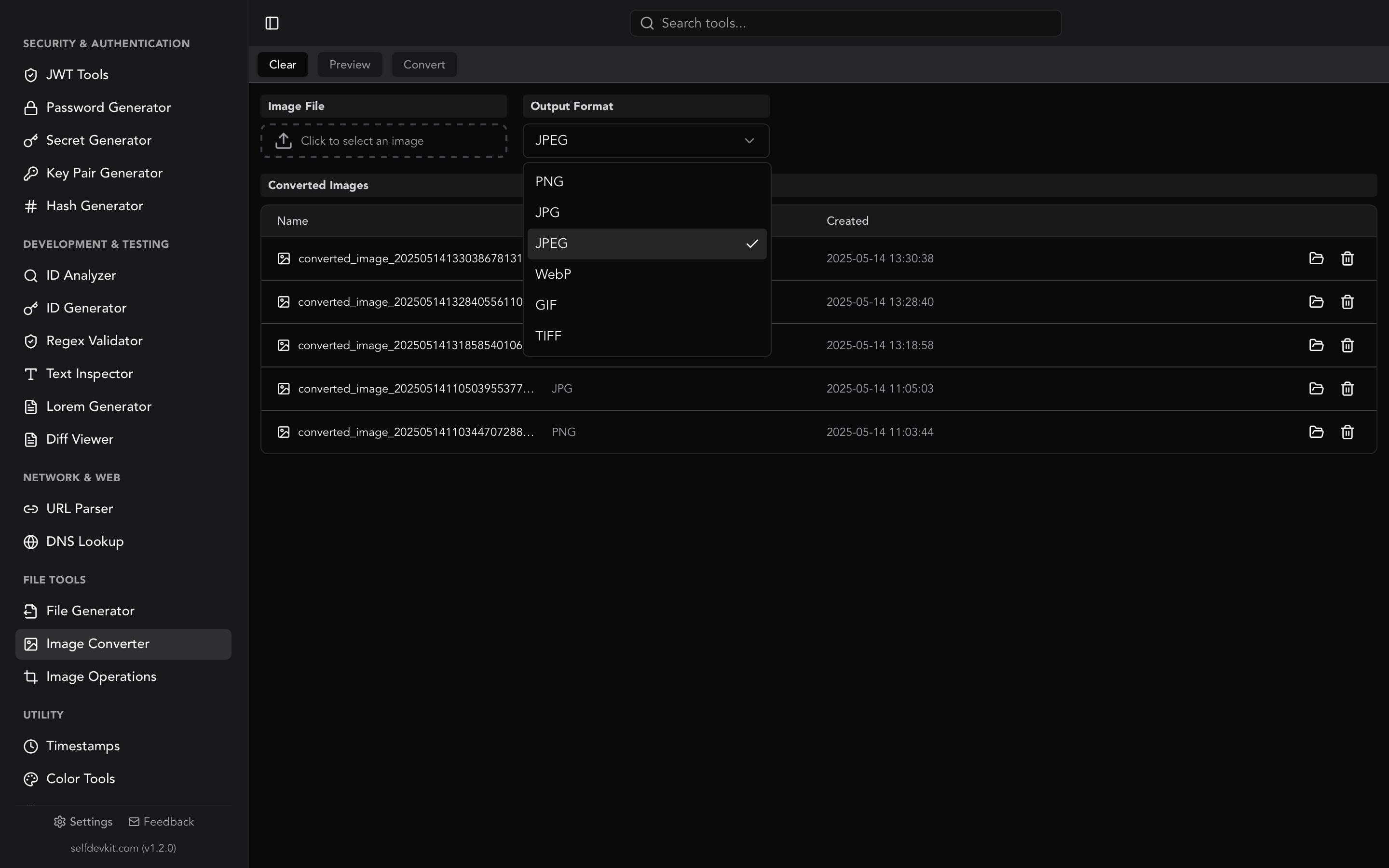
SelfDevKit's Image Converter runs the conversion on your machine with no network round trip:
- Open Image Converter and click to choose a GIF.
- Pick PNG as the output format (it's the default).
- Convert. The PNG is saved to the app's local data folder and appears in the converted images list, where you can open it or reveal it in your file manager.
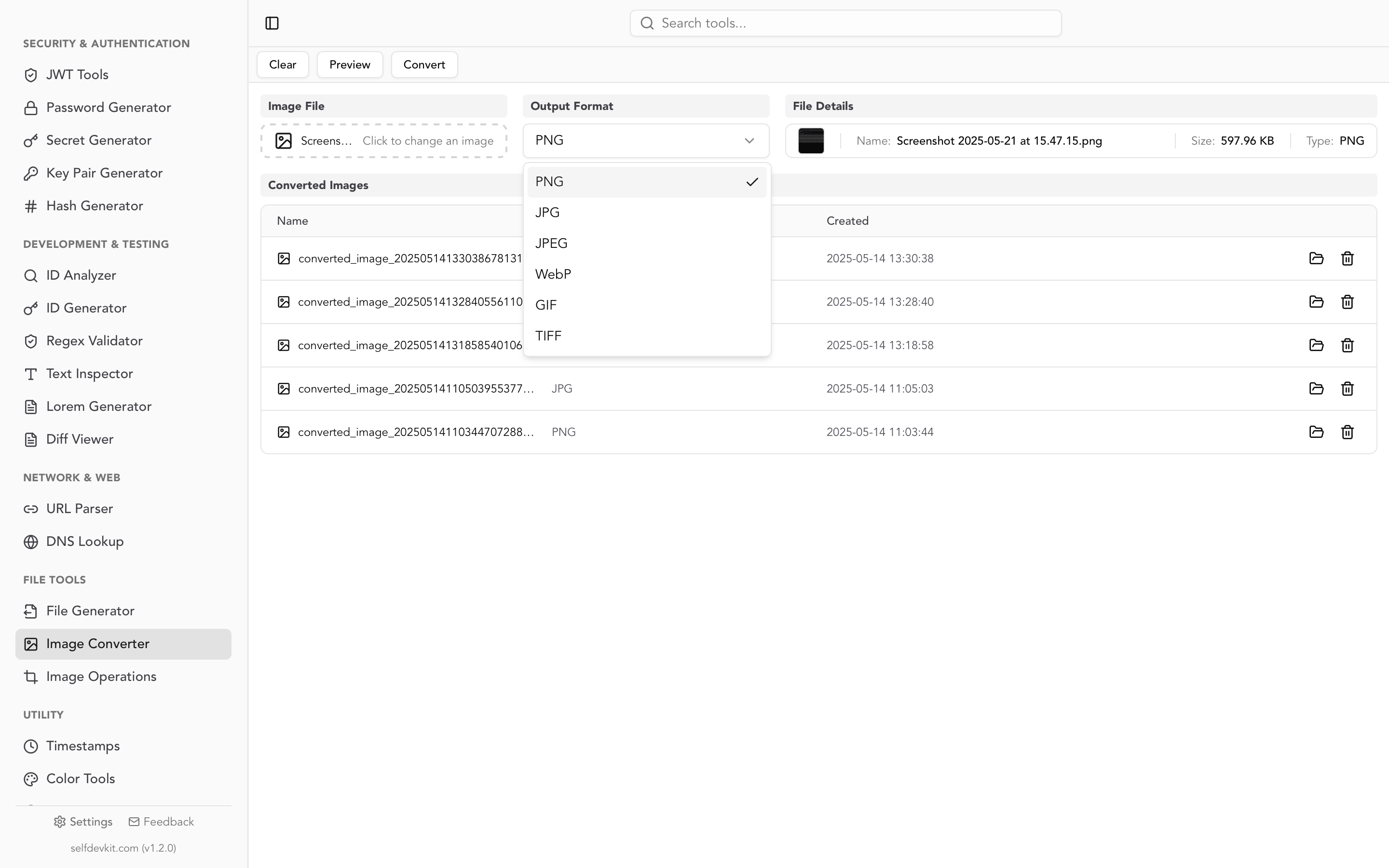
What it does, from the source: it decodes the GIF with the Rust image crate, takes the composited first frame, and writes a 32-bit RGBA PNG at maximum compression. In testing, every output matched the GIF's first frame pixel for pixel. Because it writes RGBA rather than a palette, the file is roughly 1.4× to 2.5× the GIF's size, as the table above shows. If size matters, run oxipng -o 4 on the result. If you need every frame or an APNG, use the ffmpeg or Pillow commands above; the app converts one file at a time and keeps only the first frame.
From there, the Image Operations tool can resize or rotate the PNG, and the Base64 Image Tools can turn it into a data URI for inlining. If your source images are WebP rather than GIF, the WebP to PNG guide covers that conversion, including what it does to file size and color profiles.
Download SelfDevKit to convert images, decode tokens, format JSON and 50+ other developer tasks offline, with nothing uploaded.