To convert WebP to PNG, decode the WebP file to raw pixels and re-encode those pixels as a PNG. PNG is lossless, so the conversion itself adds no quality loss, and transparency carries over. What people don't expect is everything else that changes. The file gets much bigger. Animations break. Color profiles and EXIF data may disappear, depending on the tool.
This guide covers the fastest ways to do the conversion (desktop app, terminal, Python, Node, browser) and then shows what each one actually does to your file. The file sizes and tool behaviors in the tables below come from converting Google's WebP gallery samples locally in September 2026 with libwebp 1.3.2 (dwebp), sharp 0.35.4, and Pillow 12.3.0. They describe those files and versions, not every WebP. SelfDevKit's behavior comes from reading its converter's source code.
How to convert WebP to PNG (quick methods)
The quickest way to convert WebP to PNG depends on where you already are. Pick the row that matches your situation:
| Where you are | Command or action | Handles animated WebP? |
|---|---|---|
| SelfDevKit (any OS) | Image Converter, output format PNG | First frame only |
| Linux / macOS / Windows terminal | dwebp input.webp -o output.png |
No, exits with an error |
| macOS, nothing installed | sips -s format png input.webp --out output.png |
Not tested here |
| Python | Image.open("in.webp").save("out.png") |
Yes, as APNG with save_all=True |
| Node.js | sharp("in.webp").png().toFile("out.png") |
First frame by default |
dwebp ships in Google's libwebp package: sudo apt install webp on Debian and Ubuntu, brew install webp on macOS. The dwebp documentation lists its other output formats (PAM, PPM, BMP, TIFF). To batch a whole folder:
for f in *.webp; do dwebp -quiet "$f" -o "${f%.webp}.png"; done
The macOS sips loop works the same way if you'd rather not install anything; Simon Willison's sips notes show that loop.
In SelfDevKit
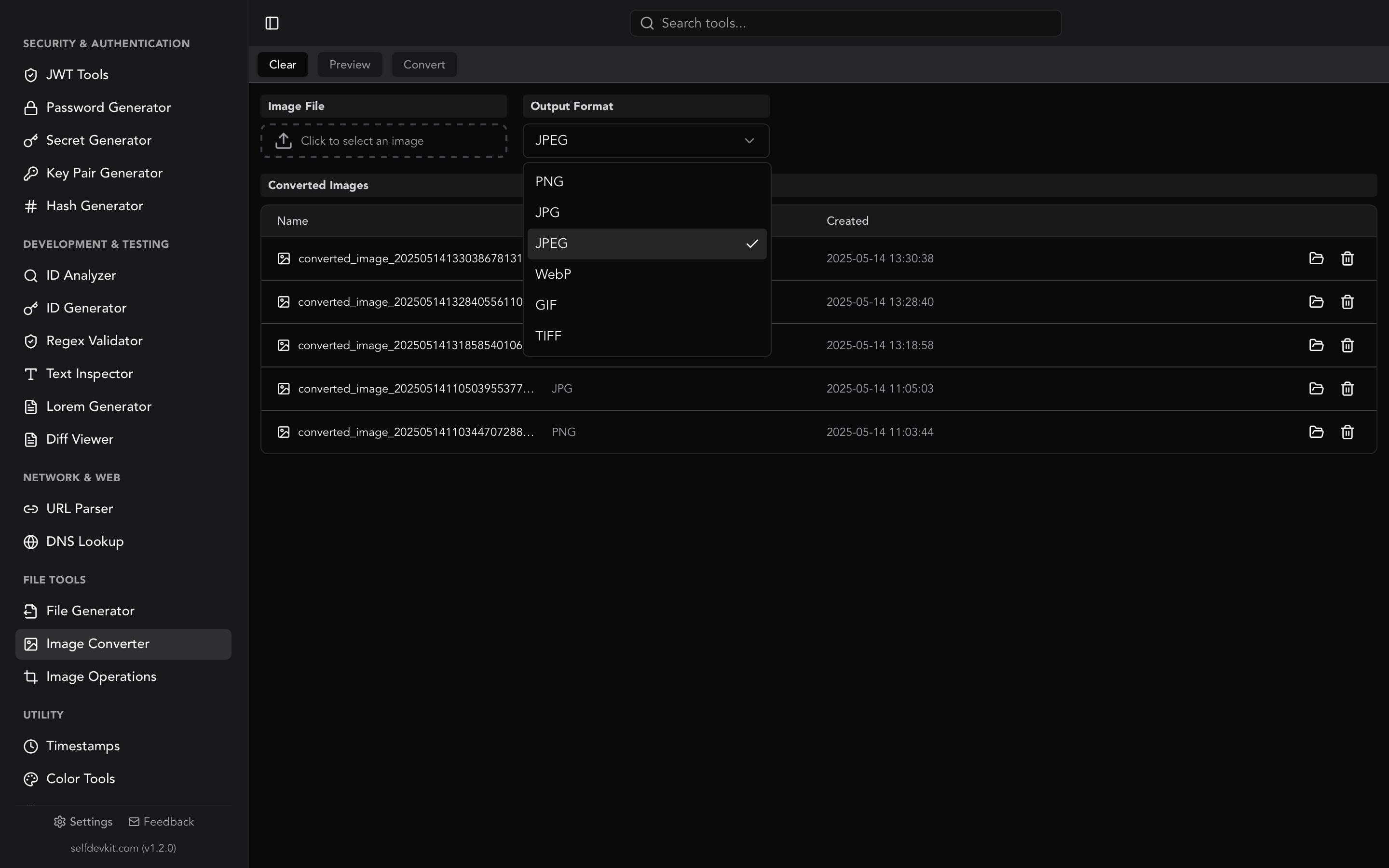
SelfDevKit's Image Converter does it without a terminal or an upload:
- Open Image Converter from the File Tools section.
- Click the dashed file box and pick your
.webpfile. - Leave Output Format on PNG (it's the default) and convert.
- The PNG shows up in the converted list. Open it or reveal it in its folder.
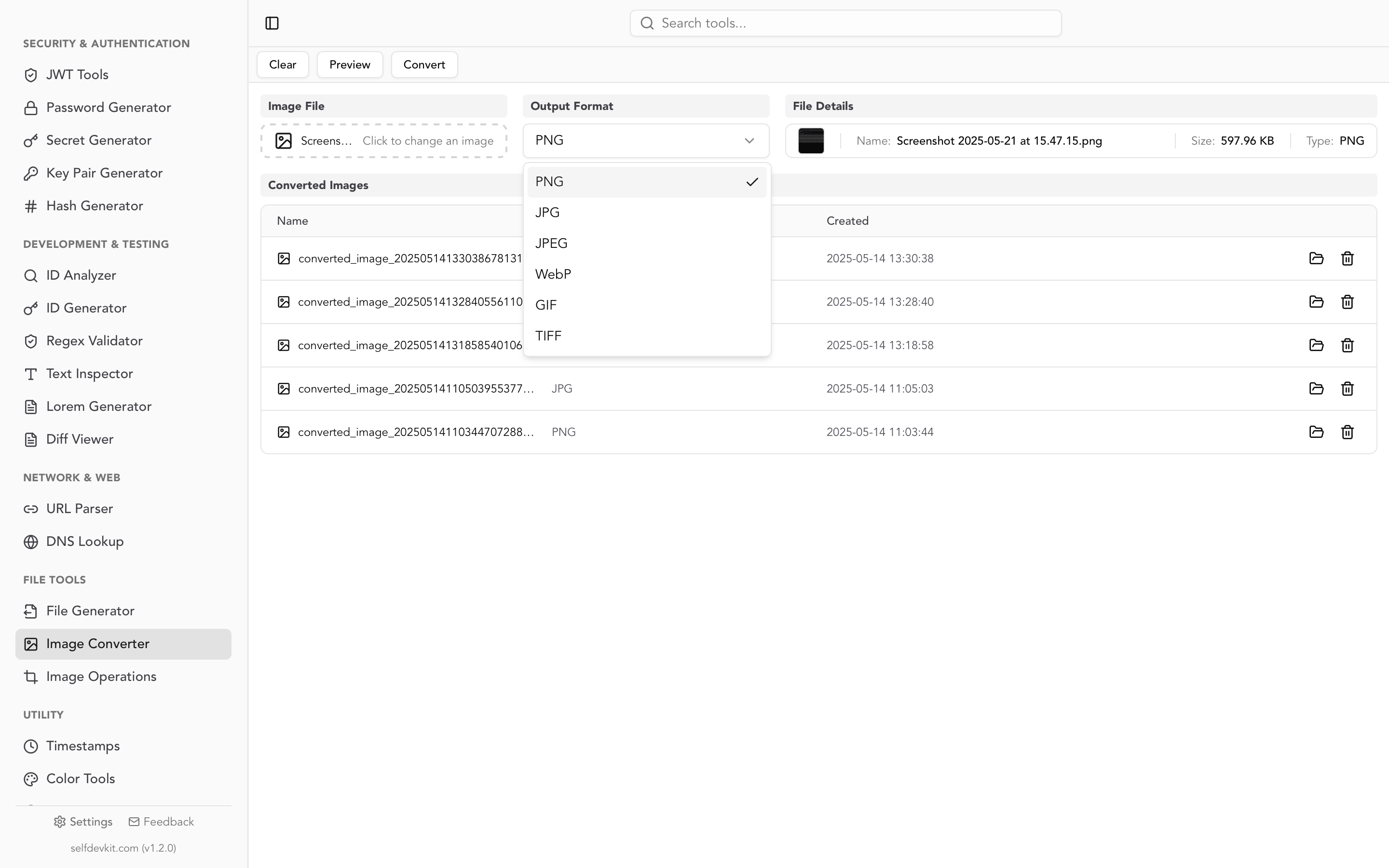
Under the hood it is Rust's image crate. The WebP is decoded to 8-bit RGBA and written as PNG with maximum zlib compression and adaptive filtering, so the output is lossless and keeps transparency. It converts one file at a time. For hundreds of files, the shell loop above is the better tool.
Why the PNG is so much bigger
A lossy WebP to PNG conversion multiplies file size, because PNG has to store every pixel of the decoded result exactly. Lossy WebP gets its size from throwing detail away. PNG can't throw anything away.
Here is what dwebp produced from five of Google's sample images. The three lossy photos grew 7.7 to 10.1 times:
| Sample | Type | WebP size | PNG size | Growth |
|---|---|---|---|---|
| Gallery 1 (550×368 photo) | Lossy | 30,320 B | 304,821 B | 10.1× |
| Gallery 2 (550×404 photo) | Lossy | 60,600 B | 528,357 B | 8.7× |
| Gallery 4 (1024×772 photo) | Lossy | 176,972 B | 1,367,591 B | 7.7× |
| Dice with transparency | Lossy + alpha | 18,134 B | 121,154 B | 6.7× |
| Dice with transparency | Lossless | 81,836 B | 121,852 B | 1.5× |
The last two rows are the same picture. From the lossless WebP, the PNG was about 50% bigger: both formats are lossless, and WebP compressed this image better. From the lossy WebP, the PNG was 6.7× bigger, because it now stores the compression artifacts pixel-perfectly.
That leads to the most important thing to understand about this conversion.
PNG does not restore quality. If the WebP was lossy, the PNG is a lossless copy of a lossy image: the blurring and blockiness are all still there, just in a bigger file. When you need a high-quality PNG, go back to the original source asset if one exists.
Don't "fix" the size with a palette
It is tempting to crank a PNG encoder's settings to claw the size back. With sharp, be careful which knob you turn. compressionLevel: 9 is lossless and shrank Gallery 1 from 350,182 to 323,271 bytes. Adding effort: 10 dropped it to 104,500 bytes, and the reason is that the sharp docs state effort "sets palette to true". Your photo just got quantized to 256 colors. quality and colours flip the same switch.
If the size matters more than being lossless, PNG was the wrong target. WebP to JPG or a smaller WebP will serve you better.
Converting animated WebP to PNG
An animated WebP cannot become a regular PNG, because PNG holds one image. You have three honest options: take the first frame, export every frame as its own PNG, or write an APNG (animated PNG). Tools differ a lot in which one you get, and some don't tell you.
Here is dwebp on Google's 100-frame animated sample:
$ dwebp animated_1.webp -o anim.png
Error! Decoding of an animated WebP file is not supported.
       Use webpmux to extract the individual frames or
       vwebp to view this image.
Decoding of animated_1.webp failed.
Status: 4(UNSUPPORTED_FEATURE)
At least it fails loudly. libwebp's anim_dump tool (in the same package on Debian and Ubuntu) exports every frame instead:
mkdir frames
anim_dump -folder frames -prefix frame_ animated.webp
# frames/frame_0000.png ... frames/frame_0099.png
The other tools behaved like this:
| Tool | Default result | Full animation |
|---|---|---|
dwebp |
Error, non-zero exit code | Use anim_dump for per-frame PNGs |
| Pillow 12 | First frame, silently | save_all=True writes a real APNG (100 frames, 4.1 MB) |
| sharp 0.35 | First frame, silently | { animated: true } writes a 300×22500 vertical strip, not an APNG |
| SelfDevKit | First frame, silently | Not supported |
The sharp result is worth remembering. With animated: true, sharp 0.35.4 stacked all 100 frames into one tall 5.4 MB image instead of writing an animated PNG. It works fine as a sprite sheet. As an animation, it's useless.
If you want a moving image that still works everywhere, an APNG from Pillow is the right call; current Chrome, Edge, Firefox, and Safari all play APNG. Just note that the 380 KB animated sample became a 4.1 MB APNG.
Transparency, color profiles, and metadata
Transparency survives a WebP to PNG conversion in every tool tested, since both formats support a full 8-bit alpha channel. Color profiles and EXIF data are a different story.
To test this, a WebP was built with a Display P3 ICC profile and an EXIF block, then converted with each tool:
| Tool | ICC profile in PNG | EXIF in PNG | Colors |
|---|---|---|---|
dwebp |
Dropped | Dropped | Pixel values unchanged, now read as sRGB |
| sharp (default) | Converted to sRGB, then stripped | Dropped | Correct |
sharp .keepIccProfile() |
Kept | Dropped | Correct |
| Pillow 12 | Kept | Dropped | Correct |
| SelfDevKit | Dropped | Dropped | Pixel values unchanged, now read as sRGB |
The "dropped" rows only matter for wide-gamut images. A P3 image whose profile is removed without conversion looks slightly washed out, because viewers fall back to sRGB. For sRGB or untagged WebP files, nothing visible changes. If you work with photos from recent phones or design tools that export in P3, use sharp or Pillow.
Stripped EXIF has an upside. A WebP saved from a camera app can carry GPS coordinates and device details, and every tool in the table removed them on the way to PNG.
WebP to PNG in Python, Node.js, and the browser
The Python and Node.js snippets were run against the same sample files. They cover the cases the one-liners miss.
Python (Pillow):
from PIL import Image

img = Image.open("photo.webp")
img.save("photo.png")  # lossless, keeps alpha and ICC profile

# Animated WebP to APNG
anim = Image.open("animated.webp")
if getattr(anim, "is_animated", False):
    anim.save("animated.png", save_all=True)
Node.js (sharp):
import sharp from 'sharp';

// Lossless, max zlib compression. Do NOT add effort/quality/colours
// unless you want a 256-color palette PNG.
await sharp('photo.webp').png({ compressionLevel: 9 }).toFile('photo.png');
Browser (no upload, no library):
async function webpToPng(file) {
  const bitmap = await createImageBitmap(file);
  const canvas = document.createElement('canvas');
  canvas.width = bitmap.width;
  canvas.height = bitmap.height;
  canvas.getContext('2d').drawImage(bitmap, 0, 0);
  return new Promise((resolve) => canvas.toBlob(resolve, 'image/png'));
}
The browser version runs entirely on the user's machine, which makes it a good fit for a "download as PNG" button in your own app. It produces a single still frame, not an animation.
If you need the PNG as a data URI rather than a file, SelfDevKit's Base64 Image Tools will encode it, and the base64 to image guide covers the reverse direction.
Before converting: ask the server for a different format
Often the WebP you downloaded was never the original. Image CDNs pick the format per request based on the browser's Accept header, so asking without image/webp can return the source file with no conversion at all.
Here is one Cloudinary URL with f_auto, requested four ways (September 2026):
URL=https://res.cloudinary.com/demo/image/upload/f_auto/sample.jpg
for accept in 'image/avif,image/webp,*/*' 'image/webp,*/*' 'image/png,image/*;q=0.8' '*/*'; do
  curl -s -o /dev/null -w "%{content_type} %{size_download}\n" -H "Accept: $accept" "$URL"
done
# image/avif 38161
# image/webp 46116
# image/jpeg 87162
# image/jpeg 87162
The response's Vary header includes Accept, which confirms the negotiation. Asking for PNG didn't produce a PNG; it produced the original JPEG, which is exactly what you want. It's better source material than any decoded WebP. The same trick often works by removing a format parameter from the URL (f_auto, fm=webp, format=webp).
Where your image goes with an online converter
An online WebP to PNG converter uploads your file to someone else's server, where it stays until that service's retention policy deletes it. For a meme, that's fine. For a screenshot of an admin panel, a scanned ID, or an unreleased design, you're trusting a policy you can't check.
There's also a malware angle. On March 7, 2025, the FBI Denver field office warned that criminals were using free online file converters to load malware onto victims' computers, and that such tools can scrape submitted files for personal, banking and password data.
Everything in this guide runs locally. dwebp, sips, Pillow, sharp, the browser snippet, and SelfDevKit never send the image anywhere. Why offline tools matter covers the broader argument.
Convert it locally
For the occasional WebP someone sent you, the fastest path is a tool that's already open. SelfDevKit's Image Converter turns WebP into lossless PNG offline, and the Image Operations tool can crop or resize the result next (see the image resizer guide for which resampling to use).
Download SelfDevKit to get the image converter plus 50+ other developer tools, running offline on macOS, Windows, and Linux.