Converting MKV to MP4 is usually a remux, not a re-encode. Both are containers, and the video inside most MKV files (H.264, HEVC, AV1, VP9) is allowed in MP4 as it is, so ffmpeg can copy the streams into a new wrapper in seconds with zero quality loss.
The hard part is everything else an MKV carries. Matroska was built to hold many audio tracks, many subtitle tracks, styled subtitles, image subtitles, embedded fonts, and chapters. MP4 accepts some of that, rejects some of it with an error, and quietly drops the rest unless you ask for it by name. The command most people copy, ffmpeg -i in.mkv -c copy out.mp4, succeeds and still throws away every subtitle track and all but one audio track.
Everything below was tested with ffmpeg 8.1.3 on synthetic MKV files in September 2026: a 1080p H.264 file with two audio tracks, an SRT track, and a styled ASS track, plus separate files for HEVC, AV1/Opus, FLAC, AC-3, DTS, TrueHD, Blu-ray PGS subtitles, chapters, and an embedded font. The error messages are pasted from real runs.
Table of contents
- Why MKV to MP4 is usually a remux
- What a default conversion silently drops
- The MKV to MP4 command that keeps every track
- Subtitles: text, styled, and image-based
- Codecs: will it remux, and will it play?
- OBS recordings and multiple audio tracks
- Check what the conversion kept
- Converting MKV to MP4 in SelfDevKit
Why MKV to MP4 is usually a remux
A remux copies the compressed audio and video packets from one container into another without decoding them. Quality is bit-identical and speed is limited by disk, not CPU. On the 10-second 1080p test file, a stream-copy remux took 0.03 seconds and scored an SSIM of 1.000000 against the source. Re-encoding the same file with x264 (preset fast, CRF 23) took 6.1 seconds on a 2-core machine and scored 0.9818.
On a two-hour file, that's seconds versus a long wait plus a generation of quality loss.
MKV is the Matroska format, now an IETF standard as RFC 9559. MP4 is MPEG-4 Part 14, built on the ISO base media file format. They store data in completely different ways, which is why the shortcut that works for MOV doesn't work here.
Renaming .mkv to .mp4 does not convert anything. ffprobe still reports matroska,webm for a renamed file, because it reads the bytes, not the extension. Some tolerant players will open it anyway, but software that expects a real MP4, including Apple devices and many editors, can reject it. (MOV is different: MP4 was derived from QuickTime, which is why renaming sometimes works there. The MOV to MP4 guide covers that case.)
You need a real re-encode only when a stream uses a codec MP4 can't hold or your target player can't decode. That is rarer than most converter sites imply, and the table further down shows exactly which codecs fall into it.
What a default conversion silently drops
A default ffmpeg conversion keeps one video stream, one audio stream, and no subtitles when the output is MP4. It exits with code 0 and prints no warning about what it left behind.
This comes from ffmpeg's automatic stream selection. Without -map, ffmpeg picks "for video, it is the stream with the highest resolution, for audio, it is the stream with the most channels, for subtitles, it is the first subtitle stream found but there's a caveat." The caveat is that the output format's default subtitle encoder decides which kind of subtitle is eligible. Run ffmpeg -h muxer=mp4 and you'll see it lists a default video codec (h264) and a default audio codec (aac), but no default subtitle codec at all. So unless you name a subtitle encoder with -c:s, no subtitle stream is auto-selected for MP4.
Here is what three common commands produced from the test file, which holds a Japanese mono track, an English 5.1 track, an SRT track, and an ASS track:
| Command | Exit code | Output streams |
|---|---|---|
ffmpeg -i in.mkv -c copy out.mp4 |
0 | video, English 5.1 audio |
ffmpeg -i in.mkv -c:v copy -c:a copy -c:s mov_text out.mp4 |
0 | video, English 5.1 audio, 1 subtitle |
ffmpeg -i in.mkv -map 0 -c copy out.mp4 |
234 | nothing |
The first command lost the Japanese audio and both subtitle tracks. The second, which is widely recommended as the "keep subtitles" fix, kept only the first subtitle track and still lost the Japanese audio. The third tries to keep everything and fails:
[mp4 @ 0x59fb24ec8b80] Could not find tag for codec subrip in stream #3, codec not currently supported in container
[out#0/mp4 @ 0x59fb24f29240] Could not write header (incorrect codec parameters ?): Invalid argument
-map 0 is right. -c copy for the subtitles is the part that's wrong: MP4 can't hold SRT or ASS as they are.
The MKV to MP4 command that keeps every track
To convert MKV to MP4 without losing quality or tracks, map the video, audio, and subtitle streams explicitly, copy video and audio, and convert text subtitles to mov_text:
ffmpeg -i input.mkv \
  -map 0:v -map '0:a?' -map '0:s?' \
  -c copy -c:s mov_text \
  -movflags +faststart \
  output.mp4
What each part does:
-map 0:v -map '0:a?' -map '0:s?'selects every video, audio, and subtitle stream. The?makes the audio and subtitle maps optional, so the same command works on files with no subtitles instead of failing. It also skips attachments, which matters (see below).-c copy -c:s mov_textcopies everything, then overrides the codec for subtitles only.mov_text(3GPP Timed Text, tagtx3g) is the text subtitle format MP4 supports.-movflags +faststartmoves themoovindex to the front of the file. A plain remux writes it at the end (ftyp, free, mdat, moovin the test output), so a browser has to fetch the end of the file first, or all of it if the server doesn't support range requests, before playback can start.
On the test file this produced video, both audio tracks with their jpn and eng language tags, and both subtitle tracks. The default-track flags came across too: the English audio and English SRT were still marked default.
HEVC needs one more flag for Apple devices
When the MKV holds HEVC, add -tag:v hvc1. ffmpeg tagged the remuxed HEVC test file as hev1, which is valid MP4, but Apple's HLS authoring specification calls for hvc1 rather than hev1, and Apple players such as QuickTime and Safari may not open hev1 files. Don't add it blindly, though. On an H.264 file the same flag aborts the whole conversion:
[mp4 @ 0x5e9822bf9b80] Tag hvc1 incompatible with output codec id '27' (avc1)
Batch conversion
A folder of MKV files needs a loop that checks the codec before adding the tag:
for f in *.[mM][kK][vV]; do
  tag=()
  [ "$(ffprobe -v error -select_streams v:0 -show_entries stream=codec_name -of csv=p=0 "$f")" = hevc ] && tag=(-tag:v hvc1)
  ffmpeg -n -loglevel error -i "$f" -map 0:v -map '0:a?' -map '0:s?' \
    -c copy -c:s mov_text "${tag[@]}" -movflags +faststart "${f%.*}.mp4"
done
The tag is an array so the loop also works in zsh, the macOS default shell, which doesn't split a plain $tag into two arguments. -n refuses to overwrite existing output, so rerunning never redoes finished files. A failed conversion can leave an empty .mp4 behind, though, and -n skips that too, so delete it before rerunning. On the test folder this produced an H.264 file tagged avc1 and an HEVC file tagged hvc1, both with all audio tracks.
Subtitles: text, styled, and image-based
In practice, MP4 supports only simple text subtitles, so the outcome depends on which subtitle format the MKV contains. Run ffprobe -v error -select_streams s -show_entries stream=codec_name input.mkv first.
| MKV subtitle | Converted with -c:s mov_text |
What survives |
|---|---|---|
SRT (subrip) |
Yes | Text, timing, and <i> italics |
ASS/SSA (ass) |
Yes | Text, timing, and the default style's color and size; positioning and effects are lost |
PGS (hdmv_pgs_subtitle, Blu-ray) |
No, error | Nothing |
VobSub (dvd_subtitle, DVD) |
No, error | Nothing |
The ASS test line was a yellow Arial sign pinned to a specific screen position with {\pos(400,200)}. After conversion the text kept the default style's yellow color and size, but the \pos placement was gone, so the sign showed up as an ordinary subtitle line. Anime releases and fan subtitles lean heavily on ASS positioning and effects, so expect signs and karaoke lines to look generic in MP4.
Image-based subtitles are the hard wall. PGS and VobSub are pictures of text, and turning them into mov_text would need OCR. ffmpeg refuses:
[sost#0:2/mov_text @ 0x61d4c0c5d640] Subtitle encoding currently only possible from text to text or bitmap to bitmap
MP4 has no widely supported bitmap subtitle format, so there are three ways out:
-
Burn them in. This re-encodes the video, so the subtitles become permanent pixels:
ffmpeg -i input.mkv \
  -filter_complex "[0:v][0:s:0]overlay=eof_action=pass[v]" \
  -map "[v]" -map 0:a -c:v libx264 -crf 18 -c:a copy output.mp4
On the PGS test file, a plain
overlayfailed at the very end withError writing trailer: Not yet implemented in FFmpeg, patches welcome;eof_action=passfixed it. For text subtitles, use-vf "subtitles=input.mkv:si=0"instead; it renders through libass, so ASS styling is drawn rather than discarded. -
Drop them with
-map 0:v -map '0:a?'and nothing for subtitles. -
Keep the MKV. If the goal is playing on a TV or in VLC or mpv, the MKV may already be the right file.
Codecs: will it remux, and will it play?
Most MKV codecs remux into MP4 without error; the real question is whether your target player can decode the result. Each file below was remuxed with -c copy, and the browser column comes from MDN's list of codecs supported in MP4:
| Codec in the MKV | Remux to MP4 | In MDN's MP4 browser list | What to do |
|---|---|---|---|
| H.264 video | Works | Yes | Remux |
| HEVC video | Works (tagged hev1) |
No | Remux with -tag:v hvc1; re-encode to H.264 for broad web playback |
| AV1 video | Works | Yes | Remux |
| VP9 video | Works | Yes | Remux |
| AAC audio | Works | Yes | Remux |
| Opus audio | Works | Yes | Remux |
| FLAC audio | Works | Yes | Remux |
| AC-3 / E-AC-3 audio | Works | No | Remux for TVs and set-top boxes; -c:a aac for browsers |
| DTS audio | Works | No | -c:a aac -b:a 384k for most players |
| Vorbis audio | Works | No | -c:a libopus or -c:a aac |
| TrueHD audio | Fails without -strict -2 |
No | Transcode to AAC or keep it in MKV |
| PCM audio | Works (ipcm) |
No | -c:a aac or -c:a flac |
"Works" means ffmpeg wrote a file. It does not mean an iPhone will play it. Vorbis in particular muxed without complaint, and it is not something MP4 players expect. TrueHD failed outright:
[mp4 @ 0x6547ae881940] truehd in MP4 support is experimental, add '-strict -2' if you want to use it.
When only the audio is the problem, re-encode only the audio. Leave the video alone:
ffmpeg -i input.mkv -map 0:v -map '0:a?' -map '0:s?' \
  -c copy -c:a aac -b:a 384k -c:s mov_text -movflags +faststart output.mp4
That keeps the video bit-identical and finishes in seconds, because audio encoding is cheap.
Attachments and chapters
Chapters come through a remux untouched; attachments break it. MKV files often embed fonts for ASS subtitles as attachment streams. -map 0 picks those up, and the conversion dies:
[mp4 @ 0x59a8c15f4a40] Could not find tag for codec none in stream #5, codec not currently supported in container
The explicit 0:v/0:a?/0:s? mapping above avoids this. If you prefer -map 0, subtract attachments with -map -0:t.
Chapters survived both the default and the explicit command in testing, with titles and times intact. ffprobe then shows an extra bin_data stream with the handler name SubtitleHandler in the MP4. That's the chapter text track, not junk; -map_chapters -1 removes it, but only by dropping the chapters too.
OBS recordings and multiple audio tracks
OBS Studio's own recording guide recommends MKV "since MKV will not corrupt the whole file if there is no graceful stoppage of recording." An interrupted MKV keeps what was recorded, while a regular MP4 whose index was never written can be unplayable. That makes OBS screen recordings, including bug reproductions, demos, and conference talks, one of the most common reasons developers end up converting MKV to MP4.
OBS includes File > Remux Recordings and an Automatically remux to mp4 option, and both are fine for simple recordings. Newer versions also offer Hybrid MP4, introduced in OBS 30.2, which OBS says remains recoverable if writing is aborted by a crash or power loss and skips the remux step entirely.
The trap is multi-track audio. OBS can record separate tracks, say track 1 as the full mix, track 2 as microphone only, and track 3 as desktop audio. If those tracks all have the same channel count, a default ffmpeg run keeps only the first one, because of the tiebreaker rule in the ffmpeg docs: "the stream with the lowest index is chosen." Your isolated mic track, the one you kept so you could fix the audio in an editor, is gone. Use the explicit -map '0:a?' command, and check that the editor you're importing into actually reads every audio track from an MP4.
Check what the conversion kept
The fastest way to verify a conversion is to compare the stream lists of the input and output. ffprobe prints them as JSON:
ffprobe -v error -show_entries stream=index,codec_type,codec_name,channels:stream_tags=language \
  -of json input.mkv > in.json
ffprobe -v error -show_entries stream=index,codec_type,codec_name,channels:stream_tags=language \
  -of json output.mp4 > out.json
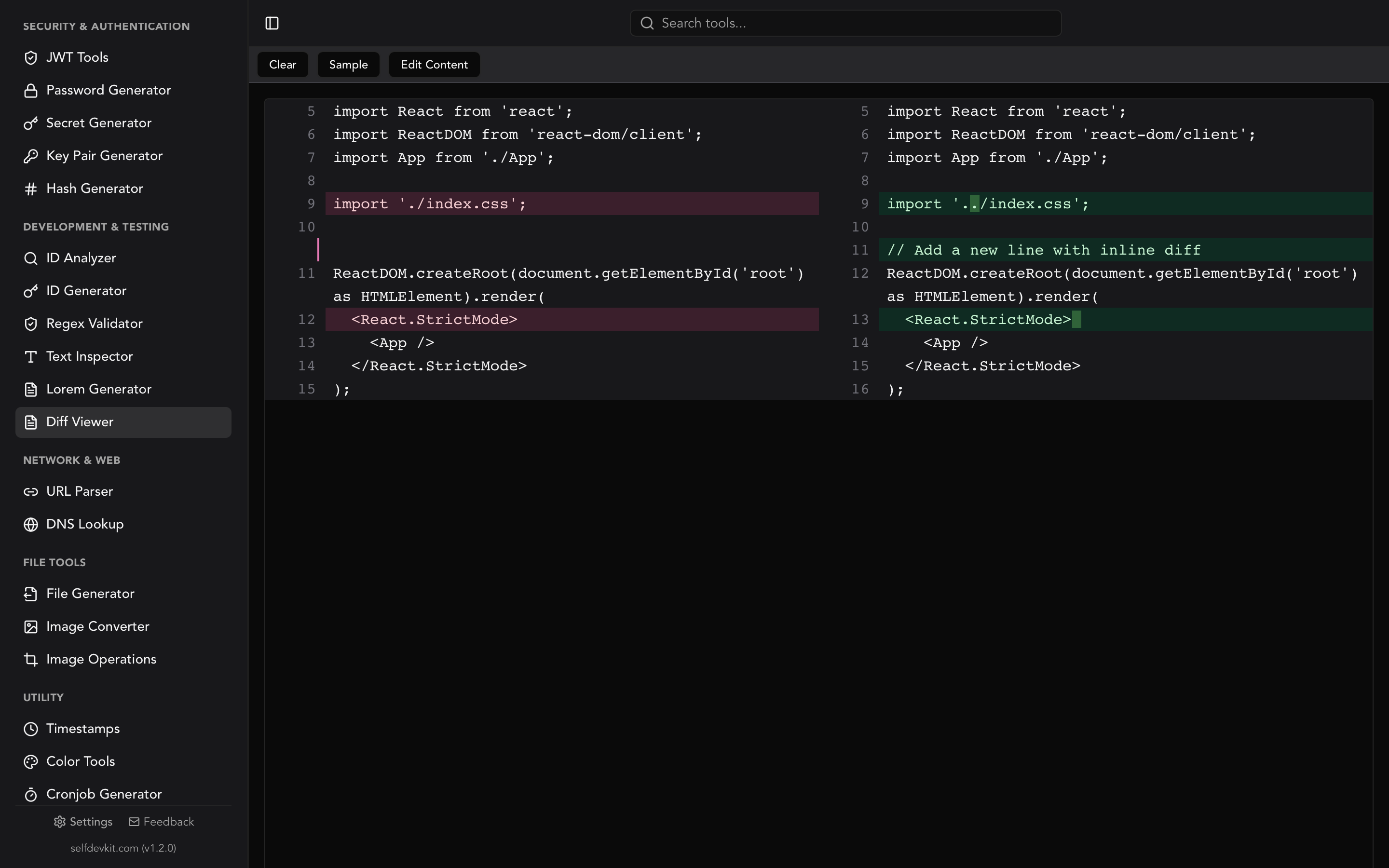
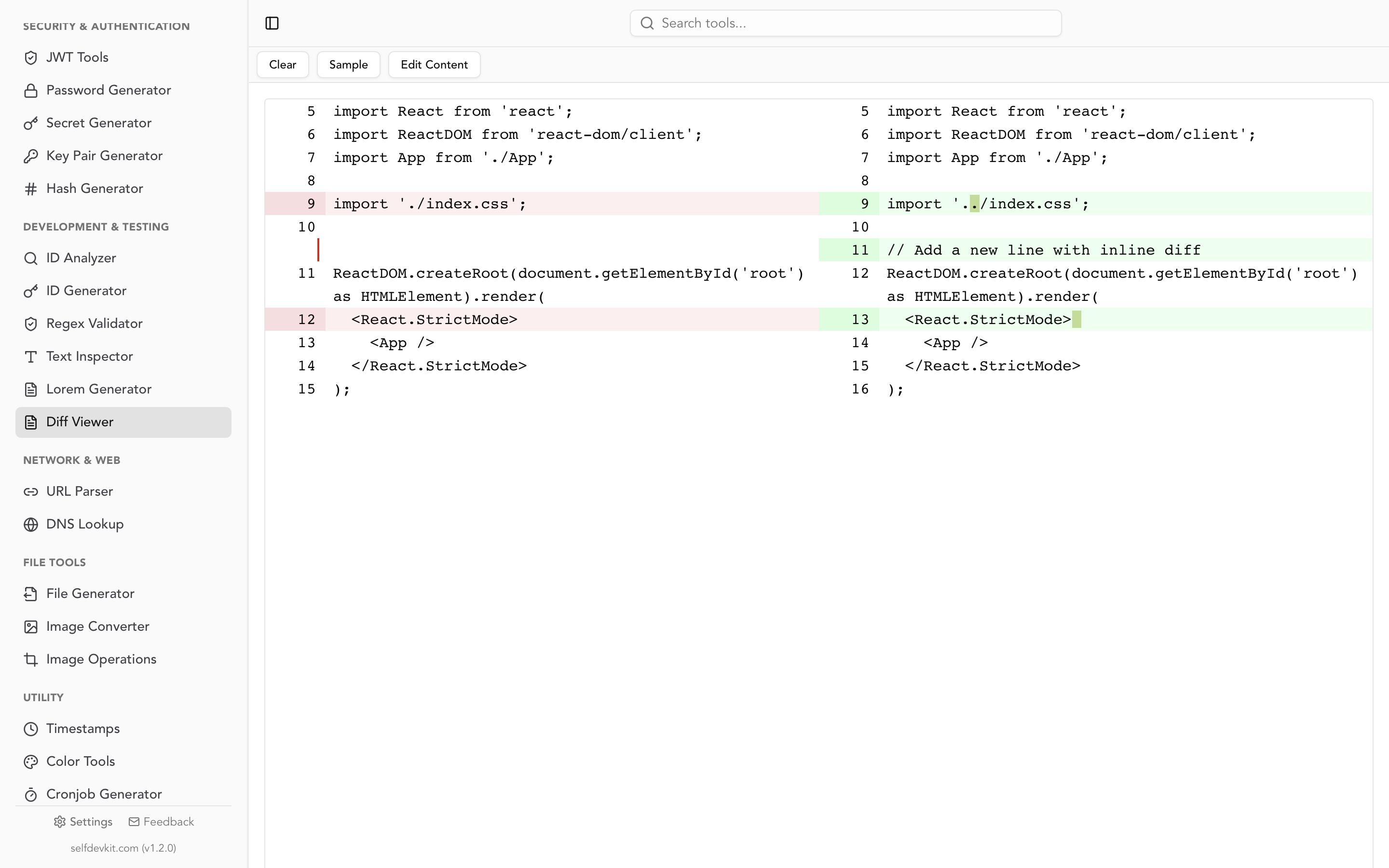
Paste both into a side-by-side diff and any missing audio track or subtitle stands out immediately. SelfDevKit's Diff Viewer does this locally; the diff checker guide explains how to read the result. For a single long ffprobe dump, the JSON viewer collapses it into a readable tree.
The same logic argues against online converters for anything sensitive. They need the whole video, and a developer's screen recording can contain internal dashboards, terminals with tokens in them, or customer data. The case for offline tools applies to video at least as much as to JSON.
Converting MKV to MP4 in SelfDevKit
SelfDevKit's Video Converter converts an MKV to MP4 on your own machine: open the tool, pick the MKV file, choose MP4, and click convert. It also accepts MP4, MOV, AVI, and WebM input, and can write MP4, MOV, AVI, or WebM. Results land in the app's local data folder, where you can open them in your default player or reveal them in your file manager.
It runs FFmpeg with a fixed re-encode: H.264 at preset fast and CRF 23, AAC audio at 128 kbps, and +faststart. That makes it the right choice when you want a file that plays everywhere without thinking about codecs, such as an AV1, VP9, or HEVC recording headed to a site that only takes H.264, or an MKV with DTS or Vorbis audio. It's the wrong choice in a few cases, so here is the honest list:
- It always re-encodes. For an MKV that's already H.264 plus AAC, the ffmpeg remux above is lossless and far faster (0.03 versus 6.1 seconds on the test file).
- It doesn't force 8-bit output. There's no
-pix_fmt yuv420p, so a 10-bit HEVC or AV1 source can come out as 10-bit H.264 (High 10 profile), which many players and devices can't decode. - It uses default stream selection. You get one video track, the audio track with the most channels, and no subtitles, exactly like the first row of the table above. Multi-track files need the ffmpeg command.
- It's built for clips and recordings. The file is loaded into memory before conversion, so screen recordings and short videos are a better fit than multi-gigabyte movie files.
- FFmpeg downloads on first use if the app can't find an existing copy. After that one-time download, conversions run fully offline and the video never leaves your computer.
The same app includes the Diff Viewer and JSON tools used in the verification step above, plus the rest of the developer toolkit, all running locally.
If most of your MKV files are single-track recordings you just need to share, that's a one-click job. Download SelfDevKit and convert them without uploading anything. For multi-track files, run the ffprobe check first and use the explicit -map command.