To convert MOV to MP4, you usually don't need to re-encode anything. MOV and MP4 are closely related containers (MP4's ISO base media file format was derived from Apple's QuickTime format), so if the video inside is H.264 or HEVC and the audio is AAC, you can copy the streams into a new MP4 wrapper in well under a second with zero quality loss. You only need a full re-encode when the MOV holds something MP4 can't carry, like Apple ProRes.
The catch is in the details. A careless conversion can turn an iPhone HDR clip into a file Firefox won't play, silently drop a second audio track, or keep the GPS coordinates of your living room. This guide covers the fast paths first, then each of those traps.
The numbers below come from converting synthetic 10-second 1080p test clips (H.264, 10-bit HEVC HLG, ProRes 422 HQ, and a two-audio-track MOV) with ffmpeg 8.1.3 on a 2-core machine in September 2026. They describe those files and that build. Your timings will differ; the behavior shouldn't.
How to convert MOV to MP4 (quick methods)
The fastest way to convert MOV to MP4 is a stream copy (remux) with ffmpeg: ffmpeg -i input.mov -c copy -movflags +faststart output.mp4. It works for most phone and screen recordings. Pick a method by what you have installed:
| Method | Command or action | Re-encodes? | Notes |
|---|---|---|---|
| Rename the file | mv clip.mov clip.mp4 |
No | Apple's own suggestion for H.264 files. Changes nothing inside, including metadata |
| ffmpeg remux | ffmpeg -i in.mov -c copy -movflags +faststart out.mp4 |
No | Lossless, takes a fraction of a second, writes a real MP4 header |
| ffmpeg re-encode | ffmpeg -i in.mov -c:v libx264 -crf 20 -pix_fmt yuv420p -c:a aac -movflags +faststart out.mp4 |
Yes | Needed for ProRes and anything a player rejects |
| iMovie (macOS) | Import, add to a movie, then Share > Export File | Yes | Apple's documented route for non-H.264 MOVs |
| SelfDevKit | Video Converter, output MP4 | Yes | Runs locally (FFmpeg downloads on first use), always re-encodes to H.264 |
Apple's support article says to simply rename the file when one of its codecs is H.264, and to use iMovie otherwise. Renaming works because the two containers share the same underlying structure. A remux is still the cleaner option. It rewrites the file type box from QuickTime (qt ) to MP4 (isom), so strict parsers and upload validators see a genuine MP4.
Check what's inside the MOV first
Before converting, run ffprobe to see which codecs the MOV contains. That one command decides whether you can remux or must re-encode:
ffprobe -v error -show_entries stream=index,codec_type,codec_name,profile,pix_fmt,color_transfer -of compact input.mov
A typical iPhone HDR clip reports codec_name=hevc|profile=Main 10|pix_fmt=yuv420p10le|color_transfer=arib-std-b67. That last value means HLG, a high dynamic range transfer curve. Then match what you see:
| What ffprobe shows | Where it usually comes from | What to do |
|---|---|---|
h264 + aac |
iPhone "Most Compatible", macOS screen recordings | Remux with -c copy |
hevc 8-bit + aac |
iPhone "High Efficiency" format (SDR) | Remux, add -tag:v hvc1 |
hevc + yuv420p10le + arib-std-b67 |
iPhone HDR (Dolby Vision / HLG) | Remux if the target plays HEVC, otherwise tone-map (see below) |
prores |
iPhone ProRes, Final Cut exports, screen recorders | Must re-encode |
pcm_s16le / pcm_s24le audio |
DSLR, mirrorless, and pro cameras, audio-first recordings | -c:v copy -c:a aac |
Two or more audio streams |
Multi-mic recordings, OBS, dubbed exports | Add -map 0:v -map '0:a?' |
Convert MOV to MP4 without losing quality (remux)
A remux copies the compressed video and audio bytes from the MOV container into an MP4 container without decoding them, so the output is bit-for-bit the same picture. In the tests, remuxing a 12.3 MB H.264 MOV took 0.04 seconds and produced frames identical to the source (SSIM 1.000, infinite PSNR).
# H.264 source
ffmpeg -i input.mov -map 0:v -map '0:a?' -c copy -movflags +faststart output.mp4

# HEVC source (iPhone "High Efficiency")
ffmpeg -i input.mov -map 0:v -map '0:a?' -c copy -tag:v hvc1 -movflags +faststart output.mp4
Each flag earns its place:
-c copycopies streams instead of re-encoding. This is the "without losing quality" part.-map 0:v -map '0:a?'keeps every video and audio track. The?stops the command failing on a clip with no audio, and the quotes stop zsh, the default macOS shell, from treating?as a filename wildcard and aborting withno matches found. Without the mapping, ffmpeg picks one video and one audio stream, and a second audio track vanishes without any warning. In the two-track test file, the default command silently kept only the first track. Mapping0:vand0:ainstead of-map 0also skips Apple's timed-metadata data tracks, which have no reason to be in the MP4.-tag:v hvc1matters only for HEVC. Apple's HLS authoring specification tells authors to use thehvc1sample entry rather thanhev1(the spec's reason:hvc1stores the parameter sets in the sample description rather than in the samples). ffmpeg 8.1 kepthvc1from anhvc1-tagged test MOV on its own, but other sources and tools can end up withhev1. The flag costs nothing on HEVC. Leave it off for H.264: in the tests,-tag:v hvc1on an H.264 stream aborted withTag hvc1 incompatible with output codec id '27' (avc1).-movflags +faststartmoves the index (moovatom) to the front of the file so browsers can start playback before the whole file downloads.
If the remux succeeds but the audio won't play somewhere, check for PCM audio. ffmpeg 8.1 happily copied 16-bit PCM into MP4 as an ipcm track, but web players and upload pipelines expect AAC. Copy the video and convert only the audio:
ffmpeg -i input.mov -c:v copy -c:a aac -b:a 192k -movflags +faststart output.mp4
When MOV to MP4 needs a re-encode
You must re-encode when the MOV's video codec has no MP4 mapping. ProRes is the common case. Trying to remux the ProRes test file failed immediately:
[mp4] Could not find tag for codec prores in stream #0, codec not currently supported in container
Could not write header (incorrect codec parameters ?): Invalid argument
This command handles ProRes, 10-bit sources, and multiple audio tracks in one pass, and produces the most widely playable MP4 there is, 8-bit 4:2:0 H.264 with AAC:
ffmpeg -i input.mov -map 0:v:0 -map '0:a?' \
  -c:v libx264 -crf 20 -preset medium -pix_fmt yuv420p \
  -c:a aac -b:a 192k -movflags +faststart output.mp4
The -crf value sets quality. Per ffmpeg's H.264 encoding guide, 17 or 18 is visually lossless or nearly so, 23 is the default, and raising CRF by 6 roughly halves the bitrate and file size (lowering it by 6 roughly doubles it). -preset trades encoding speed for compression; slow gives smaller files at the same quality.
Here's what re-encoding versus remuxing did to the test clips. The re-encode column uses SelfDevKit's settings (x264 fast, CRF 23, AAC 128k):
| Source MOV | Remux (-c copy) |
Re-encode (CRF 23) |
|---|---|---|
| H.264 + AAC, 12.3 MB | 0.04 s, 12.3 MB, identical frames | 7.6 s, 7.7 MB, SSIM 0.996, PSNR 44.6 dB |
| HEVC 10-bit HLG, 13.7 MB | 0.03 s, 13.7 MB, HDR tags kept | 10.3 s, 7.2 MB, H.264 High 10 |
| ProRes 422 HQ + PCM, 98.8 MB | Fails (no ProRes in MP4) | 10.5 s, 8.2 MB, H.264 High 4:2:2 |
| H.264 + 2 audio tracks | 2nd track dropped unless mapped | 2nd track dropped unless mapped |
Two of those re-encodes produced files that are technically valid and practically fragile. That's the next section.
iPhone HDR video: the 10-bit H.264 trap
If you re-encode 10-bit MOV footage to H.264 without -pix_fmt yuv420p, ffmpeg keeps 10-bit color and outputs H.264 High 10, a profile that browser and device support for is patchy. The HEVC HLG clip came out as profile=High 10|pix_fmt=yuv420p10le, and the ProRes clip as High 4:2:2. Neither error nor warning appears. The file just fails later, on someone else's device.
iPhone HDR footage is the usual source. Apple's developer notes describe iPhone 12 HDR video as 10-bit HEVC in Dolby Vision Profile 8.4, designed to be backward compatible with HLG, and iPhones record HEVC whenever the camera is set to "High Efficiency" rather than "Most Compatible". For playback, Jellyfin's codec support table lists 10-bit H.264 as unsupported in Firefox and only available in Safari after a manual setting on Apple Silicon Macs running macOS 14 or later. It marks Chrome as supported, yet a Jellyfin user reports 10-bit H.264 failing silently in Chromium-based browsers too.
You have three ways out, from least to most work:
- Don't re-encode. If the MP4 is headed somewhere that plays HEVC (Apple devices, most modern phones, YouTube), remux it. The test remux kept
hvc1, Main 10, and the BT.2020/HLG color tags intact, so HDR survives. - Force 8-bit. Add
-pix_fmt yuv420pto the re-encode. The output becomes plain H.264 High profile that plays everywhere. It keeps the BT.2020/HLG color tags. HLG was designed to be backward compatible with SDR, though a BBC R&D engineer notes that ordinary BT.709 screens still need a color conversion for the best result, so colors can look slightly off and gradients may band. - Tone-map to SDR properly. Convert the HDR signal to standard BT.709 so every screen shows intended brightness and contrast:
ffmpeg -i input.mov \
  -vf "zscale=t=linear:npl=100,format=gbrpf32le,zscale=p=bt709,tonemap=hable:desat=0,zscale=t=bt709:m=bt709:r=tv,format=yuv420p" \
  -c:v libx264 -crf 20 -c:a copy -movflags +faststart output.mp4
The test output reported High|yuv420p|bt709 across the board. The zscale filter needs an ffmpeg build with zimg; ffmpeg -filters | grep zscale tells you whether yours has it.
Rotation: remux keeps the flag, re-encode bakes it in
Phones often don't rotate the pixels at all. They store landscape frames plus a display matrix that tells the player to turn the picture. A remux copies that matrix: the rotated test clip stayed 1920×1080 with rotation=90 in its side data. A re-encode applies the rotation and writes upright pixels, so the same clip came out 1080×1920 with no rotation flag.
Both are correct. It matters when a downstream tool ignores the display matrix and shows your portrait video sideways, or, as in this report of a quality-metrics tool comparing an iPhone MOV with its conversion, treats the two files as different sizes. If a player shows the video sideways, re-encoding fixes it by baking in the rotation.
What happens to GPS location and other metadata
Converting MOV to MP4 can keep or drop the recording location depending on how the location was stored and which method you use. Phone videos can carry coordinates precise enough to point at a single building, so check before you share. In the tests, a clip carrying both kinds of location tag behaved like this:
| Method | QuickTime ©xyz location |
Apple keys (com.apple.quicktime.location.ISO6709, make, model) |
|---|---|---|
Rename to .mp4 |
Kept | Kept (file unchanged) |
| ffmpeg remux, default | Kept (rewritten as an MP4 loci box) |
Dropped |
| ffmpeg re-encode, default | Kept | Dropped |
-movflags +use_metadata_tags -map_metadata 0 |
Kept | Kept |
-map_metadata -1 |
Removed | Removed |
iPhone videos store location in the Apple keys, as ffprobe output from an iPhone 7 Plus file and this geolocation write-up show. So a default ffmpeg conversion of an iPhone clip that has only those keys loses the location, while a renamed file keeps it. Files that carry the older ©xyz field keep it through a default ffmpeg conversion. Don't guess. Check the output:
ffprobe -v error -show_entries format_tags -of compact output.mp4 | grep -i location
To guarantee a clean file, strip everything during the remux:
ffmpeg -i input.mov -map 0:v -map '0:a?' -c copy -map_metadata -1 -movflags +faststart output.mp4
Online converters raise a separate question: where the file goes. Uploading a MOV means sending the raw footage, coordinates included, to someone else's server, and trusting its retention policy. For client footage, internal screen recordings, or anything filmed at home, converting locally removes the question entirely. The case for offline tools covers this trade-off in more depth.
Batch convert a folder of MOV files
A shell loop around the remux command converts a whole folder in seconds, since nothing gets re-encoded. On macOS or Linux:
for f in *.[mM][oO][vV]; do
  [ -e "$f" ] || continue
  ffmpeg -n -i "$f" -map 0:v -map '0:a?' -c copy -movflags +faststart "${f%.*}.mp4"
done
On Windows PowerShell:
Get-ChildItem *.mov | ForEach-Object {
  ffmpeg -n -i $_.FullName -map 0:v -map '0:a?' -c copy -movflags +faststart ($_.BaseName + ".mp4")
}
-n tells ffmpeg never to overwrite an existing output, so rerunning the loop is safe. The *.[mM][oO][vV] pattern matches both .mov and the uppercase .MOV that iPhone files use. It's a single pattern on purpose: with separate *.mov *.MOV patterns, zsh aborts the whole loop with no matches found when a folder holds only one of the two. If a file fails because it's ProRes, rerun just that one with the re-encode command.
Converting MOV to MP4 in SelfDevKit
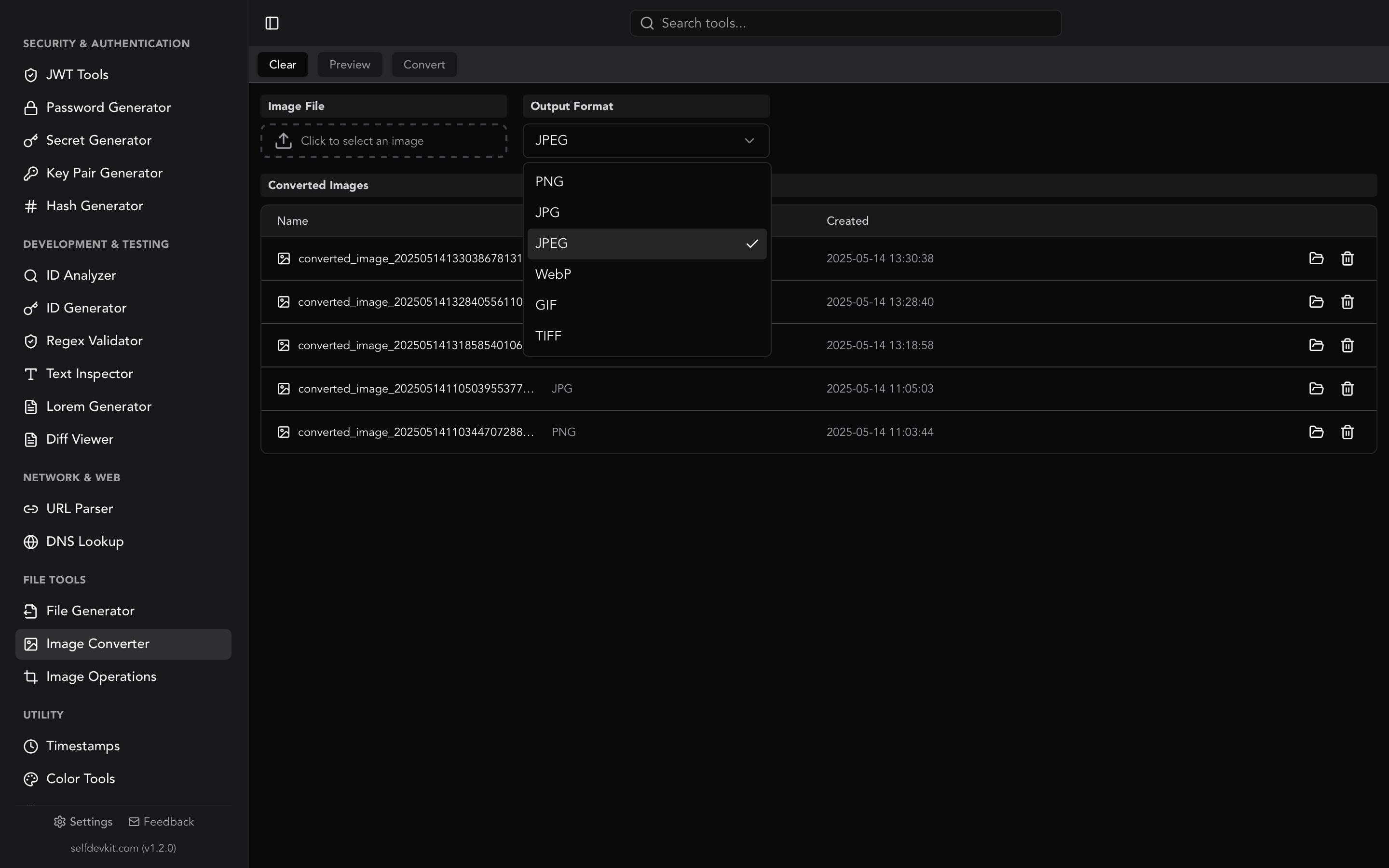
SelfDevKit's Video Converter turns a MOV into an MP4 on your own machine: open the tool, select the file, choose MP4, and click convert. It accepts MOV, MP4, AVI, WebM, and MKV input and writes MP4, MOV, AVI, or WebM. The converted file lands in the app's local data folder and shows up in the tool's list, where you can open it in your default player or reveal it in your file manager.
Under the hood it runs FFmpeg with the same settings as the re-encode column in the table above: H.264 via x264 at preset fast and CRF 23, AAC audio at 128 kbps, and +faststart so the file streams well on the web. The honest trade-offs:
- It always re-encodes. That makes it a good fit for 8-bit MOVs that a player or site rejects, such as an SDR HEVC clip headed somewhere that only takes H.264. For a plain H.264 MOV where every bit counts, the one-line remux above is lossless and faster.
- It keeps the source bit depth. An 8-bit 4:2:0 MOV, such as a screen recording or an iPhone clip shot with HDR Video turned off, becomes a universally playable MP4. For 10-bit iPhone HDR (what supported iPhones record by default) or ProRes, the result is High 10 or High 4:2:2 H.264, so use the ffmpeg commands above for those: remux or tone-map for HDR,
-pix_fmt yuv420pfor ProRes. - One audio track. Like a default ffmpeg run, it keeps a single audio stream (ffmpeg picks the one with the most channels).
- FFmpeg is downloaded on first use. After that single download, conversions run fully offline and the video never leaves your computer.
The same app includes an Image Converter for the stills side of the job (see the WebP to JPG guide for its quirks) plus the rest of the developer toolkit, all local.
What to do next
Start with ffprobe. If the MOV holds H.264 or HEVC with AAC, remux it with -c copy and you're done in under a second. If it's ProRes or has PCM audio, re-encode only the stream that needs it. If it's 10-bit HDR, remux or tone-map, and never ship a High 10 H.264 file by accident. Before you post anything filmed on a phone, check the location tags.
For conversions you'd rather not type out, or footage you'd rather not upload, download SelfDevKit and run them offline alongside the rest of your toolkit.