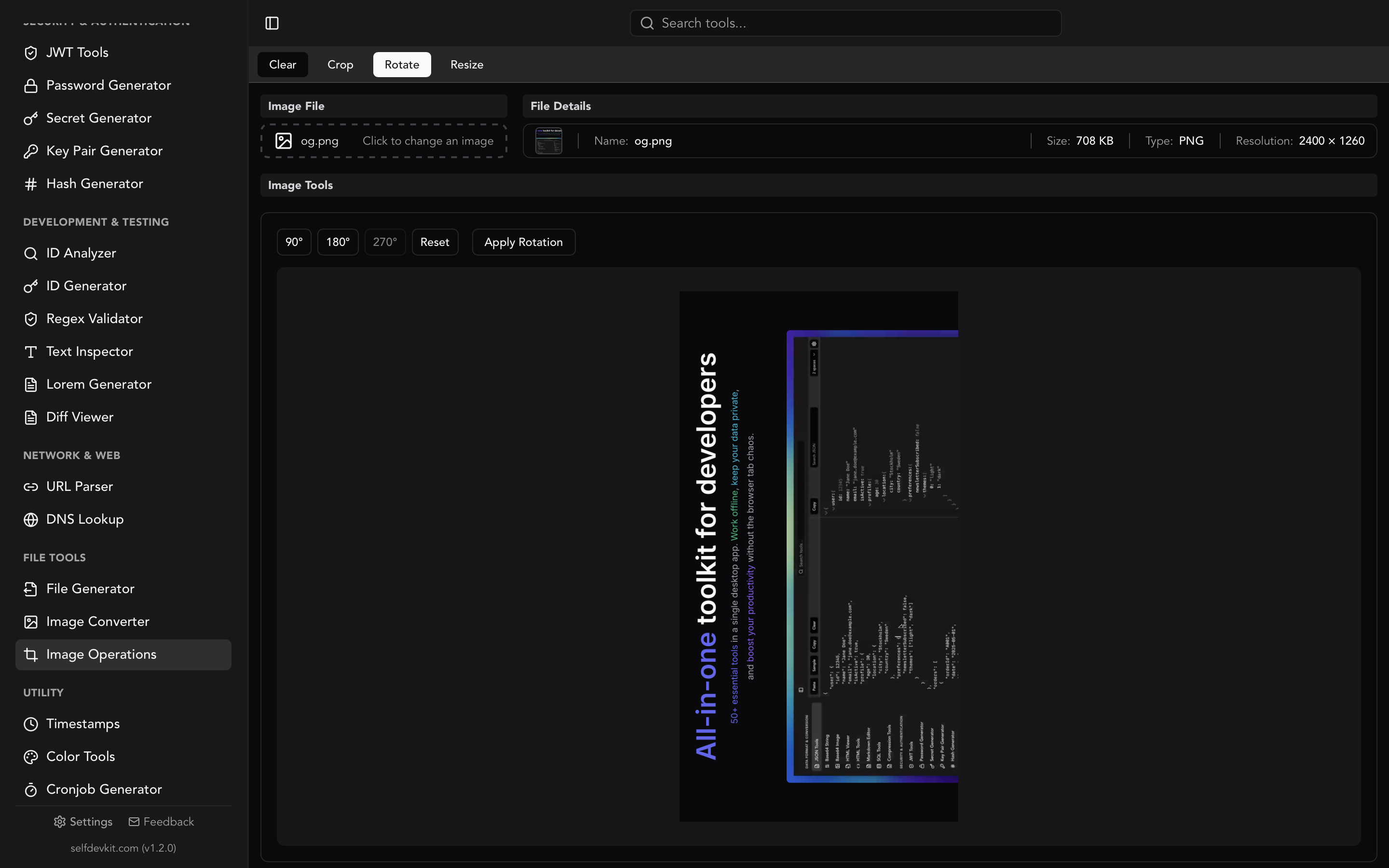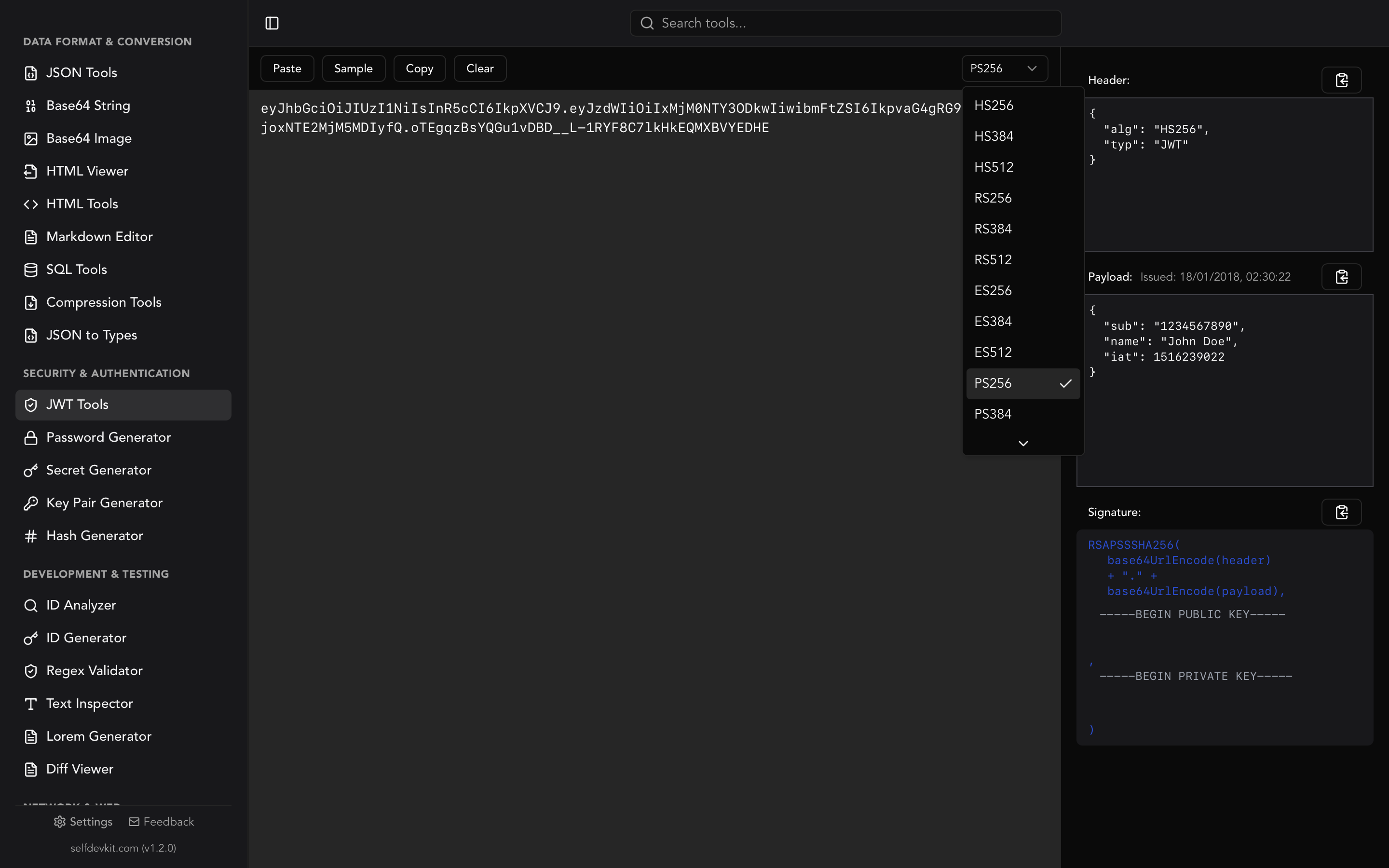
To convert WebP to JPG, decode the WebP to pixels, fill any transparent areas with a solid color, and encode the result as a JPEG at a quality you choose. The middle step is the one that goes wrong. JPG has no transparency, and many tools don't paint a background at all. They discard the alpha channel and show whatever pixel data was hidden underneath, which can be black, white, or a smeared mess.
This guide covers the quick ways to convert (desktop app, terminal, Python, Node, browser), then what happens to transparency, quality, animation, and color profiles along the way. The results come from converting Google's WebP gallery samples locally in September 2026 with ImageMagick 7.1.2, ffmpeg 8.1, sharp 0.35.4, Pillow 12.3.0, and libwebp 1.3.2. They describe those files and versions. SelfDevKit's behavior comes from reading its converter's source code.
How to convert WebP to JPG (quick methods)
The quickest way to convert WebP to JPG is whichever tool you already have, as long as you know what it does with transparency. For an ordinary photo with no transparent pixels, every method below works fine.
| Where you are | Command or action | Transparent areas become |
|---|---|---|
| SelfDevKit (any OS) | Image Converter, output format JPG | Hidden pixel data (alpha dropped) |
| ImageMagick | magick in.webp -background white -flatten -quality 85 out.jpg |
White (as written) |
| ffmpeg | ffmpeg -i in.webp out.jpg |
Hidden pixel data |
| macOS, nothing installed | sips -s format jpeg -s formatOptions 85 in.webp --out out.jpg |
Not tested here |
| Python (Pillow) | See the code below | Error unless you flatten |
| Node.js (sharp) | sharp("in.webp").flatten({ background: "#fff" }).jpeg().toFile("out.jpg") |
White (black without flatten) |
To convert a whole folder with ImageMagick, use mogrify. It writes a .jpg next to each .webp and leaves the originals alone:
magick mogrify -format jpg -background white -alpha remove -alpha off -quality 85 *.webp
-flatten merges a sequence of images, so mogrify uses -alpha remove instead, which composites each file onto the -background color.
In SelfDevKit
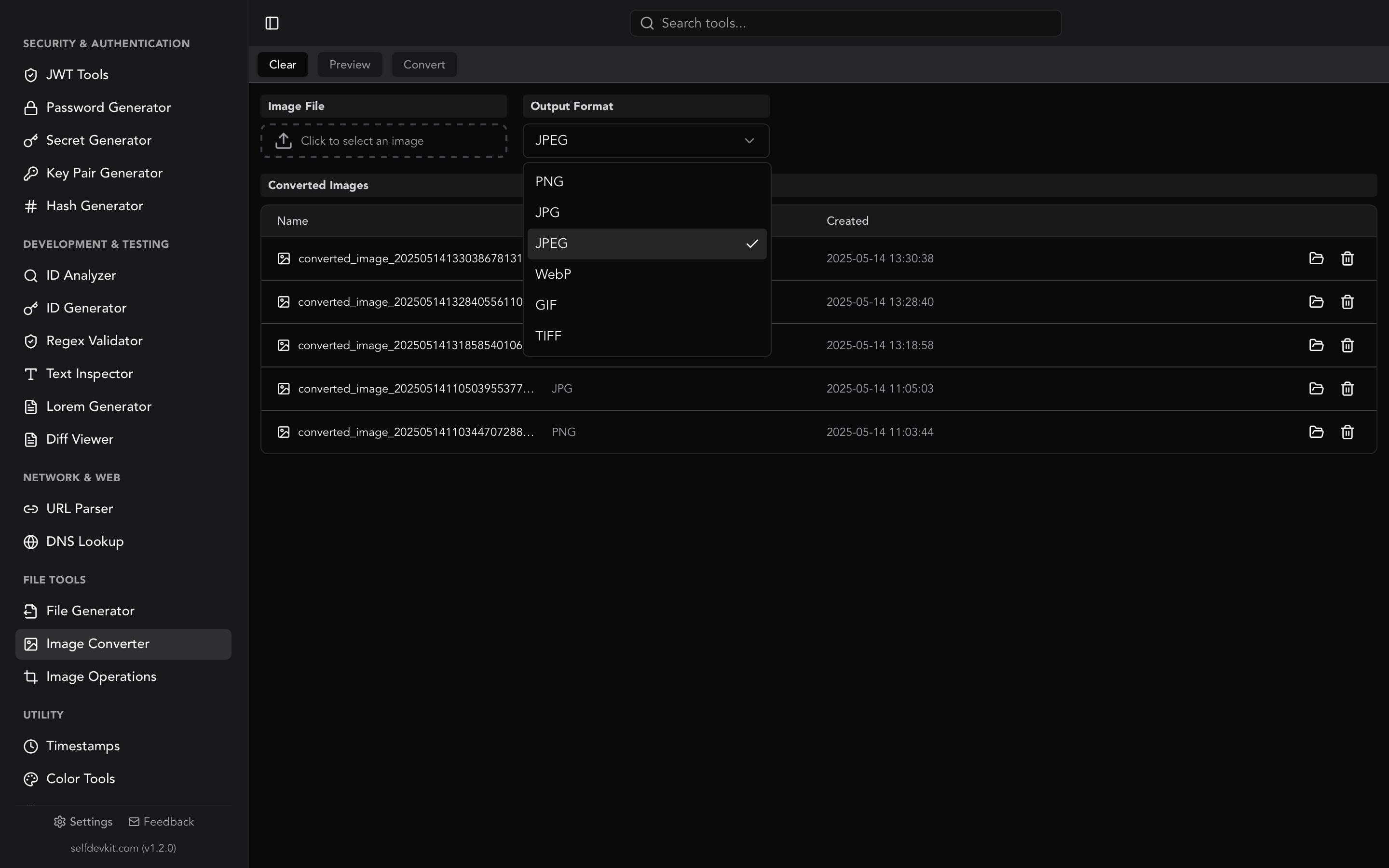
SelfDevKit's Image Converter converts WebP to JPG with no upload and no terminal:
- Open Image Converter from the File Tools section.
- Click the file box and pick your
.webpfile. - Set Output Format to JPG (the default is PNG) and convert.
- Open the result or reveal it in its folder from the converted list.
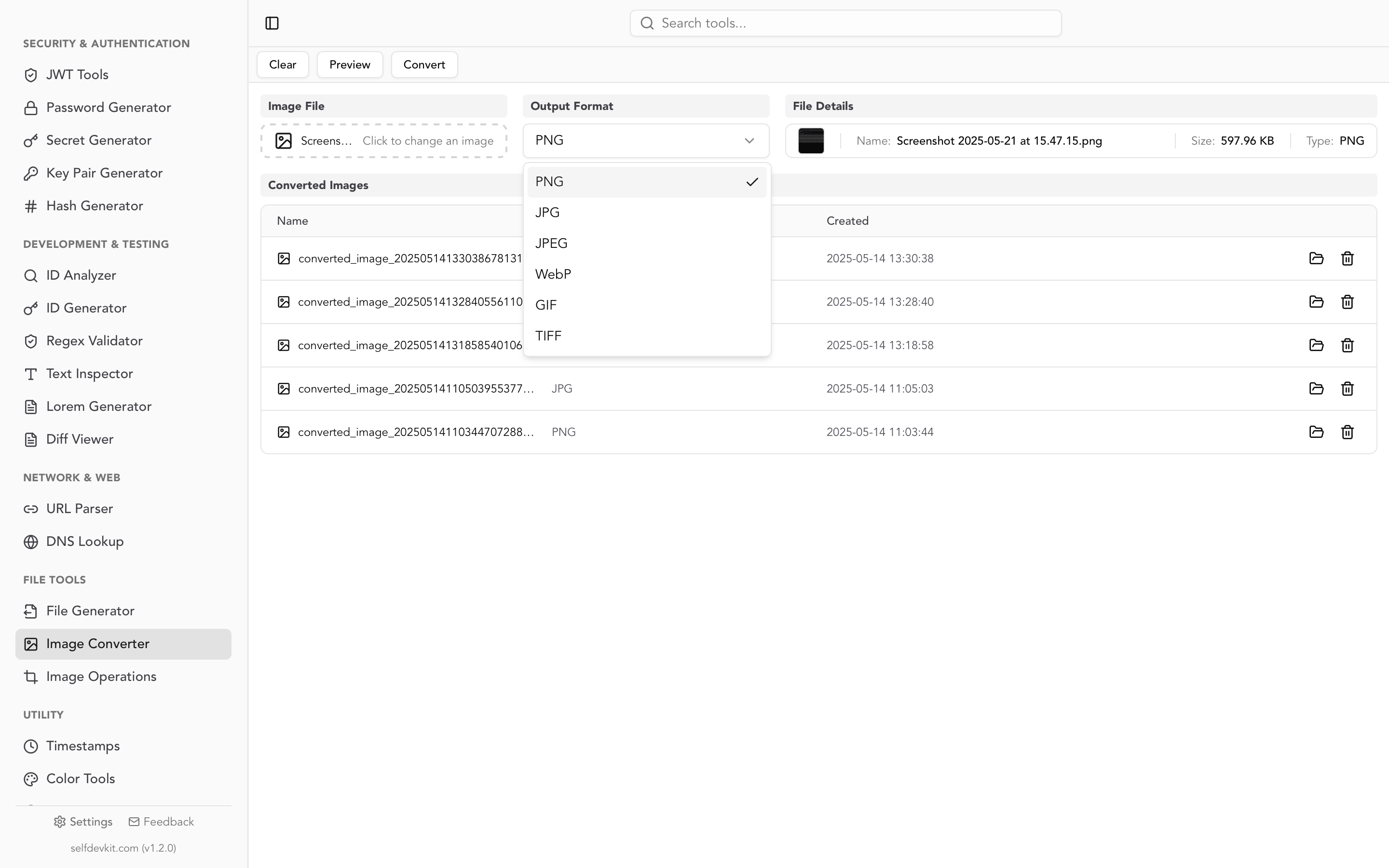
It is built on Rust's image crate. JPG output is encoded at quality 100 with no chroma subsampling (4:4:4), so it keeps as much of the decoded WebP as a JPEG can. Two things follow from that. The files are large, which is covered in the quality section below. And the alpha channel is dropped rather than composited, so for a WebP with transparency, choose PNG as the output format instead. PNG keeps transparency losslessly, and most apps that reject WebP accept PNG. The WebP to PNG guide covers that path.
What happens to transparent areas
A WebP to JPG converter has to decide what color goes where the image was transparent, because JPG has no alpha channel. If the tool composites the image onto a background color, you get a clean result. If it just throws the alpha channel away, you see the RGB values the WebP stored under the transparent pixels. Those values were never meant to be visible.
Here is one transparent WebP (Jon Sullivan's public-domain "Yellow Rose", lossy with alpha, from Google's gallery) converted three ways:
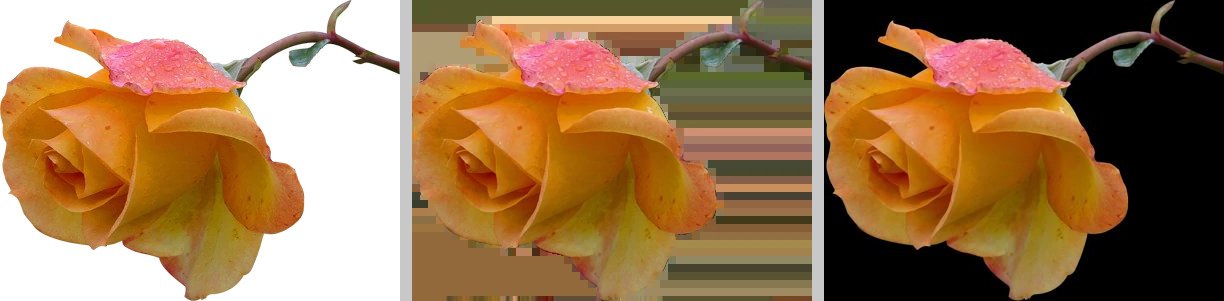
Left to right: flattened onto white, alpha channel dropped, and sharp's default. The middle one is what you get from any tool that removes the alpha channel without compositing. The full results:
| Tool and command | Transparent area in the JPG |
|---|---|
ImageMagick, magick in.webp out.jpg |
Hidden pixel data |
ImageMagick, -background white -flatten |
White |
ffmpeg, ffmpeg -i in.webp out.jpg |
Hidden pixel data |
Pillow, img.save("out.jpg") on an RGBA image |
OSError: cannot write mode RGBA as JPEG |
Pillow, img.convert("RGB") first |
Hidden pixel data |
sharp, .jpeg() |
Black |
sharp, .flatten({ background: "#fff" }).jpeg() |
White |
| SelfDevKit | Hidden pixel data (alpha dropped in the encoder) |
Pillow's error is the most helpful behavior in the table. It refuses to guess.
Why the hidden pixels change from file to file
What sits under a transparent pixel depends on how the WebP was encoded, which is why the same converter can produce a white background for one file and a black one for the next. Google's cwebp encoder documents its -exact flag as "Preserve RGB values in transparent area. The default is off, to help compressibility." With it off, the encoder is free to rewrite those invisible pixels however it compresses best.
A quick test makes the point. A red circle on a transparent background, saved as a PNG whose hidden pixels were white, was encoded with cwebp 1.3.2 two ways:
- Lossy (
cwebp -q 80): about 96% of the hidden pixels stayed within two units of white. The rest took on other colors. - Lossless (
cwebp -lossless): every hidden pixel became(0, 0, 0), black.
Same logo, opposite backgrounds. Photos with a removed background can be worse: the hidden area may still hold parts of the original photo, as with the rose above.
Browsers are consistent, at least. The HTML specification says that when a canvas is exported to a format without alpha, "the serialized image must be the bitmap image composited onto an opaque black background" (HTML Standard, serializing bitmaps). A browser-side WebP to JPG converter that forgets to paint a background produces black.
The fix is the same everywhere. Flatten explicitly onto the color you want before encoding. White suits documents and most web pages. For a logo that will sit on a dark site, flatten onto that site's background color instead, because antialiased edges get blended with whatever color you pick.
Choosing a JPG quality
For WebP to JPG, a quality of 85 to 90 is a sensible default. At 75 or below, JPEG starts adding noticeable artifacts of its own on top of the WebP's, and at 100 the file balloons with no visible gain.
JPG will almost always be larger than the WebP it came from. WebP is the more efficient format, and the JPEG encoder spends bits reproducing the WebP's compression artifacts faithfully. Here is what Pillow produced from three lossy photos in Google's gallery. PSNR measures how closely the JPG matches the decoded WebP (higher is closer). It is a pixel-difference measure, not a test of what people notice, so judge the final choice by eye:
| JPG setting | Gallery 1 (30 KB WebP) | Gallery 2 (61 KB) | Gallery 4 (177 KB) |
|---|---|---|---|
| Quality 100, 4:4:4 | 7.2× size, 51.1 dB | 6.0×, 50.8 dB | 6.0×, 51.3 dB |
| Quality 95 | 2.9×, 41.9 dB | 2.6×, 41.1 dB | 2.5×, 40.1 dB |
| Quality 90 | 2.1×, 38.2 dB | 1.9×, 36.7 dB | 1.9×, 36.0 dB |
| Quality 85 | 1.6×, 35.9 dB | 1.6×, 33.8 dB | 1.6×, 33.5 dB |
| Quality 75 | 1.2×, 33.4 dB | 1.3×, 30.1 dB | 1.2×, 30.2 dB |
Rows without "4:4:4" use Pillow's default 4:2:0 chroma subsampling. sharp's defaults (quality 80, mozjpeg off) landed at about 1.4× the WebP size.
Two takeaways:
- Quality 100 isn't a better copy of the original. It is a near-exact copy of the WebP, artifacts included, at six to seven times the size. That suits an intermediate file you'll edit and re-save (SelfDevKit's converter uses these settings, and its encoder came out at about five times the WebP size on the same photos), not a website.
- If you need the JPG to be small, the WebP was probably already the right format. People usually convert because something rejects WebP, like an upload form, an older image editor, or an email client. Pick the lowest quality that looks right for that destination and stop there.
Each lossy save costs a little detail, so convert once, from the best source you have.
Animated WebP to JPG
An animated WebP can't become one JPG, because JPEG stores a single image. You either take one frame or export every frame as its own file. On Google's 100-frame animated sample, the tools split three ways:
| Tool | What happened |
|---|---|
| ffmpeg 8.1 | Failed: image data not found, then "Nothing was written into output file" |
| ImageMagick 7 | Wrote 100 files, out-0.jpg through out-99.jpg, 79 of them cropped to just the region that changed |
| Pillow, sharp, SelfDevKit | First frame only, with no warning |
ffmpeg 9.0 added an animated WebP decoder. With ffmpeg 9.0.1, ffmpeg -i animated.webp -frames:v 1 first.jpg writes the first frame, and an output pattern like out-%03d.jpg writes all 100. A plain out.jpg fails with "Cannot write more than one file with the same name".
ImageMagick's one-file-per-frame output surprises people who expected a single image. To get just the first frame, index it:
magick 'animated.webp[0]' -background white -flatten first.jpg
For all frames, drop the [0] and keep -flatten out of it (it would merge every frame into one image). Add -coalesce so each frame is rebuilt at full size, then use -background white -alpha remove -alpha off instead:
magick animated.webp -coalesce -background white -alpha remove -alpha off frame-%02d.jpg
Color profiles and EXIF
JPG supports embedded ICC color profiles and EXIF metadata, but not every converter copies them over from the WebP. A WebP tagged with a Display P3 profile and an EXIF Make field came out like this:
| Tool | ICC profile | EXIF | Colors |
|---|---|---|---|
| ImageMagick | Kept | Kept | Correct |
| Pillow (default save) | Dropped | Dropped | Washed out |
Pillow with icc_profile= and exif= |
Kept | Kept | Correct |
| sharp (default) | Converted to sRGB, then stripped | Dropped | Correct |
sharp .keepMetadata() |
Kept | Kept | Correct |
| SelfDevKit | Dropped | Dropped | Washed out |
"Washed out" is measurable. With the profile dropped and no conversion, the P3 pixel values are read as sRGB, and average saturation fell from 129 to 108 (on a 0 to 255 scale) compared with sharp's properly converted output. For ordinary sRGB images, nothing visible changes.
EXIF deserves a second thought before you keep it. A WebP saved from a phone can carry GPS coordinates and device details. ImageMagick copies that into the JPG by default; add -strip if the file is going anywhere public.
WebP to JPG in Python, Node.js, and the browser
Each snippet below flattens onto white, sets a quality, and keeps the color profile where the library allows it. The Python and Node.js versions were run against the test files above.
Python (Pillow):
from PIL import Image

img = Image.open("photo.webp")
icc = img.info.get("icc_profile")

if img.mode in ("RGBA", "LA", "P"):
    img = img.convert("RGBA")
    background = Image.new("RGB", img.size, (255, 255, 255))
    background.paste(img, mask=img.getchannel("A"))
    img = background
else:
    img = img.convert("RGB")

img.save("photo.jpg", quality=85, icc_profile=icc)
The icc variable is read before flattening because the new background image doesn't inherit the original's info dictionary.
Node.js (sharp):
import sharp from 'sharp';

await sharp('photo.webp')
  .flatten({ background: '#ffffff' }) // default is black
  .jpeg({ quality: 85, mozjpeg: true })
  .toFile('photo.jpg');
The sharp docs describe flatten() as "Merge alpha transparency channel, if any, with a background, then remove the alpha channel", with a default background of black.
Browser (no upload):
async function webpToJpg(file, quality = 0.85) {
  const bitmap = await createImageBitmap(file);
  const canvas = document.createElement('canvas');
  canvas.width = bitmap.width;
  canvas.height = bitmap.height;
  const ctx = canvas.getContext('2d');
  ctx.fillStyle = '#ffffff'; // without this, transparency turns black
  ctx.fillRect(0, 0, canvas.width, canvas.height);
  ctx.drawImage(bitmap, 0, 0);
  return new Promise((resolve) => canvas.toBlob(resolve, 'image/jpeg', quality));
}
The fillRect line is the whole transparency fix. Leave it out and the spec's black background applies.
Before converting: try to get the original
A WebP downloaded from a website is often a converted copy of a JPEG that still exists on the server. Image CDNs choose the format per request from the browser's Accept header, so requesting the same URL without image/webp in that header can return the original JPEG, with no conversion and no generation loss. The WebP to PNG guide shows the curl commands and a tested example.
Online WebP to JPG converters and your files
An online WebP to JPG converter that processes files on its server keeps your image until its retention policy deletes it, so check how long that is before uploading. Some newer converters run entirely in the browser instead, like the canvas snippet above. The page usually says which approach it uses, and a server upload is visible in the browser's network tab.
The server-side kind carries a documented risk. On March 7, 2025, the FBI Denver field office warned that criminals were using free online file converters to deliver malware and to scrape submitted files for personal and financial information. For a screenshot of an internal dashboard or a scanned document, that's reason enough to convert locally. Why offline tools matter makes the broader case.
Try it offline
For opaque photos that need to become a JPG for a form, a document, or an older editor, SelfDevKit's Image Converter does it in a couple of clicks without uploading anything. For transparent WebPs, send them to PNG in the same tool. Then use Image Operations to crop or resize the result (the image resizer guide covers resampling choices).
Download SelfDevKit for the image converter plus 50+ other developer tools that run offline on macOS, Windows, and Linux.