What is a crontab generator?
A crontab generator is a tool that helps you build and validate cron expressions without memorizing the five-field syntax. You select the schedule you want, and the generator produces the correct cron string, previews upcoming run times, and translates the expression into plain English.
If you have ever stared at 0 */4 * * 1-5 and needed a minute to parse what it means, you are not alone. Cron syntax is compact by design. It packs an entire schedule into five space-separated fields, which is great for machines but rough on humans. A crontab generator eliminates the guesswork. You describe when you want something to run, and the tool writes the expression for you.
This guide covers the full cron syntax, walks through real scheduling scenarios, and explains why cron jobs fail silently and how to fix them. We will also look at how cron expressions show up beyond Linux, in Kubernetes, GitHub Actions, and cloud schedulers.
Cron expression syntax: the five fields
A standard cron expression is a string of five fields separated by spaces. Each field controls one dimension of the schedule:
┌───────────── minute (0-59)
│ ┌───────────── hour (0-23)
│ │ ┌───────────── day of month (1-31)
│ │ │ ┌───────────── month (1-12 or JAN-DEC)
│ │ │ │ ┌───────────── day of week (0-6 or SUN-SAT)
│ │ │ │ │
* * * * *
Each field accepts numbers, ranges, lists, and step values. Here is the full reference:
| Character | Meaning | Example | Result |
|---|---|---|---|
* |
Every value | * * * * * |
Every minute |
, |
List | 1,15 * * * * |
At minute 1 and 15 |
- |
Range | 0 9-17 * * * |
Every hour from 9 AM to 5 PM |
/ |
Step | */10 * * * * |
Every 10 minutes |
You can combine these. 0 9-17 * * 1-5 means "at the top of every hour, 9 AM through 5 PM, Monday through Friday." That is a business-hours schedule in one line.
For the full POSIX specification, see the crontab(5) man page.
Common cron expressions every developer should know
Rather than memorizing syntax rules, most developers keep a mental library of common patterns and modify them. Here are the expressions you will reach for most often:
| Expression | Schedule | Typical use case |
|---|---|---|
* * * * * |
Every minute | Health checks, queue workers |
*/5 * * * * |
Every 5 minutes | Metric collection, cache refresh |
0 * * * * |
Top of every hour | Log rotation, summary reports |
0 9 * * * |
Daily at 9:00 AM | Morning notifications |
0 9 * * 1-5 |
Weekdays at 9:00 AM | Business-day reports |
0 0 * * 0 |
Sunday at midnight | Weekly database backups |
0 0 1 * * |
First of each month | Monthly billing, cleanup |
0 0 1 1 * |
January 1 at midnight | Annual license renewal |
30 2 * * * |
Daily at 2:30 AM | Database maintenance (off-peak) |
Notice the pattern: the more specific the schedule, the more fields you fill in. "Every minute" is all asterisks. "First Monday of January at 3 AM" requires values in every field.
Crontab shortcut strings
Most modern cron implementations (Vixie cron, cronie, fcron) support shortcut strings that replace the five-field syntax entirely. They are easier to read and harder to get wrong:
| Shortcut | Equivalent | Meaning |
|---|---|---|
@yearly |
0 0 1 1 * |
Once a year, January 1 at midnight |
@monthly |
0 0 1 * * |
First day of every month at midnight |
@weekly |
0 0 * * 0 |
Every Sunday at midnight |
@daily |
0 0 * * * |
Every day at midnight |
@hourly |
0 * * * * |
Top of every hour |
@reboot |
N/A | Once at system startup |
@reboot is especially useful for starting services or daemons that should launch when the machine boots but do not need a full systemd service unit. Not all cron implementations support it, so check your system's man 5 crontab before relying on it.
Using a crontab generator to build expressions
Manually constructing cron expressions works fine for simple schedules. But when you need something like "every 15 minutes during business hours on the last weekday of each month," the syntax gets dense. That is where a crontab generator pays for itself.
A good crontab generator does three things:
- Visual building. You pick values from dropdowns or toggles instead of typing raw fields. No need to remember whether Sunday is 0 or 7.
- Human-readable output. The tool translates your expression into plain English so you can verify it matches your intent.
- Next run preview. You see the exact timestamps of upcoming executions. This is the fastest way to catch off-by-one mistakes.
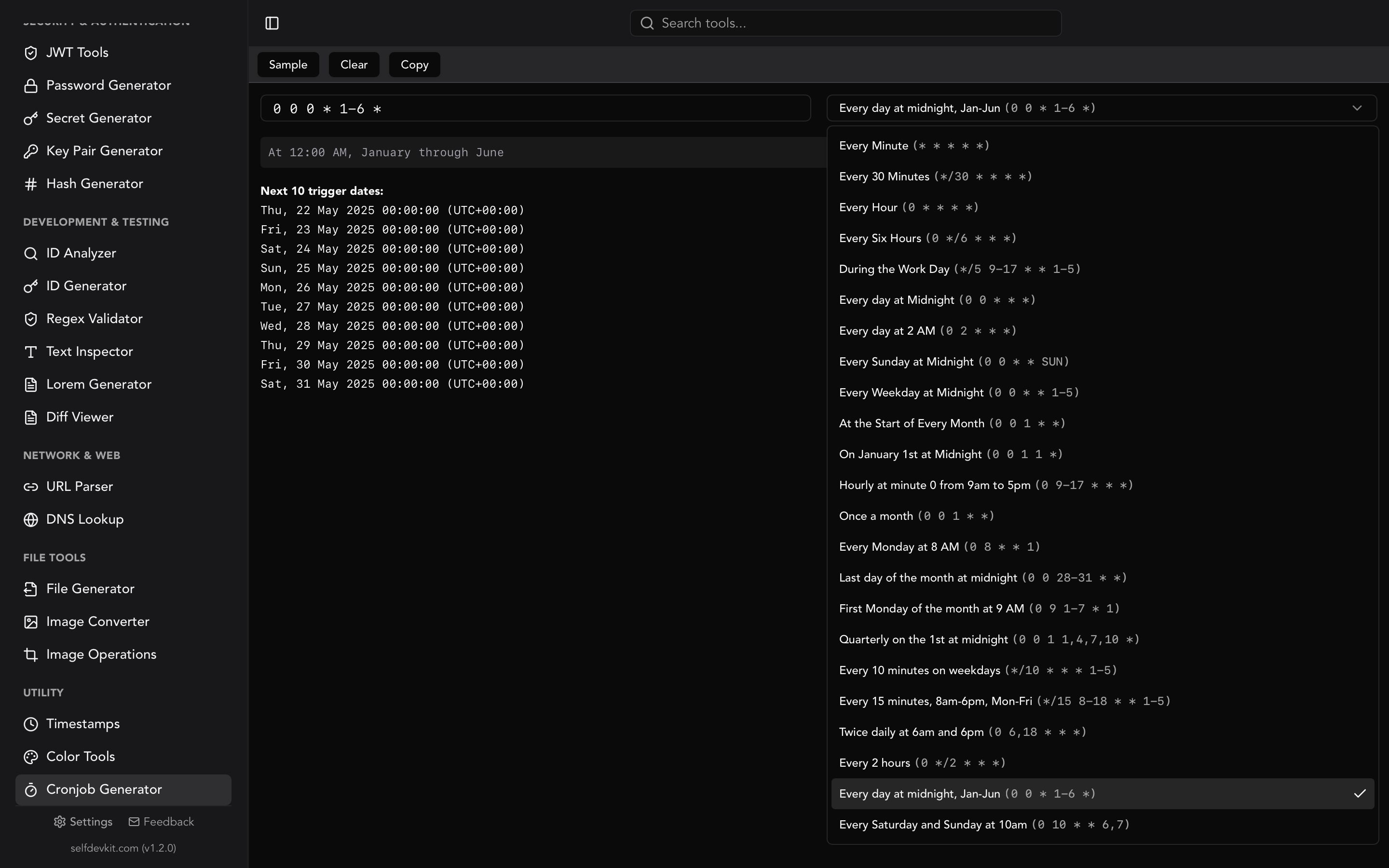
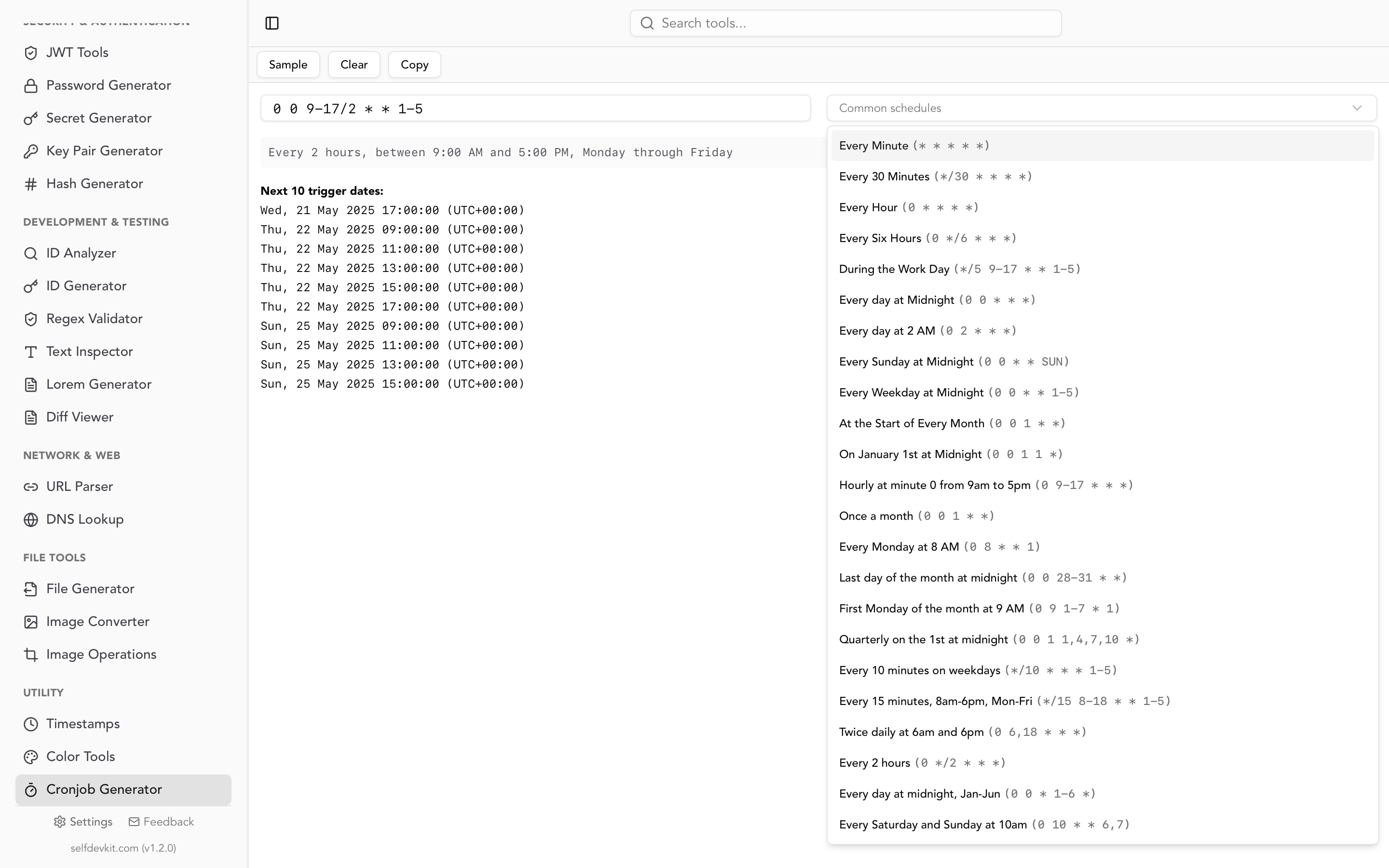
SelfDevKit's Cronjob Generator provides all three. You type or build an expression, and the tool instantly shows the human-readable description and a list of next scheduled runs. It runs entirely offline, so your scheduling details never leave your machine.
Cron syntax beyond Linux: Kubernetes, GitHub Actions, and cloud schedulers
Cron expressions are not limited to the Linux crontab file. The same five-field syntax appears across modern infrastructure:
Kubernetes CronJobs
Kubernetes uses standard cron syntax in its CronJob resource. The .spec.schedule field takes the familiar five fields:
apiVersion: batch/v1
kind: CronJob
metadata:
  name: nightly-backup
spec:
  schedule: "30 2 * * *"
  jobTemplate:
    spec:
      template:
        spec:
          containers:
          - name: backup
            image: backup-tool:latest
            command: ["./run-backup.sh"]
          restartPolicy: OnFailure
One catch: Kubernetes CronJobs use the kube-controller-manager's timezone by default (usually UTC). If your cluster runs in UTC but you need the job at 2:30 AM local time, you need to calculate the offset yourself or use the timeZone field added in Kubernetes 1.27+.
GitHub Actions
GitHub Actions scheduled workflows use the same syntax under the cron key:
on:
  schedule:
    - cron: '0 6 * * 1'  # Every Monday at 6:00 AM UTC
GitHub runs all scheduled workflows in UTC. There is no timezone override, so you always need to convert from your local time.
Cloud schedulers
AWS EventBridge, Google Cloud Scheduler, and Azure Logic Apps all accept cron expressions with minor variations. AWS adds a sixth field for year and uses ? for "no specific value" in the day-of-month or day-of-week fields. Google Cloud Scheduler follows standard five-field unix cron. Knowing the base syntax means you only need to learn the small differences for each platform.
The point is this: learning cron syntax once pays off across your entire stack. A crontab generator that helps you build and validate expressions is useful whether you are writing a Linux crontab, a Kubernetes manifest, or a CI/CD pipeline.
Why cron jobs fail silently (and how to fix them)
Cron is one of the most reliable schedulers in computing. It has been around since the 1970s. But cron jobs fail silently more often than most developers expect. The job just does not run, and cron does not tell you why.
Here is a debugging checklist for cron jobs that produce no output and no errors:
1. PATH is not what you think
Cron runs with a minimal environment. Your shell profile (~/.bashrc, ~/.zshrc) is not loaded. If your script depends on binaries in /usr/local/bin or a Python virtualenv, cron will not find them.
Fix: use absolute paths for everything.
# Bad: relies on PATH
0 3 * * * python cleanup.py

# Good: absolute paths
0 3 * * * /usr/bin/python3 /home/deploy/scripts/cleanup.py
2. Output goes nowhere
By default, cron tries to email the output of each job to the user. If no mail system is configured (and on most modern servers, it is not), the output is silently discarded.
Fix: redirect stdout and stderr to a log file.
0 3 * * * /home/deploy/scripts/cleanup.sh >> /var/log/cleanup.log 2>&1
3. Environment variables are missing
Cron does not load .env files or shell exports. If your script reads DATABASE_URL from the environment, it will get an empty string. (This is a common pain point when scripts also rely on secrets or API keys stored as environment variables.)
Fix: define variables inline or source a file.
0 3 * * * . /home/deploy/.env && /home/deploy/scripts/backup.sh
4. Timezone mismatches
Cron uses the system timezone by default. If your server is in UTC but you scheduled the job thinking in your local timezone, it will run at the wrong time. Check with timedatectl or cat /etc/timezone.
This is also a common issue with Unix timestamps, where confusion between UTC and local time causes off-by-hours bugs.
5. The cron daemon is not running
It sounds obvious, but verify: systemctl status cron (or crond on Red Hat systems). On fresh containers and minimal VM images, cron is often not installed or not started.
Cron vs. systemd timers
Systemd timers are the modern alternative to cron on Linux systems that run systemd. They offer real advantages, but they also come with more complexity.
| Feature | Cron | Systemd Timers |
|---|---|---|
| Configuration | Single line per job | Two files (.service + .timer) |
| Logging | Requires manual setup | Automatic via journalctl |
| Missed jobs | Skipped silently | Persistent=true runs on next boot |
| Dependencies | None | Can depend on other services |
| Calendar syntax | */5 * * * * |
OnCalendar=*:0/5 |
| Portability | Any Unix system | Linux with systemd only |
For simple scheduled tasks on a single server, cron is still the pragmatic choice. It is universal, well-documented, and takes 30 seconds to set up. Systemd timers make more sense when you need dependency chains, guaranteed execution after downtime, or centralized logging through journald.
Either way, you still need to get the schedule right. Whether you write */5 * * * * for cron or OnCalendar=*:0/5 for systemd, validating your timing with a crontab generator before deploying saves you from the "wait and see if it runs" approach.
Keep your schedules off the internet
Online crontab generators work fine for building expressions. But consider what you type into them. Cron commands often include server paths, script names, database connection strings, or deployment details. Pasting 0 3 * * * /opt/deploy/sync-prod-db.sh --host db.internal.company.com into a web tool tells that service a lot about your infrastructure.
SelfDevKit's crontab generator runs entirely on your machine. No network requests, no server-side logging. Your scheduling details stay private, which matters when you are working with production infrastructure or sensitive environments. It is part of a suite of 50+ developer tools that all work offline, including the Unix timestamp converter for time-related work and the regex validator for testing patterns in your cron commands.
Frequently asked questions
What is the difference between cron, crontab, and cron job?
Cron is the daemon (background process) that runs on Unix-like systems and checks schedules every minute. Crontab is the configuration file (cron table) where you define your schedules, edited with crontab -e. A cron job is a single entry in that file: one schedule plus one command. Think of cron as the engine, crontab as the instruction sheet, and a cron job as one instruction.
Can I run a cron job every 30 seconds?
Standard cron has a minimum granularity of one minute. To run something every 30 seconds, the common workaround is two cron entries with a sleep:
* * * * * /path/to/script.sh
* * * * * sleep 30 && /path/to/script.sh
For true sub-minute scheduling, consider systemd timers with OnUnitActiveSec=30s or a process supervisor like supervisord.
Do cron expressions work the same on macOS and Linux?
The core five-field syntax is identical. macOS uses a BSD-derived cron, while most Linux distributions use Vixie cron or cronie. The differences are minor: some extended characters like L (last day) and W (nearest weekday) are supported by cronie but not by macOS cron. Shortcut strings like @daily work on both.
How do I list my current cron jobs?
Run crontab -l to list your user-level cron jobs. For system-wide jobs, check /etc/crontab and the files in /etc/cron.d/. On systems with multiple scheduling tools, remember that systemd timers (systemctl list-timers) are a separate scheduling mechanism with their own configuration.
Try it yourself
Building cron expressions does not have to involve guesswork or pasting infrastructure details into random websites. SelfDevKit's Cronjob Generator lets you build, validate, and preview cron schedules locally, with instant human-readable descriptions and next-run previews.
Download SelfDevKit to get the crontab generator and 50+ other developer tools, all offline and private.