To convert FLAC to MP3, decode the lossless FLAC audio and re-encode it with an MP3 encoder (LAME) at the bitrate you want. With ffmpeg, one command does it, including the album art:
ffmpeg -i input.flac -map 0:a -map '0:v?' -c:v copy -c:a libmp3lame -q:a 2 -id3v2_version 3 output.mp3
The audio part is easy. FLAC is the best possible source for an MP3, because it decodes to exactly the PCM it was made from. The hard part is everything around the audio. A music library's FLAC files carry track totals, disc numbers, lyrics, comments, multiple cover images, and ReplayGain values, and a plain ffmpeg -i in.flac out.mp3 mangles several of them without a warning.
Every result below comes from ffmpeg 8.1.3 with LAME, run on a public-domain Musopen recording of Mozart's Figaro overture tagged with a deliberately busy set of Vorbis comments and two embedded pictures. The tags were read back with mutagen 1.48.1, frame by frame. These are single-file measurements, so treat the numbers as worked examples rather than averages; other recordings will land at different sizes and peaks.
How to convert FLAC to MP3
You can convert FLAC to MP3 with ffmpeg, a desktop app, or an online converter. They all run an MP3 encoder; the differences are in which tags survive and where your files go.
ffmpeg (Windows, macOS, Linux). Install it from ffmpeg.org or a package manager (brew install ffmpeg, sudo apt install ffmpeg, winget install Gyan.FFmpeg). The command above has four parts worth knowing:
-map 0:a -map '0:v?'takes the audio plus every embedded picture. The?keeps the command from failing on files without art.-c:v copystores the cover art as the original JPEG bytes instead of re-encoding it (more on why that matters below).-q:a 2is LAME's V2 variable bitrate, which averaged 185 kbps on the test recording. Swap in-b:a 320kif you want a fixed 320 kbps.-id3v2_version 3writes ID3v2.3 instead of ffmpeg's default v2.4. Some older players and car stereos handle v2.3 better.
SelfDevKit. Open the Audio Converter, select your FLAC file, set Output Format to MP3, pick a quality, and click Convert. High is 320 kbps, Medium (the default) is 192 kbps, and Low is 128 kbps, all constant bitrate through LAME. Nothing is uploaded.
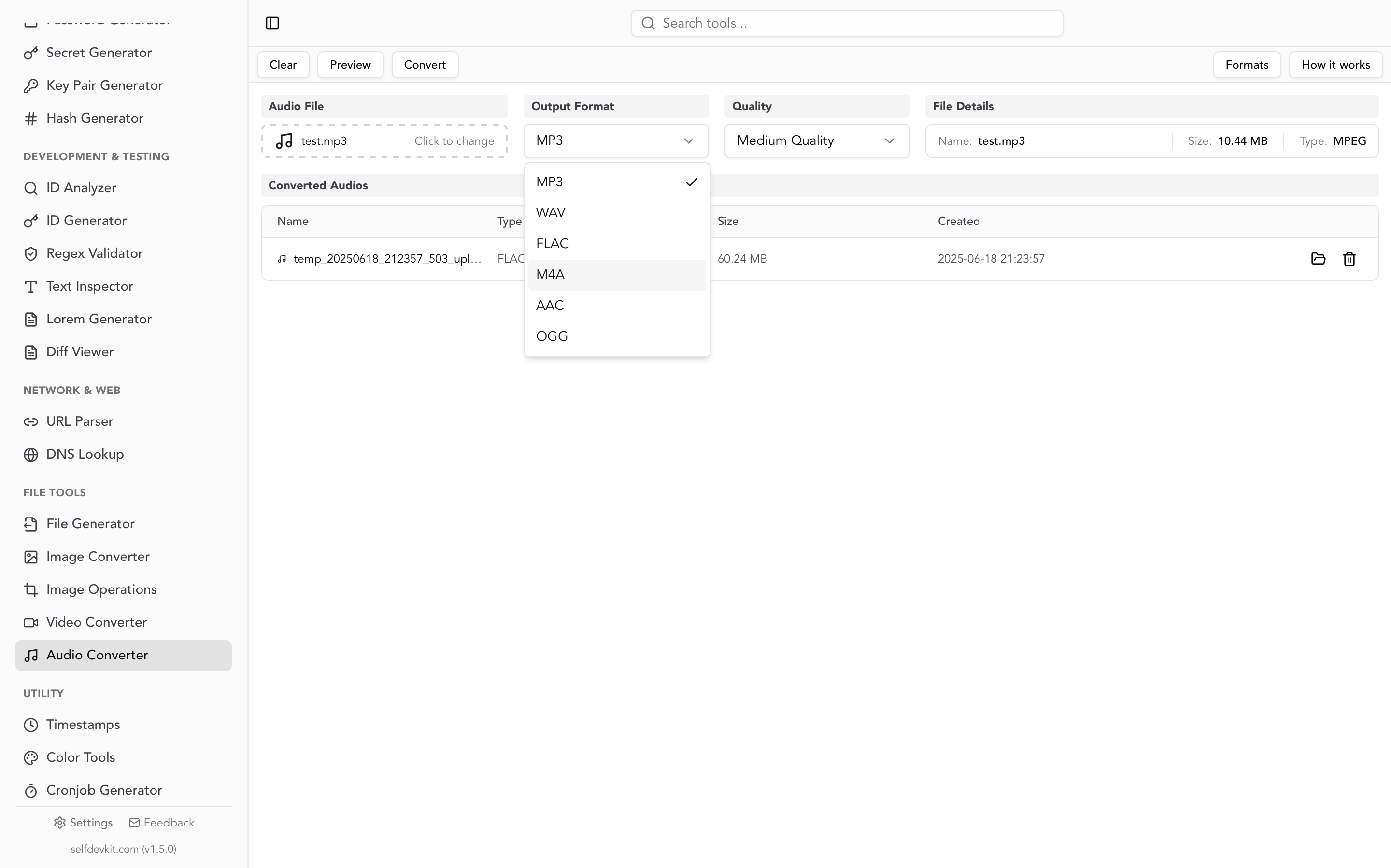
Online converters upload the file to a server and give you a download link. Most expose a bitrate menu and nothing else, so you get whatever tag mapping their backend happens to use.
File size: the FLAC's resolution doesn't matter
At a constant bitrate, an MP3's size depends on bitrate and duration only. The 4:01 test recording produced CBR MP3s of the same size, to within a few hundred bytes, from a 24-bit/48 kHz FLAC and a 16-bit/44.1 kHz FLAC, and VBR sizes within 1% of each other:
| Source or setting | Size | vs. 24-bit FLAC |
|---|---|---|
| FLAC, 24-bit / 48 kHz | 44.1 MB | 100% |
| FLAC, 16-bit / 44.1 kHz | 19.9 MB | 45% |
| MP3, 320 kbps CBR | 9.6 MB | 22% |
MP3, V0 VBR (-q:a 0, avg 253 kbps) |
7.6 MB | 17% |
| MP3, 192 kbps CBR | 5.8 MB | 13% |
MP3, V2 VBR (-q:a 2, avg 185 kbps) |
5.6 MB | 13% |
| MP3, 128 kbps CBR | 3.9 MB | 9% |
V2 or 192 kbps is a sensible default for a phone or car library. The trade-offs between bitrates, and when CBR beats VBR, are covered in detail in the WAV to MP3 guide; a FLAC source behaves the same way once it's decoded.
What happens to your tags in a FLAC to MP3 conversion
FLAC stores tags as Vorbis comments (free-form KEY=value pairs), while MP3 uses ID3v2 frames with fixed four-letter IDs. Converting means translating one into the other. ffmpeg knows the common keys and turns everything else into a generic TXXX user-defined frame, which most players never display.
Here is what a default conversion did to each tag on the test file, and what a player expects instead:
| FLAC tag (Vorbis comment) | ffmpeg default writes | Frame players expect | Visible in players? |
|---|---|---|---|
TITLE, ALBUM, GENRE, COMPOSER, ALBUMARTIST |
TIT2, TALB, TCON, TCOM, TPE2 |
Same | Yes |
TRACKNUMBER=3 + TRACKTOTAL=12 |
TRCK=3 + TXXX:TRACKTOTAL |
TRCK=3/12 |
Total lost |
DISCNUMBER=1 + DISCTOTAL=2 |
TPOS=1 + TXXX:DISCTOTAL |
TPOS=1/2 |
Total lost |
ARTIST with two values |
One string: A;B |
Multi-value TPE1 |
Shows as one artist |
COMMENT |
TXXX:COMMENT |
COMM |
No |
LYRICS |
TXXX:USLT |
USLT |
No |
ISRC, BPM |
TXXX:ISRC, TXXX:BPM |
TSRC, TBPM |
Usually no |
COMPILATION=1 |
TXXX:TCMP |
TCMP |
Album may split |
REPLAYGAIN_* |
TXXX:REPLAYGAIN_* |
Same (TXXX is the convention) | Yes |
MUSICBRAINZ_TRACKID |
TXXX:MUSICBRAINZ_TRACKID |
UFID:http://musicbrainz.org (Picard, beets) |
Not to MusicBrainz tools |
The ReplayGain row is the good news. The ReplayGain 2.0 specification names TXXX frames with keys such as REPLAYGAIN_TRACK_GAIN as the preferred way to store ReplayGain in ID3v2, so ReplayGain-aware players can read the values.
The compilation row deserves a second look. TCMP isn't in the ID3v2 specification; it's an iTunes extension that many players use to keep a various-artists album together. Stored as TXXX:TCMP (or TXXX:COMPILATION when writing v2.3), those players ignore it, so a compilation can scatter into one "album" per artist.
Cover art: one picture survives, as a much larger PNG
A FLAC file can hold several pictures, each with a type such as front cover (3) or back cover (4), as defined in the FLAC spec, RFC 9639. ffmpeg treats them as video streams. Without explicit mapping, it picks one, and because the MP3 muxer's default image codec is PNG, it re-encodes it:
| Conversion | Pictures kept | Embedded art |
|---|---|---|
Default (ffmpeg -i in.flac out.mp3) |
Front only; back cover dropped | 124 KB JPEG became an 817 KB PNG |
-map 0:a -map '0:v?' -c:v copy |
Front and back | Original JPEG bytes, unchanged |
That 817 KB is added to every track. On a 192 kbps, four-minute song, it inflates the file by about 14%, and if every track embeds art like this, 3,000 tracks carry about 2.4 GB of re-encoded artwork. The copy mapping in the first command avoids it.
Fixing the tags with a short script
The reliable fix is to let ffmpeg encode only the audio, then write the tags yourself with a tag library that knows both formats. This Python script uses mutagen (pip install mutagen) to copy every FLAC tag and picture to the MP3 as proper ID3v2.3 frames:
#!/usr/bin/env python3
"""Copy FLAC tags and pictures onto an MP3 as standard ID3v2.3 frames."""
import sys
from mutagen.flac import FLAC
from mutagen.id3 import (ID3, TIT2, TPE1, TPE2, TALB, TRCK, TPOS, TDRC, TCON,
    TCOM, TSRC, TBPM, TCMP, COMM, USLT, TXXX, APIC)

src, dst = FLAC(sys.argv[1]), sys.argv[2]
g = lambda k: src.get(k, [])
id3 = ID3()
TEXT = {'TITLE': TIT2, 'ARTIST': TPE1, 'ALBUMARTIST': TPE2, 'ALBUM': TALB,
        'DATE': TDRC, 'GENRE': TCON, 'COMPOSER': TCOM, 'ISRC': TSRC, 'BPM': TBPM}
for key, frame in TEXT.items():
    if g(key):
        id3.add(frame(encoding=3, text=g(key)))   # list -> multi-value frame
for key, total, frame in (('TRACKNUMBER', 'TRACKTOTAL', TRCK),
                          ('DISCNUMBER', 'DISCTOTAL', TPOS)):
    if g(key):
        n = g(key)[0] + ('/' + g(total)[0] if g(total) else '')
        id3.add(frame(encoding=3, text=n))
if g('COMPILATION'):
    id3.add(TCMP(encoding=3, text=g('COMPILATION')))
if g('COMMENT'):
    id3.add(COMM(encoding=3, lang='eng', desc='', text=g('COMMENT')))
lyrics = g('LYRICS') or g('UNSYNCEDLYRICS')
if lyrics:
    id3.add(USLT(encoding=3, lang='eng', desc='', text=lyrics[0]))
for key in src.keys():                            # ReplayGain, MusicBrainz, etc.
    if key.upper().startswith(('REPLAYGAIN_', 'MUSICBRAINZ_')):
        id3.add(TXXX(encoding=3, desc=key.upper(), text=g(key)))
for i, pic in enumerate(src.pictures):            # original bytes, every picture
    desc = pic.desc if i == 0 else f'{pic.desc} {i}'.strip()  # APIC descs must differ
    id3.add(APIC(encoding=3, mime=pic.mime, type=pic.type,
                 desc=desc, data=pic.data))
id3.update_to_v23()                               # e.g. TDRC date -> TYER
id3.save(dst, v2_version=3)
Run it after an audio-only encode:
ffmpeg -i song.flac -map 0:a -map_metadata -1 -c:a libmp3lame -q:a 2 song.mp3
python3 flac2id3.py song.flac song.mp3
On the test file, the result had TRCK=3/12, TPOS=1/2, real COMM, USLT, TSRC, TBPM, and TCMP frames, all ReplayGain values, and both original JPEGs. Two details in the script matter. ID3 allows only one APIC frame per description, and FLAC pictures often have an empty one, so the numbered fallback stops the back cover from silently replacing the front. And update_to_v23() converts v2.4-only frames such as the TDRC date into their v2.3 equivalents before saving. One caveat: ID3v2.3 has no true multi-value text, so two artists are joined as A/B. Drop the update_to_v23() line and pass v2_version=4 if your player handles v2.4 and you want them stored separately.
MusicBrainz IDs are copied as TXXX frames under their Vorbis names. Picard and beets store the recording ID in a UFID frame instead, so if you rely on MusicBrainz matching, let one of those tools re-tag the MP3s.
To check a conversion without trusting either tool, dump both files' tags as JSON with ffprobe -v error -show_entries format_tags -of json and compare the two outputs in a diff viewer. Missing frames show up as removed lines. For a long tag dump, a JSON viewer with a collapsible tree is easier to scan than raw terminal output.
ReplayGain after converting: the gain holds, the peak doesn't
ReplayGain values copied from a FLAC remain accurate for the MP3's loudness. They are not accurate for its peak. MP3 encoding changes the waveform's shape slightly, so loudness barely moves while peaks can rise.
Measured with ffmpeg's ebur128 filter on two sources: the classical test recording and a separate 60-second loud test master peaking at −0.1 dBFS:
| File | Integrated loudness | Sample peak |
|---|---|---|
| Classical, FLAC | −16.0 LUFS | −1.0 dBFS |
| Classical, MP3 128k / 192k / 320k | −16.4 / −16.3 / −16.0 LUFS | −1.0 / −1.2 / −0.9 dBFS |
| Loud master, FLAC | −7.6 LUFS | −0.1 dBFS |
| Loud master, MP3 128k / 192k / 320k | −8.1 / −7.9 / −7.7 LUFS | +1.7 / +1.1 / +0.6 dBFS |
The loudness shift was 0.5 dB or less, so REPLAYGAIN_TRACK_GAIN still does its job. But the loud master's FLAC peak of −0.1 dBFS (stored as roughly 0.989) became +1.7 dBFS in the 128 kbps MP3. Players that use the stored peak for clipping prevention will now underestimate it.
For quiet, dynamic music this doesn't matter. For loud pop and rock, or whenever a player applies positive gain, rescan the MP3s with a ReplayGain tool such as rsgain or foobar2000 after converting, instead of carrying the FLAC values over.
Hi-res FLAC becomes 48 kHz MP3
MP3 (MPEG-1 Layer III) supports sample rates up to 48 kHz, so any higher-rate FLAC is resampled during conversion. Tested on the same clip at four rates:
| FLAC sample rate | MP3 sample rate |
|---|---|
| 44.1 kHz | 44.1 kHz |
| 88.2 kHz | 48 kHz |
| 96 kHz | 48 kHz |
| 192 kHz | 48 kHz |
Bit depth disappears too, since MP3 has no fixed bit depth. So a "24/192" FLAC produces the same 48 kHz MP3 format as a 24/48 one; the extra resolution doesn't survive into the MP3. If you'd rather have 88.2 kHz material land at 44.1 kHz (an even 2:1 ratio), add -ar 44100.
Multichannel FLAC behaves like multichannel WAV: ffmpeg downmixes 5.1 to stereo and drops the LFE channel. The WAV to MP3 guide has the measured levels.
Check the FLAC before you convert it
Two problems in a FLAC file pass straight through a conversion without stopping it.
Corruption doesn't fail the command. After overwriting 64 bytes in the middle of a test FLAC, ffmpeg -i bad.flac -c:a libmp3lame -b:a 192k bad.mp3 printed a decoding error and then exited with status 0. The MP3 played, 0.1 seconds shorter than the original, with a skip where the damage was. A batch script that only checks exit codes would never notice.
Adding -xerror makes ffmpeg stop on the first decoding error, with exit status 183 in this test. It still leaves a partial output file behind, so write to a temporary name and rename on success (the batch script below does this). To test a file without converting it:
ffmpeg -v error -xerror -i album.flac -f null - && echo OK
The reference flac -t command does the same, and also checks the MD5 signature stored in the file's header.
Some FLACs are MP3s in disguise. A FLAC made from a lossy file is lossless only in the sense that it faithfully preserves the MP3's damage. Converting it back to MP3 is lossy compression applied twice. File size won't warn you: a FLAC made from a 128 kbps MP3 of the test recording was 18.2 MB, only 9% smaller than the real 19.9 MB FLAC.
The frequency content gives it away. LAME low-passes audio before encoding, and at 128 kbps in this test it left a hard shelf at about 16 kHz that survived into the FLAC. To check by eye, render a spectrogram:
ffmpeg -i suspect.flac -lavfi showspectrumpic=s=1024x512:legend=1 spectrum.png
In the genuine test FLAC, content fades out gradually toward 22 kHz. In the transcoded one, everything above about 16 kHz sat below the spectrogram's −117 dBFS floor: a flat, hard ceiling straight across the whole track. Some genuine recordings have little high-frequency content of their own, so treat a ceiling as a strong hint rather than proof.
Batch convert a FLAC library to MP3
To batch convert FLAC to MP3, loop over every .flac file, mirror the folder structure into a separate MP3 library, and skip files that are already done. This Bash script does all of that, keeps the original cover art, and reports corrupt files instead of silently converting them:
#!/usr/bin/env bash
# Usage: flac2mp3.sh <flac-library> <mp3-library>
set -uo pipefail
src=${1%/}; dst=${2%/}; failed=0

while IFS= read -r -d '' f; do
  rel=${f#"$src"/}
  out="$dst/${rel%.*}.mp3"
  [[ -f "$out" && "$out" -nt "$f" ]] && continue      # already converted
  mkdir -p "$(dirname "$out")"
  if ffmpeg -nostdin -v error -xerror -y -i "$f" \
       -map 0:a -map '0:v?' -c:v copy \
       -c:a libmp3lame -q:a 2 -id3v2_version 3 \
       -f mp3 "$out.part"; then
    mv "$out.part" "$out"
  else
    rm -f "$out.part"; echo "FAILED: $f" >&2; failed=1
  fi
done < <(find "$src" -type f -iname '*.flac' -print0)

exit $failed
It was tested on a small tree with spaces, parentheses, and apostrophes in folder and file names, plus one corrupted file. The good tracks converted with both cover images intact, the broken one was reported as FAILED with no half-written MP3 left behind, and a second run skipped everything already converted. -nostdin stops ffmpeg from reading the loop's input, and -print0 with read -d '' keeps odd filenames in one piece.
For the full tag mapping, call flac2id3.py after the mv line. On Windows, run the script under WSL or Git Bash, or use a library tool with a built-in converter, such as foobar2000 or the convert plugin in beets.
Converting FLAC to MP3 offline in SelfDevKit
SelfDevKit's Audio Converter runs FFmpeg and LAME on your own machine, so a FLAC file never leaves your computer. That matters less for a commercial album than for unreleased mixes, client masters, or a personal recording someone sent you in FLAC. Here's what to expect from it:
- Quality presets: High 320 kbps, Medium 192 kbps (default), Low 128 kbps, all CBR. For VBR, use the ffmpeg command at the top.
- Tags: it uses ffmpeg's default mapping, so the first table above applies. Titles, artists, albums, genres, and ReplayGain come through. Track totals, comments, and lyrics end up in
TXXXframes. - Cover art: the front cover is kept but re-encoded as PNG, and additional pictures are dropped. Run
flac2id3.pyafterwards if the art or tags matter to you. - One file at a time, loaded into memory. For an entire library, the batch script is the better tool.
- FFmpeg must be present, either on your PATH or the copy SelfDevKit downloads the first time you use its Video Converter. After that, everything runs offline.
- Output names are generated with a timestamp, so rename the MP3 before you add it to a library.
The same app handles WAV, M4A, AAC, and OGG, plus the reverse direction: choose FLAC as the output to losslessly compress a WAV. For other media, see the MKV to MP4 and WebM to MP4 guides, and why offline tools matter for the privacy argument in full.
Download SelfDevKit to convert FLAC to MP3 locally, next to a diff viewer, JSON tools, hash generator, and 50+ other developer tools that work without an internet connection.