Converting WebM to MP4 is a re-encode more often than not. WebM and MP4 are both containers, but the video codec Chrome's recorder picks by default, VP8, isn't a supported MP4 codec, so ffmpeg refuses to copy it across. VP9, AV1, and H.264 inside a WebM can be remuxed into MP4 in a fraction of a second. Everything else needs a new encode.
Most WebM files also come from somewhere specific: a browser. Browser-based screen recorders, Loom-style tools, in-browser call recorders, and most apps built on the MediaRecorder API write WebM, and those files have quirks of their own. Some have no duration. They can't be seeked. Many have a variable frame rate, and some have an odd width or height that makes the standard H.264 command fail.
Everything below was tested in October 2026 with ffmpeg 8.1.3. The browser recordings came from headless Chromium 153 driving MediaRecorder, and the timing and size figures come from a real 1080p WebM (the Blender short Caminandes 3, CC BY 3.0, from Wikimedia Commons). Error messages are pasted from real runs.
The command most people need
To convert a WebM to an MP4 that plays on almost any phone, browser, editor, or upload form, re-encode to H.264 and AAC:
ffmpeg -i input.webm \
  -vf "scale=trunc(iw/2)*2:trunc(ih/2)*2" \
  -c:v libx264 -crf 20 -preset medium -pix_fmt yuv420p \
  -c:a aac -b:a 160k \
  -movflags +faststart \
  output.mp4
Each piece is there for a reason:
| Option | Why it's there |
|---|---|
scale=trunc(iw/2)*2:trunc(ih/2)*2 |
Rounds width and height down to even numbers. libx264 refuses odd dimensions in 4:2:0, and browser tab or window captures can have them. Even-sized input passes through unchanged. |
-c:v libx264 -crf 20 |
H.264 at constant quality. Around 18 is close to visually lossless; 23 is the default and noticeably smaller. |
-preset medium |
Speed vs file size. fast or veryfast for long recordings, slow when size matters. |
-pix_fmt yuv420p |
Keeps the output at 8-bit 4:2:0, the H.264 flavor with the widest player and hardware-decoder support. |
-c:a aac -b:a 160k |
WebM audio is Opus or Vorbis. AAC is the most widely supported MP4 audio codec. |
-movflags +faststart |
Moves the index to the front so the MP4 starts playing before it finishes downloading. |
If the WebM has no audio track, the audio options are simply ignored. The rest of this guide covers when you can skip the re-encode, and the problems that browser recordings and transparent WebMs cause.
Check the codec before you convert WebM to MP4
WebM officially allows VP8, VP9, and AV1 video, and browser recordings can also put H.264 in a .webm file (strictly Matroska). Which one it holds decides whether you can remux. Ask ffprobe:
ffprobe -v error -show_entries stream=codec_type,codec_name,width,height \
  -of compact input.webm
stream|codec_name=vp9|codec_type=video|width=641|height=361
stream|codec_name=opus|codec_type=audio
Then look the result up here. Every row was tested with ffmpeg -i in.webm -c copy out.mp4:
| Codec inside the WebM | -c copy into MP4 |
What to do |
|---|---|---|
| VP8 video | Fails | Re-encode. This is the common case. |
| VP9 video | Works | Plays in modern browsers. For Apple devices, editors, and upload forms, re-encode to H.264, the most widely accepted codec. |
| AV1 video | Works | Same as VP9: modern browsers yes, older hardware and many editors no. |
| H.264 video | Works | Copy the video and convert only the audio (see below). |
| Opus audio | Works | Valid in MP4, but not every MP4 player supports it. Convert to AAC. |
| Vorbis audio | ffmpeg writes it anyway | Vorbis isn't a standard MP4 audio codec, so playback outside browsers is a gamble. Convert to AAC. |
The VP8 failure looks like this:
[mp4 @ 0x6041e1a6a080] Could not find tag for codec vp8 in stream #0, codec not currently supported in container
[out#0/mp4 @ 0x6041e1a3ba00] Could not write header (incorrect codec parameters ?): Invalid argument
No flag gets you around it; -strict unofficial and -tag:v vp08 fail with the same error. Players don't expect VP8 in MP4 anyway. MDN's media container guide lists AVC, AV1, VP9, and two legacy codecs as MP4 video codecs, with no VP8, and AAC, FLAC, MP3, and Opus as audio codecs, with no Vorbis. ffmpeg will still mux Vorbis into an MP4 with the tag mp4a, and Chromium 153 played the test file. Treat that file as broken anyway, because players outside a browser have no obligation to support it.
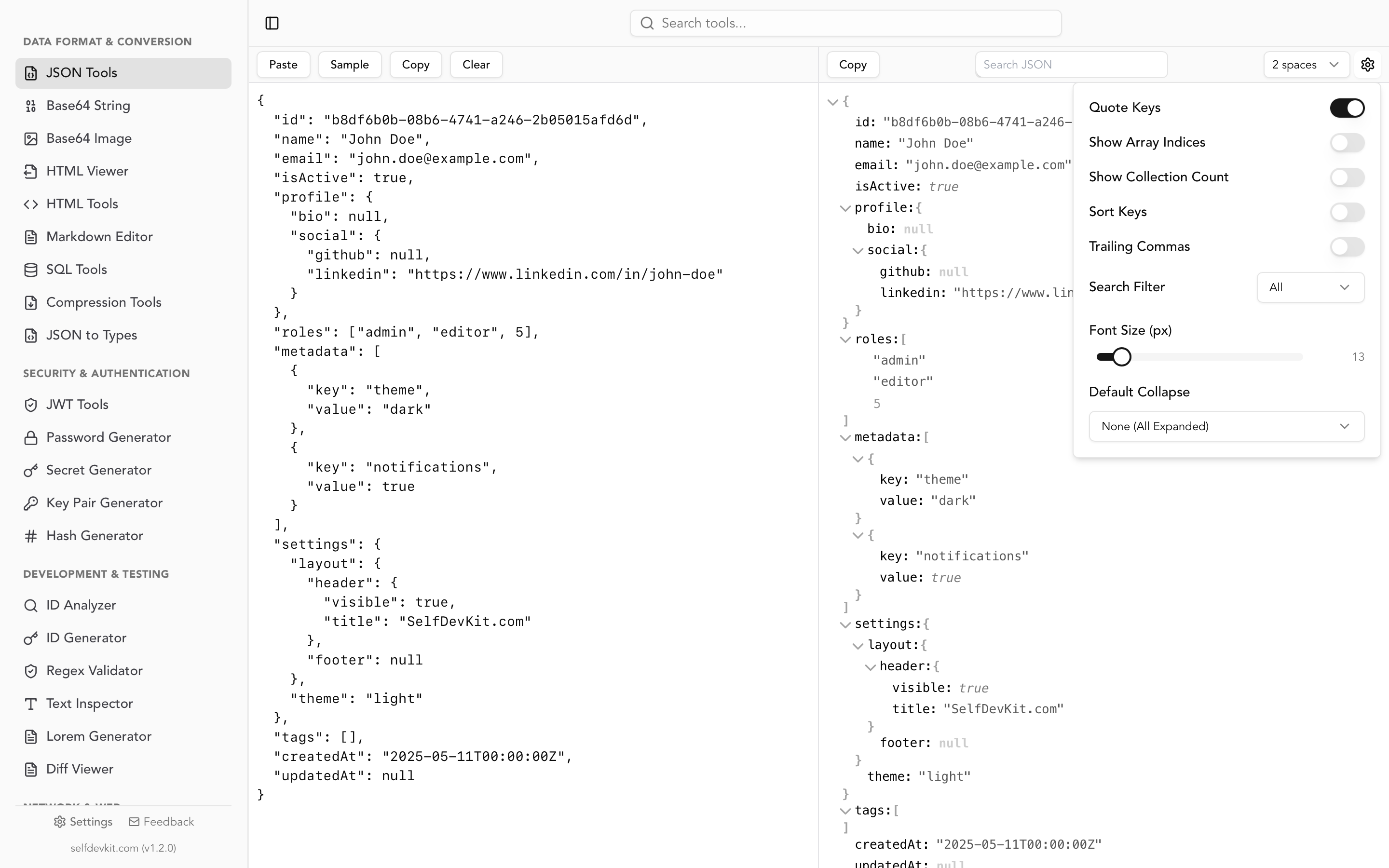
If you'd rather read the full stream details as a tree than as a wall of text, ffprobe -v error -show_streams -show_format -of json input.webm prints JSON that drops straight into a JSON viewer. Collapse streams, expand the one you care about, and the codec, pixel format, and color tags are all one click away.
Lossless WebM to MP4 when the codec allows it
To convert WebM to MP4 without losing quality, copy the streams instead of re-encoding them. For VP9 or AV1 headed somewhere modern:
ffmpeg -i input.webm -c copy -movflags +faststart output.mp4
For better compatibility at almost the same speed, copy the video and re-encode only the audio. Audio is cheap to encode, and AAC is the most widely supported MP4 audio codec:
ffmpeg -i input.webm -c:v copy -c:a aac -b:a 160k -movflags +faststart output.mp4
That second command is the right one for H.264 WebMs. The result is an H.264 + AAC MP4, and the video stream is bit-for-bit what the browser recorded.
WebM files from MediaRecorder: what the browser actually writes
Browser recordings are where most WebMs come from, so it's worth knowing what Chromium writes. Recording a canvas plus a tone through MediaRecorder in Chromium 153 with different mimeType requests produced this:
Requested mimeType |
What recorder.mimeType reported |
Video codec | Remux to MP4? |
|---|---|---|---|
video/webm (no codec) |
video/webm;codecs=vp8,opus |
VP8 | No |
video/webm;codecs=vp9,opus |
video/webm;codecs=vp9,opus |
VP9 | Yes |
video/webm;codecs=h264,opus |
video/x-matroska;codecs=avc1,opus |
H.264 Constrained Baseline | Yes, video only |
video/mp4 |
video/mp4;codecs=vp9,opus |
VP9 | Already MP4, but not H.264 |
Three lessons fall out of that table. The default request gets VP8, the one WebM video codec that can't be remuxed into MP4. Asking for H.264 in WebM quietly switches the container to Matroska (the file's DocType header says matroska, not webm); Chromium's own MediaRecorder README uses video/x-matroska;codecs="avc1" as its example. And a file the browser calls MP4 is not guaranteed to be H.264, so check it before you ship it to an iPhone.
If you control the recording code, request H.264 explicitly and check MediaRecorder.isTypeSupported() first. Then the server-side conversion becomes the fast copy-the-video command above instead of a full encode.
Recordings with no duration and no seeking
Every WebM that MediaRecorder produced in this test reported Duration: N/A in ffprobe, and video.duration was Infinity when loaded back into a <video> element. None of them contained a Cues element, the index a player uses to jump to a timestamp. The Chromium README says it plainly: "This is by design of the webm live format and is tracked in crbug/642012." The recorder writes the file as a live stream, before it knows how long the recording will be.
Converting to MP4 fixes this as a side effect. ffmpeg reads the whole file, so the MP4 gets a real duration (6.03 seconds for the six-second test) and a complete index. If you need to keep the file as WebM, a stream copy back into WebM fixes it too, and -cues_to_front puts the index at the start for streaming:
ffmpeg -i recording.webm -c copy -cues_to_front 1 fixed.webm
No quality is lost, because nothing is re-encoded.
Variable frame rate is normal, and kept
Browser recordings often produce a new frame only when the content changes. The VP9 test recording held 49 frames over six seconds, an average of about 8 fps, and the MP4 made with the command above also held exactly 49. ffmpeg keeps the original timestamps, which is correct for playback: a static screen stays static without wasting bytes on duplicate frames.
Some video editors handle variable frame rate badly and drift out of sync. For those, and only for those, force a constant rate:
ffmpeg -i recording.webm -fps_mode cfr -r 30 \
  -c:v libx264 -crf 20 -pix_fmt yuv420p -c:a aac -b:a 160k editable.mp4
The same recording became 180 frames at exactly 30 fps, with the duration unchanged at 6.03 seconds. The extra frames are duplicates, so the file grows a little, but the editor gets the timeline it expects.
"width not divisible by 2": odd-sized recordings
Recording a browser tab or a resizable window can give an odd width or height, and libx264 refuses to encode it in 4:2:0. A 641×361 VP9 recording fed to a plain H.264 command fails like this:
[libx264 @ 0x60f18bade480] width not divisible by 2 (641x361)
[vost#0:0/libx264 @ 0x60f18badee80] [enc:libx264 @ 0x60f18bade400] Error while opening encoder - maybe incorrect parameters such as bit_rate, rate, width or height.
The cause is 4:2:0 chroma subsampling, which stores color for every 2×2 block of pixels, so both dimensions must be even. There are two fixes:
| Filter | 641×361 becomes | Trade-off |
|---|---|---|
scale=trunc(iw/2)*2:trunc(ih/2)*2 |
640×360 | Resamples the image slightly. Invisible in practice. |
pad=ceil(iw/2)*2:ceil(ih/2)*2 |
642×362 | Keeps every pixel and adds a one-pixel black edge. |
The scale version is already in the main command at the top.
Transparent WebM to MP4
H.264 in MP4 has no alpha channel, so a transparent WebM can't stay transparent as an MP4. How it loses the transparency is the surprise. ffmpeg's built-in VP9 decoder ignores the alpha layer completely, so a red box on a transparent background converts to a red box on black, whatever you intended.
To control the background, force the libvpx decoder, which does read alpha, and composite over a color you choose:
ffmpeg -c:v libvpx-vp9 -i overlay.webm \
  -f lavfi -i color=white:s=1920x1080:r=30 \
  -filter_complex "[1][0]overlay=shortest=1,format=yuv420p" \
  -c:v libx264 -crf 20 overlay-on-white.mp4
Set the color input's size and rate (s and r) to match the WebM. The background drives the output timing, so a mismatch drops frames: left at its default 25 fps, it turned a 90-frame, 30 fps test clip into 75 frames. Also note that -c:v libvpx-vp9 goes before -i, where it selects the decoder. After -i it would select an encoder instead.
If you need the transparency itself, for an editor or a motion graphics tool, MP4 is the wrong target. ProRes 4444 in a MOV keeps the alpha:
ffmpeg -c:v libvpx-vp9 -i overlay.webm -c:v prores_ks -profile:v 4444 \
  -pix_fmt yuva444p10le overlay.mov
Remux vs re-encode: real speed and size
Remuxing took a fraction of a second here; re-encoding took minutes. Both versions of Caminandes 3 from Wikimedia Commons (2:30, 1920×1080, 24 fps) were converted on a 2-core Linux VM:
| Source | Command | Time | Output size |
|---|---|---|---|
| VP9 + Opus WebM, 54.8 MB | -c copy |
0.15 s | 54.8 MB |
| VP9 + Opus WebM, 54.8 MB | -c:v copy -c:a aac -b:a 160k |
2.7 s | 56.0 MB |
| VP8 + Vorbis WebM, 60.0 MB | x264 fast, CRF 23, AAC 128k |
133 s | 58.0 MB |
| VP8 + Vorbis WebM, 60.0 MB | x264 slow, CRF 18, AAC 160k |
287 s | 94.9 MB |
Two things stand out on this clip. The remux was close to 900 times faster than the quicker re-encode, which is why the codec check is worth the few seconds it takes. And the higher-quality settings grew the file far more than they improved the score. Measured with SSIM against the VP8 source, a standard score of how closely each frame matches it (1.0 means identical), the median frame scored 0.991 for the CRF 23 fast encode and 0.994 for the CRF 18 slow encode. That small gain cost 64% more disk space and more than twice the encode time. It is one animated clip, so treat the numbers as an illustration, not a rule.
The CRF 23 encode also came out slightly smaller than the VP8 original, so a re-encode doesn't have to bloat the file. Expect your sizes to differ by a few percent, because x264's output shifts with the number of CPU threads; on a many-core machine the same encode landed just above the original instead. For screen recordings and anything headed to the web, CRF 20 to 23 is the sensible range. Save CRF 18 for footage someone will edit further.
Batch convert a folder of WebM files
This loop copies the video when it's already H.264 and re-encodes everything else, so you can point it at a mixed folder:
for f in *.[wW][eE][bB][mM]; do
  out="${f%.*}.mp4"
  [ -e "$out" ] && continue
  v=$(ffprobe -v error -select_streams v:0 -show_entries stream=codec_name -of csv=p=0 "$f")
  if [ "$v" = "h264" ]; then
    ffmpeg -nostdin -v error -i "$f" -c:v copy -c:a aac -b:a 160k -movflags +faststart "$out"
  else
    ffmpeg -nostdin -v error -i "$f" -vf "scale=trunc(iw/2)*2:trunc(ih/2)*2" \
      -c:v libx264 -crf 20 -preset medium -pix_fmt yuv420p \
      -c:a aac -b:a 160k -movflags +faststart "$out"
  fi
  echo "$f ($v) -> $out"
done
Run against a test folder of VP8, VP9 with odd dimensions, AV1, and H.264 recordings, it produced four H.264 + AAC MP4s with no errors. -nostdin stops ffmpeg from reading the terminal, which matters if you adapt the loop to read file names from a pipe, and the [ -e "$out" ] check makes reruns safe. It deliberately keeps VP9 and AV1 out of the copy path; if every target is a modern browser, you can add them to the if.
Online WebM converters and what's in your recordings
Online converters are the obvious route for a one-off file, and for a public clip they're fine. The question is what the recording shows. A WebM from a screen recorder contains whatever was on screen: an admin dashboard, a customer's record, an API key in a terminal, a Slack thread in the corner. Uploading it hands all of that to a third party.
The terms vary. FreeConvert, for example, caps free files at 1 GB and says uploads are deleted after 8 hours. Some newer converters run ffmpeg compiled to WebAssembly entirely in the browser, which avoids the upload. If you rely on one of those, open the network tab during a conversion and confirm the file isn't sent anywhere. The broader case for doing this kind of work locally is in why offline matters.
Converting WebM to MP4 in SelfDevKit
SelfDevKit includes a Video Converter that turns a WebM into an MP4 on your own machine. Open the tool, select the file, choose MP4, and convert. It also accepts MP4, MOV, AVI, and MKV input and writes MP4, MOV, AVI, or WebM, so the reverse direction is covered too. The converted file lands in the app's local data folder, and you can open it in your default player or reveal it in your file manager from the tool's list.
It runs FFmpeg with x264 at preset fast and CRF 23, AAC audio at 128 kbps, and +faststart, which is the third row of the speed table above. The honest trade-offs:
- It always re-encodes. That's exactly right for VP8 WebMs, which is what Chromium's MediaRecorder writes by default. For an H.264 WebM, the copy-the-video command above is faster and lossless.
- Odd dimensions fail. It doesn't add the even-size scale filter, so a 641×361 recording stops with a conversion error. Run the main ffmpeg command above for those files.
- Transparency becomes black. Like a default ffmpeg run, it uses the built-in VP9 decoder. Use the overlay command to choose a background color.
- It's built for clips. The tool loads the whole file before converting, so it suits recordings and short videos rather than multi-gigabyte footage.
- FFmpeg is downloaded on first use. After that one-time download, conversions run offline and the recording never leaves your computer.
The same converter handles the other containers people usually need to turn into MP4; the MKV to MP4 and MOV to MP4 guides cover what changes for each.
For sound-only files, the WAV to MP3 guide covers the Audio Converter, and the Image Converter handles stills.
Frequently asked questions
Can I just rename .webm to .mp4?
No. Renaming changes the extension, not the file. ffprobe still reports a renamed WebM as matroska,webm, because it reads the bytes. Some tolerant players may open it anyway, but software that expects a real MP4, such as Apple devices, editors, and upload validators, can reject it.
Why does my WebM recording show no duration?
Browsers using MediaRecorder write WebM as a live stream, so the file has no duration and no seek index. Remuxing with ffmpeg -i in.webm -c copy -cues_to_front 1 out.webm fixes it without re-encoding, and any conversion to MP4 fixes it as well.
Should I serve WebM or MP4 on a website?
MP4 with H.264 and AAC is the most widely supported option across browsers and devices. If you want WebM's smaller VP9 or AV1 files as well, list it as the first <source> in the <video> element with MP4 as the fallback, and the browser picks the first one it can play.
What to do next
Run ffprobe first. H.264 inside: copy the video, convert the audio. VP9 or AV1 headed to a browser: remux. Anything else, which mostly means VP8 recordings, gets the re-encode command at the top. And if a browser recording only needs to seek properly, skip MP4 entirely and rewrap it as WebM.
For recordings you'd rather not upload anywhere, download SelfDevKit and convert them offline with the rest of your toolkit.