
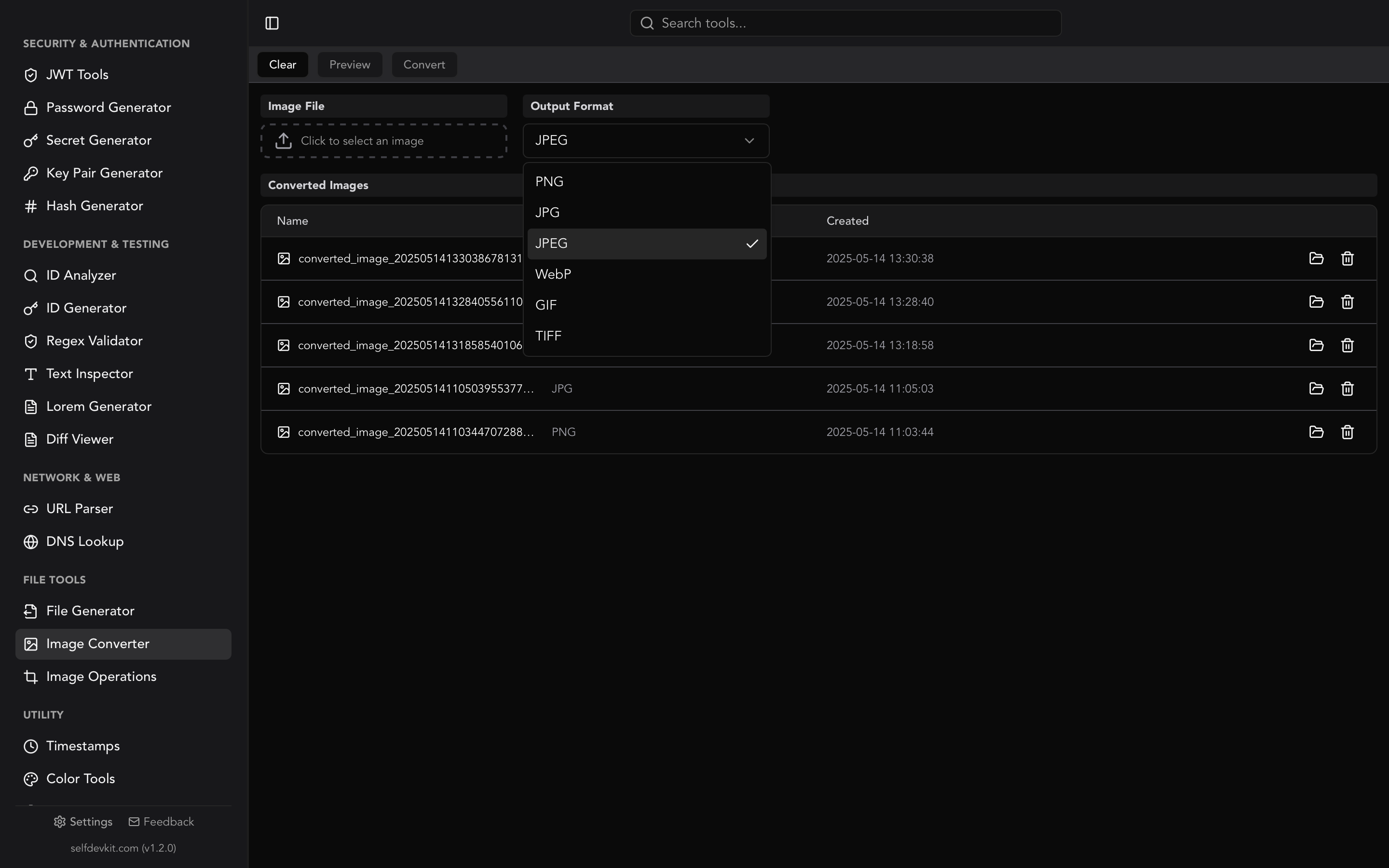
To convert JPEG to JPG, rename the file. .jpeg and .jpg are two spellings of the same format, so changing photo.jpeg to photo.jpg is the whole conversion. The image data stays exactly the same, byte for byte.
Running it through a "converter" is worse. Every converter tested below decoded the image and compressed it again, so the output was never identical to the input. Depending on the tool, files shrank by 20%, tripled in size, lost their camera metadata, or turned a phone photo sideways.
So this guide covers three things: how to rename one file or a whole folder on each OS, what a re-encode actually costs, and how to spot the one case where renaming does not work, which is a file that was never a JPEG to begin with.
JPEG vs JPG: one format, two extensions
JPEG and JPG are the same image format. JPEG is the name of the standard (ITU-T T.81, approved in September 1992), named after the Joint Photographic Experts Group that developed it. .jpg exists because MS-DOS and early Windows file systems allowed only three characters after the dot. Unix and Mac systems had no such limit, so .jpeg survived there.
Nothing inside the file depends on the name. Every JPEG starts with the same three bytes, FF D8 FF, whatever its extension. The IANA media type registry has a single entry, image/jpeg. There is no registered image/jpg. Apache's default mime.types maps one type to three extensions:
image/jpeg jpeg jpg jpe
.jpe, .jfif, and .jif are the same format too. A rename handles all of them.
How to change JPEG to JPG on Windows, macOS and Linux
Renaming works the same way on every system. Change the part after the last dot. The details differ in how each OS hides that part from you, and in what happens when the new name is already taken.
Windows
File Explorer hides known extensions by default. If you rename photo to photo.jpg while extensions are hidden, you get photo.jpg.jpeg. Turn them on first: View > Show > File name extensions on Windows 11, or the File name extensions checkbox on the View tab on Windows 10. Then rename and confirm the "If you change a file name extension, the file might become unusable" warning. For a JPEG, it won't.
For a whole folder, open Command Prompt in it:
ren *.jpeg *.jpg
ren accepts wildcards in both names. According to Microsoft's ren documentation, it will not overwrite a file: if photo.jpg already exists, photo.jpeg stays put and you get a duplicate-name error. In PowerShell:
Get-ChildItem *.jpeg | Rename-Item -NewName { [IO.Path]::ChangeExtension($_.Name, '.jpg') }
Rename-Item also refuses to replace an existing file, so collisions show up as errors instead of lost photos.
macOS
In Finder, select the files, Control-click, choose Rename, then Replace Text. Find .jpeg, replace with .jpg, and check the preview before you confirm. Include the dot, so a name like jpeg-export.jpeg keeps its prefix and only the extension changes.
In Terminal, macOS uses zsh, and the shell loop in the Linux section works unchanged.
Linux (and macOS Terminal)
One file:
mv photo.jpeg photo.jpg
A folder, with protection against overwrites:
for f in *.jpeg; do mv -n -- "$f" "${f%.jpeg}.jpg"; done
This was tested on bash 5.2 with GNU coreutils 9.4 against a folder containing a.jpeg, B.JPEG, my photo.jpeg, jpeg-export.jpeg, and a pair dup.jpeg + dup.jpg. Results:
a.jpeg,my photo.jpeg, andjpeg-export.jpegwere renamed correctly. The quotes handle spaces, and${f%.jpeg}only strips the end of the name.dup.jpegwas left alone withmv: not replacing 'dup.jpg'. Without-n,mvsilently overwrites the existingdup.jpg. That is the one way this operation can destroy a photo.B.JPEGwas skipped, because globs are case-sensitive. Some cameras and tools write uppercase extensions. In bash,shopt -s nocaseglobplus"${f%.*}.jpg"catches them. In zsh, usesetopt nocaseglob.
Many distros also ship util-linux rename (on Debian and Ubuntu it is rename.ul):
rename.ul -v .jpeg .jpg *.jpeg
It replaces the first occurrence of .jpeg in each name, so keep the dot in the pattern.
What a JPEG to JPG converter actually does
An online JPEG to JPG converter decodes your image to pixels and encodes those pixels as a new JPEG. JPEG compression is lossy, so the second encode is never identical to the first. What changes depends on each tool's quality setting and how it handles metadata.
To measure that, four real JPEGs were run through four approaches in November 2026: a plain rename, ImageMagick 7.1.2 (magick in.jpeg out.jpg), Pillow 12.3 (Image.open(p).save(out)), and a Rust build that reproduces SelfDevKit's converter code exactly (the image crate at quality 100). The results describe these four files and tool versions, not every JPEG. PSNR compares the decoded pixels to the original's decoded pixels. Higher is closer, and "identical" means bit-for-bit.
| Test file | Rename | ImageMagick default | Pillow default | SelfDevKit (q100) |
|---|---|---|---|---|
| Landscape photo, q87, ICC profile | identical | 1.00× size, 49.0 dB | 0.80×, 31.5 dB | 3.12×, 45.7 dB |
| Tall photo, q87 | identical | 1.00×, 50.1 dB | 0.80×, 32.7 dB | 2.91×, 46.1 dB |
| Phone photo, q73, EXIF Orientation 6 | identical | 1.00×, 57.2 dB | 1.03×, 48.0 dB, displays sideways | 3.61×, 46.3 dB, displays sideways |
| Screenshot, q85, EXIF + ICC + XMP | identical | 1.00×, 58.6 dB | 1.06×, 44.3 dB | 2.43×, 60.0 dB |
| EXIF and ICC kept? | yes | yes | no | no |
What the numbers mean:
- ImageMagick looks harmless, and it isn't free either. By default it uses the estimated quality of the input (87 in, 87 out), so the size barely moves. The pixels still changed. At 49 to 58 dB the difference is small, but it is a generation of loss you got nothing for.
- Pillow saves at quality 75 unless told otherwise (Pillow docs). That is why two photos shrank by 20%: it threw away detail. It also drops EXIF by default, and EXIF is where the Orientation tag lives.
- The sideways photo is the most visible failure. Many phones store the pixels unrotated and add an EXIF tag that says "rotate 90° when displaying". Strip the tag without rotating the pixels and the photo shows up on its side.
- SelfDevKit's converter is the wrong tool for this job. It encodes at quality 100 with full-resolution color (4:4:4 instead of the source's 4:2:0), so files grow 2.4 to 3.6 times. It writes no EXIF or ICC data either. For a real JPEG, renaming beats it on every count.
One side effect people sometimes want is metadata removal, since EXIF can hold GPS coordinates. If that is the goal, do it on purpose and losslessly. jpegtran -copy none -optimize in.jpeg > out.jpg from libjpeg-turbo removed all EXIF in testing while keeping every pixel identical. It also drops the Orientation tag, so check phone photos afterwards.
When renaming isn't enough: the file isn't a JPEG
Renaming fails when a .jpeg file holds some other format. Images saved from the web can be WebP served under a .jpg URL, iPhones can produce HEIC, and a PNG can end up with a .jpeg name when someone renames it by hand. Rename one of those to .jpg and it is still WebP, HEIC, or PNG. Strict upload forms reject it, and some viewers refuse to open it.
Check the first bytes before you rename:
head -c 12 photo.jpeg | xxd -p
Output from three files that all ended in .jpeg:
real.jpeg       ffd8ffe2021c4943435f5052   # FF D8 FF: a real JPEG
mystery.jpeg    524946465cd0000057454250   # "RIFF....WEBP": WebP
screenshot.jpeg 89504e470d0a1a0a0000000d   # "\x89PNG": PNG
HEIC shows ftyp at offset 4, followed by a brand such as heic. On macOS and Linux, file photo.jpeg gives you the same answer in words.
.jfif is the opposite case. Downloads on Windows sometimes end up with a .jfif extension. Those files start with FF D8 FF and are real JPEGs, so a rename to .jpg is all they need.
Converting a file that is really WebP or PNG
For a disguised WebP or PNG, you need an actual conversion, and here a converter is the right tool. SelfDevKit's Image Converter identifies the input by its content, not its extension. In testing, both the WebP and the PNG disguised as .jpeg came out as genuine JPEGs starting with FF D8 FF.
- Open Image Converter in SelfDevKit.
- Choose the misnamed file.
- Pick JPG as the output format and convert. The result is saved locally; nothing is uploaded.
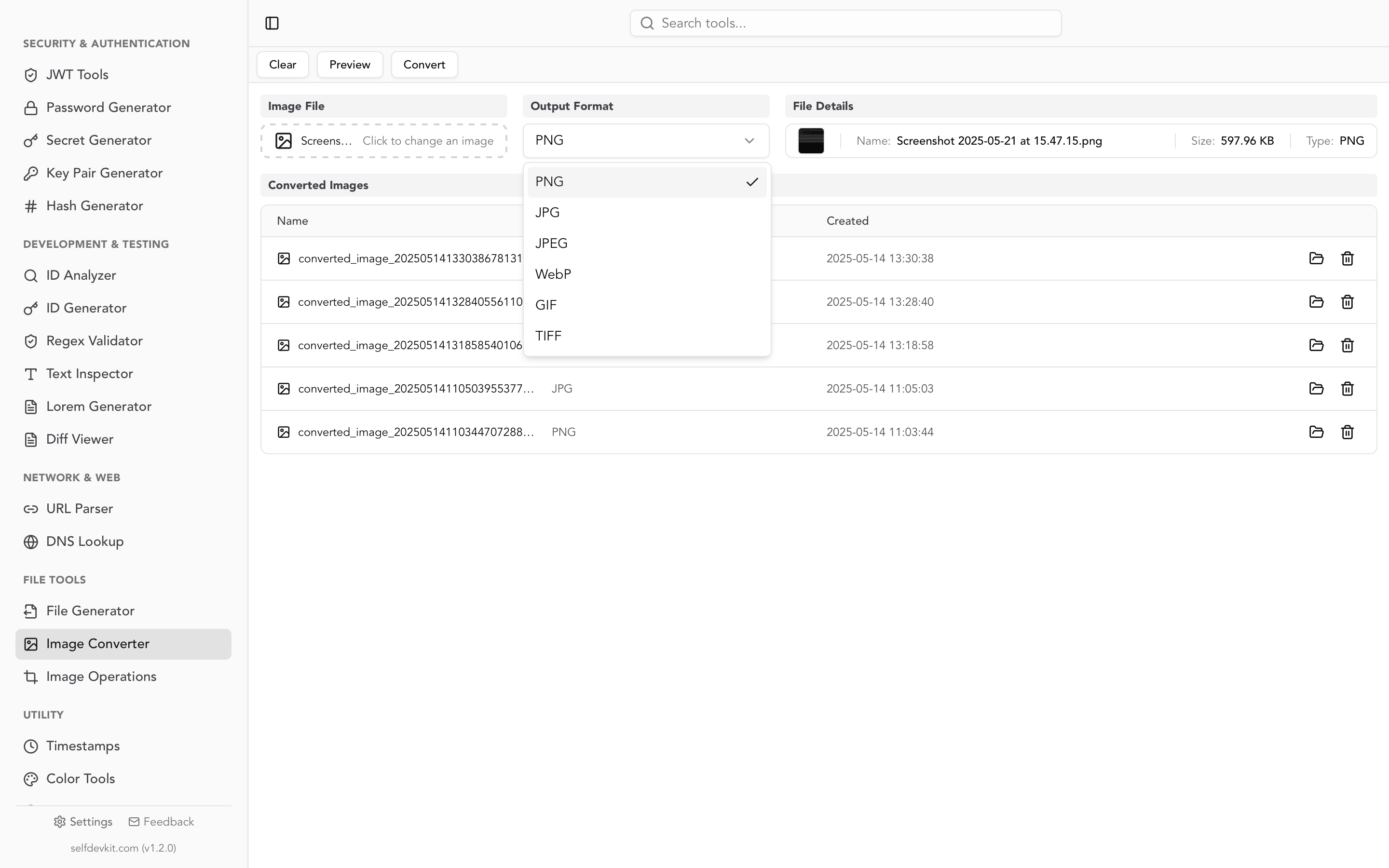
Two limits to know. JPEG cannot store transparency, and the converter does not flatten transparent pixels onto a background, so a transparent PNG or WebP should go to PNG instead (the WebP to JPG guide shows what happens otherwise). The converter also cannot read HEIC. On a Mac, sips -s format jpeg photo.heic --out photo.jpg handles HEIC with built-in tools. From a terminal on any OS, magick mystery.jpeg photo.jpg converts by content as well.
Accepting both extensions in your own code
JPEG to JPG renaming is often needed only because a form or script accepts one spelling. If you write the upload handler, accept both and check the bytes instead of the name.
On the client, list the MIME type and both extensions:
<input type="file" accept="image/jpeg,.jpg,.jpeg">
On the server, sniff the signature. Node.js:
import { open } from 'node:fs/promises';

export async function isJpeg(path) {
  const fh = await open(path, 'r');
  try {
    const { buffer } = await fh.read(Buffer.alloc(3), 0, 3, 0);
    return buffer[0] === 0xff && buffer[1] === 0xd8 && buffer[2] === 0xff;
  } finally {
    await fh.close();
  }
}
Python, which also tells you what the file really is:
from pathlib import Path

def sniff(path: Path) -> str | None:
    head = path.read_bytes()[:12]
    if head[:4] == b"RIFF" and head[8:12] == b"WEBP":
        return "webp"
    if head[4:8] == b"ftyp":
        return "heif/avif family"
    if head.startswith(b"\xff\xd8\xff"):
        return "jpeg"
    if head.startswith(b"\x89PNG\r\n\x1a\n"):
        return "png"
    return None
Both snippets returned the right answer for all three test files above. Python 3.13 removed the old imghdr module, so don't reach for it. If you store uploads, pick the extension from the sniffed type. That way your bucket ends up with one spelling no matter what users send. If a script matches on extension, use \.jpe?g$ with a case-insensitive flag, so .jpg, .jpeg, and .JPEG all match.
What to do next
If your file starts with FF D8 FF, rename it and you're done. Use the loop or ren command above for a folder, and keep the no-overwrite flag.
If it starts with anything else, it needs a real conversion. Download SelfDevKit to convert WebP or PNG to JPG offline with the Image Converter, or to PNG when it has transparency. To shrink oversized images, see the image resizer guide. For the reverse direction, the JPG to PNG guide covers what changes and what doesn't. It is a one-time purchase that runs on macOS, Windows and Linux.