To convert JPG to PNG, decode the JPEG to pixels and save those pixels as a PNG. Any image tool can do it: an offline desktop app, magick photo.jpg -auto-orient photo.png in a terminal, or two lines of Python. The conversion is lossless, so nothing gets worse. It doesn't get better either.
The interesting part is what people expect from it and don't get. The background doesn't turn transparent. Phone photos can come out sideways. Some JPEGs make Pillow throw an error. And in the tests below, photos grew five to nine times in size.
Each of those is covered below, with numbers. They come from converting a small set of test JPEGs locally in October 2026 with ImageMagick 7.1.2, Pillow 12.3, sharp 0.35.4, ffmpeg 8.1.3, and a Rust build that copies SelfDevKit's converter code exactly. Treat the numbers as measurements of those files, not universal constants.
How to convert JPG to PNG
The fastest way to convert JPG to PNG is whichever tool is already on your machine. Every option below writes a lossless PNG of the decoded JPEG:
| Where you are | How | Phone photos come out upright? |
|---|---|---|
| SelfDevKit (macOS, Windows, Linux) | Image Converter, output format PNG | No, see the fix below |
| Any terminal with ImageMagick | magick in.jpg -auto-orient out.png |
Yes, with -auto-orient |
| ffmpeg | ffmpeg -i in.jpg out.png |
Yes (8.1.3 rotated it) |
| macOS, nothing installed | sips -s format png in.jpg --out out.png |
Not tested here |
| Python | ImageOps.exif_transpose(Image.open(...)).save("out.png") |
Yes, with exif_transpose |
| Node.js | sharp("in.jpg").autoOrient().png().toFile("out.png") |
Yes, with .autoOrient() |
To batch a folder with ImageMagick, mogrify writes a PNG next to each JPG and leaves the originals alone:
magick mogrify -auto-orient -format png *.jpg
List only patterns that match something. If there are no .jpeg files, adding *.jpeg makes mogrify fail with "unable to open image '*.jpeg'" and exit non-zero.
JPEG and JPG are the same format. The two extensions exist because MS-DOS and early Windows limited file extensions to three characters. So "jpeg to png" is the same conversion, and every tool here treats them identically.
In SelfDevKit
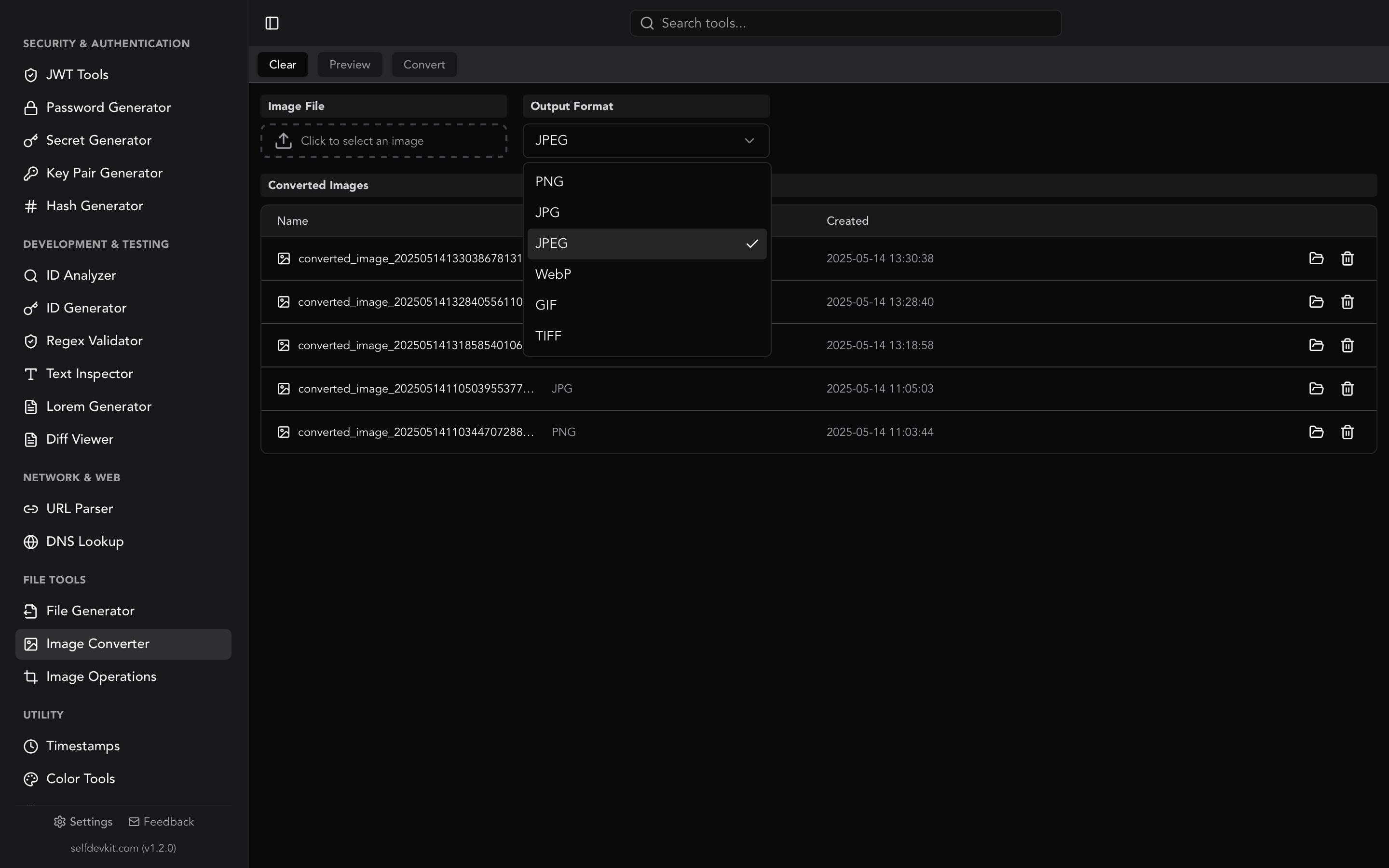
SelfDevKit's Image Converter converts locally, with no upload and no file size limit from a server:
- Open Image Converter under File Tools.
- Click the file box and choose your
.jpgor.jpeg. - Leave Output Format on PNG (the default) and click convert.
- The PNG appears in the converted list, where you can open it or delete it.
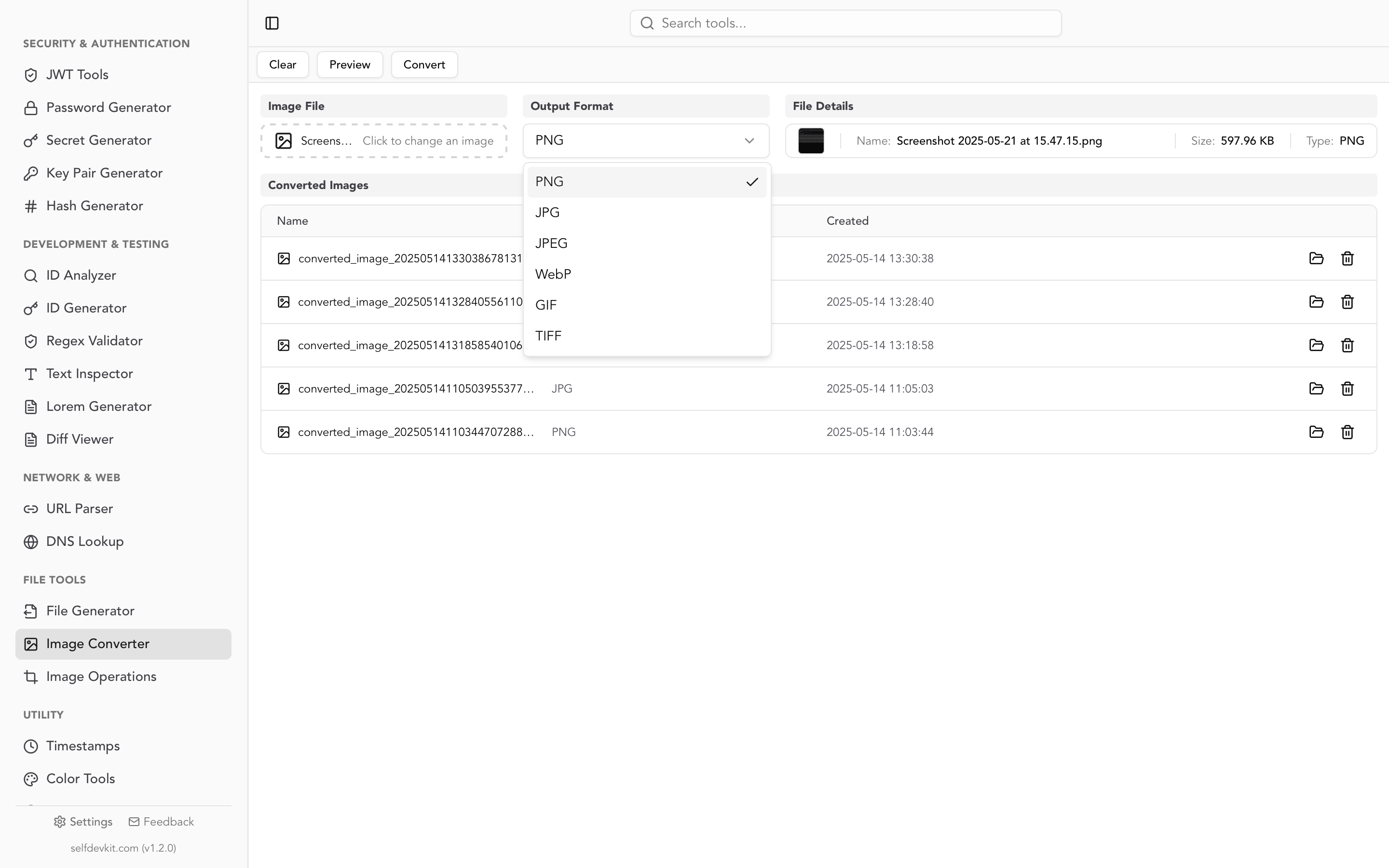
Under the hood it is Rust's image crate. The decoded JPEG is written as an 8-bit RGBA PNG with maximum zlib compression and adaptive filtering. It converts one file at a time, so for a folder of 300 product photos, the mogrify line above is the better tool.
JPG to PNG won't make the background transparent
Converting JPG to PNG never creates transparency. JPEG has no alpha channel, so every pixel arrives fully opaque, and a correct converter writes it that way. SelfDevKit writes an alpha channel, but every value in it is 255. The white box around your logo is still there, now in a format that could hold transparency.
Removing the background is a second step. The obvious command is the wrong one:
magick logo.jpg -fuzz 10% -transparent white logo.png # don't
-transparent replaces a color everywhere in the image, not just in the background. To show what that means, a 512×512 logo with a white inner panel was saved as a JPG at quality 90, then cleaned up four ways:
| Method | Background removed | Logo's own white panel punched out |
|---|---|---|
-transparent white |
94.9% | 84.3% |
-fuzz 10% -transparent white |
100% | 100% |
| Flood fill from the corner | 94.8% | 0% |
Flood fill from the corner, -fuzz 10% |
100% | 0% |
Two things go wrong with the obvious approach. Without fuzz, JPEG compression noise leaves about 5% of the "white" background slightly off-white, so speckles survive. With fuzz, the background clears completely, but so does every white area inside the logo.
A flood fill only removes white that is connected to the edge of the image:
magick logo.jpg -bordercolor white -border 1 \
  -fuzz 10% -fill none -draw "color 0,0 floodfill" \
  -shave 1x1 logo.png
The 1-pixel white border lets the fill reach the background on all four sides, even if the logo touches an edge. -shave removes the border afterwards.
One problem is left. The logo's anti-aliased edge pixels are a blend of blue and white, so they stay opaque and form a faint pale ring on dark backgrounds. For a crisp result, go back to the original vector or PNG export. For photos of people or products, color keying won't work at all. That needs a segmentation model or an editor's subject-selection tool. SelfDevKit doesn't do background removal.
Why phone photos come out sideways
A JPG to PNG conversion can rotate your photo by 90 degrees because of the EXIF Orientation tag. Phones often store the sensor's pixels as they were captured and add a tag saying "rotate this 90° clockwise when you display it." Viewers obey the tag, so the JPG looks upright everywhere. A converter that ignores the tag, and also drops the EXIF block, writes the raw sideways pixels with nothing left to say how to fix them.
The test file was Landscape_6.jpg from the exif-orientation-examples repository: 1200×1800 stored pixels, Orientation 6, displayed as 1800×1200. Each PNG was then loaded in headless Chromium 153:
| Tool | Pixels written | Orientation tag in the PNG | Displays upright in Chromium |
|---|---|---|---|
| SelfDevKit Image Converter | 1200×1800 (sideways) | None | No |
Pillow 12.3, plain save() |
1200×1800 (sideways) | None | No |
sharp 0.35.4, plain .png() |
1200×1800 (sideways) | None | No |
| ImageMagick 7.1.2, no flags | 1200×1800 (sideways) | Kept (6) | Yes |
| ffmpeg 8.1.3 | 1800×1200 (rotated) | Removed | Yes |
Browser <canvas> (Chromium 153) |
1800×1200 (rotated) | n/a | Yes |
ImageMagick's row is a trap. PNG can carry EXIF in an eXIf chunk, which is now part of the PNG Third Edition W3C Recommendation, and ImageMagick copies the Orientation tag into it. Chromium honors the tag, so the file looks fine in a browser. Any program that ignores PNG EXIF shows it sideways, and plenty do. Rotating the pixels, so no tag is needed, is the safer result.
The fixes:
- ImageMagick: add
-auto-orient. The pixels are rotated and the tag reset to 1. - Pillow: wrap the image in
ImageOps.exif_transpose()before saving. - sharp: call
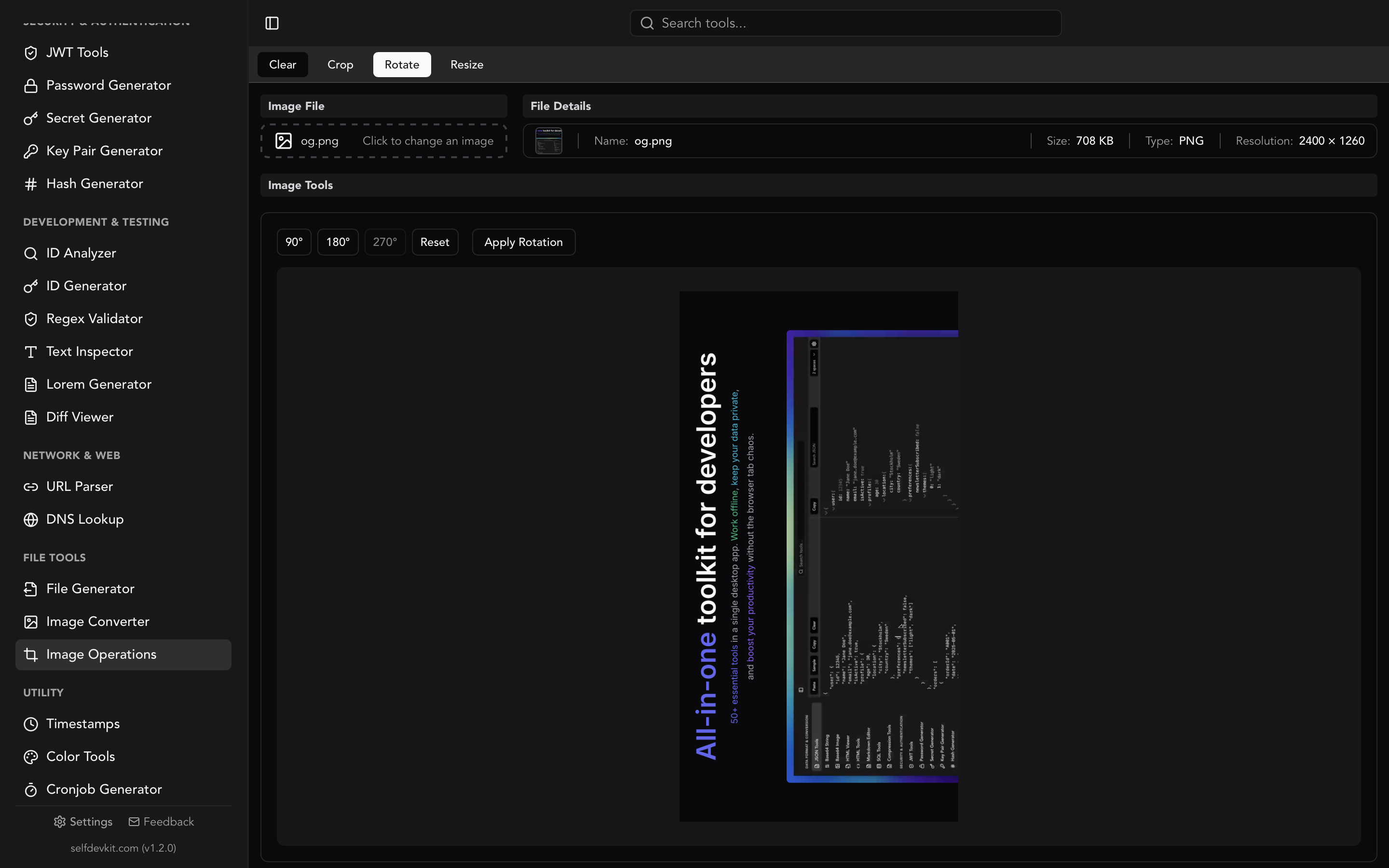
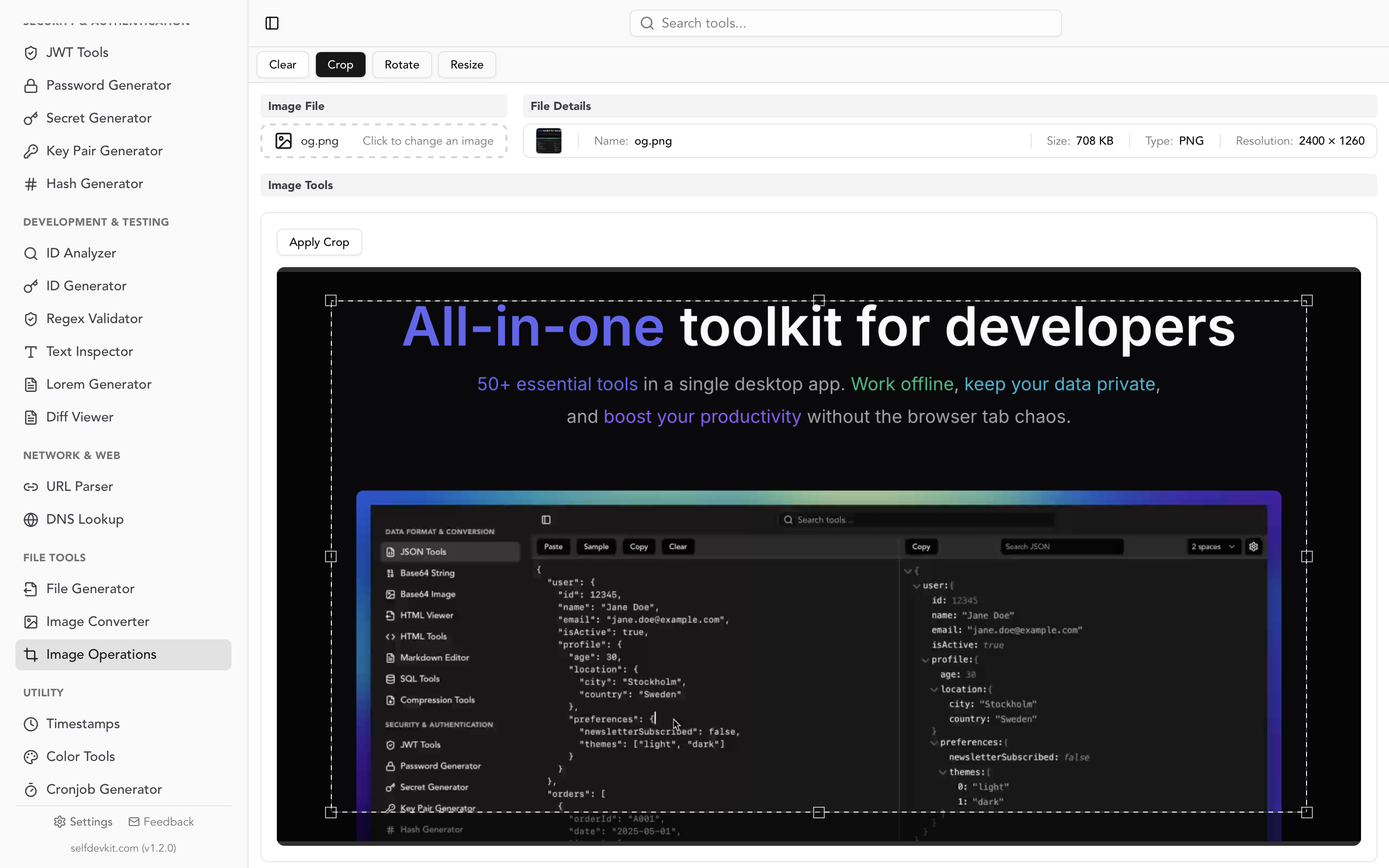
.autoOrient(), which the docs describe as "Auto-orient based on the EXIFOrientationtag, then remove the tag." A bare.rotate()does the same thing for backwards compatibility. - SelfDevKit: open the original JPG in Image Operations and rotate it: 90° for Orientation 6, 270° for Orientation 8, 180° for Orientation 3. Image Operations saves its result as PNG, so this rotates and converts in one step. Rotating the Image Converter's sideways PNG works too. Rotate the stored pixels and check the file you saved; the preview may already show the photo upright.
Photos from screenshots, scanners and most web downloads have Orientation 1 (or no tag) and aren't affected. To check a file, run magick identify -format '%[orientation]\n' photo.jpg. ImageMagick prints names rather than numbers: TopLeft is normal, and RightTop is Orientation 6, the test file's value.
Why the PNG is so much bigger
In the tests below, JPG to PNG made files 1.3 to 14 times larger, and the photos 5 to 9 times larger with most tools. JPEG stores a compact, lossy description of the image. PNG has to store every decoded pixel exactly, including the compression noise JPEG introduced, and that noise compresses badly.
Here is the PNG size as a multiple of the JPG size:
| Test image | JPG size | SelfDevKit | ImageMagick | Pillow | sharp (default) | SelfDevKit + oxipng -o 4 |
|---|---|---|---|---|---|---|
| Photo, 1280×2369, quality 87 | 615 KB | 5.3× | 5.3× | 5.1× | 5.6× | 4.5× |
| Photo, 1280×575, quality 87 | 221 KB | 6.2× | 5.9× | 6.0× | 7.3× | 5.4× |
| Phone-style photo, quality 73 | 353 KB | 9.4× | 9.2× | 9.2× | 14.3× | 7.6× |
| App screenshot, 2880×1800, quality 85 | 229 KB | 2.4× | 2.7× | 2.7× | 2.4× | 1.9× |
| Grayscale photo, quality 85 | 191 KB | 3.5× | 2.4× | 2.5× | 4.3× | 2.4× |
| Flat-color logo, quality 90 | 21 KB | 1.8× | 1.4× | 1.4× | 1.5× | 1.3× |
What the table shows:
- Lower JPEG quality tends to mean a bigger jump. In this set, the quality 73 photo grew the most. A heavily compressed JPEG is small because it threw detail away, and PNG has to store the blocky result losslessly.
- Photos are the worst case, flat graphics the best. Screenshots and logos have large areas of identical color that PNG compresses well.
- Channel count matters. SelfDevKit always writes RGBA, and sharp promotes grayscale to RGB. On the grayscale photo, that cost 40 to 80% over tools that kept it as a one-channel image.
- oxipng is free size. It recompresses a PNG losslessly; every optimized file above was verified pixel-identical to its input. It also dropped the all-opaque alpha channel and stored the grayscale photo as a palette image.
PNG does not restore quality. It is a lossless copy of a lossy image, with the blockiness and color smearing preserved exactly. If an image went PNG → JPG → PNG, the round trip is pure loss: the test logo started as a 3.7 KB PNG and came back at 28 to 38 KB, larger and slightly worse. When a clean PNG matters, find the original export.
So when is converting worth it? When you will edit and re-save the image repeatedly, since every JPEG re-save loses a little more and PNG re-saves lose nothing. When a tool or platform requires PNG. Or as the first step before adding transparency. If the goal is a smaller file, PNG is the wrong target; keep the JPG or see the image converter guide for WebP.
CMYK JPEGs and other errors
Most JPEGs are YCbCr color that decodes to RGB, but JPEGs exported for print are often CMYK. PNG has no CMYK mode, so a converter must translate the colors. Pillow refuses to do it implicitly:
OSError: cannot write mode CMYK as PNG
The fix is one line, im = im.convert("RGB"), included in the script below. ImageMagick, ffmpeg, sharp and SelfDevKit all converted the test CMYK file without complaint. Their results weren't identical, though. sharp's colors were measurably different from the other three (26.7 dB PSNR against the RGB original versus 35 to 38 dB for the others), most likely because it converts through a CMYK color profile rather than a simple formula. For real print files that carry an embedded ICC profile, a profile-aware conversion is the correct one, so check colors if they matter.
Two smaller things are worth knowing:
- Metadata. SelfDevKit, Pillow and sharp drop EXIF on the way to PNG, including GPS coordinates from phone photos. ImageMagick and ffmpeg kept an EXIF block. Strip it with
magick ... -strip out.pngbefore you publish if you need to be sure. - Progressive JPEGs decoded fine in all five tools tested. "Progressive" only changes how the file loads over a network, not the pixels you get.
JPG to PNG in Python and Node.js
These scripts convert a whole folder and handle the orientation and CMYK cases above. Both were run against the test files.
Python (Pillow):
from pathlib import Path
from PIL import Image, ImageOps

for src in Path("photos").glob("*.jp*g"):
    with Image.open(src) as im:
        im = ImageOps.exif_transpose(im)   # rotate phone photos upright
        if im.mode == "CMYK":
            im = im.convert("RGB")         # PNG has no CMYK mode
        im.save(src.with_suffix(".png"), optimize=True)
The glob is case-sensitive, so add *.JP*G if your camera writes uppercase extensions. Grayscale JPEGs stay one-channel (L mode), which kept the grayscale test file at 454 KB.
Node.js (sharp):
import sharp from "sharp";
import { readdir } from "node:fs/promises";

for (const f of await readdir("photos")) {
  if (!/\.jpe?g$/i.test(f)) continue;
  await sharp(`photos/${f}`)
    .autoOrient()                       // apply EXIF Orientation
    .png({ compressionLevel: 9, adaptiveFiltering: true })
    .toFile(`photos/${f.replace(/\.jpe?g$/i, ".png")}`);
}
sharp's default PNG settings produced the largest PNGs for the photos in the size table. With compressionLevel: 9 and adaptiveFiltering: true, the 1280×2369 photo came out at 3.16 MB instead of 3.47 MB. sharp also converted the CMYK file without extra code. It still wrote the grayscale photo as RGB (729 KB). Adding .toColourspace("b-w") for grayscale sources brought it to a one-channel 455 KB.
Going the other way: PNG to JPG
PNG to JPG is lossy, and the one real decision is what happens to transparency. JPEG can't store it, so transparent pixels have to be composited onto a background color first. If they aren't, you get whatever RGB values were hidden under the transparent pixels, often black. Flatten explicitly:
magick logo.png -background white -flatten -quality 85 logo.jpg
SelfDevKit's JPG output doesn't flatten for you and always encodes at quality 100. That's great for a photo that never had transparency, but it makes large files and the wrong background on transparent PNGs. The WebP to JPG guide has a tested comparison of how each tool handles transparency, and the same rules apply to PNG sources.
Try it offline
An unreleased product shot, a screenshot of an internal dashboard, or a phone photo with GPS coordinates in its EXIF doesn't need to pass through someone else's website to change format. A terminal command or a desktop tool never sends the file anywhere (more on why that matters).
The Image Converter handles single files between JPG, PNG, WebP, GIF and TIFF, and Image Operations covers rotate, crop and resize. Both ship with the other 50+ tools in SelfDevKit and run entirely on your machine.
Download SelfDevKit for macOS, Windows or Linux and convert your next JPG without uploading it anywhere.