To convert M4A to WAV, decode the audio inside the M4A (AAC or Apple Lossless) and write it out as uncompressed PCM. With ffmpeg it's one line:
ffmpeg -i input.m4a output.wav
That command always writes a 16-bit WAV, whatever the source. For a typical AAC voice memo, that's fine. For a 24-bit Apple Lossless recording, it throws away 8 bits per sample. For a loud AAC music file, it can clip peaks the M4A itself never clipped. And no setting makes the WAV sound better than the M4A did: decoding to PCM stops further loss, but it can't restore what AAC already discarded.
So the useful question is which WAV you need. A file for a DAW, a file for Whisper, and a file for a Python script each want different flags.
Every number below comes from running FFmpeg 9.0.2 on Linux, with 8.1.3 for comparison, on a public-domain Musopen recording of Mozart's Figaro overture (4:01, 24-bit/48 kHz original). The recording was turned into M4A files first, alongside a few small test files built for specific cases. Treat the results as worked examples, not averages.
How to convert M4A to WAV
You can convert M4A to WAV with ffmpeg, the Music app on a Mac, a desktop converter, or an online converter. All of them decode the M4A to PCM. Where they differ is bit depth, sample rate, and where your file goes.
ffmpeg (Windows, macOS, Linux). Install it from ffmpeg.org or a package manager (brew install ffmpeg, sudo apt install ffmpeg, winget install Gyan.FFmpeg). Then pick the line that matches what the WAV is for:
# Default: 16-bit PCM at the source sample rate
ffmpeg -i input.m4a output.wav

# Keep 24-bit Apple Lossless at 24 bits
ffmpeg -i input.m4a -c:a pcm_s24le output.wav

# Lossy AAC for editing: 32-bit float, so nothing clips
ffmpeg -i input.m4a -c:a pcm_f32le output.wav

# Speech recognition (whisper.cpp and similar): 16 kHz mono 16-bit
ffmpeg -i input.m4a -ar 16000 -ac 1 -c:a pcm_s16le output.wav
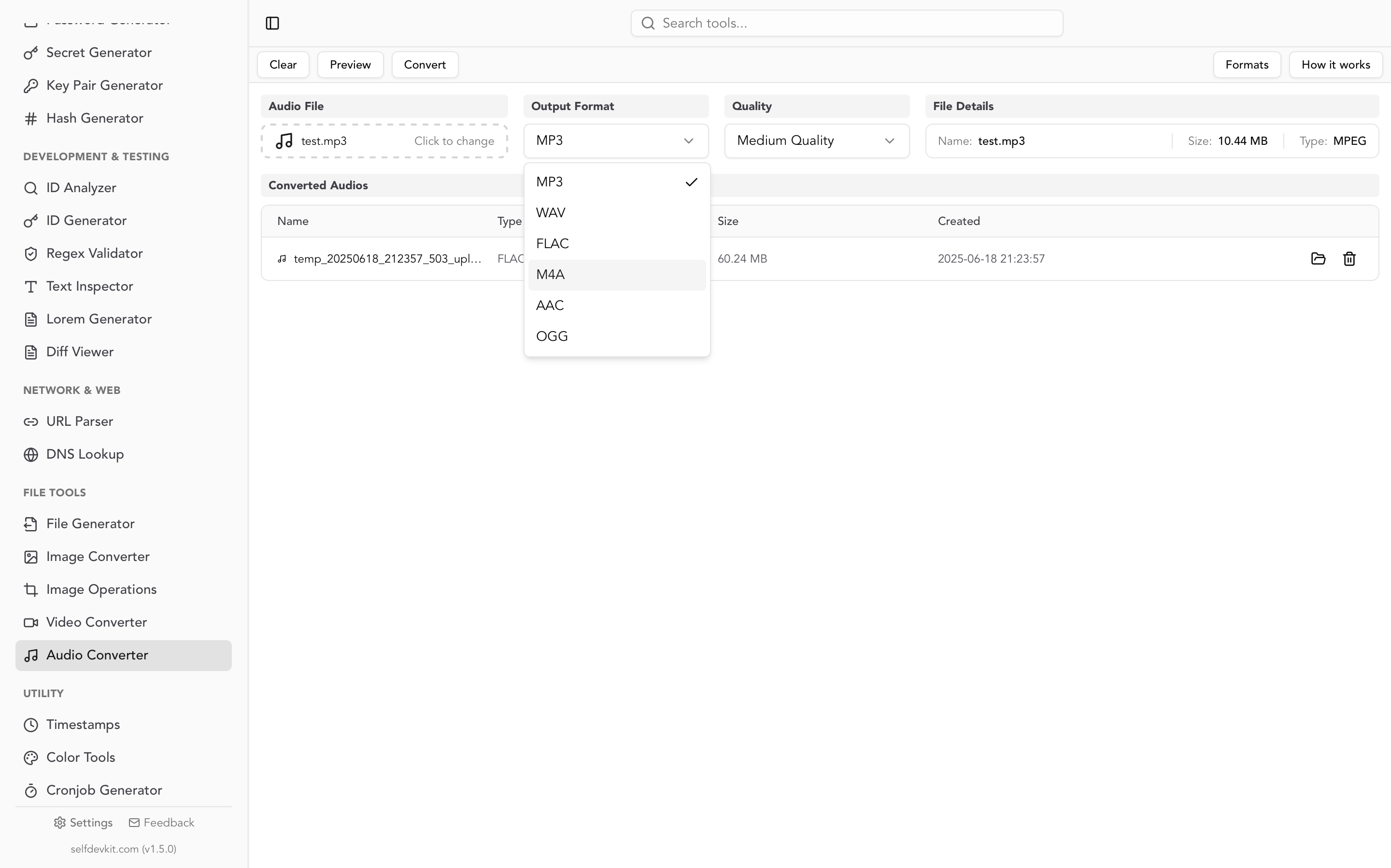
SelfDevKit. Open Audio Converter, select the M4A, set Output Format to WAV, and click Convert. FFmpeg runs on your machine, so nothing is uploaded. The app writes 16-bit PCM, the same as the default ffmpeg line above. The SelfDevKit section explains what that means for 24-bit sources.
Music app on a Mac. Choose Music > Settings > Files > Import Settings and set Import Using to WAV Encoder. Then select the songs and choose File > Convert > Create WAV Version, following Apple's conversion steps. The WAV appears in your library next to the original.
Online converters upload the file to someone else's server, usually with a size cap and a retention period you have to take on trust. That's a reasonable deal for a song. It's a worse one for an interview, a meeting recording, or a voice memo, which are exactly the M4A files people most often need as WAV.
Check what's inside the M4A first
An M4A holds either lossy AAC or lossless ALAC (Apple Lossless). The extension doesn't tell you which one you have, but ffprobe does:
ffprobe -v error -select_streams a:0 \
  -show_entries stream=codec_name,sample_fmt,sample_rate,channels,bits_per_raw_sample,bit_rate \
  -of default=nw=1 input.m4a
For the 24-bit ALAC test file:
codec_name=alac
sample_fmt=s32p
sample_rate=48000
channels=2
bit_rate=1502487
bits_per_raw_sample=24
alacwithbits_per_raw_sample=16: CD-quality lossless. A 16-bit WAV is an exact copy.alacwithbits_per_raw_sample=24: a 24-bit master. Write 24-bit WAV. Voice memos recorded with the Lossless Audio Quality setting are lossless files, so check their codec and bit depth the same way.aac: lossy.sample_fmt=fltpmeans the decoder outputs floating-point samples, which matters for the clipping section below.
Swap -of default=nw=1 for -of json to get output you can paste into a JSON viewer when you check a folder of files.
Which WAV format to use
Use 16-bit for playback and 16-bit ALAC sources, 24-bit for 24-bit ALAC, 32-bit float when you'll edit a loud AAC file, and 16 kHz mono 16-bit for speech recognition. WAV size is pure arithmetic: sample rate × bytes per sample × channels.
| WAV format | ffmpeg flags | Per minute | Hits the 4 GiB limit after |
|---|---|---|---|
| 16-bit, 44.1 kHz stereo (CD) | -c:a pcm_s16le |
10.6 MB | 6 h 45 min |
| 24-bit, 48 kHz stereo | -c:a pcm_s24le |
17.3 MB | 4 h 8 min |
| 32-bit float, 44.1 kHz stereo | -c:a pcm_f32le |
21.2 MB | 3 h 22 min |
| 16-bit, 16 kHz mono (speech) | -ar 16000 -ac 1 -c:a pcm_s16le |
1.9 MB | 37 h 17 min |
The Figaro test shows the growth. The 256 kbps AAC (7.7 MB) became a 42.5 MB WAV, 5.5 times larger. The 128 kbps AAC (3.9 MB) became the same 42.5 MB, about 11 times larger. A WAV's size depends only on its format, never on how good the source was.
The 16-bit ALAC M4A decoded to a WAV whose PCM had the same MD5 hash as the original CD-quality WAV. That's the lossless round trip working as intended, and a quick way to check it on your own files: ffmpeg -i file.wav -f md5 - hashes the decoded audio, ignoring headers and tags.
The default command turns 24-bit ALAC into 16-bit
ffmpeg's WAV muxer defaults to 16-bit PCM (pcm_s16le), and it applies that default even when the source is 24-bit. No warning is printed.
| From the 24-bit ALAC M4A (45.3 MB) | WAV size | Bit depth | Matches the 24-bit original? |
|---|---|---|---|
ffmpeg -i in.m4a out.wav |
46.3 MB | 16 | No |
ffmpeg -i in.m4a -c:a pcm_s24le out.wav |
69.4 MB | 24 | Yes, identical MD5 |
The 16-bit file isn't broken. Subtracted from the 24-bit original, the difference measured −95.1 dB RMS, which is inaudible at normal listening levels. That figure matches plain truncation of the extra bits. ffmpeg's resampler does no dithering by default (dither_method defaults to 0).
The cost shows up later. 24-bit sources exist for headroom, like a quiet interview you'll raise by 20 dB, and every dB of gain raises the truncation error too. Keep the 24 bits until the final export. If you do need 16-bit, ask for dither explicitly:
ffmpeg -i input.m4a -af aresample=osf=s16:dither_method=triangular -c:a pcm_s16le output.wav
AAC peaks can clip when written to 16-bit WAV
AAC decodes to floating-point samples, and a lossy decode can overshoot 0 dBFS even when the original master never did. A 16-bit or 24-bit WAV can't store values above full scale, so ffmpeg clamps them. Those clamped samples are clipping.
To measure it, the Figaro recording was mastered loud (−7.7 LUFS integrated, sample peak −0.2 dBFS, no clipping), encoded to AAC with ffmpeg's built-in encoder, and decoded again:
| Source | Decoded peak | Clipped samples in a 16-bit WAV |
|---|---|---|
| Loud master WAV | −0.2 dBFS | 0 |
| AAC 256 kbps | −0.07 dBFS | 0 |
| AAC 128 kbps | +1.04 dBFS | 699 |
At 128 kbps the codec error pushed the peak over full scale, and the default WAV clipped 699 samples. Two fixes, both tested:
-c:a pcm_f32lekeeps the overshoot as values above 1.0, so nothing is clipped. Any DAW can then turn the file down without damage. It doubles the size, though, and some tools can't read float WAV (see below).-af volume=-1.5dBbefore a 16-bit WAV left zero clipped samples on the same file. That costs 1.5 dB of level, which matters less than distortion if the file is for playback.
Quiet sources such as speech, voice memos, and most podcasts rarely get near full scale, so this is mainly a music problem. Find out before you convert: ffmpeg -i input.m4a -af astats=measure_perchannel=none -f null - prints the decoded Peak level dB. On the 128 kbps file it reported 1.035630. Anything above 0 will clip in a 16-bit or 24-bit WAV.
Converting M4A to WAV for transcription
Speech recognition tools want 16 kHz mono 16-bit WAV, and some accept nothing else. The whisper.cpp README says its CLI "currently runs only with 16-bit WAV files", and gives this command:
ffmpeg -i input.mp3 -ar 16000 -ac 1 -c:a pcm_s16le output.wav
It works the same with an M4A input. The 4:01 test file came out at 7.7 MB.
Not every speech tool needs a WAV, though:
- OpenAI's Python
whisperpackage decodes the file itself. Itsload_audiofunction runs ffmpeg with-f s16le -ac 1 -acodec pcm_s16le -ar 16000and reads the raw samples from its output. Pass the M4A directly; it gets the same conversion internally. - OpenAI's transcription API accepts
m4aand caps uploads at 25 MB, per its docs. A 16 kHz mono WAV uses 1.9 MB a minute, so 25 MB holds about 13 minutes. The original M4A holds far more. Converting to WAV first makes a long recording more likely to hit the limit.
For local transcription of a stereo interview where each person has their own channel, skip -ac 1 and split the channels instead. You get one clean speaker per file:
ffmpeg -i interview.m4a -filter_complex "[0:a]pan=mono|c0=FL[L];[0:a]pan=mono|c0=FR[R]" \
  -map "[L]" -ar 16000 -c:a pcm_s16le left.wav \
  -map "[R]" -ar 16000 -c:a pcm_s16le right.wav
Timing: older ffmpeg adds 22 ms to the end
AAC encodes audio in 1,024-sample frames, so the last frame is usually padded. FFmpeg 9.0 and later remove that padding when decoding. FFmpeg 8.1 and earlier remove the priming at the start but not the padding at the end, and the WAV keeps it.
A 1.000-second test tone (44,100 samples) encoded to M4A decoded as follows:
| Decoder | WAV length | Extra |
|---|---|---|
| FFmpeg 9.0.2 | 44,100 samples | none |
| FFmpeg 8.1.3 | 45,056 samples | 956 samples (21.7 ms) |
The first 44,100 samples were identical in both WAVs, so the start lines up either way. The extra tail is near-silent (peak sample value 26 of 32,767). It still matters in a DAW: stems or takes that should end on the same sample won't. Gapless album tracks laid end to end will drift by about 22 ms per track. Run ffmpeg -version to check what you have. On 8.x, trim to the length the M4A records:
n=$(ffprobe -v error -select_streams a:0 -show_entries stream=duration_ts -of csv=p=0 input.m4a)
ffmpeg -i input.m4a -af "atrim=end_sample=$n" output.wav
That gave exactly 44,100 samples on the test tone. Files encoded by Apple's encoder carry their true length in an iTunSMPB tag instead, which the M4A to MP3 guide shows how to read.
What happens to tags and cover art
WAV stores tags in a RIFF LIST INFO chunk with a short, fixed set of fields, so ffmpeg keeps the basic ones and silently drops the rest. A test M4A tagged the way iTunes tags a purchase was converted with the default command:
| M4A tag | In the WAV |
|---|---|
| title, artist, album, genre, date, comment, copyright | Kept (INAM, IART, IPRD, IGNR, ICRD, ICMT, ICOP) |
track 3/12 |
Kept as IPRT 3/12 |
| composer, album artist, disc, compilation, lyrics, sort artist | Dropped |
| iTunes account ID, purchase date | Dropped |
| Cover art (1000×1000 JPEG) | Dropped, no warning, exit code 0 |
| (added) | ISFT encoder string, for example Lavf63.1.102 |
One side effect is useful. The iTunes account field, which ffmpeg carries into an MP3 as a custom tag, doesn't survive the trip to WAV. The comment field does, so check that one if it holds anything private. To strip every tag, add -map_metadata -1 -fflags +bitexact. The second flag also drops the ISFT encoder string.
Some audio editors ignore INFO tags anyway, so keep the M4A or a JSON dump of its tags (ffprobe -v error -show_entries format_tags -of json input.m4a > tags.json). Comparing the M4A and WAV dumps in a diff viewer shows exactly what was lost.
WAV header formats and which tools read them
ffmpeg picks the WAV header format from the sample format, and older tools reject some of them. Here's what the test files used, checked with Python 3.12's wave module:
| WAV | Format tag in header | Python 3.12 wave |
|---|---|---|
| 16-bit PCM | 1 (PCM) | Reads it |
| 24-bit PCM | 0xFFFE (WAVE_FORMAT_EXTENSIBLE) | Reads it |
| 32-bit float | 3 (IEEE float) | wave.Error: unknown format: 3 |
The wave docs say WAVE_FORMAT_EXTENSIBLE support arrived in 3.12 and float support in 3.15. Python 3.11 and earlier fail on the 24-bit file too. If a script or an old hardware sampler is going to read the WAV, 16-bit PCM is the safe choice. Libraries like soundfile (libsndfile) read all three.
Files over 4 GB
A standard WAV can't exceed 4 GiB, because RIFF stores sizes in 32-bit fields. The table above shows how fast long recordings reach that: under 3.5 hours for 32-bit float stereo. ffmpeg's WAV muxer has an -rf64 option for the RF64 extension with 64-bit sizes. Its default is never; auto starts a normal RIFF file and switches to RF64 only if the output passes 4 GB:
ffmpeg -i long-recording.m4a -c:a pcm_s24le -rf64 auto output.wav
With auto, a short test file came out only 36 bytes larger (a reserved JUNK chunk) and still read as plain RIFF PCM, so leaving the flag on costs nothing.
Batch convert M4A to WAV
To batch convert, loop over the files and choose the PCM format per file from ffprobe's output. This bash loop (macOS, Linux, WSL) keeps lossless files at their bit depth and writes AAC files as float, so nothing clips:
for f in *.m4a; do
  codec=$(ffprobe -v error -select_streams a:0 -show_entries stream=codec_name -of csv=p=0 "$f")
  bits=$(ffprobe -v error -select_streams a:0 -show_entries stream=bits_per_raw_sample -of csv=p=0 "$f")
  if [ "$codec" = "alac" ] && [ "$bits" = "24" ]; then pcm=pcm_s24le
  elif [ "$codec" = "alac" ]; then pcm=pcm_s16le
  else pcm=pcm_f32le; fi
  ffmpeg -nostdin -n -i "$f" -c:a "$pcm" -rf64 auto "${f%.m4a}.wav"
done
On a test folder it wrote pcm_s24le for the 24-bit ALAC file, pcm_s16le for the 16-bit one, and pcm_f32le for the AAC file. Swap the AAC branch for pcm_s16le if the files are for playback and the target can't read float. For transcription, use the 16 kHz mono command for everything.
The same idea in PowerShell, with 16-bit output for every file:
Get-ChildItem *.m4a | ForEach-Object {
  ffmpeg -nostdin -n -i $_.FullName -c:a pcm_s16le -rf64 auto ($_.BaseName + ".wav")
}
-n skips WAVs that already exist, so a rerun after an interruption picks up where it stopped. Delete the half-written file first.
M4A to WAV in SelfDevKit
SelfDevKit's Audio Converter runs FFmpeg locally, so recordings never leave your machine and the conversion works offline. It runs the same default conversion as ffmpeg -i input.m4a -c:a pcm_s16le output.wav, which means:
- Always 16-bit PCM. Right for 16-bit ALAC and for most AAC playback and speech files. For 24-bit ALAC you'll get the truncated 16-bit version described above. Use the
pcm_s24lecommand instead. - The Quality menu has no effect on WAV output. It only changes MP3, AAC, M4A, FLAC, and OGG settings.
- No resampling or channel changes. The WAV keeps the M4A's sample rate and channel count. For whisper.cpp, use the 16 kHz mono command.
- Tags follow the table above. Basic INFO tags carry over, and cover art is dropped.
- End padding depends on the FFmpeg build the app finds. 9.0 and later trim it; older builds leave the 22 ms tail.
- FFmpeg must be present. The Audio Converter uses the FFmpeg binary that SelfDevKit's Video Converter downloads on first use, or an
ffmpegon your system PATH. - One file at a time. Output names are generated (
temp_<timestamp>_upload_<timestamp>.wav) and files land in the app's data folder. Use Reveal in folder to find the WAV, and rename it before you share it.
Use the app for memos, interviews, and 16-bit music; use the ffmpeg commands for 24-bit masters, float output, or whole folders. The WAV to MP3 guide covers the reverse trip, and why offline tools matter explains the case for keeping recordings off upload sites.
Download SelfDevKit for Windows, macOS, or Linux to convert M4A to WAV on your own computer, along with 50+ other developer tools that all work offline.