
What is crontab?
crontabis both a file and the command that manages it. The file is a per-user table of scheduled jobs, each line pairing a five-field time expression with a command. Thecrontabcommand installs, lists, validates, and removes that file, and it is the only supported way to change it, because it validates your entries and signals the cron daemon before anything takes effect.
Most crontab guides teach you the five time fields and stop. That is the easy half. The half that actually breaks production is the command itself: which flag validates without installing, why the same flag means two different things depending on which cron package is installed, what happens between saving in your editor and the job being live, and the two ways to erase every job you have with a single keystroke.
This is a reference for the crontab command. If you want to build or decode the schedule expression itself, read the guide to building and debugging cron expressions. If you want to know where these files live on disk and how the daemon picks them up, read cron and crontab explained. This post covers everything between your keyboard and the installed file.
Table of contents
- Crontab the file versus crontab the command
- Every crontab flag in one table
- The same flag does not mean the same thing everywhere
- What actually happens when you run crontab -e
- The two ways to silently destroy your crontab
- Listing and auditing what is installed
- Crontab as code: install from a file, not an editor
- The schedule syntax in one screen
- Validate before you install
- Frequently asked questions
Crontab the file versus crontab the command
A crontab file is a plain-text table of scheduled jobs owned by a single user, and the crontab command is the tool that reads, validates, and installs it. The name is short for "cron table."
The distinction matters because the file is not where you edit it. Your installed crontab lives in a spool directory, typically /var/spool/cron/crontabs/<user> on Debian-derived systems or /var/spool/cron/<user> on Red Hat derivatives. Those files are not meant to be opened directly. The cronie manual says so explicitly: the spool files "are not intended to be edited directly."
Editing the spool file with vim or sed skips three things the command does for you:
- Syntax validation. A malformed line is rejected before it can be installed, rather than being silently ignored at 3 AM.
- Ownership and permissions. The command writes the file as the correct user with the mode cron expects. A file with the wrong owner may be refused.
- Notification. Installing through the command updates the spool directory's modification time, which is how the daemon knows to reload. Some implementations use inotify instead, but you should not rely on which one you have.
So the rule is simple. Read the spool if you are debugging. Write only through the command.
Every crontab flag in one table
The crontab command has a small flag surface, but only three of those flags are standardized. POSIX defines exactly -e, -l, and -r. Everything else is an extension added by whichever implementation your distribution ships.
| Flag | What it does | Portable? |
|---|---|---|
-e |
Edit your crontab in $VISUAL or $EDITOR, validate on save, install |
POSIX |
-l |
Print your installed crontab to stdout | POSIX |
-r |
Remove your entire crontab immediately | POSIX |
-i |
Modifier for -r: prompt for y/Y before removing |
Common extension |
-u user |
Operate on another user's crontab (requires root) | Common extension |
-T file |
Test syntax without installing (cronie only) | Implementation-specific |
-n |
Means two different things. See below. | Implementation-specific |
-s |
Append the current SELinux context as MLS_LEVEL (cronie) |
Implementation-specific |
-c |
Query which cluster host runs the jobs (cronie) | Implementation-specific |
-V |
Print version and exit (cronie) | Implementation-specific |
file |
Replace your crontab with the contents of that file | POSIX |
- |
Replace your crontab with standard input | Common extension |
Two entries in that table deserve more than a row.
The same flag does not mean the same thing everywhere
The -n flag is a genuine collision: on Debian's cron package it performs a dry-run syntax check, and on cronie it assigns a cluster hostname. Same letter, unrelated behavior, no warning either way.
Here is the Debian cron manual, verbatim:
If the -n option is given, it means "dry run": crontab examines "your" crontab for its syntax, and outputs a success message if this syntax is correct, but nothing is written to any crontab.
And here is cronie, which ships on Fedora, RHEL, and their derivatives, describing the same letter:
It is used to set the host in the cluster which should run the jobs specified in the crontab files in the /var/spool/cron directory.
So a validation step written for one family does something else entirely on the other. Worse, cronie puts its syntax check on a different letter altogether, -T, which Debian's cron package does not have at all. A deploy script that runs crontab -n candidate.txt on a Debian image and then gets moved to a RHEL image does not fail loudly. It just stops validating.
| Implementation | Ships on | Syntax check | -n means |
Notes |
|---|---|---|---|---|
cron (Vixie lineage, Debian patches) |
Debian, Ubuntu | -n file |
dry run | No -T |
cronie (fork of Vixie cron 4.1) |
RHEL, Fedora, CentOS, Alma, Rocky | -T file |
cluster hostname | Adds PAM, SELinux, clustering |
busybox crontab |
Alpine, minimal containers | none | not supported | Only -c, -u, -l, -e, -r |
The practical takeaway is to never assume a validation flag exists. Detect it:
# Validate a candidate crontab across implementations.
validate_crontab() {
  local file="$1"
  if crontab -T "$file" 2>/dev/null; then
    echo "ok (cronie)"
  elif crontab -n "$file" 2>/dev/null; then
    echo "ok (debian cron)"
  else
    echo "no validation flag available; check syntax another way" >&2
    return 1
  fi
}
On Alpine and similar busybox-based images there is no validation flag at all, which is exactly the environment where a broken schedule is hardest to notice. Validate the expression before it reaches the image.
What actually happens when you run crontab -e
crontab -e does not open your installed crontab. It copies it to a temporary file, opens that copy in your editor, and then validates and installs the result only after you save and exit.
The full sequence:
- Editor resolution. The command checks
$VISUALfirst, then$EDITOR.VISUALwins because it historically meant "full-screen editor" whileEDITORcould be a line editor. If neither is set, behavior diverges: Debian and Ubuntu fall back through/usr/bin/editorand theupdate-alternativessystem, which is whatselect-editorwrites to~/.selected_editor. Other systems fall back toed, which is why an unsetEDITORsometimes drops people into a blank screen that appears frozen. - Temporary copy. Your current crontab is written to a temp file, conventionally
/tmp/crontab.XXXXXXwith a random suffix. Cronie honours a temp directory environment variable if set, otherwise it uses/tmp. - You edit and save. Nothing is live yet.
- Validation. On exit, the command parses the file. If any line is malformed it refuses the whole file. Not just the bad line, the whole file.
- Install. If valid, the temp file replaces the spool file and the daemon is notified.
Set your editor explicitly rather than discovering the fallback the hard way:
# For one invocation
EDITOR=vim crontab -e

# Persistently, in ~/.bashrc or ~/.zshrc
export VISUAL=vim
export EDITOR=vim
When validation rejects your file
A rejected save looks like this:
crontab: installing new crontab
"/tmp/crontab.PXbEEW":3: bad minute
errors in crontab file, can't install.
Do you want to retry the same edit? (y/n)
Read that carefully, because it contains the two things people miss. The number after the colon is the line number in your file, so :3: means line three. And answering n discards your edits entirely. If you have just written twenty lines and you answer n because you want to think about it, they are gone. Answer y, fix the line, and save again.
The temp path in that message is also useful. If your terminal dies mid-edit, the file is often still sitting in /tmp and you can recover the work with crontab /tmp/crontab.PXbEEW once you have fixed it.
One more behavior worth knowing: if you open crontab -e and exit without changing anything, most implementations print no changes made to crontab and skip the install entirely. That is a safe no-op, and it is a quick way to confirm your editor is wired up correctly without touching anything.
The two ways to silently destroy your crontab
There are two commands that erase every scheduled job you own without meaningful confirmation, and one of them is not a flag at all.
The first is the well-known one. crontab -r removes your entire crontab immediately, with no prompt, and it sits one key away from -e on a QWERTY keyboard.
The second is stranger and much less known. Running crontab with no arguments at all does not print help. It reads standard input and replaces your crontab with whatever it receives. The POSIX specification calls this out directly as a common user error: the utility waits on stdin, and if you then press Ctrl-D to escape what looks like a hung terminal, you have just installed an empty crontab over your jobs.
So the failure mode is: type crontab, see a blank line, assume it froze, press Ctrl-D, and lose everything. No error, no confirmation, no output.
Three habits defend against both:
# 1. Make -r always require confirmation.
alias crontab='crontab -i'

# 2. Snapshot before you touch anything.
crontab -l > "$HOME/crontab.$(date +\%F).bak"

# 3. Never let a bare invocation read your terminal.
#    If you meant to install a file, name the file.
crontab jobs.txt
Note the backslash in \%F in that second line. If you ever put a date +%F call inside a crontab line rather than typing it at a shell prompt, the percent sign has to be escaped, because cron converts unescaped % into a newline and feeds the remainder to the command as stdin. That single character silently breaks a large share of backup jobs.
The third habit is the one that actually scales, and it deserves its own section.
Listing and auditing what is installed
crontab -l prints your installed crontab to stdout, and crontab -u <user> -l prints someone else's if you are root. Both write to standard output, which makes them composable.
# Your jobs
crontab -l

# Another user's jobs (root only)
sudo crontab -u deploy -l

# Every user's jobs on the machine
for u in $(cut -f1 -d: /etc/passwd); do
  echo "=== $u ==="
  sudo crontab -u "$u" -l 2>/dev/null
done
Here is the audit gap that catches people. crontab -l shows exactly one thing: the per-user spool file for that user. It does not show /etc/crontab, anything in /etc/cron.d/, or the cron.hourly, cron.daily, cron.weekly, and cron.monthly directories. A server can be running a dozen scheduled jobs while crontab -l reports no crontab for root.
If you are answering the question "what is scheduled on this box," crontab -l is one of five places to look, not the answer.
Because -l writes plain text to stdout, it also makes change review trivial. Snapshot before and after, then compare:
crontab -l > /tmp/cron.before
crontab -e
crontab -l > /tmp/cron.after
Dropping those two files into a diff viewer turns "I think I only changed the backup line" into something you can actually confirm. That is worth doing on shared servers, where the schedule you inherited may not be the schedule you remember.
Crontab as code: install from a file, not an editor
The most reliable way to manage a crontab is to stop editing it interactively and start treating it as a deployable artifact. The command supports this directly: give it a filename and it replaces your crontab with that file's contents.
# Replace the crontab with a tracked file
crontab deploy/crontab.txt

# Or pipe it in from stdin
cat deploy/crontab.txt | crontab -
The - form is what makes this work in automation, because it composes with template rendering, secret injection, and remote execution without touching the filesystem on the target host.
# Render a template, validate it, then install it over SSH
envsubst < crontab.tmpl > /tmp/candidate.txt
crontab -n /tmp/candidate.txt || exit 1        # Debian; use -T on cronie
ssh app@prod 'crontab -' < /tmp/candidate.txt
Why this is better than crontab -e on a production box:
- The schedule is reviewable. It goes through pull requests like any other change, instead of being typed into a terminal at 11 PM by whoever had SSH access.
- It survives the machine. Rebuild the host and reapply the file. Nothing is lost in a spool directory nobody backed up.
- It is idempotent. Applying the same file twice produces the same state. Interactive edits are not repeatable.
- It can be validated in CI, before it ever reaches a server, which matters most on busybox-based images that have no validation flag at all.
Add a header to the tracked file so the next person knows not to hand-edit the installed copy:
# Managed by deploy/crontab.txt. Do not edit with crontab -e.
# Changes here are overwritten on every deploy.
SHELL=/bin/bash
PATH=/usr/local/bin:/usr/bin:/bin
MAILTO=ops@example.com

0 3 * * * /srv/app/bin/nightly-sync >> /var/log/nightly.log 2>&1
One requirement that bites automation specifically: the file must end with a newline. Debian's manual is blunt about it, noting that cron "requires that each entry end in a newline" and will refuse to install a file whose last entry is missing one. Template renderers and here-docs strip trailing newlines more often than you would expect, and the resulting failure looks like the deploy simply not applying. If a file that looks correct keeps getting rejected, run it through a text inspector to confirm the final byte is actually \n and that no CRLF line endings crept in from a Windows checkout.
The schedule syntax in one screen
Each crontab line is five time fields followed by the command to run. The fields are minute, hour, day of month, month, and day of week.
┌───────── minute        (0-59)
│ ┌─────── hour          (0-23)
│ │ ┌───── day of month  (1-31)
│ │ │ ┌─── month         (1-12 or JAN-DEC)
│ │ │ │ ┌─ day of week   (0-6 or SUN-SAT, 0 and 7 are both Sunday)
│ │ │ │ │
* * * * *  /path/to/command
Four operators work in every field: * for every value, , for a list, - for a range, and / for a step. So 0 */4 * * 1-5 is minute zero, every fourth hour, Monday through Friday.
Two rules surprise people often enough to be worth repeating. When both day of month and day of week are restricted, cron runs the job if either matches, not both, which is documented in crontab(5). And step values restart at the beginning of each field's range rather than running continuously, so */7 in the minute field fires at 0, 7, 14, 21, 28, 35, 42, 49, and 56, then jumps back to 0 with only a four-minute gap at the hour boundary.
Named shortcuts replace all five fields when you do not need precision: @yearly, @monthly, @weekly, @daily, @hourly, and @reboot.
For a field-by-field walkthrough of reading these expressions without a tool, see how to read cron expressions.
Validate before you install
The cheapest crontab bug to fix is the one you catch before running the install command. Validation flags help, but they only answer "is this parseable," not "does this fire when I think it fires." A schedule of 0 0 31 2 * is perfectly valid syntax and will never run, because February has no 31st.
That second question needs the actual run times.
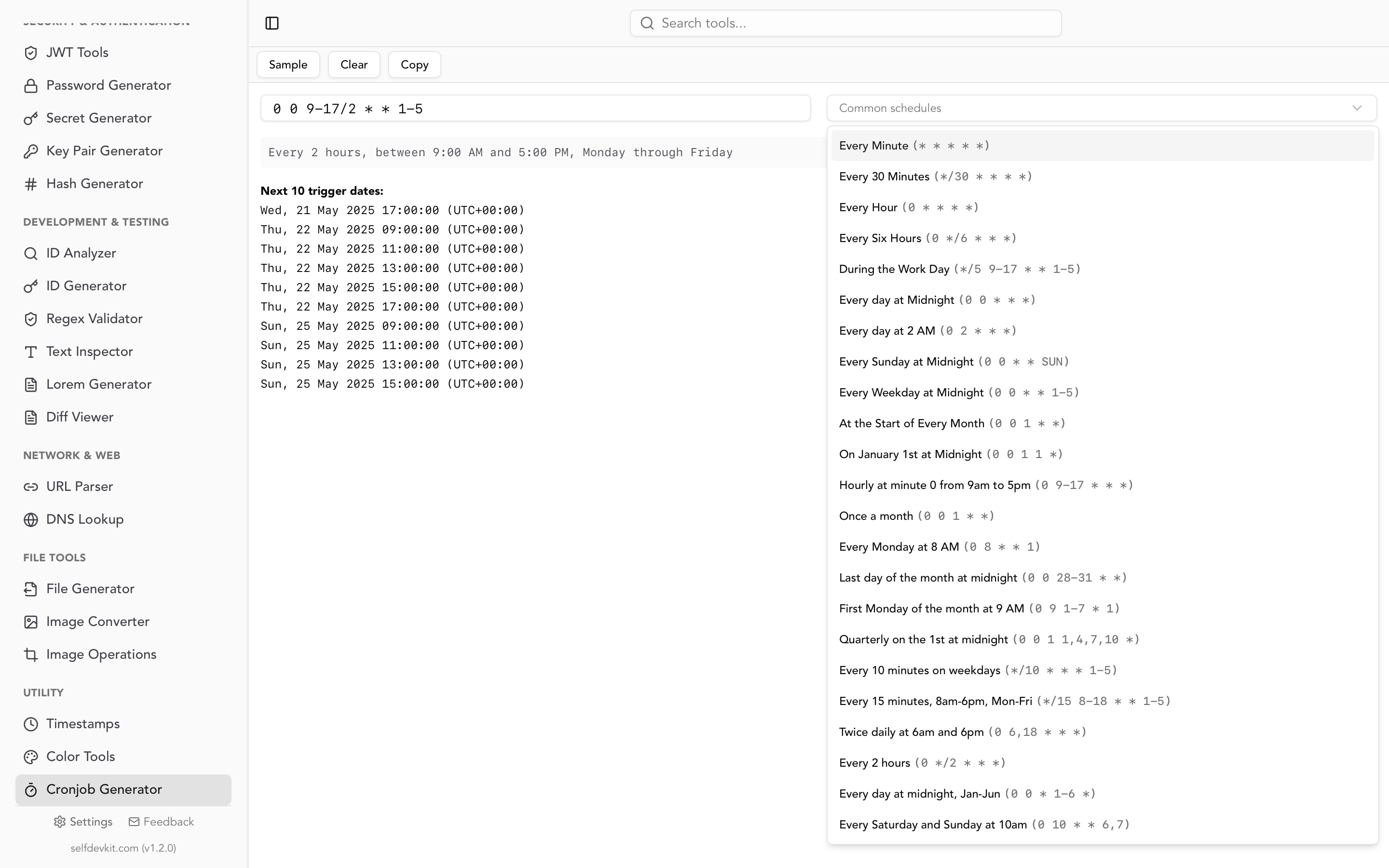
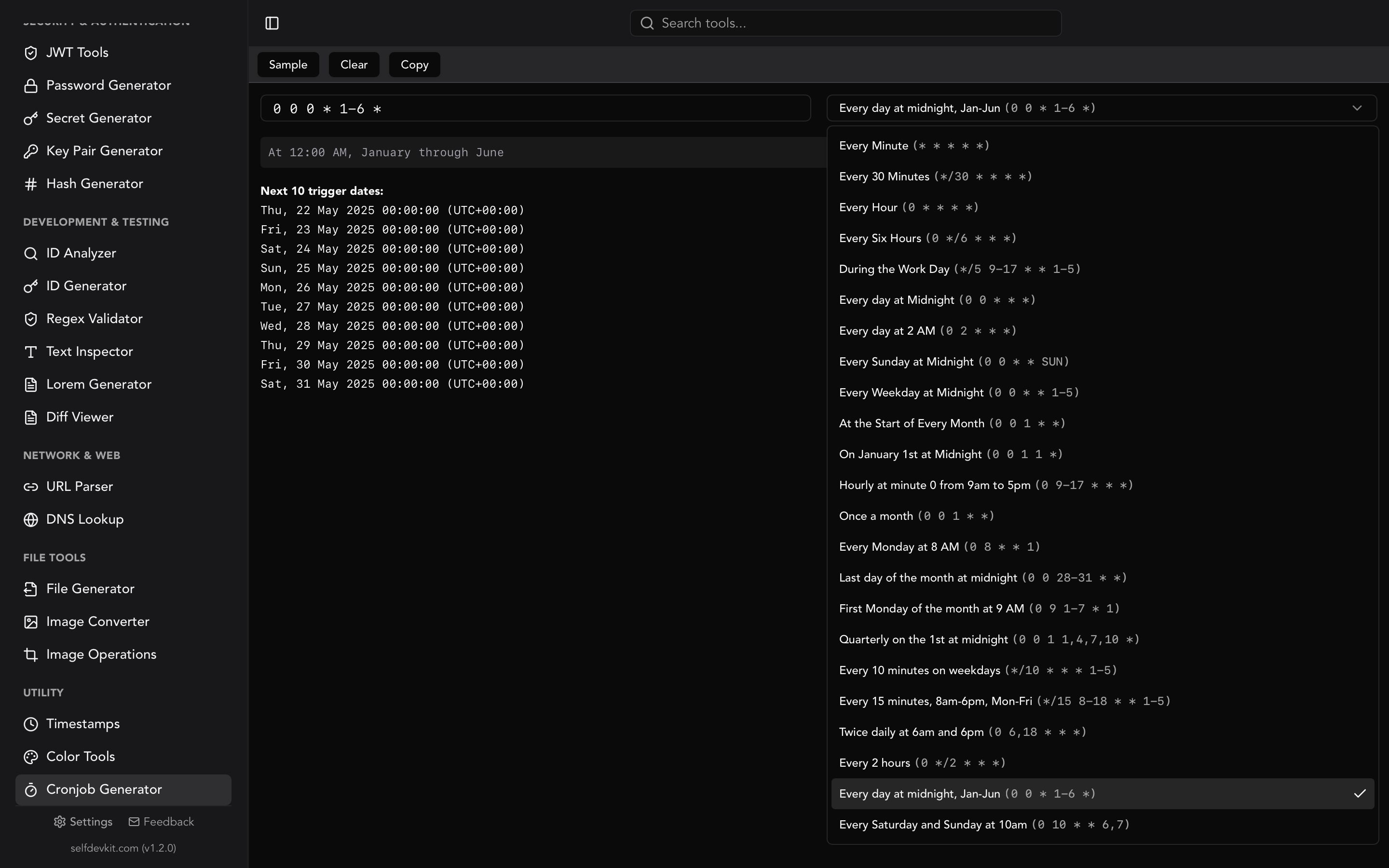
SelfDevKit's crontab generator builds the expression visually, translates it into plain English, and lists the upcoming execution times so you can confirm the schedule matches your intent before it goes anywhere near a server. Seeing "next runs: never" is considerably better feedback than a syntax check passing.
It also runs entirely offline, which matters more for cron than for most tooling. A crontab line is a small map of your infrastructure: absolute paths to deploy scripts, database hostnames, backup bucket names, internal service endpoints, sometimes credentials passed as arguments. Pasting one into a web form to check the schedule sends all of that to a third party you have no relationship with. The tool is part of a 50+ tool desktop app where nothing leaves your machine, alongside a timestamp converter for the closely related problem of working out what a schedule means in UTC versus local time. If you want the longer argument for keeping this class of tooling local, see why offline matters.
Frequently asked questions
Do I need to restart cron after editing my crontab?
No. The daemon detects changes to the spool directory automatically, either by checking modification times each minute or through inotify. This is only true when you install through the crontab command. If you edit a spool file directly, the change may not be noticed until something else touches the directory.
How do I check crontab syntax without installing it?
Use crontab -T file on cronie systems such as RHEL and Fedora, or crontab -n file on Debian and Ubuntu. These are not interchangeable, and busybox provides neither. To validate the schedule expression itself rather than the file format, use a tool that shows the next run times, since a syntactically valid line can still never fire.
Why does crontab -l say "no crontab for user" when jobs are clearly running?
Because crontab -l only reads that user's spool file. Scheduled jobs also live in /etc/crontab, /etc/cron.d/, and the cron.daily-style directories, none of which appear in -l output. Check all of them before concluding nothing is scheduled.
Can I recover a crontab after running crontab -r?
Not through cron itself, since the spool file is deleted outright. Your options are a filesystem backup, a snapshot you made with crontab -l, or the temp file in /tmp if you happened to have an editing session recently. This is the argument for keeping the crontab in version control rather than only on the server.
What is the difference between crontab and cron?
Cron is the daemon that runs continuously and executes jobs when their schedule matches. Crontab is the table of jobs and the command that manages it. One process, one file per user, and one command standing between them.
What to do next
If you take one thing from this post, make it the shift from crontab -e to crontab file.txt. Interactive editing on a production server is how schedules drift, how the -r accident happens, and how nobody can answer what changed last Tuesday. A tracked file validated in CI and installed from stdin removes all three problems at once.
Then set VISUAL in your shell config, alias crontab to crontab -i, and check which validation flag your systems actually support before you write a deploy script that assumes one.
For the expression itself, build and verify it before it ships. Download SelfDevKit to generate, translate, and preview cron schedules offline, with 50+ other developer tools in the same app.