What is the difference between cron and crontab?
Cron is the daemon: a background process that wakes up once a minute, reads every schedule it knows about, and runs the ones that are due. Crontab is two things that share a name: the table file where those schedules are stored, and the command you use to edit that file. Cron never reads your keystrokes and crontab never runs your job. One is the engine, the other is the instruction sheet.
Most explanations of cron and crontab stop at that one-paragraph definition and move straight into the five-field syntax. That leaves out the part that actually causes outages. Cron does not read a single file. It reads at least four different locations, two of which use a different line format, one of which is not really cron at all, and none of which will tell you when you get it wrong.
This guide is about the plumbing. Where crontab files live on disk, which format each location expects, what environment cron hands your job, and why a job that looks perfect in the editor produces nothing at 3 AM. If you want the expression syntax in depth, the crontab generator guide covers building and validating the five fields. This post covers everything around them.
Table of contents
- Cron and crontab are three things, not two
- Where crontab files actually live on disk
- The sixth field: system crontab vs user crontab
- The crontab command, and the flag that deletes everything
- The environment cron gives your job
- Cron expression syntax in one screen
- Who is allowed to use cron
- When the machine is off: cron, anacron, and systemd timers
- Cron outside the Linux server: Docker and macOS
- Proving the job actually ran
- Frequently asked questions
Cron and crontab are three things, not two
The word "crontab" is overloaded, which is the root of most of the confusion. Four distinct concepts get discussed with three words:
| Term | What it is | How you interact with it |
|---|---|---|
cron / crond |
The daemon. A long-running process started at boot that ticks once a minute. | systemctl status cron, never directly |
| crontab (file) | A plain text table of schedules, one job per line. | Cron reads it; you rarely open it by hand |
crontab (command) |
The setuid program that safely edits, lists, and installs your crontab file. | crontab -e, crontab -l |
| cron job | One line: a schedule plus a command. | You write it |
The daemon's loop is deliberately simple. Every minute it compares the current wall-clock time against every schedule it has loaded, and for each match it forks a process, sets up a minimal environment, and hands the command to a shell. It does not track whether the job succeeded. It does not retry. It does not care that the previous run is still going, so a job that takes 90 seconds on a * * * * * schedule will happily overlap with itself.
That design is why cron is still everywhere after fifty years. The original was written by Brian Kernighan for Version 7 Unix, and the implementation nearly all Linux distributions descend from is Vixie cron, released by Paul Vixie in 1987. Red Hat and Fedora ship cronie, a fork of Vixie cron. Debian and Ubuntu ship patched Vixie cron. Alpine and most slim container images ship BusyBox crond, which is a reimplementation with a smaller feature set. The five-field syntax is identical across all of them. The file locations and the extras are not.
Where crontab files actually live on disk
Cron reads schedules from several locations, and each one has its own format, ownership rules, and editing method. This table is the mental model that most cron confusion comes down to:
| Location | Format | Runs as | How to edit |
|---|---|---|---|
/var/spool/cron/crontabs/<user> (Debian, Ubuntu) |
5 fields + command | The file's owner | crontab -e |
/var/spool/cron/<user> (RHEL, Fedora, CentOS) |
5 fields + command | The file's owner | crontab -e |
/etc/crontab |
5 fields + user + command | Whatever user the 6th field names | Text editor, as root |
/etc/cron.d/<file> |
5 fields + user + command | Whatever user the 6th field names | Text editor, as root |
/etc/cron.hourly/, cron.daily/, cron.weekly/, cron.monthly/ |
Executable scripts, no schedule line | root | Drop in a script, chmod +x |
/etc/anacrontab |
period, delay, job-id, command | root | Text editor, as root |
Three practical consequences fall out of this table.
Your personal crontab is not a file you should open. The spool directory is typically mode 1730 and owned by the crontab group. Editing the file directly with sudo vi bypasses the syntax validation that the crontab command performs, and on some implementations it also fails to bump the modification time cron watches for. Use crontab -e.
crontab -l does not show you everything. It shows exactly one file: the current user's spool crontab. It shows nothing from /etc/crontab, nothing from /etc/cron.d/, nothing from the periodic directories, and nothing from other users. When you are auditing a server and asking "what is scheduled on this box," you need all of them:
# Every user's personal crontab
for u in $(cut -f1 -d: /etc/passwd); do
  echo "--- $u"; crontab -l -u "$u" 2>/dev/null
done

# System-level schedules
cat /etc/crontab
ls -la /etc/cron.d/
run-parts --list --test /etc/cron.daily
The periodic directories have no schedule line at all. Scripts in /etc/cron.daily/ are executed by run-parts, which is itself invoked from /etc/crontab or /etc/anacrontab. This is why packages install their maintenance scripts there: they get a schedule without having to claim a specific time slot. It is also why run-parts silently skips files with a dot in the name. A script called backup.sh in /etc/cron.daily/ will never run on Debian. Name it backup.
The sixth field: system crontab vs user crontab
A user crontab line has five time fields followed immediately by the command. A system crontab line, meaning anything in /etc/crontab or /etc/cron.d/, has five time fields, then a username, then the command. Same syntax otherwise, one extra column.
# User crontab (crontab -e). Runs as you.
30 2 * * * /home/deploy/scripts/backup.sh

# /etc/cron.d/backup. The 6th field says who runs it.
30 2 * * * deploy /home/deploy/scripts/backup.sh
Get this backwards and the failure mode is nasty because it is quiet. Paste a user-style line into /etc/cron.d/ and cron parses /home/deploy/scripts/backup.sh as the username. There is no such user, so the line is invalid and the job never runs. Depending on the implementation you will either get one line in the system log or nothing at all. Nobody gets paged. The backup just stops happening.
The reverse mistake is subtler. Paste a system-style line into your user crontab and cron treats the username as the first word of the command. It tries to execute a program called deploy, fails with "command not found," and mails the error to a mailbox nobody reads.
Two more rules for /etc/cron.d/ files that bite people:
- The filename must consist only of letters, digits, underscores, and hyphens. Files with dots or tildes are ignored, same as the periodic directories.
- The file must end with a newline. A final line without a trailing newline is skipped by several cron implementations.
The crontab command, and the flag that deletes everything
The crontab command has a small set of flags, documented fully in crontab(1):
| Command | What it does |
|---|---|
crontab -e |
Open your crontab in $EDITOR, validate on save, install |
crontab -l |
Print your crontab to stdout |
crontab -r |
Delete your entire crontab. No prompt. |
crontab -i |
Interactive modifier, use with -r to get a confirmation |
crontab -u alice -l |
Operate on another user's crontab (root only) |
crontab jobs.txt |
Replace your crontab with the contents of a file |
Look at -r again. It removes the whole crontab, immediately, without confirmation, and it sits one key away from -e on the keyboard. This has been a reported bug against the Ubuntu cron package for over a decade and remains unfixed, because the behavior is specified. Two habits protect you:
# 1. Make -r always ask
alias crontab='crontab -i'

# 2. Keep the source of truth in version control, not in the spool
crontab -l > ~/crontab.bak          # snapshot before editing
crontab deploy-crontab.txt          # install from a tracked file
The second habit is the better one. Treating the crontab file as a deployable artifact rather than something you hand-edit on a server means the schedule lives in your repository, gets reviewed like code, and survives a rebuilt machine. It also means you can validate an expression before it touches production instead of waiting to see whether 3 AM goes well.
The environment cron gives your job
Cron does not run your job in your shell. It builds a deliberately minimal environment from scratch, and this is the single most common reason a command that works when you paste it into a terminal produces nothing when cron runs it.
What you get by default:
SHELL=/bin/sh, not bash and definitely not zsh. Bashisms like[[ ]]orsourcemay fail.PATH=/usr/bin:/binon most systems. Not/usr/local/bin, not~/.local/bin, not your virtualenv, not the Node version manager shim.HOMEset to the user's home directory from/etc/passwd.LOGNAMEset to the crontab owner.- Nothing else. No
.bashrc, no.profile, no.env, no variables exported by your login session.
You can set variables at the top of the crontab file itself, and those assignments apply to every job below them:
SHELL=/bin/bash
PATH=/usr/local/bin:/usr/bin:/bin
MAILTO=ops@example.com
TZ=UTC

0 3 * * * cd /srv/app && ./bin/nightly-sync
MAILTO deserves a note. Cron's original error-reporting mechanism is email: anything a job writes to stdout or stderr gets mailed to the crontab owner. On a modern server with no MTA installed, that mail goes nowhere and your job's error message is discarded. Setting MAILTO="" disables the attempt entirely; redirecting output to a file is usually what you actually want.
The percent sign that eats your command
Here is a gotcha that almost no cron guide mentions, and it lands hardest on exactly the kind of command people schedule. In a crontab, % is not an ordinary character. An unescaped % is converted to a newline, and everything after the first one is fed to the command as standard input rather than being part of the command line.
So this line, which looks completely reasonable:
0 2 * * * /usr/bin/pg_dump mydb > /backups/db-$(date +%Y-%m-%d).sql
is interpreted by cron as the command /usr/bin/pg_dump mydb > /backups/db-$(date + with the string Y-%m-%d).sql piped into it. The result is a broken file or no file, and the error goes to the mail that nobody reads. The fix is to escape every percent sign with a backslash:
0 2 * * * /usr/bin/pg_dump mydb > /backups/db-$(date +\%Y-\%m-\%d).sql
This behavior is specified in crontab(5), and it applies to date, printf, awk format strings, rsync --info patterns, and anything else that uses %. The cleanest way to avoid it entirely is to put the command in a shell script and schedule the script, so the crontab line contains nothing but a path.
Cron expression syntax in one screen
A cron expression is five space-separated fields read left to right: minute, hour, day of month, month, day of week. Each field accepts a value, a wildcard, a list, a range, or a step.
┌───────────── minute (0-59)
│ ┌───────────── hour (0-23)
│ │ ┌───────────── day of month (1-31)
│ │ │ ┌───────────── month (1-12 or JAN-DEC)
│ │ │ │ ┌───────────── day of week (0-6, Sunday = 0 or 7)
│ │ │ │ │
* * * * *
| Operator | Example | Meaning |
|---|---|---|
* |
* * * * * |
Every minute |
, |
0 8,12,18 * * * |
At 08:00, 12:00, and 18:00 |
- |
0 9-17 * * * |
Hourly from 09:00 through 17:00 |
/ |
*/15 * * * * |
Every 15 minutes |
Two behaviors surprise people often enough to be worth stating plainly. First, when both day of month and day of week are restricted, standard cron treats them as OR, not AND. 0 0 13 * 5 fires on the 13th of every month and on every Friday, not only on Friday the 13th. Second, */7 in the minute field does not mean "every seven minutes." Steps are applied across the field's full range starting at 0, so you get minutes 0, 7, 14, 21, 28, 35, 42, 49, 56, and then the counter resets: the next fire is minute 0 of the following hour, four minutes later instead of seven.
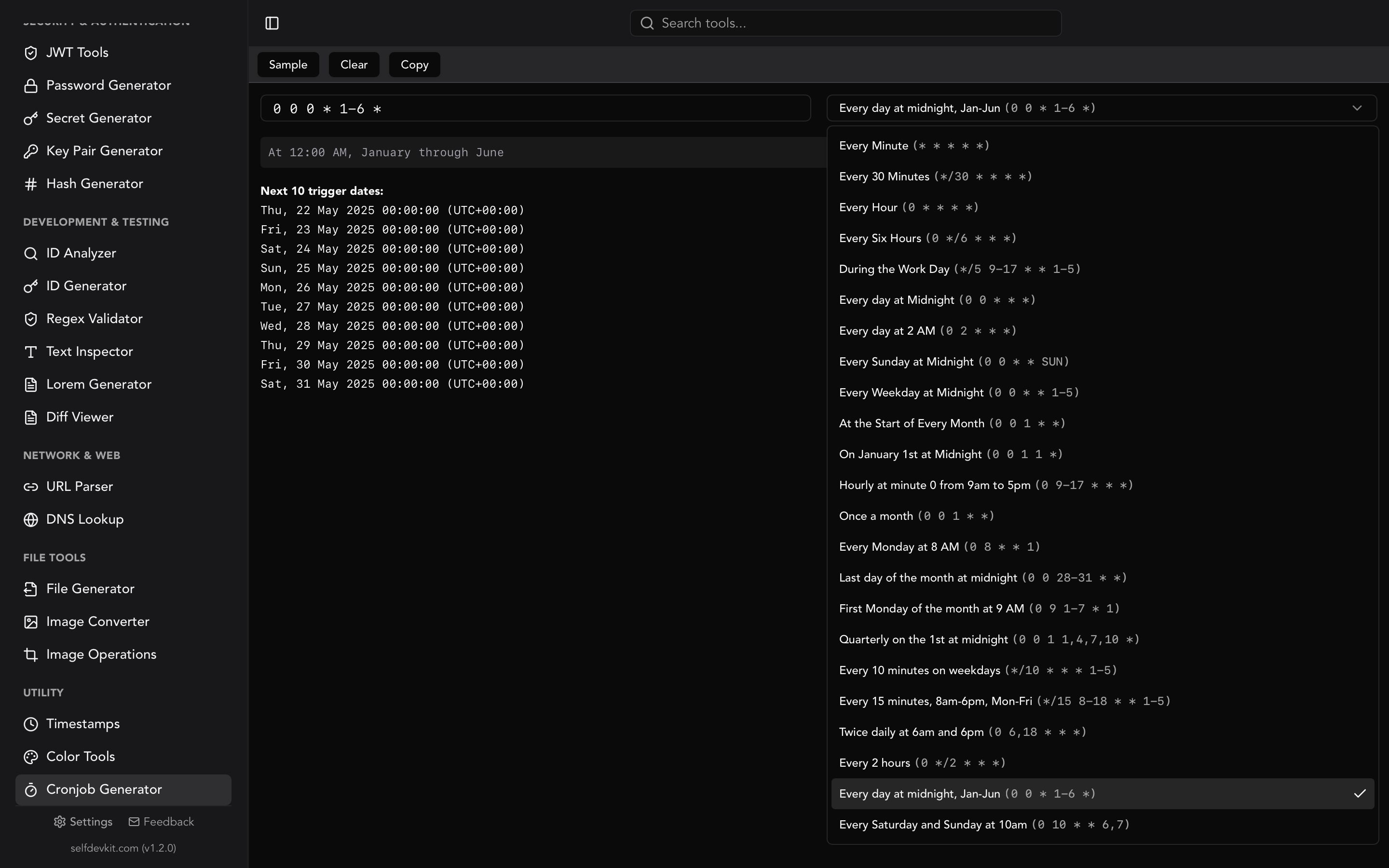
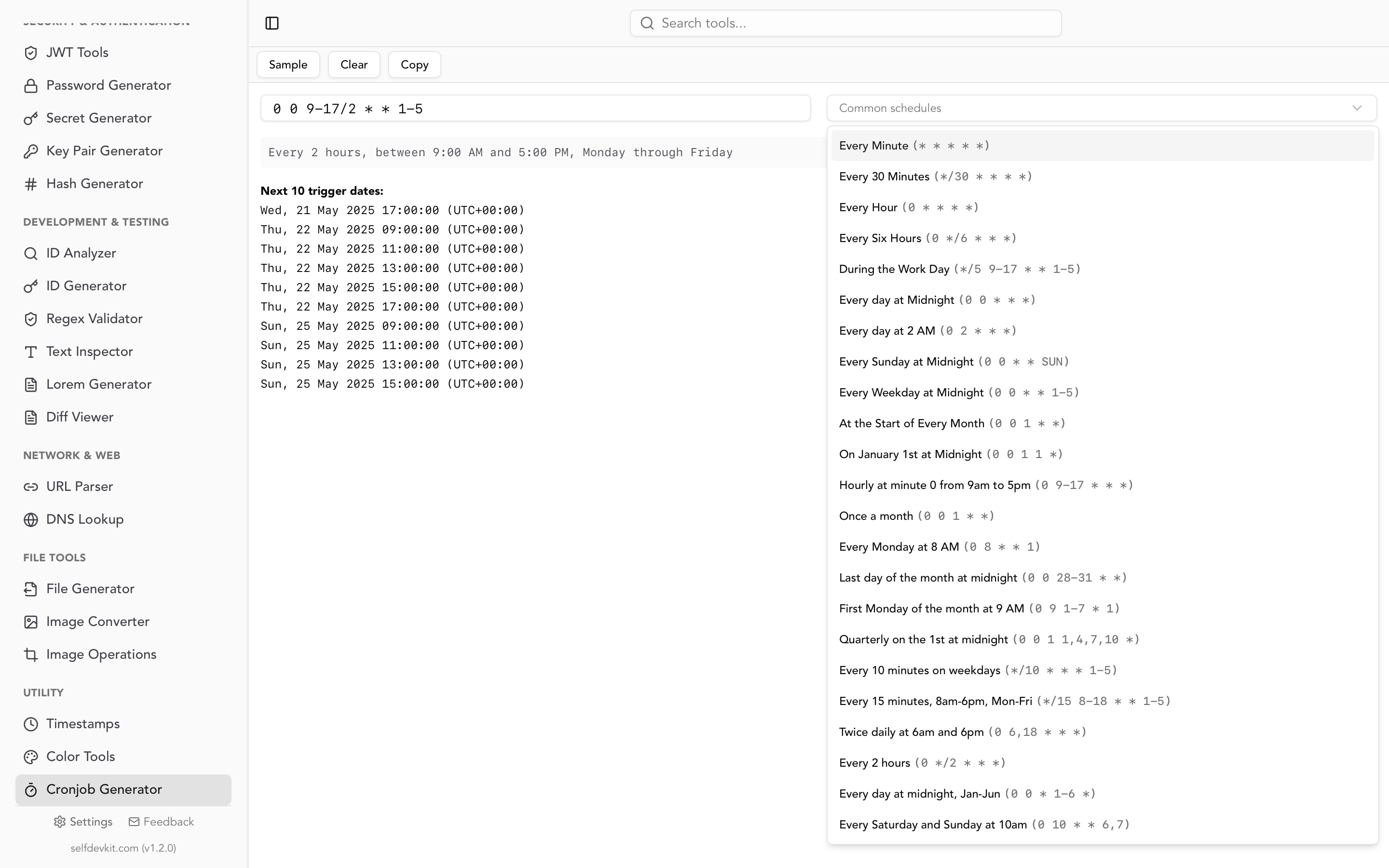
For reading and building expressions in depth, including the @daily shortcut strings and how the same syntax appears in Kubernetes and GitHub Actions, see the crontab guru guide. SelfDevKit's Cronjob Generator does the same job offline: type or build an expression, get a plain-English translation and a list of the next run times, without opening a browser tab.
Who is allowed to use cron
Access to the crontab command is controlled by two files, checked in order: /etc/cron.allow and /etc/cron.deny. One username per line.
- If
cron.allowexists, only users listed in it may usecrontab. Everyone else is refused, andcron.denyis ignored entirely. - If
cron.allowdoes not exist, any user not listed incron.denymay usecrontab. - If neither file exists, behavior depends on the build. Debian's cron allows all users; some hardened configurations allow only root.
The allow-list approach is stronger and worth using on shared or production machines. Note that these files govern the crontab command only. They do not stop root from dropping a file into /etc/cron.d/, and they do not affect jobs already installed. Revoking a user's cron access does not remove that user's existing crontab, which is exactly the kind of gap that shows up in an audit six months later.
Cron is a privilege escalation surface worth taking seriously. Anything in /etc/cron.d/ runs as whatever user the sixth field names, including root, so a world-writable script referenced from a root cron job is a full compromise. Keep scheduled scripts owned by root and not group-writable, and pin absolute paths in the command so a mutable PATH cannot be used to substitute a binary. If your job needs credentials, read them from a file with restrictive permissions rather than embedding them in the crontab line, where they are visible to anyone who can read the spool. The same reasoning applies to API keys and other secrets: the crontab is not a secrets store.
When the machine is off: cron, anacron, and systemd timers
Cron only runs jobs while the system is up. A 0 3 * * * job on a laptop that is closed at 3 AM does not run late, it simply does not run. There is no catch-up.
Anacron exists for exactly this. Instead of clock times it works in periods measured in days, records the last successful run in /var/spool/anacron/, and executes anything overdue shortly after boot. A line in /etc/anacrontab looks like this:
# period(days)  delay(min)  job-identifier  command
1               5           cron.daily      run-parts --report /etc/cron.daily
7               10          cron.weekly     run-parts --report /etc/cron.weekly
The delay column staggers jobs so a freshly booted machine does not try to run every maintenance task at once. See anacron(8) for the full configuration. On most desktop distributions anacron is already installed and has quietly taken over the periodic directories, which is why /etc/crontab on Ubuntu contains a conditional that skips run-parts if anacron is present.
Systemd timers are the third option, and the comparison matters when you are choosing:
| Cron | Anacron | Systemd timer | |
|---|---|---|---|
| Granularity | 1 minute | 1 day | 1 second |
| Runs missed jobs | No | Yes, at next boot | With Persistent=true |
| Config | 1 line | 1 line | 2 files (.service + .timer) |
| Logging | Email or manual redirect | Email or manual redirect | Automatic via journald |
| Randomized start | No | Yes, via delay | Yes, RandomizedDelaySec |
| Dependencies | None | None | Full unit ordering |
| Portability | Any Unix | Linux, most distros | systemd only |
For a single scheduled script on one server, cron wins on simplicity. For anything that needs to run after a database is up, log to a central place, or survive downtime, timers earn their extra file.
Cron outside the Linux server: Docker and macOS
The cron-and-crontab model assumes a long-running Unix host with a mail system and a syslog daemon. Two very common environments break those assumptions in ways that produce hours of confused debugging.
Cron in containers
Running cron inside a Docker container fails for three independent reasons, and fixing one does not fix the others.
- The daemon backgrounds itself and the container exits. The usual fix is
cron -fto keep it in the foreground, which then makes cron PID 1, where it does not forward signals properly anddocker stopdegrades into a ten-second wait and a SIGKILL. - Your
ENVvariables are gone. Cron purges the environment before running a job and rebuilds a minimal one. Everything you set withENVordocker run -eis invisible to the job. The common workaround is to dump the environment at container start (printenv > /etc/environment) before launching cron. - Output goes to syslog, which is not running. Container images rarely include an MTA or a syslog daemon, and Docker only captures the stdout of PID 1 anyway, so job output vanishes.
If you need in-container scheduling, supercronic was built to invert all three defaults: it stays in the foreground, preserves the environment, and writes to stderr where Docker can see it. The alternative, usually better, is to move the schedule up a level into a Kubernetes CronJob or your orchestrator's scheduler and keep the container a single-purpose task runner.
Cron on macOS
macOS still ships cron and crontab -e still works, but Apple has treated it as deprecated in favor of launchd since 2005. On any recent version there is a second problem that is much harder to spot: the privacy layer introduced in Mojave and tightened since. A cron job that touches ~/Desktop, ~/Documents, ~/Downloads, or an external volume is blocked unless the binary running it has Full Disk Access.
The failure is completely silent. The script runs, the file operation returns an error, and nothing surfaces. If a cron job works in Terminal but not on schedule on a Mac, add /usr/sbin/cron to System Settings, Privacy and Security, Full Disk Access before you debug anything else. For new work on macOS, a launchd agent with StartCalendarInterval is the supported path.
Proving the job actually ran
Cron logs that it started a job. It does not log the outcome. Knowing where to look for each half saves a lot of guessing.
# Did cron fire the job? (Debian/Ubuntu)
journalctl -u cron --since "1 hour ago"
grep CRON /var/log/syslog

# Red Hat family
journalctl -u crond --since today
grep CRON /var/log/cron

# Is the daemon even running?
systemctl status cron    # or crond
If you see a CMD (...) line for your job in the log, cron did its part and the problem is inside your command. If you see nothing, the schedule never matched, the file was never loaded, or the daemon is not running. That single distinction cuts most cron debugging in half.
For the command's own output, capture both streams explicitly. Relying on cron's mail is the reason so many jobs fail invisibly:
0 3 * * * /home/deploy/scripts/sync.sh >> /var/log/sync.log 2>&1
Timezone is worth verifying separately. Cron uses the system timezone unless TZ or CRON_TZ is set in the crontab, and most servers, containers, and managed schedulers run in UTC. If your expression was written thinking in local time, it fires at the wrong hour every day and nothing is technically broken. Converting between wall-clock time and epoch values with a Unix timestamp converter is the quickest way to confirm what "3 AM" means on that particular box, and the timestamp conversion guide covers the UTC-versus-local traps in more detail.
Keep your crontab off other people's servers
A crontab line is not just a schedule. It is a compact description of your infrastructure:
0 3 * * * /opt/deploy/sync-prod.sh --host db-primary.internal.acme.com --bucket acme-nightly
That single line reveals a directory layout, an internal hostname, a naming convention, and a storage bucket. Pasting it into a web-based cron parser to check the schedule hands all of it to a third party. Some of those tools parse in the browser. Many of the lookalike clones send input to a backend, and you have no way to tell from the page which one you are using.
SelfDevKit's Cronjob Generator runs entirely on your machine as part of a native desktop app. No network request, no server-side logging, no browser tab. You get validation, a plain-English translation, and a next-run preview, and none of it leaves your laptop. That is the same principle behind why offline developer tools matter generally: the most reliable way to keep infrastructure details private is to never transmit them.
It sits alongside the other tools you reach for while writing a scheduled job, including the regex validator for the file-matching patterns inside your scripts and the text inspector for checking line endings in a crontab file you are about to install. All of them are part of the same offline toolkit.
Frequently asked questions
Do I need to restart cron after editing my crontab?
No. When you use crontab -e, the command installs the new file and cron picks up the change automatically, either by checking the spool directory's modification time each minute or via inotify depending on the implementation. You only need to reload the daemon if you edited /etc/crontab or a file in /etc/cron.d/ on an older implementation that does not watch those paths, and even then systemctl reload cron is enough.
Why does my cron job work when I run it manually but not on schedule?
Almost always the environment. Cron gives your job a minimal PATH, uses /bin/sh rather than your login shell, and loads none of your dotfiles or exported variables. Use absolute paths for every binary and file, set SHELL and PATH at the top of the crontab, and redirect output to a log so you can see the actual error. If your command contains a %, escape it with a backslash.
How do I see every cron job on a server, not just mine?
crontab -l only prints the current user's spool file. For a full picture, loop over /etc/passwd with crontab -l -u <user>, then read /etc/crontab, list /etc/cron.d/, check the four /etc/cron.* periodic directories, and run systemctl list-timers for systemd timers, which are a separate mechanism entirely.
Can two cron jobs run at the same time?
Yes, and cron will not stop them. Cron forks each due job independently and never checks whether a previous run is still going, so a job that takes longer than its interval overlaps with itself. Guard long-running jobs with flock, as in * * * * * /usr/bin/flock -n /tmp/sync.lock /path/to/sync.sh, which exits immediately if the lock is held.
What to do next
If you are auditing an unfamiliar server, start by enumerating all five schedule locations rather than trusting crontab -l. If you are writing a new job, put the command in a script, use absolute paths, redirect both output streams to a file, and keep the crontab itself in version control so it survives the machine.
And validate the expression before you deploy it, not after. SelfDevKit's Cronjob Generator translates any cron expression into plain English and lists the exact next run times, entirely offline.
Download SelfDevKit to get an offline cron editor plus 50+ other developer tools in one private desktop app.