What does image to base64 mean?
Converting image to base64 turns a binary image file (PNG, JPEG, WebP, and so on) into a text string built from 64 ASCII characters. That string can be embedded directly in HTML, CSS, JSON, or an email template, so the image travels inside the document instead of loading from a separate URL. The tradeoff is size: the encoded text is roughly 33% larger than the original file.
Table of contents
- How image to base64 encoding works
- How to convert an image to base64
- Using the base64 data URI in HTML and CSS
- Convert image to base64 in code
- Automate image to base64 in your build pipeline
- When to inline images as base64 (and when not to)
- Keeping sensitive images off third-party servers
- Frequently asked questions
How image to base64 encoding works
Image to base64 encoding maps every 3 bytes of the raw image file to 4 printable ASCII characters. The source stays exactly the same; only its representation changes from binary to text. That 3-to-4 ratio is where the well-known 33% size overhead comes from.
The Base64 alphabet uses A-Z, a-z, 0-9, plus + and /, with = as trailing padding when the file length is not a multiple of 3. A PNG that starts with the binary signature 89 50 4E 47 becomes the familiar iVBORw0KGgo... opening you see in every encoded PNG.
For images you almost always want the full data URI form rather than the raw string:
data:image/png;base64,iVBORw0KGgoAAAANSUhEUgAA...
The prefix data:image/png;base64, is a data URI, defined in RFC 2397. It tells the browser or parser what MIME type follows so the bytes render as an image instead of plain text. Swap png for jpeg, webp, gif, or svg+xml to match your source. Getting the MIME type wrong is the single most common reason an inlined image refuses to display.
If you need the reverse operation, going from an encoded string back to a file, the base64 to image guide covers decoding and the errors that come with it.
How to convert an image to base64
To convert an image to base64, load the file into an encoder, let it read the bytes, and copy the resulting data URI string. No format conversion happens; the encoder simply re-represents the existing bytes as text.
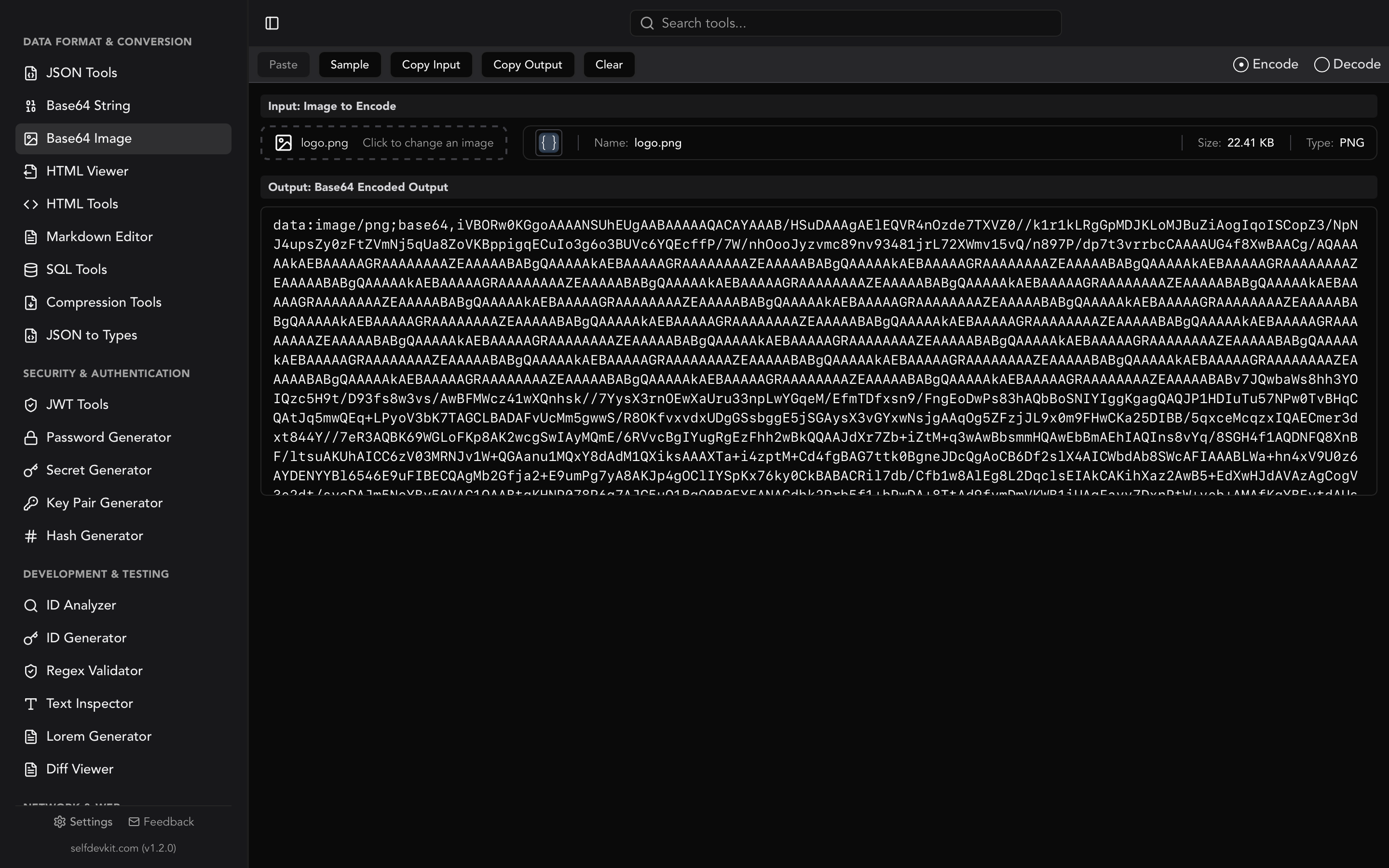
SelfDevKit's Base64 Image Tools does this in three steps and never sends the file anywhere:
- Switch to Encode mode.
- Drag and drop your image, or click to upload a PNG, JPEG, GIF, WebP, SVG, BMP, or TIFF file.
- The complete data URI appears instantly, MIME type included. One click copies it to your clipboard.
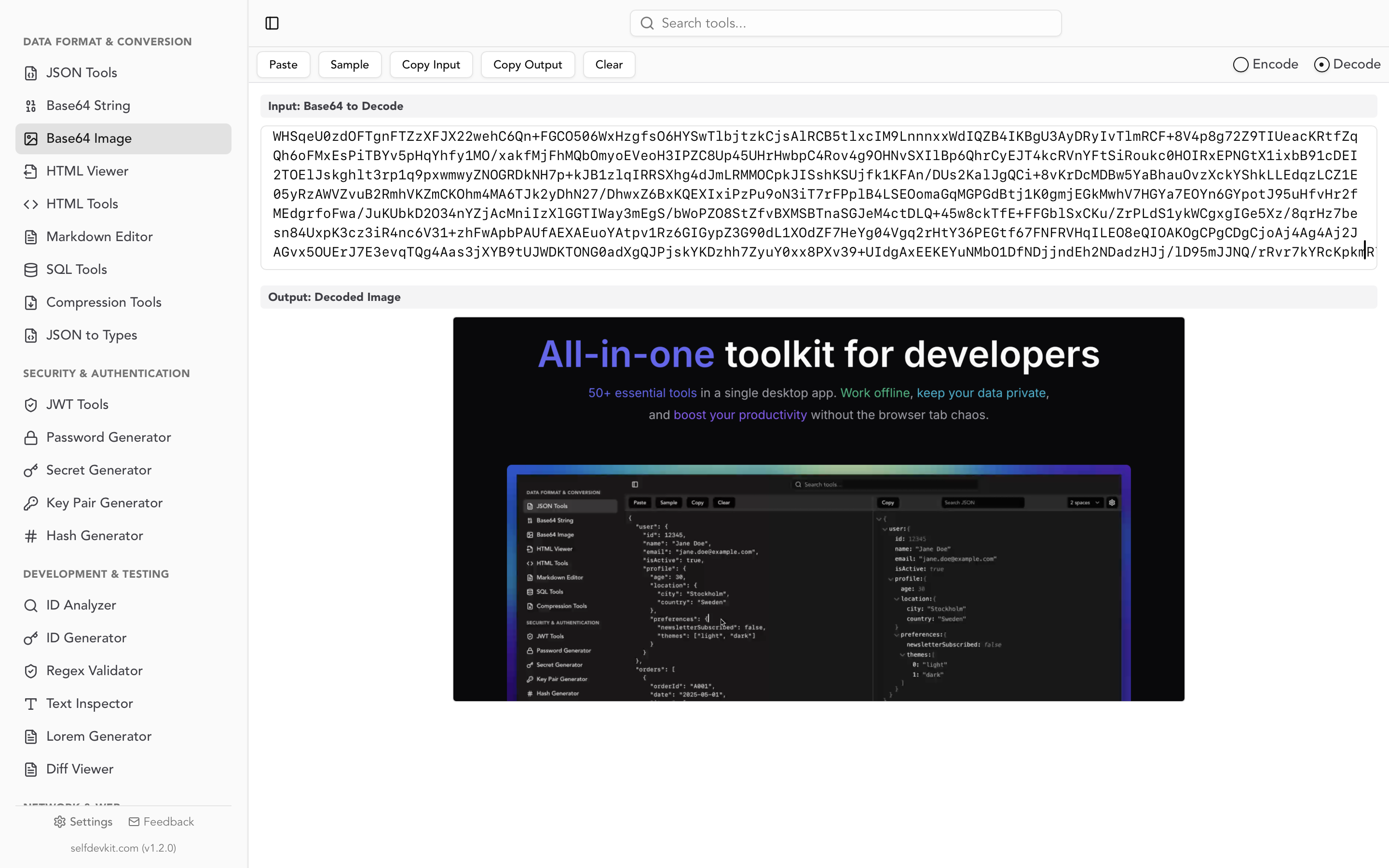
The panel also shows the file name, size, and detected type, which is handy when you are deciding whether a given asset is small enough to inline. Everything runs locally, so a design mockup or an internal screenshot never leaves your machine.
For plain text or arbitrary binary data instead of image files, use the separate Base64 String Tools. The mechanics are identical; only the input differs.
Using the base64 data URI in HTML and CSS
A base64 data URI drops straight into any place that accepts an image URL. The three most common targets are an <img> tag, a CSS background-image, and an inline SVG reference.
In HTML, paste the full data URI into the src attribute:
<img src="data:image/png;base64,iVBORw0KGgoAAAANSUhEUgAA..." alt="Logo" />
In CSS, wrap it in url():
.hero {
  background-image: url('data:image/png;base64,iVBORw0KGgoAAAANSUhEUgAA...');
}
Data URIs work in every modern browser and are the standard way to embed images in HTML email, where clients such as Outlook and Gmail block external image requests until the recipient clicks "load images." An inlined base64 logo shows up immediately.
One practical note for SVGs. You can base64-encode an SVG, but you usually should not. Raw SVG markup is already text, so URL-encoding the XML directly is smaller than base64 and stays human-readable. Reserve base64 for the binary formats that genuinely need it.
Convert image to base64 in code
Most competitor pages stop at a copy button. In real projects you often need to encode images programmatically, whether in a browser upload flow, a backend service, or a shell script. Here is how to do it in each.
JavaScript (browser)
The browser reads a File or Blob and returns a data URI through FileReader.readAsDataURL, which is documented on MDN:
function imageToBase64(file) {
  return new Promise((resolve, reject) => {
    const reader = new FileReader();
    reader.onload = () => resolve(reader.result); // full data URI
    reader.onerror = reject;
    reader.readAsDataURL(file);
  });
}

// Usage with an <input type="file">
const input = document.querySelector('input[type=file]');
input.addEventListener('change', async (e) => {
  const dataUri = await imageToBase64(e.target.files[0]);
  console.log(dataUri); // data:image/png;base64,iVBOR...
});
readAsDataURL returns the complete data URI, prefix and all, so you can assign reader.result directly to an img.src.
Node.js
On the server, read the file into a Buffer and call .toString('base64'), then prepend the prefix yourself:
const fs = require('fs');
const path = require('path');

function imageToDataUri(filePath) {
  const ext = path.extname(filePath).slice(1); // "png"
  const mime = ext === 'jpg' ? 'jpeg' : ext;
  const base64 = fs.readFileSync(filePath).toString('base64');
  return `data:image/${mime};base64,${base64}`;
}

console.log(imageToDataUri('./logo.png'));
This is the pattern behind most API endpoints that return images inside a JSON payload. If your responses mix base64 blobs with structured data, the JSON formatter and viewer guide explains how to inspect them without your eyes glazing over.
Python
Python's base64 module is in the standard library:
import base64
from pathlib import Path

def image_to_data_uri(path: str) -> str:
    ext = Path(path).suffix.lstrip('.').lower()
    mime = 'jpeg' if ext == 'jpg' else ext
    encoded = base64.b64encode(Path(path).read_bytes()).decode('ascii')
    return f'data:image/{mime};base64,{encoded}'

print(image_to_data_uri('logo.png'))
Command line
For quick one-offs, the base64 utility ships with macOS and most Linux distributions. Note the flag difference:
# macOS
base64 -i logo.png -o logo.txt

# Linux (GNU coreutils)
base64 logo.png > logo.txt

# Build a full data URI in one line (Linux)
echo "data:image/png;base64,$(base64 -w 0 logo.png)"
The -w 0 flag matters. GNU base64 wraps output at 76 characters per line by default, and those line breaks will break a data URI unless you strip them. macOS base64 does not wrap, so you can omit it there.
Automate image to base64 in your build pipeline
Here is the gap every online converter ignores: you rarely want to hand-encode images at all. Modern bundlers inline small assets as base64 automatically, based on a size threshold, so your source stays clean and the build decides what to embed.
Webpack 5 handles this through asset modules. Any asset smaller than the threshold is inlined as a data URI; anything larger is emitted as a separate file. The default cutoff is 8 KB:
module.exports = {
  module: {
    rules: [
      {
        test: /\.(png|jpe?g|gif|svg)$/i,
        type: 'asset',
        parser: {
          dataUrlCondition: {
            maxSize: 8 * 1024, // inline under 8 KB, emit a file otherwise
          },
        },
      },
    ],
  },
};
Vite does the same thing with build.assetsInlineLimit, which defaults to 4096 bytes (4 KB). Imports below the limit become base64 data URIs; larger ones get a hashed URL:
// vite.config.js
export default {
  build: {
    assetsInlineLimit: 4096,
  },
};
You can also force a single import to inline with the ?inline query, or force a URL with ?url, which is useful when you want to override the threshold for one specific asset.
The pattern is the same across tooling: set a byte limit, let the bundler embed the small stuff, and keep large images as cacheable separate requests. That gives you the request-reduction benefit of base64 without hand-managing strings or paying the size penalty on assets that do not deserve it. When you do need to inspect or hand-tune a specific data URI, a local base64 image encoder is faster than editing config and rebuilding.
When to inline images as base64 (and when not to)
Inlining an image as base64 saves an HTTP request but bloats the containing document and defeats caching. The right call depends on size, reuse, and your delivery protocol.
Inline as base64 when:
- The image is small, roughly under 4 to 8 KB. This matches the default bundler thresholds for a reason: below that size, the request overhead outweighs the 33% text bloat.
- You are building HTML email. External images are blocked by default, so embedding is the only reliable way to show a logo or icon.
- The asset appears on exactly one page and is not reused elsewhere.
- You need a fully self-contained file, such as a single-file HTML report or a bookmarklet.
Keep a separate URL when:
- The image is large. A 500 KB PNG becomes about 667 KB of base64 text stuffed into your HTML or CSS, which now has to be parsed and cannot be cached independently.
- The same image is used across many pages. A separate URL is cached once and reused; an inlined string is re-downloaded with every document.
- You serve over HTTP/2 or HTTP/3. Multiplexing makes parallel requests cheap, which removes the original "fewer requests" argument. CSS-Tricks measured data URI images loading roughly 6x slower than a binary source on mobile in their tests.
For repeated or larger assets, converting the format first is often the bigger win. The image converter guide covers moving between PNG, JPEG, and WebP to cut file size before you decide whether inlining even makes sense.
Keeping sensitive images off third-party servers
Every popular image to base64 converter is a web page that receives your file. Most guides link to one without a word about where that upload goes. That is worth pausing on.
Think about what developers actually encode during a normal day:
- Screenshots of internal dashboards and admin panels
- Design mockups of features that have not shipped
- Charts exported from business intelligence tools
- User-uploaded avatars being tested in staging
- Medical or financial imagery passing through a prototype
When you drop one of those into a browser-based encoder, the bytes travel to a server you do not control. They can be logged, cached, or read by third-party scripts on the page. Some of the larger converters advertise a 50 MB upload limit precisely because they process files server-side. You have no visibility into retention.
A local tool sidesteps the whole question. SelfDevKit's Base64 Image Tools encodes entirely on your machine with zero network calls, which is what teams under GDPR, HIPAA, or SOC 2 obligations need by default. The same reasoning applies to the hash generator and other operations where the input is sensitive, a point the why offline-first developer tools matter post covers in full.
Download SelfDevKit to encode images to base64 alongside 50+ other tools, all offline.
Frequently asked questions
Does converting an image to base64 reduce its file size?
No. Base64 is an encoding, not compression. The output is about 33% larger than the source file because 3 bytes become 4 ASCII characters. If your goal is a smaller file, compress or re-encode the image first, for example converting a PNG to WebP with the image converter, then decide whether to inline the result.
Do I need the data URI prefix when I convert an image to base64?
For embedding in HTML or CSS, yes. The data:image/png;base64, prefix tells the browser the MIME type so the string renders as an image. If you are storing the raw base64 in a database or an API field and reconstructing the prefix later, you can omit it. SelfDevKit outputs the full data URI so it works in HTML and CSS out of the box.
What image formats can I convert to base64?
Any binary image format works, including PNG, JPEG, GIF, WebP, BMP, TIFF, and SVG. The encoding does not care about the format; it only re-represents bytes as text. Just make sure the MIME type in the data URI prefix matches the actual format, or some renderers will refuse to display it.
Should I inline every image as base64 to reduce HTTP requests?
No. That advice made sense under HTTP/1.1 but backfires today. Inline only small, single-use images, roughly under 4 to 8 KB, and let large or reused assets load from cacheable URLs. Over HTTP/2 and HTTP/3, parallel requests are cheap, and oversized data URIs slow down parsing while blocking caching.
Try it yourself
The base64 image encoder in SelfDevKit converts any image to a ready-to-paste data URI instantly, shows the file size so you know whether it is worth inlining, and never uploads a single byte.
Download SelfDevKit and get 50+ developer tools that run entirely on your machine.