What is a base64 to image converter?
A base64 to image converter decodes a Base64-encoded string back into its original binary image file. Base64 is a text encoding scheme that represents binary data using 64 ASCII characters, and it is commonly used to embed images inside HTML, CSS, JSON payloads, and email templates. Decoding reverses that process, recovering the original PNG, JPEG, WebP, or other image format.
Table of contents
- How base64 image encoding works
- How to convert base64 to image
- How to convert an image to base64
- Code examples: decode base64 in JavaScript, Node.js, and Python
- Troubleshooting common base64 image errors
- When to use base64 for images (and when not to)
- Privacy: why online decoders are risky for sensitive images
- Frequently asked questions
How base64 image encoding works
Base64 encoding converts binary data into a sequence of printable ASCII characters. Every 3 bytes of binary input become 4 Base64 characters, which means the output is roughly 33% larger than the source file. The Base64 alphabet uses A-Z, a-z, 0-9, plus + and /, with = as padding when the input length is not a multiple of 3.
For images, the encoded string is almost always wrapped in a data URI:
data:image/png;base64,iVBORw0KGgoAAAANSUhEUgAA...
The prefix data:image/png;base64, tells browsers and parsers what MIME type to expect. The long string that follows is the actual image data. Strip or include this prefix depending on what your target system expects.
This format is defined in RFC 2397 and is supported across all modern browsers, making it reliable for HTML embedding.
How to convert base64 to image
To convert a base64 string back to an image, paste the encoded string into a decoder, verify the MIME type in the data URI prefix, and download or preview the result.
SelfDevKit's Base64 Image Tools handles this in three steps:
- Switch to Decode mode in the tool.
- Paste your Base64 string (with or without the
data:image/...;base64,prefix). - The image renders instantly. Click download to save the file, or copy the data for use elsewhere.
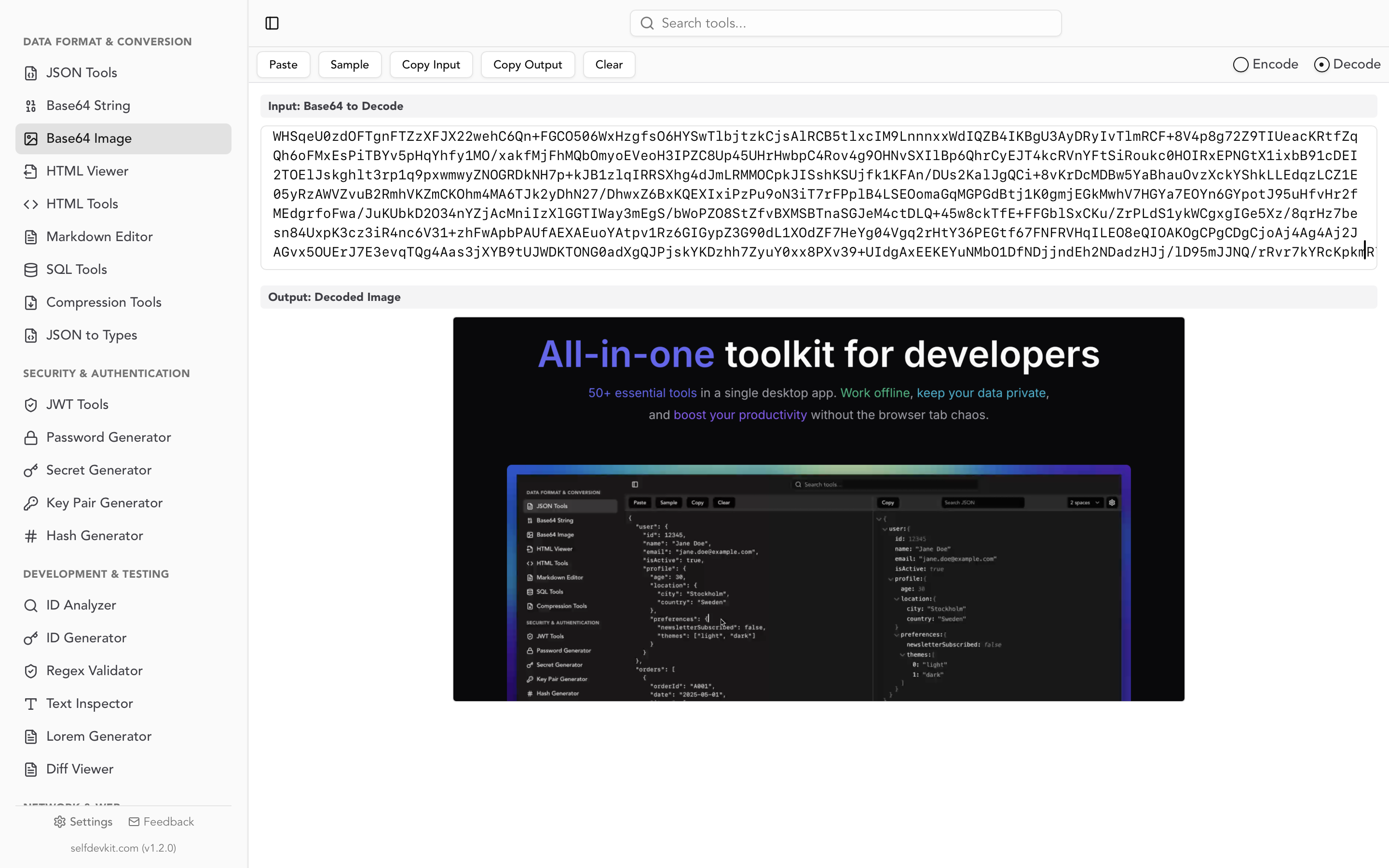
The tool accepts all common formats: PNG, JPEG, GIF, WebP, SVG, BMP, and TIFF. It automatically detects the MIME type from the prefix, so you do not need to specify the format manually. And because it runs entirely offline, your images never touch a server.
How to convert an image to base64
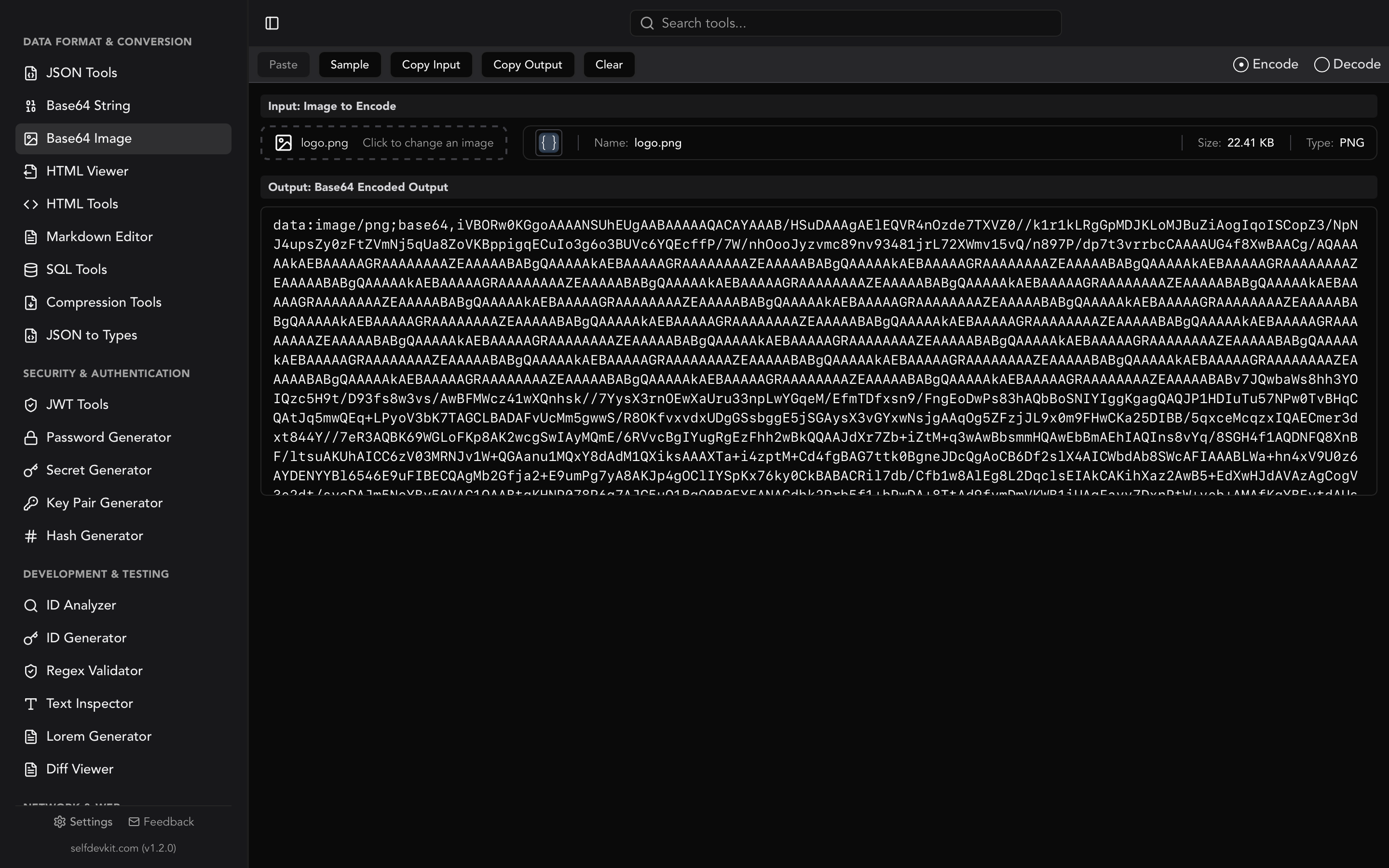
Converting in the other direction is equally straightforward. Select Encode mode, upload or drag-and-drop your image file, and the tool outputs the complete data URI string with the correct MIME type prepended. One click copies it to your clipboard.
The output looks like this for a PNG file:
data:image/png;base64,iVBORw0KGgoAAAANSUhEUgAAA...
You can paste this string directly into:
- An HTML
<img>tag'ssrcattribute - A CSS
background-image: url(...)property - A JSON field in an API payload
- An email template where external image hosting is unavailable
For text strings rather than image files, the separate Base64 String Tools handles encoding and decoding of arbitrary text data.
Code examples: decode base64 in JavaScript, Node.js, and Python
Most online converters stop at the UI and never show you how to do this in code. Here is how to handle base64 to image conversion programmatically.
JavaScript (browser)
The browser's native atob() function decodes a Base64 string to binary. To turn that into a downloadable image:
function base64ToImage(base64String, filename = 'image.png') {
  // Strip the data URI prefix if present
  const base64Data = base64String.replace(/^data:image\/\w+;base64,/, '');

  const byteCharacters = atob(base64Data);
  const byteNumbers = new Array(byteCharacters.length);

  for (let i = 0; i < byteCharacters.length; i++) {
    byteNumbers[i] = byteCharacters.charCodeAt(i);
  }

  const byteArray = new Uint8Array(byteNumbers);
  const blob = new Blob([byteArray], { type: 'image/png' });

  const link = document.createElement('a');
  link.href = URL.createObjectURL(blob);
  link.download = filename;
  link.click();
}
For modern browsers, you can also use the newer Uint8Array.fromBase64() method documented on MDN, though browser support is still limited as of early 2026.
Node.js
Node.js has native Buffer support, making this simpler:
const fs = require('fs');

function saveBase64Image(base64String, outputPath) {
  // Remove data URI prefix
  const base64Data = base64String.replace(/^data:image\/\w+;base64,/, '');
  const buffer = Buffer.from(base64Data, 'base64');
  fs.writeFileSync(outputPath, buffer);
}

saveBase64Image(myBase64String, './output.png');
This is the most common approach in backend services that receive images via JSON APIs. If your API also returns structured data alongside base64 payloads, the JSON formatter and viewer guide covers how to inspect those responses efficiently.
Python
import base64

def save_base64_image(base64_string: str, output_path: str) -> None:
    # Strip the data URI prefix if present
    if ',' in base64_string:
        base64_string = base64_string.split(',', 1)[1]

    image_data = base64.b64decode(base64_string)

    with open(output_path, 'wb') as f:
        f.write(image_data)

save_base64_image(my_base64_string, 'output.png')
Python's base64 module is part of the standard library. The b64decode function handles padding automatically in most cases, but see the troubleshooting section below if you run into errors.
Troubleshooting common base64 image errors
This is where most guides stop short. The comment threads on popular online decoders are full of the same errors repeating. Here are the fixes.
"Invalid Base64 string" or "Incorrect padding"
Base64 strings must have a length divisible by 4. If your string was truncated or copied incorrectly, the decoder will fail. Fix it by adding = padding characters to the end:
import base64

def safe_b64decode(s: str) -> bytes:
    # Strip data URI prefix
    if ',' in s:
        s = s.split(',', 1)[1]
    # Add padding if needed
    padding = 4 - len(s) % 4
    if padding != 4:
        s += '=' * padding
    return base64.b64decode(s)
In Node.js, Buffer.from(str, 'base64') silently ignores incorrect padding rather than throwing, which means you can sometimes get a corrupted file without any error message. Always verify the output visually.
Image appears corrupted or garbled
Corrupted output usually means the input contains whitespace or line breaks. Many systems wrap Base64 output at 76 characters per line (per RFC 2045 MIME standards). Strip all whitespace before decoding:
clean = base64_string.replace(' ', '').replace('\n', '').replace('\r', '')
"Unknown image format" or blank preview
The data URI prefix data:image/jpeg;base64, specifies the MIME type. If the MIME type is wrong (for example, a JPEG labeled as PNG), some renderers will refuse to display it. Check that the prefix matches the actual image format.
Very large strings timing out
Base64 strings for large images can exceed several megabytes of text. Browser-based decoders sometimes hit memory limits. For files over 1 MB, use a desktop tool or a server-side script rather than a web converter.
When to use base64 for images (and when not to)
Base64 has genuine use cases. It also gets used in situations where it actively hurts performance. Knowing the difference saves debugging time later.
Use base64 when:
- The image is small (under 10 KB). The 33% size overhead is negligible, and eliminating the HTTP request is a net win.
- You are embedding images in HTML email templates. Email clients block external requests by default, so embedded images are the only reliable way to show graphics.
- Your API returns images as part of a JSON response and a separate CDN is impractical.
- You are storing user-uploaded thumbnails in a database and want to avoid managing a separate file store.
Avoid base64 when:
- The image is large. A 500 KB PNG becomes roughly 667 KB of Base64 text, bloating your HTML or JSON payload significantly.
- Your site runs over HTTP/2 or HTTP/3. Modern protocol multiplexing handles multiple parallel requests efficiently, removing the original argument for reducing HTTP requests via embedding.
- The same image appears on multiple pages. An external URL allows browser caching; an embedded Base64 string does not.
- You are working with SVGs specifically. SVGs can often be inlined as raw XML markup, which is smaller than Base64 and still avoids external requests.
For a broader look at base64 encoding beyond images, the base64 encoding guide covers string encoding in more depth.
Privacy: why online decoders are risky for sensitive images
Every major guide on base64 to image conversion links to an online tool. None of them mention what happens to your data when you use one.
Consider what developers commonly encode as base64 and then need to decode:
- Screenshots of internal dashboards
- Design mockups containing unreleased product features
- Medical images attached to API payloads during development
- User-uploaded profile photos being tested in a staging environment
- Proprietary charts and graphs from business intelligence tools
When you paste a base64 string into a web-based decoder, that string travels to a third-party server. It may be logged. It may be stored in analytics pipelines. Third-party scripts on the page can read it from the DOM. You have no visibility into how long the data is retained.
This is not hypothetical. Sensitive data ends up in server logs routinely, and developer tools are a vector that security teams often overlook. The same risk applies to other encoding and hashing operations, which is why the hash generator guide also recommends offline tooling for checksum verification.
The alternative is a desktop tool that processes everything locally. SelfDevKit's Base64 Image Tools runs entirely on your machine. No network request is made during encoding or decoding. This matters for compliance in environments governed by GDPR, HIPAA, or SOC 2.
For more on why this distinction matters in day-to-day development, the why offline-first developer tools matter post covers the broader picture.
Download SelfDevKit to get the base64 image converter alongside 50+ other tools, all working offline.
Frequently asked questions
Does the base64 string need the data URI prefix to decode?
No. Most decoders, including SelfDevKit, accept base64 strings both with and without the data:image/png;base64, prefix. If you strip it, the tool may not automatically know the image format, but it will still decode the binary data correctly. The data URI prefix is required only when embedding in HTML or CSS.
Why is my base64 image 33% larger than the original file?
Base64 encoding maps every 3 bytes of binary data to 4 ASCII characters. That is a 4/3 ratio, which works out to roughly 33% overhead. For large images, this size increase is significant enough to justify using a CDN URL instead. If you are working with JWTs that contain base64-encoded claims, the JWT decoder and validator guide explains how to inspect those tokens without decoding manually.
Can I decode base64 to formats other than PNG?
Yes. The image format is determined by the binary data itself, not by the encoding. A base64-encoded JPEG decodes to a JPEG, and a base64-encoded WebP decodes to a WebP. The data URI prefix tells you which format to expect: data:image/jpeg for JPEG, data:image/webp for WebP, and so on.
What is the difference between base64 image encoding and base64 string encoding?
Image encoding converts binary image files (pixel data, compression headers, color profiles) into text. String encoding converts plain text or arbitrary binary data into Base64. The mechanism is identical; the difference is what you are encoding. SelfDevKit has separate tools for each: Base64 Image Tools for images and Base64 String Tools for text.
Try it yourself
The base64 to image decoder in SelfDevKit handles all formats offline with instant preview, one-click download, and no size limits that trip up browser-based tools.
Download SelfDevKit and get 50+ developer tools that run entirely on your machine.