
To convert WebP to GIF, decode every WebP frame, reduce each one to a palette of 256 colors, and write the frames into a GIF with their delays and loop count. For an animated file, one command does it: magick input.webp -coalesce output.gif. The animation will play. Whether it plays the same is another matter.
GIF is a 1987 format with three limits WebP doesn't have. It allows 256 colors per frame. Each pixel is either fully transparent or fully opaque, with nothing in between. And frame delays are stored in hundredths of a second, which browsers then clamp. Converters handle each limit differently, and the defaults of popular tools can turn a soft shadow into a hard edge, a black box, or a loop that runs six times slower than the original.
Every number below was measured in October 2026 by converting Google's animated WebP sample plus a test spinner (a translucent disk behind an anti-aliased ring, 30 frames at 16 ms) with ImageMagick 7.1.2, ffmpeg 9.0, sharp 0.35.4, Pillow 12.3.0 and gifsicle 1.94. SelfDevKit's results come from compiling its converter's exact code path (the Rust image crate 0.24.9) and running the same files through it.
Convert WebP to GIF in one command
The safest command line conversion for animated WebP is ImageMagick with -coalesce, which keeps transparency, frame timing and the loop count:
magick input.webp -coalesce output.gif
Don't drop -coalesce. Without it, ImageMagick copies each WebP frame as a small patch. A WebP frame can say "replace these pixels, including with transparency", but a transparent GIF pixel only means "show what was there before". On the test spinner, the plain magick input.webp output.gif smeared every past position of the ring into the frame, and by frame 30 it was drawing a closed circle. The file was half the size because it was wrong. Opaque animations, like Google's sample, converted fine either way.
If your WebP has soft or semi-transparent edges, flatten it onto the background color of the page it will sit on:
magick input.webp -coalesce -background white -alpha remove -layers Optimize output.gif
The reason for that second command is in the transparency section below.
With ffmpeg, the plain ffmpeg -i input.webp output.gif is the command to avoid. Animated WebP decoding arrived in ffmpeg 9.0 (8.x fails with "image data not found"), but the default GIF encoder uses a fixed 8-bit bgr8 palette with no alpha. It painted the spinner's transparent background solid black, and Google's sample came out at 24.8 dB, visibly posterized. Generate a palette from the file instead:
ffmpeg -i input.webp -filter_complex \
  "[0:v]fps=50,split[a][b];[a]palettegen[p];[b][p]paletteuse" \
  -loop 0 output.gif
palettegen builds 256 colors from the actual frames and reserves one for transparency. fps=50 resamples the timeline to 20 ms frames, which matters for the timing reasons covered further down. -loop 0 makes it loop forever; use -loop 2 for "play three times", and -loop -1 to play once.
Convert WebP to GIF in Python and Node.js
Pillow and sharp both convert animated WebP to GIF in a line or two, but their defaults got the timing wrong in testing, and Pillow also got the loop count wrong. These versions fix both and flatten the transparency onto a background you choose.
Python (Pillow):
from PIL import Image, ImageSequence

def webp_to_gif(src, dst, background=(255, 255, 255)):
    im = Image.open(src)
    frames, durations = [], []
    for frame in ImageSequence.Iterator(im):
        rgba = frame.convert("RGBA")
        flat = Image.new("RGBA", rgba.size, background + (255,))
        flat.alpha_composite(rgba)          # paint the real background in
        frames.append(flat.convert("RGB"))
        # GIF stores centiseconds; browsers treat <= 10 ms as 100 ms
        durations.append(max(20, round(frame.info.get("duration", 100) / 10) * 10))
    webp_loop = im.info.get("loop", 0)      # WebP: total plays, 0 = forever
    extra = {} if webp_loop == 1 else {"loop": max(webp_loop - 1, 0)}
    frames[0].save(dst, save_all=True, append_images=frames[1:],
                   duration=durations, **extra)
Node.js (sharp):
const sharp = require('sharp');

async function webpToGif(src, dst) {
  const { delay = [], loop = 0 } = await sharp(src).metadata();
  await sharp(src, { animated: true })
    .flatten({ background: '#ffffff' })
    .gif({
      delay: delay.map((ms) => Math.max(20, Math.round(ms / 10) * 10)),
      loop, // sharp converts WebP loop semantics to GIF itself
    })
    .toFile(dst);
}
Both scripts produced a 30-frame GIF at 20 ms per frame, a correct loop count, and about 49-50 dB against the source composited on white. sharp's file was 70 KB. Pillow's was 244 KB for the same frames, so pick sharp, or run Pillow's output through gifsicle -O3, when size matters.
Convert a static WebP to GIF in SelfDevKit
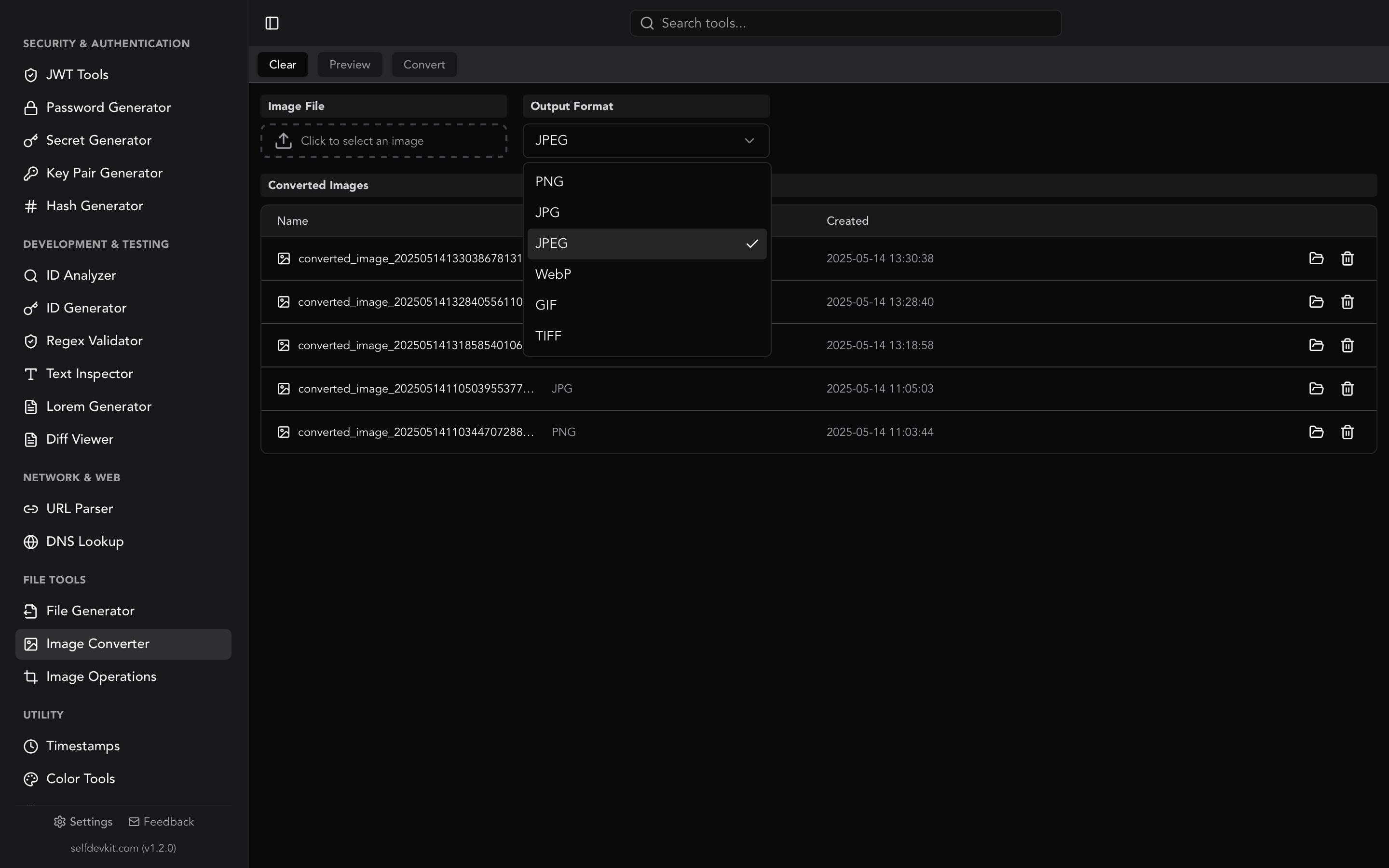
The SelfDevKit Image Converter converts a single WebP to GIF on your machine, with no upload. Pick the file, choose GIF as the output format, and convert. The GIF is saved locally and listed in the app's history.
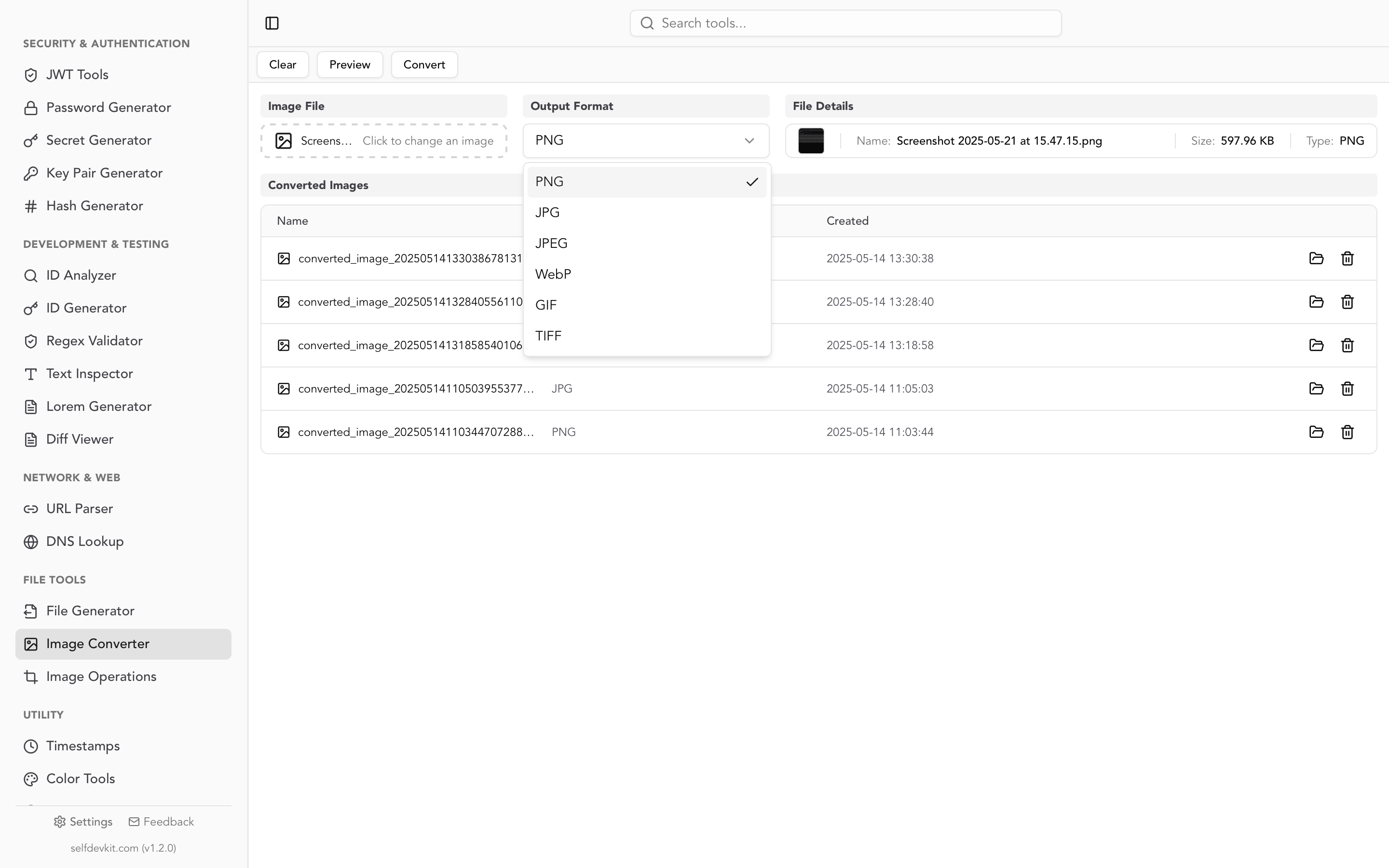
It is built for static images, and it has clear limits:
- Opaque WebPs convert well. Google's 550×368 photo sample came out at 115 KB and 36.6 dB, on par with ImageMagick (116 KB, 36.2 dB).
- Animated WebPs become a single frame. The converter decodes the first frame only. Use one of the commands above for animations.
- Transparent lossy WebPs come out with a garbled background. On Google's lossy-with-alpha sample, 99% of the pixels that should be transparent came out opaque. Lossy WebP keeps leftover color data under fully transparent pixels, and the encoder marks only one of those colors as transparent. For a transparent image, choose PNG instead. The WebP to PNG guide covers that path, and PNG keeps the alpha channel intact.
Everything runs offline. That matters for screenshots of internal dashboards and unreleased designs, which an online converter has to receive on its server before it can convert them.
What happens to transparency when you convert WebP to GIF
GIF supports one transparent palette entry and nothing else, so every semi-transparent pixel in a WebP must become either fully transparent or fully opaque. A WebP can have 256 levels of alpha. The converter has to choose, and the tools tested chose very differently:

The source frame has 9,688 semi-transparent pixels: the whole blue disk (alpha 90 of 255) plus the anti-aliased edges of the ring.
| Tool | What it did with partial alpha | Result |
|---|---|---|
| ffmpeg, default | Dropped alpha entirely | Black background, gray blocks from hidden color data |
ffmpeg palettegen, ImageMagick -coalesce, sharp |
Threshold at roughly 50% | 8,906 of 9,688 pixels (92%) became transparent; the disk vanished |
| Pillow | Any alpha above 0 became opaque | Disk turned solid blue with a speckled edge |
| SelfDevKit | Any alpha above 0 became opaque | Solid disk plus garbage blocks around it |
| Flattened on white first | Blended against the real background | Matched the source at 45 dB |
The threshold result looks the cleanest on a checkerboard, but it silently deleted a design element. Thresholding also leaves jagged, aliased edges, which look worse the further the page background is from the color the edge pixels were drawn against.
The fix is to stop asking GIF to do something it can't. If you know where the GIF will be displayed, flatten it onto that exact background color before converting. Every partial-alpha pixel gets blended correctly, and the result matched the source at 45 dB on white. If the GIF must work on any background, accept the hard edges, and draw the source without soft shadows.
Why the GIF comes out 2 to 5 times bigger
An animated GIF is almost always larger than the WebP it came from, because GIF compression (LZW on palette indexes) is far weaker than WebP's VP8 or lossless coding. Google's 300×225, 100-frame animated sample is 381 KB as WebP. As GIF:
| Converter | GIF size | vs WebP | Quality (PSNR) |
|---|---|---|---|
ffmpeg, default bgr8 palette |
1,036 KB | 2.7× | 24.8 dB |
ffmpeg palettegen + paletteuse |
1,797 KB | 4.7× | 34.4 dB |
ImageMagick -coalesce |
1,728 KB | 4.5× | 41.6 dB |
| sharp | 1,719 KB | 4.5× | 43.3 dB |
| Pillow | 899 KB | 2.4× | 37.4 dB |
ImageMagick -coalesce, then gifsicle -O3 --lossy=80 |
914 KB | 2.4× | 36.3 dB |
Exact sizes shift between versions and builds of the same tool, so treat these as ballpark figures. Higher PSNR means closer to the original; above about 40 dB the difference is usually hard to spot. Lossless gifsicle -O3 saved only 0.1% to 5.5% on these files, because the converters already optimize frames. The --lossy=80 option is what made a real difference, cutting the ImageMagick file by 47% for about 5 dB.
Static images follow the same pattern. Google's 30 KB photo sample became 75 KB to 138 KB as GIF. If a GIF is too big, the levers that work are fewer pixels, fewer frames, and --lossy. The image resizer guide covers shrinking dimensions before you convert.
Frame timing: why the GIF plays slower than the WebP
GIF stores frame delays in centiseconds, so a WebP frame of 16 ms has to become 1 or 2 hundredths of a second. Browsers then add a rule of their own: any GIF frame with a delay of 10 ms or less plays at 100 ms. WebKit adopted it from Firefox in 2010 (changeset r73295), and Chromium's Blink image decoder still does the same, using "a duration of 100 ms for any frames that specify a duration of <= 10 ms."
So a frame rounded down to 1 cs plays ten times slower. The test spinner was 30 frames at 16 ms, 480 ms per loop:
| Converter | Delays written | Loop length in a browser |
|---|---|---|
| Source WebP | 16 ms each | 480 ms |
ffmpeg (default or palettegen) |
Mix of 1 cs and 2 cs | 1,560 ms (3.25× slower) |
| ImageMagick, sharp | 2 cs each | 600 ms (1.25× slower) |
| Pillow | 1 cs each (rounded down) | 3,000 ms (6.25× slower) |
ffmpeg with fps=50 |
2 cs each, 24 frames | 480 ms |
ffmpeg's alternating delays are mathematically accurate. They sum to 480 ms. But 12 of the 30 frames land on 1 cs and get clamped, so the result is the second worst in practice. Resampling with fps=50 drops 6 frames and keeps the real duration. Keeping every frame at 20 ms instead makes the loop 25% slower. Either is acceptable; a loop that is six times slower is not.
Longer frames are mostly safe. At 33 ms per frame, ffmpeg alternated 3 and 4 cs (exactly 990 ms), and the other tools wrote 3 cs, for a loop 10% faster than the source.
Loop count: WebP and GIF count differently
A WebP loop count is the total number of plays, while a GIF loop count is the number of repeats after the first play. libwebp's gif2webp source says so directly, adding 1 when going the other way: "adapt GIF's semantic to WebP's (except in the infinite-loop case)". WebKit's GIF decoder plays loopCount() + 1 times. Zero means forever in both formats.
A WebP set to play 3 times should therefore become a GIF with loop count 2:
| Converter | Loop count written | Plays in a browser |
|---|---|---|
| ImageMagick | 2 | 3 (correct) |
| sharp | 2 | 3 (correct) |
| Pillow | 3 | 4 |
| ffmpeg | 0 | Forever |
ffmpeg ignores the source loop count and writes its own -loop default of 0, so pass -loop explicitly. Pillow copies the WebP number over unchanged, which is why the Python script above subtracts one. Most animated WebPs loop forever, which every tool handles correctly; the difference shows up in product demos and onboarding animations designed to stop.
When you need a GIF at all
Convert WebP to GIF when the destination can't play animated WebP. Every current major browser can, so the usual reasons are elsewhere. Can I email lists Gmail's WebP support as "Partial. Does not support animation." Older desktop apps, some CMS upload fields, and chat or ticketing tools that only animate GIFs are the other common cases.
For a static image, GIF is rarely the best target. Its 256 colors band photographs and gradients, and PNG does the same job losslessly with full alpha. GIF only wins for a static image when a system accepts nothing else.
What to do next
For a quick static conversion, or for the PNG and JPG paths that often fit better, the Image Converter handles it offline in SelfDevKit, along with 50+ other developer tools. The Image Operations tool can resize an image first, which shrinks a GIF more than any encoder setting.
For animations, use magick input.webp -coalesce output.gif when the edges are hard, flatten onto your page color when they're soft, and check two numbers in the result: no frame delay under 2 cs, and the loop count you meant. If you end up going the other direction later, the GIF to PNG guide covers what that conversion keeps and loses.