An SSH key pair replaces passwords with cryptography. You keep a private key on your machine, hand a public key to a server or GitHub, and prove your identity without ever sending a secret over the wire. Generating one takes a single command. Generating one safely takes a little more understanding, which is what this guide is about.
To generate an SSH key, run ssh-keygen -t ed25519 -C "your_email@example.com" on macOS, Linux, or Windows, press Enter to accept the default location, and set a passphrase. That produces two files: a private key you protect and a public key you share. The rest of this article explains what those files contain, when RSA still makes sense, how to add the key to a server or GitHub, and why generating a private key on a random website is a mistake you cannot undo.
Table of contents
- The fast way to generate an SSH key
- ed25519 vs RSA vs ECDSA: which key type to choose
- What the two key files actually contain
- Adding a passphrase and using ssh-agent
- Copying your public key to a server or GitHub
- Generating an SSH key on Windows
- Never generate a private key in a browser
- Converting between key formats
- Troubleshooting and key hygiene
- Frequently asked questions
The fast way to generate an SSH key
Open a terminal and run this:
ssh-keygen -t ed25519 -C "your_email@example.com"
You will see three prompts:
Generating public/private ed25519 key pair.
Enter file in which to save the key (/home/you/.ssh/id_ed25519):
Enter passphrase (empty for no passphrase):
Enter same passphrase again:
Press Enter at the first prompt to accept the default location. Type a passphrase at the second (more on why below). When it finishes, you have two files in ~/.ssh:
id_ed25519is your private key. It never leaves your machine.id_ed25519.pubis your public key. This is the part you share.
That is the entire process. The command breaks down like this:
| Flag | Meaning |
|---|---|
-t ed25519 |
Key type. Ed25519 is the modern default. |
-C "..." |
A comment appended to the public key, usually an email or hostname to identify it later. |
-f path |
Output file path. Use this to name a key, for example -f ~/.ssh/id_github. |
-b bits |
Key size in bits. Only meaningful for RSA (Ed25519 has a fixed size). |
-N pass |
Set the passphrase non-interactively (handy in scripts, risky in shell history). |
If you manage more than one identity, name your keys explicitly rather than overwriting the default:
ssh-keygen -t ed25519 -C "work-laptop" -f ~/.ssh/id_work
ed25519 vs RSA vs ECDSA: which key type to choose
Choose Ed25519 for any new SSH key unless you must connect to old infrastructure that predates it, in which case use RSA at 4096 bits. Ed25519 is faster, produces much shorter keys, and resists a class of implementation bugs that have historically plagued RSA and ECDSA.
Here is how the common algorithms compare for SSH:
| Algorithm | Key length | Security level | When to use |
|---|---|---|---|
| Ed25519 | 256-bit (fixed) | ~128-bit | Default choice. Fast, tiny keys, safe defaults. |
| RSA 4096 | 4096-bit | ~140-bit | Legacy servers, FIPS environments, or hardware without Ed25519. |
| RSA 2048 | 2048-bit | ~112-bit | Minimum acceptable RSA size. Fine for most compatibility cases. |
| ECDSA | 256/384/521-bit | 128 to 256-bit | Rarely needed. Depends on the curve and a good random source. |
| DSA | 1024-bit | broken | Never. Disabled in modern OpenSSH. |
Ed25519 is defined in RFC 8709 as an SSH public key algorithm and has been supported in OpenSSH since version 6.5, released in early 2014. Any server or service you are likely to touch today understands it, including GitHub, GitLab, and all the major cloud providers.
RSA is still worth knowing. Some corporate and FIPS-validated environments require it, and a handful of embedded or ancient systems only speak RSA. When you do use RSA, use at least 2048 bits. The US National Institute of Standards and Technology disallowed RSA keys shorter than 2048 bits for new use back in 2013 in SP 800-131A, and 4096 bits buys extra margin at the cost of slightly slower handshakes. For a deeper look at RSA specifically, including PEM formats and key sizes, see our RSA key generator guide.
ECDSA sits awkwardly in the middle. It is smaller than RSA but leans heavily on a quality random number generator during signing; a weak one can leak the private key. Ed25519 was designed to avoid exactly that failure mode, which is why it is the recommendation almost everywhere.
What the two key files actually contain
An SSH key pair is two files: a private key in OpenSSH's own encrypted container format and a public key stored as a single line of text. Most guides stop at "share the .pub file," but understanding the contents saves you real debugging time later.
Open the public key and you will see one line:
ssh-ed25519 AAAAC3NzaC1lZDI1NTE5AAAAIH8kj...q3mZ work-laptop
That line has three parts:
- The algorithm identifier (
ssh-ed25519orssh-rsa). - The base64-encoded public key material (the long middle string).
- The comment you passed with
-C, used only for human identification.
This is the exact format that goes into a server's ~/.ssh/authorized_keys file or GitHub's key settings. It is not sensitive. You can paste it anywhere.
The private key is different. A modern OpenSSH private key looks like this:
-----BEGIN OPENSSH PRIVATE KEY-----
b3BlbnNzaC1rZXktdjEAAAAABG5vbmUAAAAEbm9uZQAAAAAAAAABAAAAMwAAAAtz
c2gtZWQyNTUxOQAAACB/JI...
-----END OPENSSH PRIVATE KEY-----
This is OpenSSH's native key format, and if you set a passphrase, the key material inside is encrypted. This is why a stolen private key file is not automatically game over: with a strong passphrase, an attacker still has to break the encryption. Without one, whoever holds the file holds your identity.
Worth noting: OpenSSH's native format is not the same as the PEM/PKCS#8 format you get from generic key tools and libraries. Both describe the same kind of key pair, but the containers differ. We cover converting between them further down.
Adding a passphrase and using ssh-agent
Always set a passphrase when you generate an SSH key. The passphrase encrypts the private key on disk, so a leaked or stolen key file is useless without it. The one tradeoff, typing it on every connection, is solved cleanly by ssh-agent.
ssh-agent is a small background process that holds your decrypted keys in memory for the session. You unlock the key once, and the agent handles authentication for every subsequent connection until you log out.
Start the agent and add your key:
eval "$(ssh-agent -s)"
ssh-add ~/.ssh/id_ed25519
On macOS, you can store the passphrase in the Keychain so it survives reboots:
ssh-add --apple-use-keychain ~/.ssh/id_ed25519
Then add an entry to ~/.ssh/config so the key loads automatically:
Host *
  AddKeysToAgent yes
  UseKeychain yes
  IdentityFile ~/.ssh/id_ed25519
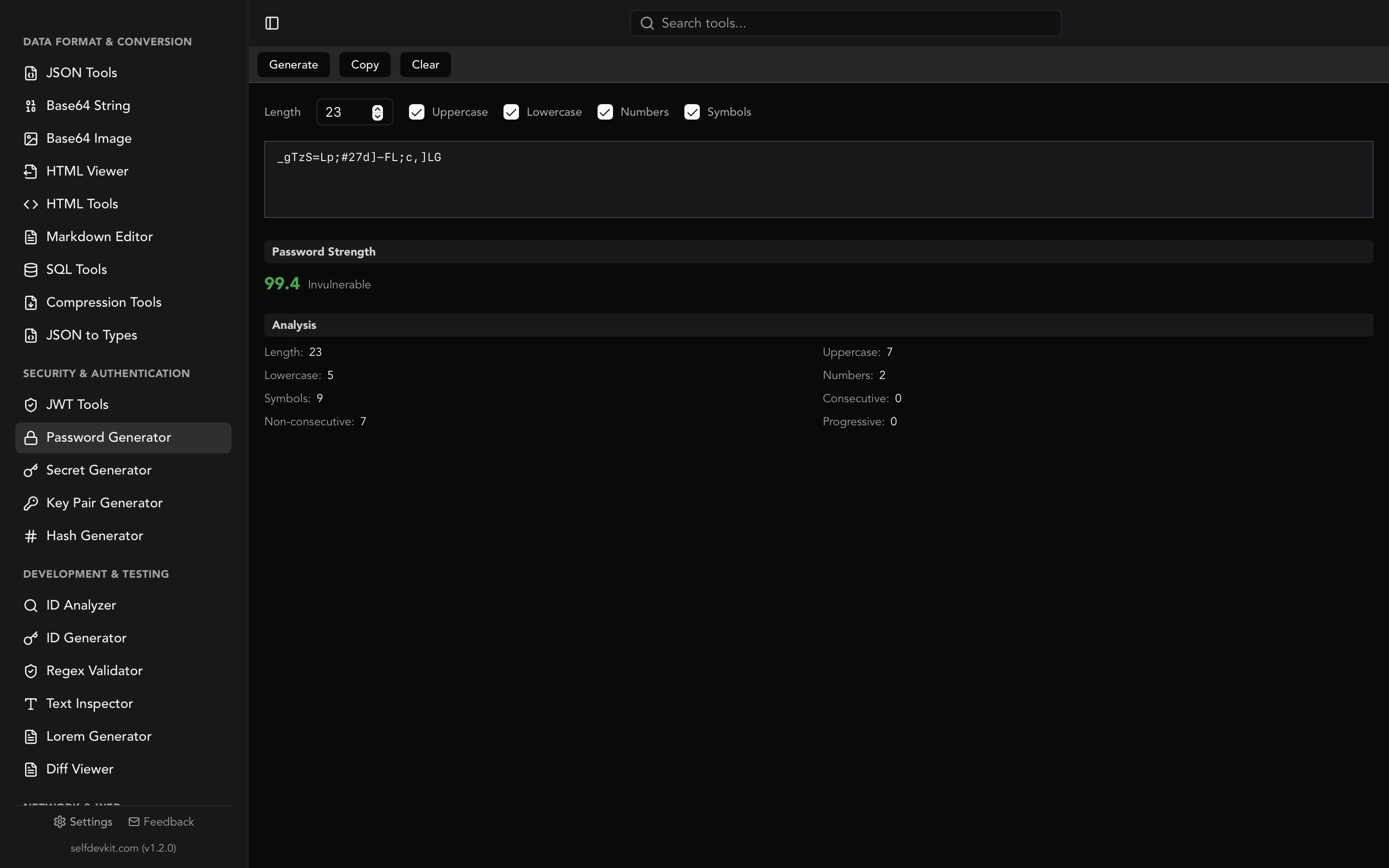
Your passphrase is only as good as its entropy. A memorable but weak phrase defeats the purpose. Generate a long random passphrase with a dedicated password generator and store it in your password manager. For the reasoning behind what makes a passphrase actually strong, our secure password generator guide walks through length versus complexity and why length wins.
Copying your public key to a server or GitHub
To authenticate with a server, append your public key to its ~/.ssh/authorized_keys file. The ssh-copy-id utility does this for you in one step.
For a Linux or Unix server you already have password access to:
ssh-copy-id -i ~/.ssh/id_ed25519.pub user@your-server.com
That copies the public key, creates ~/.ssh/authorized_keys if needed, and sets the correct permissions. From then on, ssh user@your-server.com uses your key instead of a password.
If ssh-copy-id is not available, do it manually by piping the public key over an existing connection:
cat ~/.ssh/id_ed25519.pub | ssh user@your-server.com \
  "mkdir -p ~/.ssh && chmod 700 ~/.ssh && cat >> ~/.ssh/authorized_keys && chmod 600 ~/.ssh/authorized_keys"
For GitHub, GitLab, or Bitbucket, you paste the public key into the web UI rather than using ssh-copy-id. Copy the contents of the .pub file:
# macOS
pbcopy < ~/.ssh/id_ed25519.pub
# Linux with xclip
xclip -selection clipboard < ~/.ssh/id_ed25519.pub
Then add it under your account's SSH key settings. GitHub's own SSH key documentation covers the exact menu path, and once added you can verify the connection with ssh -T git@github.com.
The golden rule bears repeating: you only ever share the .pub file. If you find yourself about to paste anything that starts with BEGIN ... PRIVATE KEY, stop.
Generating an SSH key on Windows
Windows 10 and 11 ship with the OpenSSH client built in, so you generate an SSH key exactly the way you do on macOS or Linux, no PuTTY required. Open PowerShell and run:
ssh-keygen -t ed25519 -C "your_email@example.com"
The keys land in C:\Users\you\.ssh\ by default. To use ssh-agent on Windows, start the service once (it is disabled by default) and add the key:
Get-Service ssh-agent | Set-Service -StartupType Automatic
Start-Service ssh-agent
ssh-add $env:USERPROFILE\.ssh\id_ed25519
The old workflow of generating keys with PuTTYgen and juggling .ppk files is no longer necessary on modern Windows. You only need .ppk conversion if a specific legacy tool still requires PuTTY's format, which we cover in the conversion section below.
Never generate a private key in a browser
Do not use an online "SSH key generator" website to create a key you intend to actually use. When a web page generates your private key, you are trusting code you cannot audit to produce, and then discard, the one secret that controls your access. That is a bad trade for saving one terminal command.
Several of the top results for "ssh key generator" are exactly these websites. The problem is structural, not a question of any single site's honesty:
- You cannot verify what happens to the key. Even if generation runs in JavaScript, you cannot confirm the private key is not quietly sent to a server, logged, or cached. A single compromised script or dependency is enough.
- Browser randomness has failed before. Key security depends entirely on a strong random source. Weak or predictable randomness in a browser context has produced factorable and guessable keys in the past.
- The blast radius is total. A leaked SSH private key can mean access to production servers, source code, and deployment pipelines. There is no partial compromise.
This is the same reasoning we apply across why offline-first developer tools matter: secrets should be created and stay on hardware you control. When you run ssh-keygen locally, the private key is generated by OpenSSH on your own machine using the operating system's cryptographic random source, and it never touches a network.
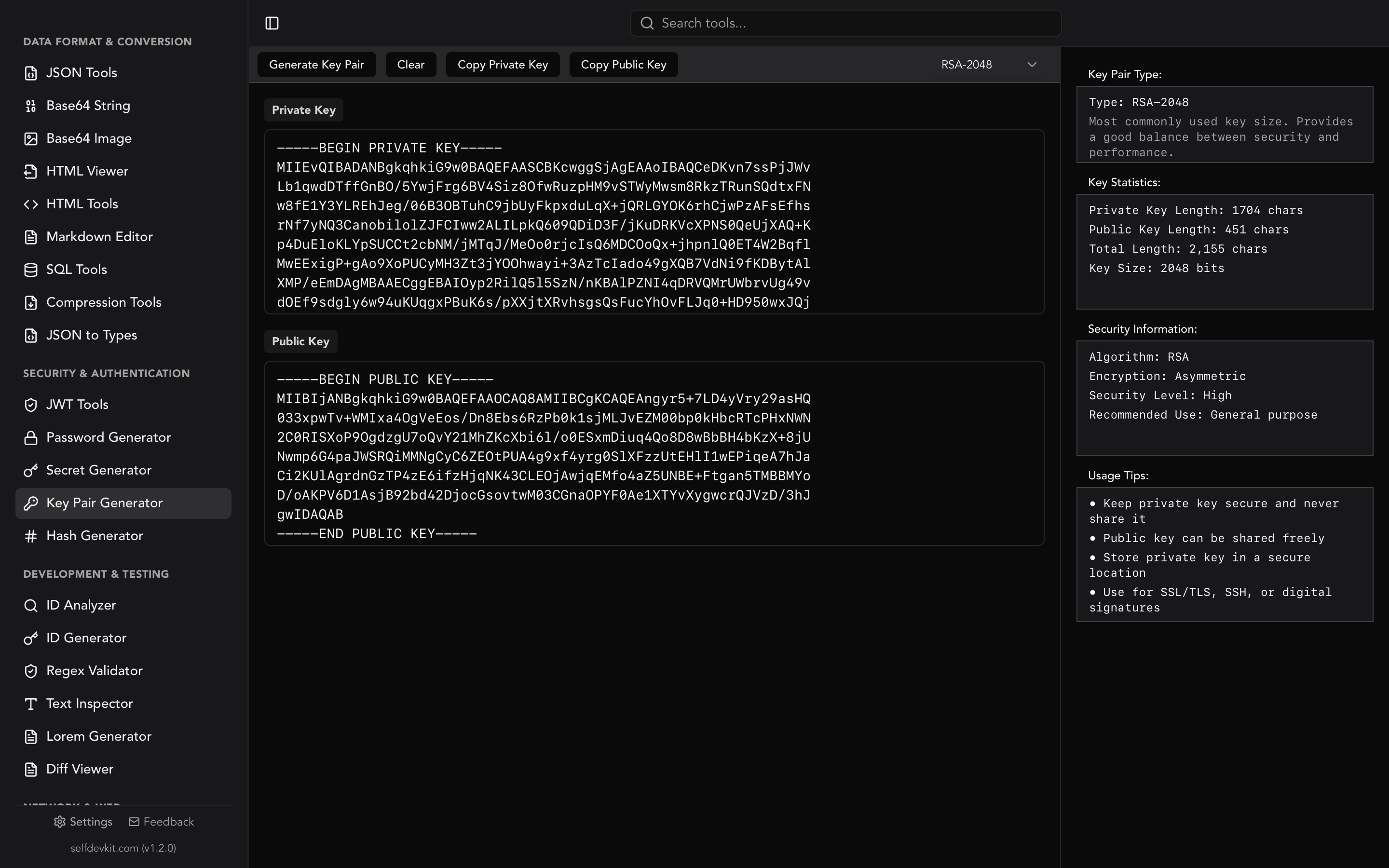
If you prefer a graphical tool over the command line, use one that runs locally and offline rather than a website. SelfDevKit's key pair generator creates RSA key pairs entirely on your device, with no network calls and nothing leaving your machine, the same privacy guarantee as ssh-keygen with a point-and-click interface.
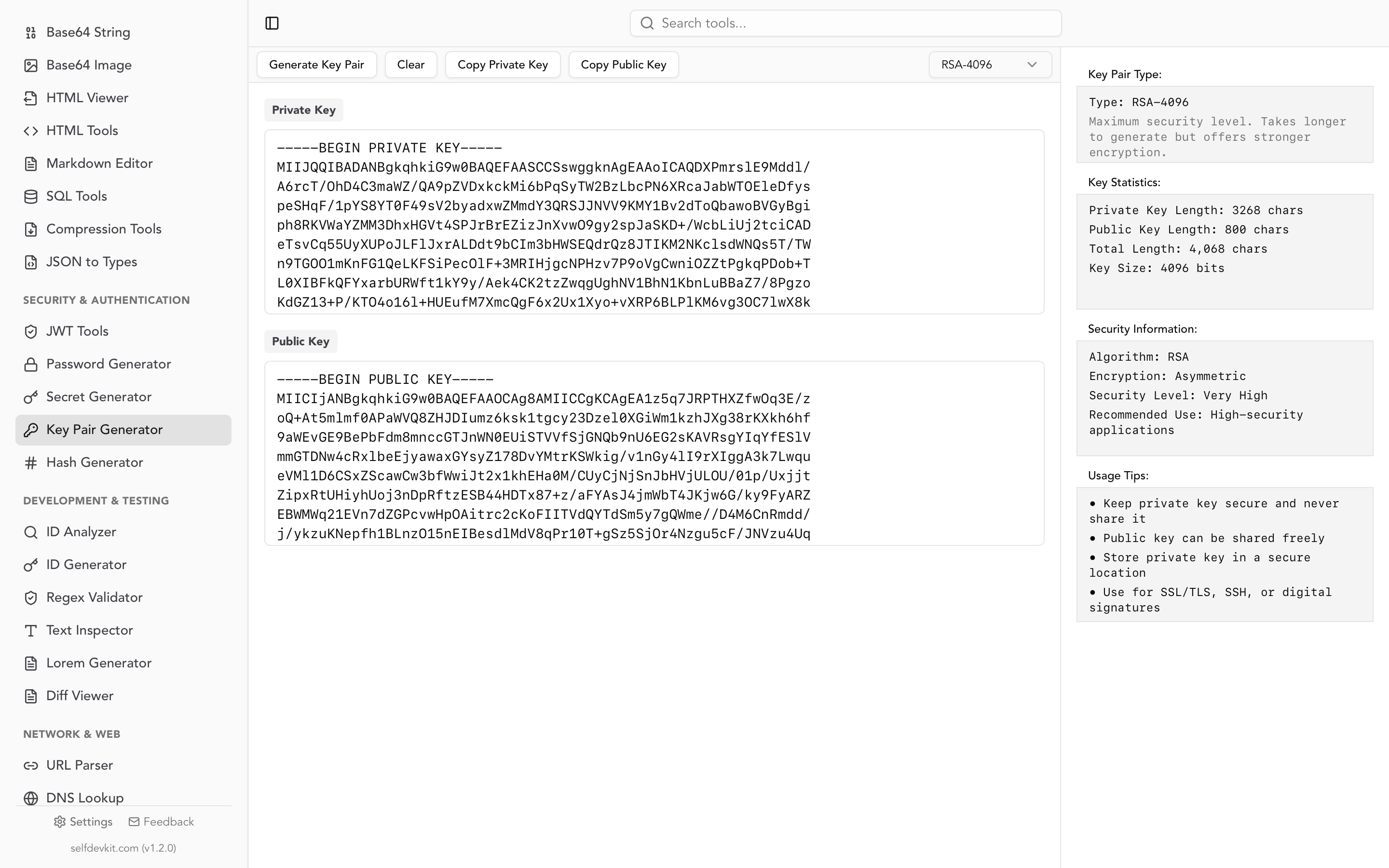
Because it generates standard RSA key pairs in PEM format, you can use its output as an SSH identity after a quick format conversion, which is exactly what the next section covers. For Ed25519 keys specifically, stick with ssh-keygen, which remains the canonical tool.
Converting between key formats
The same key pair can be stored in several container formats, and SSH tools occasionally need one you do not have. Knowing the conversions saves you from regenerating keys unnecessarily.
The formats you will run into:
| Format | Typical header | Used by |
|---|---|---|
| OpenSSH private | BEGIN OPENSSH PRIVATE KEY |
Modern ssh / ssh-keygen |
| PKCS#8 PEM | BEGIN PRIVATE KEY |
OpenSSL, most libraries, SelfDevKit |
| PKCS#1 PEM | BEGIN RSA PRIVATE KEY |
Older RSA tooling |
| SPKI PEM (public) | BEGIN PUBLIC KEY |
Libraries, SelfDevKit public output |
| PuTTY | .ppk |
PuTTY on legacy Windows setups |
The most common need is deriving the OpenSSH public key line from a PEM private key you generated elsewhere. ssh-keygen reads PEM private keys directly:
ssh-keygen -y -f private_key.pem > id_rsa.pub
That produces the ssh-rsa AAAA... line you can drop into authorized_keys or GitHub. OpenSSH can also use a PEM RSA private key as an identity file without converting it first:
ssh -i private_key.pem user@your-server.com
To convert an existing OpenSSH private key into PEM, use the -p and -m flags:
ssh-keygen -p -m PEM -f ~/.ssh/id_rsa
This matters when you pair the command line with a graphical generator. If you generate an RSA pair with SelfDevKit's key pair generator, which outputs PKCS#8 PEM for the private key and SPKI PEM for the public key, ssh-keygen -y turns that private key into a usable SSH public key line in seconds. Our RSA key generator guide explains the PEM header differences in more depth.
Troubleshooting and key hygiene
Most SSH key problems come down to file permissions, the wrong key being offered, or an agent that is not running. A few checks resolve the vast majority of cases.
"UNPROTECTED PRIVATE KEY FILE" error. OpenSSH refuses to use a private key that other users can read. Fix the permissions:
chmod 700 ~/.ssh
chmod 600 ~/.ssh/id_ed25519
chmod 644 ~/.ssh/id_ed25519.pub
Verify a key's fingerprint. Before trusting a key or matching a public key to a private one, print its fingerprint:
ssh-keygen -lf ~/.ssh/id_ed25519.pub
The private and its matching public key produce the same fingerprint, which is how you confirm a .pub file belongs to a given private key.
Debug a failed connection. Verbose mode shows which keys SSH is offering and why the server rejected them:
ssh -vT git@github.com
Rotate keys periodically. Treat SSH keys like any other credential. If a laptop is lost, a contractor leaves, or a key has simply been in service for years, generate a fresh pair, add the new public key everywhere, and remove the old one from every authorized_keys file and account. Because the public keys carry your -C comment, labeling them clearly at creation time (work-laptop-2026, for example) makes rotation far less painful.
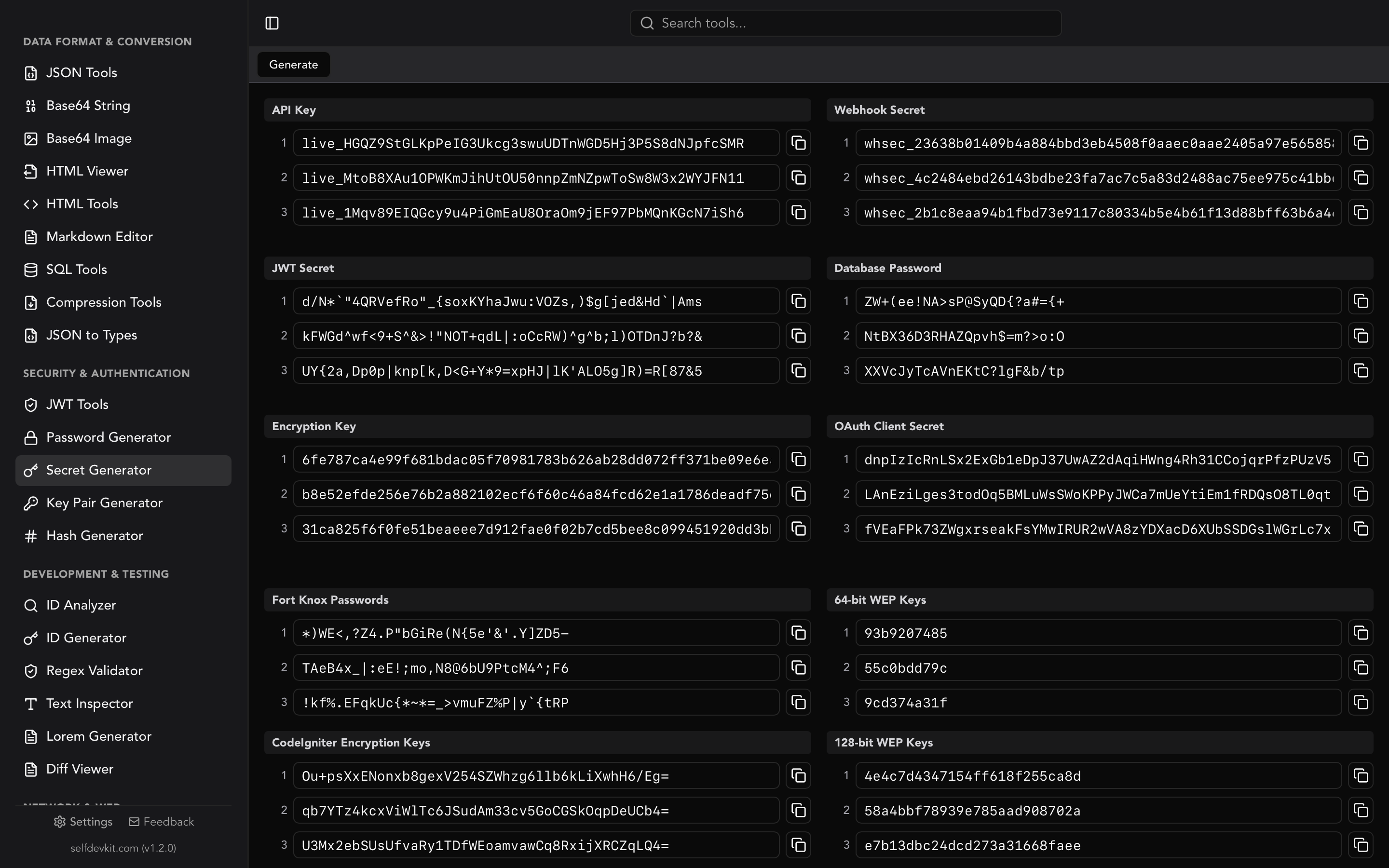
Keep a secure inventory. If you generate keys for services or CI systems, track which key is authorized where. The same discipline applies to related secrets: API keys, tokens, and signing keys benefit from a dedicated secret generator and a hash tool for verifying file integrity, like our hash generator. If you also work with JWTs, note that signing secrets are a separate concern covered in our JWT secret key generator guide.
Frequently asked questions
Should I generate an ed25519 or RSA SSH key?
Generate an Ed25519 key for anything new. It is faster, smaller, and has safer defaults than RSA. Only choose RSA (at 2048 bits or more, ideally 4096) when you must connect to legacy infrastructure or a FIPS environment that does not support Ed25519.
Can I use one SSH key for GitHub, GitLab, and my servers?
Yes, a single public key can be added to as many services and servers as you like, since only the public half is shared. Many developers still prefer a separate key per device or context so that revoking one compromised machine does not lock them out everywhere. Name keys with -f to keep them organized.
Is it safe to use an online SSH key generator?
No, not for a key you will actually use. Generating a private key on a website means trusting unauditable code with your most sensitive secret, and browser randomness has produced weak keys before. Generate keys locally with ssh-keygen or an offline key pair generator instead.
What is the difference between the two files ssh-keygen creates?
ssh-keygen creates a private key (no extension, for example id_ed25519) that stays on your machine, and a public key (.pub) that you share with servers and services. The public key is safe to paste anywhere; the private key, ideally protected with a passphrase, must never be shared or uploaded.
Try it yourself
Generating an SSH key well is really about one habit: keep the private half on hardware you control and never let it touch a service you cannot audit. ssh-keygen does that on the command line. When you want a graphical, fully offline way to generate RSA key pairs, SelfDevKit's key pair generator does it locally with no network calls, alongside a password generator for strong passphrases and 50+ other tools for the rest of your workflow.
Download SelfDevKit: offline, private developer tools that keep your keys and secrets on your machine.