A markdown editor online lets you write markdown text and watch it render as formatted HTML in real time, usually in a split-pane layout with source on one side and preview on the other. The good ones do more than preview: they help you write faster with syntax shortcuts, export to HTML or PDF, and keep your drafts somewhere safe. The differences that actually matter are which markdown dialect they support, where your unsaved work lives, and whether your text ever leaves your machine.
If you write READMEs, changelogs, documentation, or blog drafts, you spend real time in a markdown editor. You want to see the rendered result as you type, not after a git push. You want tables and task lists to work. And ideally you do not want to lose an hour of writing because a browser tab crashed or a server went down. This guide covers how to pick a markdown editor online, the syntax you will actually use while writing, an honest comparison of the popular tools, and the draft-safety question almost every competitor page skips.
Table of contents
- What is a markdown editor online?
- Markdown editor vs viewer: what editing adds
- Markdown syntax you use while writing
- What makes a good online markdown editor
- Online markdown editor comparison
- Where your drafts live: the question editors gloss over
- Editing markdown offline with SelfDevKit
- Frequently asked questions
What is a markdown editor online?
A markdown editor online is a web-based writing tool that converts markdown syntax into formatted output as you type. You write in plain text using simple symbols, a # for a heading, ** around bold text, a hyphen for a list item, and the editor renders a live preview beside your source. It is the writing counterpart to a read-only markdown viewer online, which only displays finished output.
Markdown itself is a lightweight markup language John Gruber created in 2004. The idea was to write structured documents in plain text and convert them to HTML without wrestling with tags. That plain-text foundation is why markdown became the default for developer documentation, GitHub READMEs, static site content, and note-taking apps. A markdown editor is where the writing happens.
The reason people reach for an online editor specifically is friction. There is nothing to install, no config, no build step. Open a tab, start typing, see the result. For a quick changelog entry or a README tweak that is often exactly enough. The tradeoffs show up when the document matters, the content is confidential, or you cannot afford to lose the draft.
Markdown editor vs viewer: what editing adds
A markdown viewer renders finished text; a markdown editor adds everything you need while the text is still being written. Both run the same parse-to-HTML pipeline under the hood, but an editor layers a writing experience on top of it.
The features that separate an editor from a plain viewer:
- A writable source pane with a monospace font, line numbers, and often syntax highlighting for the markdown itself.
- Live preview that updates on every keystroke so you never guess how a table or nested list will look.
- Formatting shortcuts, such as selecting text and pressing a key to wrap it in bold, or a toolbar that inserts link and image scaffolding.
- Draft persistence, so closing the tab does not vaporize your work.
- Export, turning your markdown into HTML, PDF, or sometimes Word for sharing outside the editor.
If all you need is to read a colleague's .md file or sanity-check rendered output, a viewer is enough. If you are producing the document, you want the editor half. Most modern tools ship both in one split-pane interface, which is why the line between "markdown viewer online" and "markdown editor online" is blurry in practice.
Markdown syntax you use while writing
To write markdown, you only need a small set of symbols, and roughly a dozen of them cover the vast majority of real documents. Here is the working reference most writers keep in their head, plus the GitHub Flavored Markdown extensions that trip people up.
| What you want | Markdown you type | Renders as |
|---|---|---|
| Heading | ## Section title |
An <h2> heading |
| Bold | **important** |
important |
| Italic | *subtle* |
subtle |
| Inline code | `value` |
A monospace value |
| Link | [label](https://url) |
A clickable link |
| Image |  |
An embedded image |
| Bullet list | - item |
An unordered list |
| Numbered list | 1. item |
An ordered list |
| Blockquote | > quoted |
An indented quote |
| Horizontal rule | --- |
A divider line |
Fenced code blocks are the other everyday construct. Wrap code in triple backticks and add a language name for syntax highlighting:
```javascript
const greeting = 'hello';
console.log(greeting);
```
Then there are the GitHub Flavored Markdown (GFM) extensions, which are not part of the original spec but are the ones developers rely on daily:
## Roadmap

- [x] Draft the spec
- [ ] Review with the team
- [ ] Ship it

| Feature | Status |
| ------- | ------ |
| Editor  | ~~beta~~ stable |
Task lists (- [ ]), tables, and strikethrough (~~text~~) only render in editors that support GFM. If you paste a table into an editor and see raw pipes and dashes instead of a grid, that editor is running plain CommonMark rather than GFM. This is the single most common "my markdown looks broken" complaint, and it is worth checking before you write anything destined for a GitHub README.
What makes a good online markdown editor
A good markdown editor online gets out of your way while writing and gives you a trustworthy preview and a clean export. Beyond the basics, a handful of qualities separate a tool you will keep from one you will abandon.
Accurate GFM rendering. If the preview does not match what GitHub or GitLab will show, the preview is misleading. Tables, task lists, and fenced code with syntax highlighting should all render the way the target platform renders them.
Instant, jitter-free preview. The preview should update on every keystroke without lag, even on a long document. A sluggish preview breaks the writing flow that makes markdown pleasant in the first place.
Safe rendering. Markdown allows raw HTML, which means a poorly built editor can execute scripts hidden in pasted content, a classic cross-site scripting risk. A well-built editor sanitizes the generated HTML before showing it. We covered this pipeline in depth in the markdown viewer guide.
Reliable export. When the document is done you usually need it somewhere else. Export to clean HTML for a CMS or email, and to PDF for sharing, should be one click and should preserve your formatting.
Draft safety. The editor should not lose your work when the tab closes, the network drops, or the browser crashes. Where and how it saves matters more than most people think, which is the next section.
Online markdown editor comparison
The popular online markdown editors overlap heavily on writing and preview, and differ mostly on sync, storage, and privacy. Here is an honest comparison of the tools developers reach for most, based on what each one publicly offers.
| Editor | Live preview | Export | Where drafts live | Works offline |
|---|---|---|---|---|
| Dillinger | Yes | HTML, PDF, Markdown | Browser + optional cloud sync | Partial |
| StackEdit | Yes | HTML, PDF | Browser + Google Drive, Dropbox, GitHub | Partial (PWA) |
| Typora | Yes (seamless) | HTML, PDF, Word | Local files | Yes (desktop app) |
| VS Code preview | Yes | Via extensions | Local files | Yes |
| SelfDevKit | Yes | HTML, PDF | Local, on your device | Yes (native app) |
A few honest notes on the tradeoffs. Dillinger and StackEdit are excellent for quick, non-sensitive writing, and StackEdit's sync to Google Drive, Dropbox, and GitHub is genuinely useful if you want your notes in the cloud. That same sync is a privacy consideration if the content is confidential. Typora is a polished desktop editor rather than a browser tab, and it is paid. VS Code's built-in preview is great when you already have the file open in your editor, but it is not a focused writing surface. SelfDevKit sits in the local-and-private lane: a native desktop editor that never sends your text anywhere.
There is no single winner. Pick based on what you are writing. A throwaway snippet? Any of them. An unpublished announcement or an internal runbook? That decision hinges on where the draft goes.
Where your drafts live: the question editors gloss over
The most overlooked question in any markdown editor online is where your unsaved work is stored, and most tool pages never address it. It matters for two reasons: losing a draft, and leaking one.
Losing a draft. Browser-based editors typically autosave to localStorage, a small store tied to that specific browser on that specific machine. That is convenient until you clear your browser data, switch computers, use a private window, or hit the storage quota on a long document. Any of those can silently erase work you assumed was saved. Editors that sync to the cloud avoid the machine-lock problem but introduce a network dependency: if the service is down or your connection drops mid-write, saving can fail. Before you trust an editor with anything important, find out exactly where it writes and test what happens when you reload.
Leaking a draft. Think about what actually goes into markdown files at work:
- Internal READMEs describing unreleased architecture
- Runbooks with infrastructure details and command sequences
- Draft blog posts and announcements under embargo
- Design docs covering features that have not shipped
- Incident writeups referencing production systems
Pasting any of that into a random web editor means trusting an unknown server, or at minimum a page loaded with third-party analytics and ad scripts that share the same DOM as your text. Cloud sync compounds the exposure by copying the draft to a third-party storage provider. For casual content none of this matters. For unpublished company information it matters a lot, and it is the same broader tradeoff we cover in why offline-first developer tools matter.
An offline editor sidesteps both problems at once. Your drafts live in local files or app storage you control, there is no network dependency to fail mid-write, and nothing is transmitted to anyone. You lose no rendering quality by keeping it local. GFM tables, task lists, syntax-highlighted code, and export all work identically whether the processor runs on a server or on your laptop.
Editing markdown offline with SelfDevKit
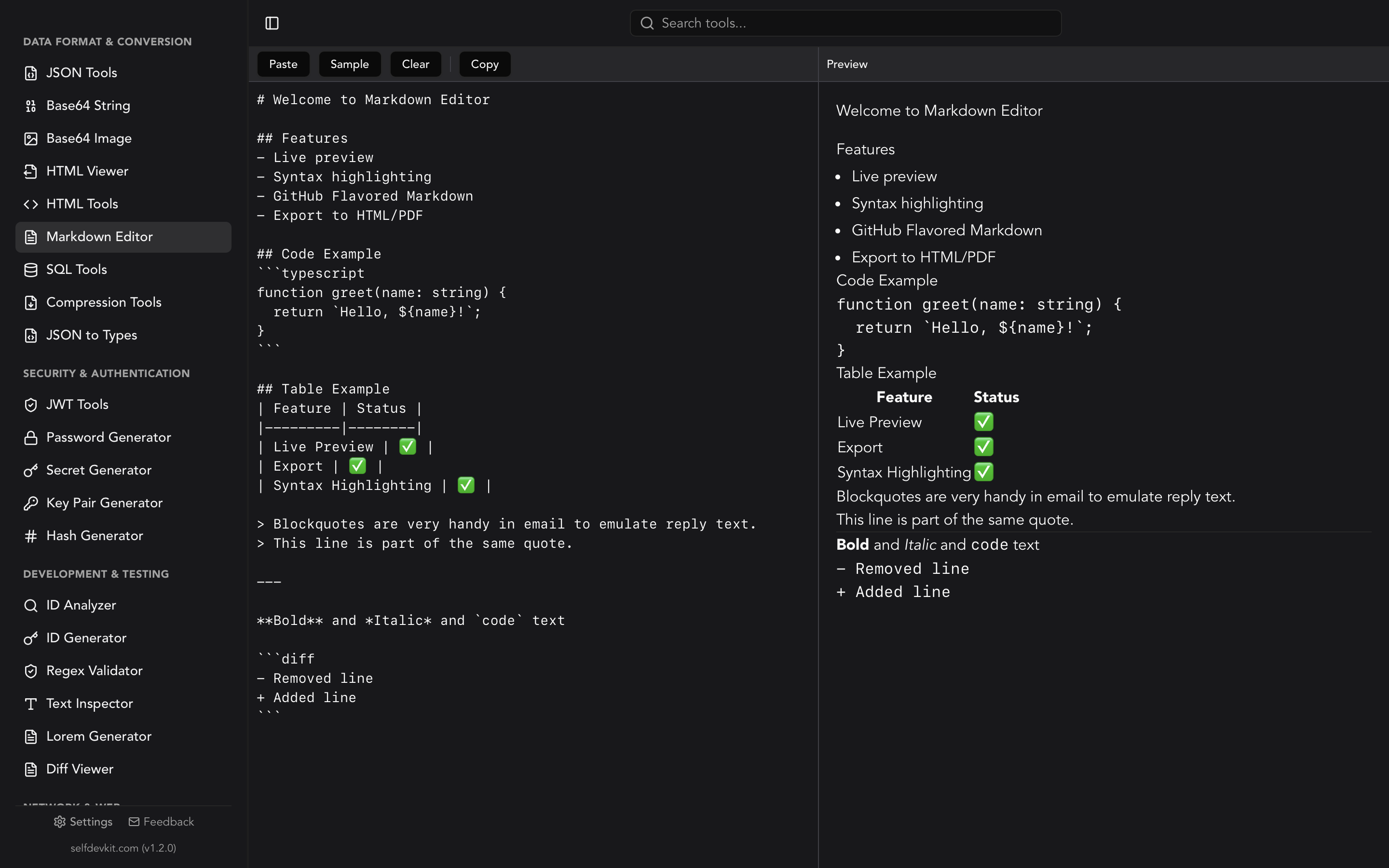
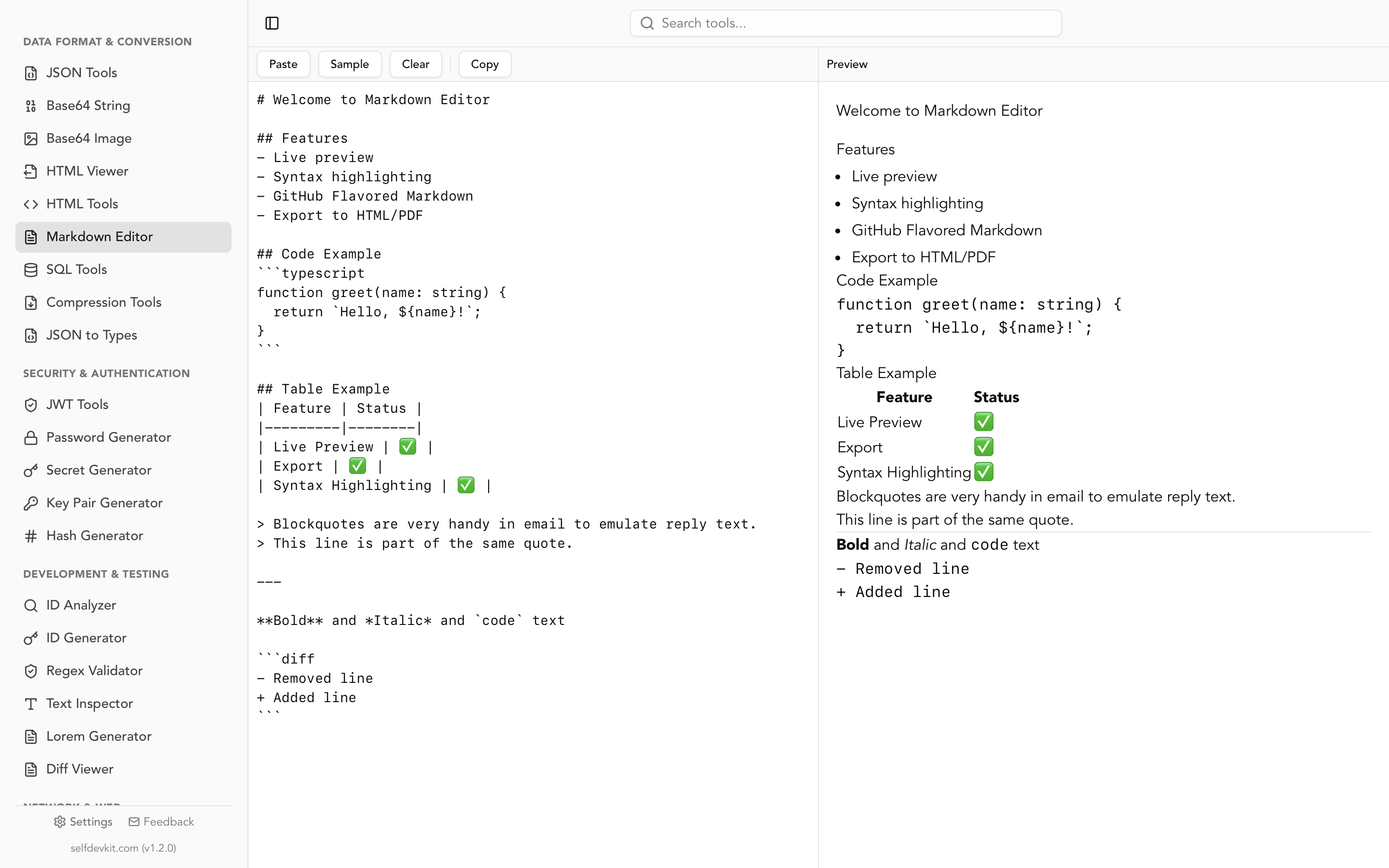
SelfDevKit includes a markdown editor that runs entirely on your desktop as one of its 50+ tools, with the same split-pane writing experience as the popular web editors and none of the network exposure. Write raw markdown on the left, watch the live preview render on the right, and export when you are done.
The markdown editor supports:
- Live preview side by side with your source, updating as you type
- GitHub Flavored Markdown including tables, task lists, and strikethrough
- Syntax highlighting in fenced code blocks
- Sanitized rendering so pasted markdown cannot execute scripts
- Export to HTML and PDF for sharing and publishing
- Paste, sample, clear, and copy actions for a fast workflow
- Fully offline processing so your drafts never leave your machine
Because it is a native app built with Rust, startup is instant and there is no tab to accidentally close. When you export to HTML and want to tidy the markup, the HTML tools and HTML viewer sit in the same app, and a dedicated HTML formatter walkthrough covers indentation and structure. If your work involves comparing two versions of a document, the text comparison tool and diff viewer show you exactly what changed between drafts.
Frequently asked questions
What is the best markdown editor online?
It depends on what you are writing. For quick, non-sensitive documents, browser editors like Dillinger and StackEdit are fast and free, and StackEdit adds cloud sync. For confidential drafts, internal docs, or anything you cannot afford to lose to a cleared browser cache, a local editor such as SelfDevKit's markdown editor keeps everything on your device.
Does an online markdown editor support GitHub Flavored Markdown?
Some do, some do not. Tables, task lists, and strikethrough are GFM extensions that plain CommonMark editors will not render. If you paste a table and see raw pipes instead of a grid, the editor lacks GFM support. Use a GFM-capable editor when your target is a GitHub or GitLab README so the preview matches.
Can I export markdown to HTML or PDF from an online editor?
Yes. Since the editor already converts markdown to HTML internally, exporting that HTML is straightforward, and most tools add PDF export by printing the rendered view. SelfDevKit's markdown editor exports to both HTML and PDF for sharing and publishing.
Is it safe to write confidential drafts in an online markdown editor?
Not always. Many web editors autosave to browser storage or sync drafts to a third-party cloud, and their pages often load analytics and ad scripts alongside your text. For unpublished or internal content, use an offline editor that keeps drafts local so nothing is transmitted or synced.
Try it yourself
A markdown editor online is only as good as the dialect it renders, the export it produces, and the safety of the drafts it holds. Write with accurate GFM preview, export clean HTML and PDF, and keep confidential drafts off other people's servers.
Download SelfDevKit to write and edit markdown offline, alongside 50+ other developer tools in one private, native app.