A markdown viewer online turns raw markdown into formatted, readable output so you can check how a README, changelog, or doc will look before you publish it. Most of them work the same way: parse the markdown, generate HTML, and paint it on screen. The differences that matter are which markdown dialect they support, whether the rendered HTML is sanitized, and whether your text ever leaves your machine.
If you write markdown, you preview it constantly. A quick check on a README before pushing. A glance at a changelog entry. A sanity pass on documentation with tables and task lists. A markdown viewer online is the fastest way to see rendered output without setting up a full editor or waiting for a git push to show you the GitHub preview. This guide covers how these viewers actually work under the hood, the security detail almost every competitor page skips, and how to preview markdown without sending confidential docs to a stranger's server.
What is a markdown viewer online?
A markdown viewer online is a web-based tool that reads markdown syntax and renders it as formatted HTML in real time. You paste or type markdown on one side, and the tool shows headings, lists, tables, code blocks, and links as they will appear once rendered. It is the read-only or preview half of a markdown editor.
Markdown itself is a lightweight markup language created by John Gruber in 2004. The goal was simple: write in plain text with a few intuitive symbols, then convert that text to structured HTML. A # becomes a heading, **bold** becomes bold, and a hyphen starts a list item. The viewer is what performs that conversion and displays the result.
The reason viewers exist as their own category is that markdown does not render itself. A .md file is just text. GitHub, GitLab, and static site generators all run a markdown processor to produce the pages you actually read. When you want that same rendered view outside those platforms, you reach for a standalone viewer.
How a markdown viewer renders your text
To render markdown, a viewer runs a three-step pipeline: parse the markdown into a syntax tree, serialize that tree to HTML, and inject the HTML into the page. Understanding this pipeline explains why previews sometimes look different from what you expected.
Here is the flow in plain terms:
- Parse. The processor reads your text line by line and identifies block elements (headings, paragraphs, lists, code fences, blockquotes) and inline elements (emphasis, links, inline code).
- Transform to HTML. Each markdown construct maps to an HTML element.
## Setupbecomes<h2>Setup</h2>. A fenced code block becomes<pre><code>. - Render and sanitize. The HTML is placed in the DOM so the browser can style and display it. A well-built viewer sanitizes that HTML first to strip anything dangerous.
That third step is the one most online viewers get wrong, and it is where the interesting risk lives.
The security detail most viewers skip
Markdown allows raw HTML. That is part of the spec. You can drop a <div>, a <style> block, or a <script> tag straight into a markdown document, and a naive renderer will pass it through untouched. If a viewer renders raw markdown without sanitizing the output, pasting a malicious .md file can execute JavaScript in that page, a classic cross-site scripting (XSS) vector described in the OWASP XSS guide.
Consider this markdown:
# Release Notes

Everything looks normal here.

<img src="x" onerror="alert(document.cookie)">
A renderer that does not sanitize will happily execute that onerror handler. A safe viewer runs the generated HTML through a sanitizer that removes event handlers, <script> tags, and other injection points before anything reaches the DOM. SelfDevKit's markdown editor parses with a GitHub Flavored Markdown processor and then passes the output through DOMPurify, so the preview shows your formatting without executing hostile markup. Most quick online viewers make no such promise, and their pages usually load third-party analytics and ad scripts that share the same DOM as whatever you just pasted.
GitHub Flavored Markdown vs CommonMark: why previews differ
Markdown is not one standard, and that is the number one reason a preview looks wrong. The original 2004 Markdown spec was loose, so implementations diverged. Two efforts brought order: CommonMark, a strict and unambiguous specification, and GitHub Flavored Markdown (GFM), which extends CommonMark with features developers use daily.
GFM adds constructs that plain CommonMark does not include:
| Feature | CommonMark | GitHub Flavored Markdown |
|---|---|---|
| Tables | No | Yes |
Task lists (- [ ]) |
No | Yes |
Strikethrough (~~text~~) |
No | Yes |
| Autolinked URLs | No | Yes |
| Fenced code blocks | Yes | Yes |
If your viewer only supports CommonMark and you paste a GFM table, you will see the raw pipes and dashes instead of a rendered grid. This is the single most common "my markdown looks broken" complaint. When you preview something destined for a GitHub README, use a viewer that speaks GFM so the preview matches the target.
A quick GFM sample that exercises the extensions:
## Roadmap

- [x] Ship the parser
- [ ] Add export options
- [ ] Write the docs

| Tool | Status |
| ---- | ------ |
| Viewer | ~~beta~~ stable |
If tables and checkboxes render correctly, your viewer supports GFM. If they show up as literal text, it does not.
Rendering markdown programmatically
To render markdown in your own code, use an established library rather than writing a parser by hand. Every major language has a well-tested option, and they all follow the same parse-then-serialize model that online viewers use.
JavaScript / Node.js with marked:
import { marked } from 'marked';
import DOMPurify from 'dompurify';

const markdown = '# Hello\n\nThis is **bold** text.';
const rawHtml = marked.parse(markdown, { gfm: true });
const safeHtml = DOMPurify.sanitize(rawHtml);
Note the sanitize step. If you inject rendered markdown into a page with innerHTML, always run it through a sanitizer first. Skipping that is the same mistake unsafe online viewers make.
Python with markdown:
import markdown

text = "# Hello\n\nThis is **bold** text."
html = markdown.markdown(text, extensions=["tables", "fenced_code"])
Go with goldmark, the same engine Hugo uses:
import (
    "bytes"
    "github.com/yuin/goldmark"
)

var buf bytes.Buffer
_ = goldmark.Convert([]byte("# Hello"), &buf)
html := buf.String()
Command line with pandoc, useful in scripts and CI:
pandoc README.md -f gfm -t html -o readme.html
The marked library that powers SelfDevKit's preview is the same one thousands of web apps rely on, documented at marked.js.org. Pairing it with a sanitizer gives you a safe render in a few lines.
Developer workflows a markdown viewer speeds up
A markdown viewer earns its place in your toolkit by catching formatting problems before they reach an audience. The value is in the fast feedback loop, not the conversion itself.
Previewing a README before you push. Nothing is more annoying than pushing a README, opening the repo page, and finding a broken table or a code fence that swallowed the next paragraph. A viewer catches that in seconds without a commit.
Checking changelogs and release notes. Release notes often mix headings, nested lists, and links. Rendering them first confirms the hierarchy reads the way you intended.
Reviewing docs with tables and task lists. GFM tables are easy to misalign. A live preview shows a broken table immediately, so you can fix the pipe count before anyone else sees it.
Reading someone else's .md file. When a colleague sends a raw markdown file, a viewer renders it into something pleasant instead of forcing you to parse asterisks in your head.
Converting markdown to clean HTML. When you need the underlying HTML for an email, a CMS, or a static page, the viewer's rendered output is the starting point. If you then need to tidy that HTML, a dedicated HTML formatter handles indentation and structure, and understanding HTML entity encoding helps when special characters appear in the output.
If your workflow involves comparing two versions of a document, pairing a viewer with a diff checker or a text comparison tool lets you see both what changed and how the change renders.
Online markdown viewer vs an offline one
An offline markdown viewer renders everything locally and never transmits your text, while an online viewer sends whatever you paste to a remote server or at minimum shares the page with third-party scripts. For casual, non-sensitive markdown, either is fine. For anything confidential, the distinction matters.
Think about what actually goes into your markdown files:
- Internal READMEs describing unreleased architecture
- Private runbooks with infrastructure details and command sequences
- Draft blog posts and announcements under embargo
- Design docs covering features that have not shipped
- Incident writeups referencing production systems
Pasting any of that into a random web viewer means trusting an unknown server with unpublished company information. Even viewers that process entirely in the browser typically load analytics and advertising scripts that live in the same page context as your content. That is a broader privacy tradeoff, covered in our piece on why offline-first developer tools matter.
An offline tool sidesteps the whole question:
- Zero network requests during rendering
- No third-party scripts sharing the DOM with your text
- Works on air-gapped machines with no connection at all
- No logs or analytics capturing what you preview
The rendering quality is identical. GFM tables, task lists, syntax-highlighted code, and blockquotes all render the same whether the processor runs on a server or on your laptop. You lose nothing by keeping it local.
Previewing markdown with SelfDevKit
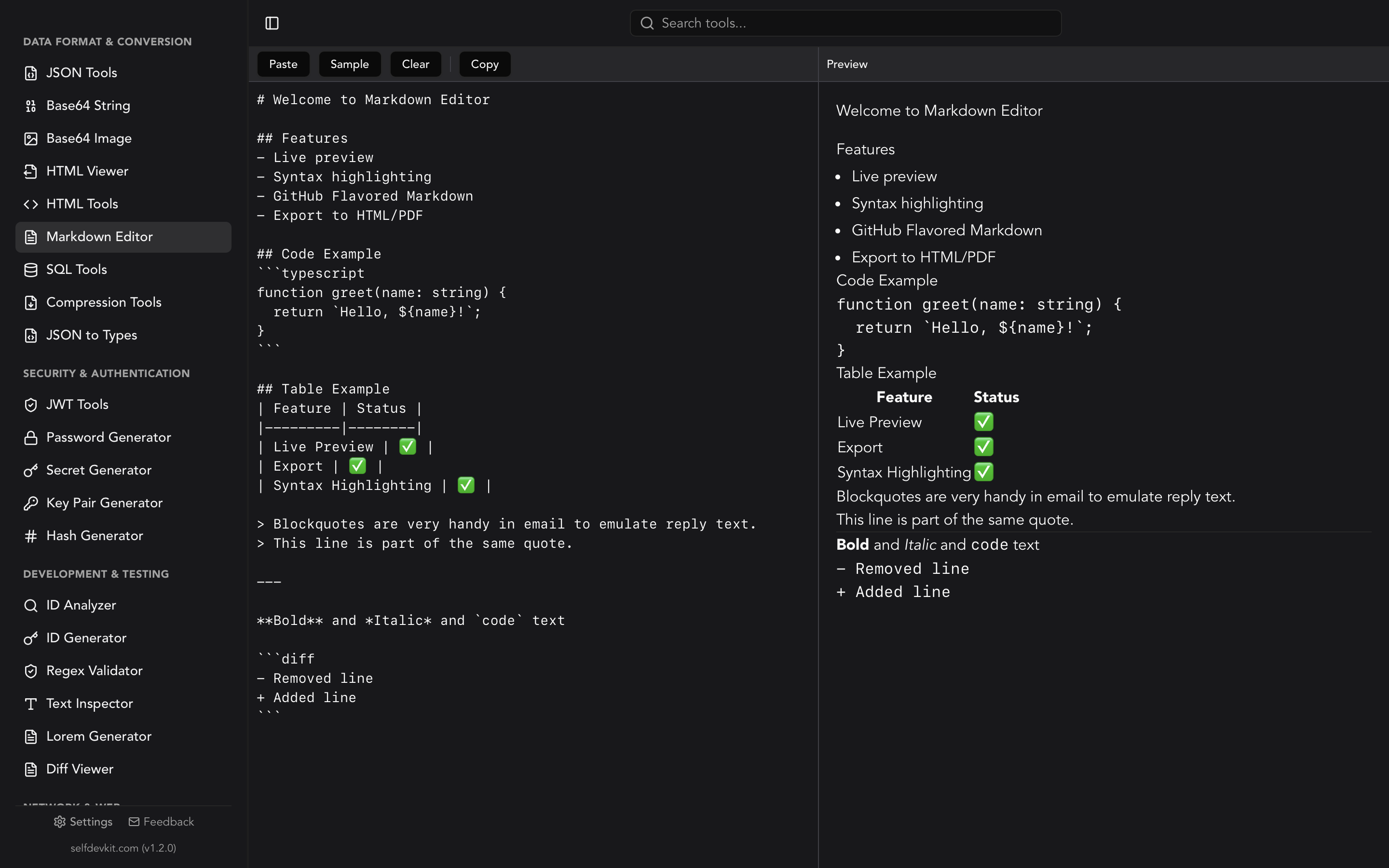
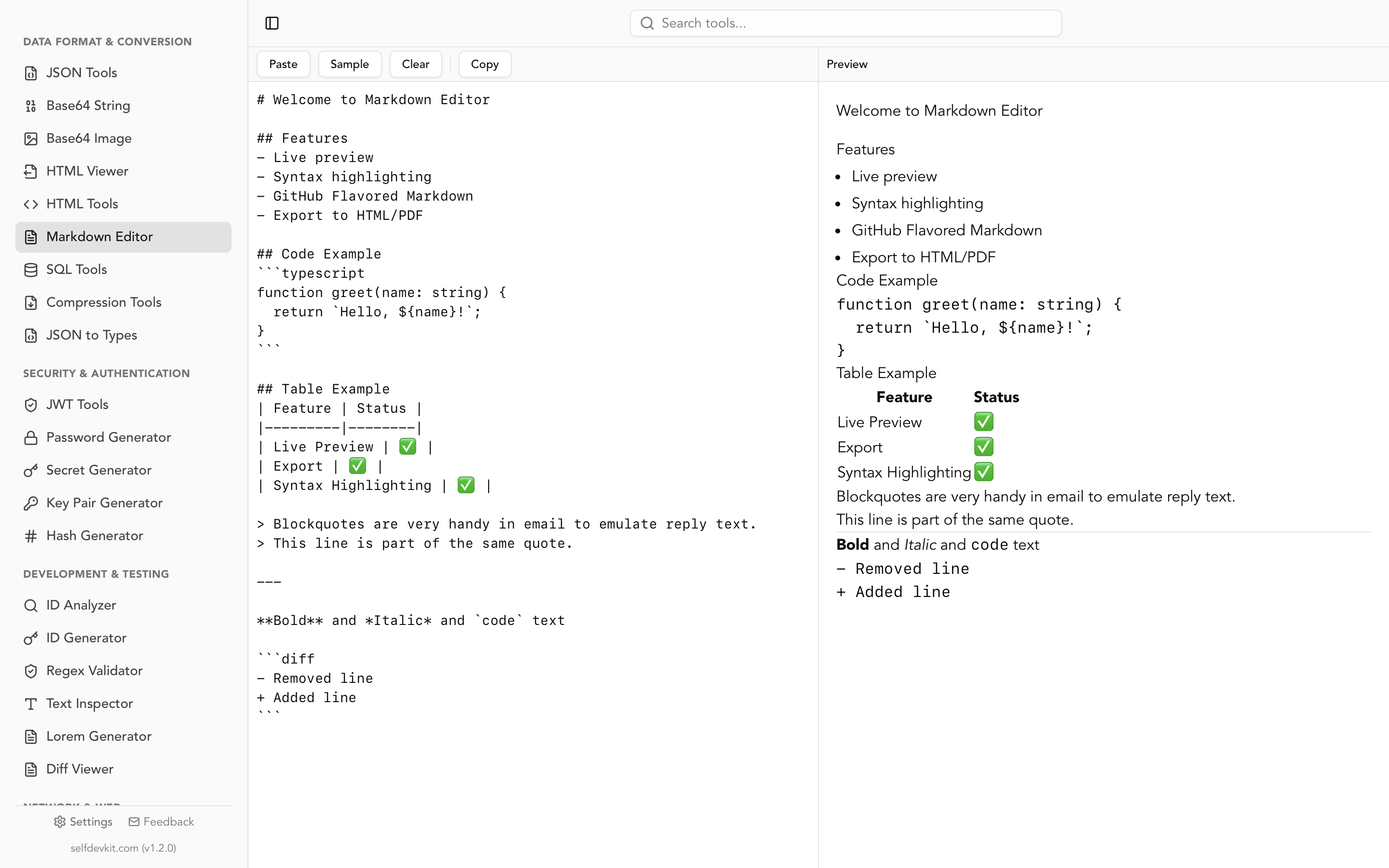
SelfDevKit includes a markdown editor and viewer that runs entirely on your desktop as one of its 50+ tools. It gives you a split-pane layout: raw markdown on the left, live rendered preview on the right, updating as you type.
The markdown editor supports:
- Live preview side by side with your source, updating instantly
- GitHub Flavored Markdown including tables, task lists, and strikethrough
- Syntax highlighting in fenced code blocks
- Sanitized rendering through DOMPurify so pasted markdown cannot run scripts
- Export to HTML and PDF for sharing and publishing
- Paste, sample, clear, and copy actions for a fast workflow
- Fully offline processing so your text never leaves your machine
Because it is a native desktop app built with Rust, startup is instant and there is no browser tab to lose. Open the markdown tool, paste your file, and read the rendered result. If you also work with the HTML it produces, the HTML tools and HTML viewer sit right beside it in the same app.
Frequently asked questions
What is the difference between a markdown viewer and a markdown editor?
A markdown viewer focuses on rendering: it shows you the formatted output of markdown text. A markdown editor adds writing and editing features on top, usually with a live preview pane. In practice most tools do both, showing a source pane and a rendered pane side by side. SelfDevKit's markdown editor works either way.
Why does my markdown look different in different viewers?
Because markdown has multiple dialects. A viewer that only supports CommonMark will not render GitHub Flavored Markdown features like tables, task lists, and strikethrough. If your preview shows raw pipes or unchecked boxes as plain text, the viewer does not support GFM. Preview with a GFM-capable tool when your target is GitHub or GitLab.
Is it safe to paste confidential markdown into an online viewer?
Not always. Many online viewers transmit your text to a server, and even browser-only tools load third-party analytics and ad scripts in the same page. For internal docs, runbooks, or unpublished content, use an offline viewer that renders locally so nothing leaves your device.
Can a markdown viewer export to HTML or PDF?
Yes. Since a viewer already converts markdown to HTML internally, exporting that HTML is straightforward, and many tools add PDF export by printing the rendered view. SelfDevKit's markdown editor exports to both HTML and PDF for sharing and publishing.
Try it yourself
A markdown viewer online is only as good as the dialect it supports and the privacy it respects. Preview GitHub Flavored Markdown accurately, render it safely, and keep confidential docs off other people's servers.
Download SelfDevKit to preview and edit markdown offline, alongside 50+ other developer tools in one private, native app.