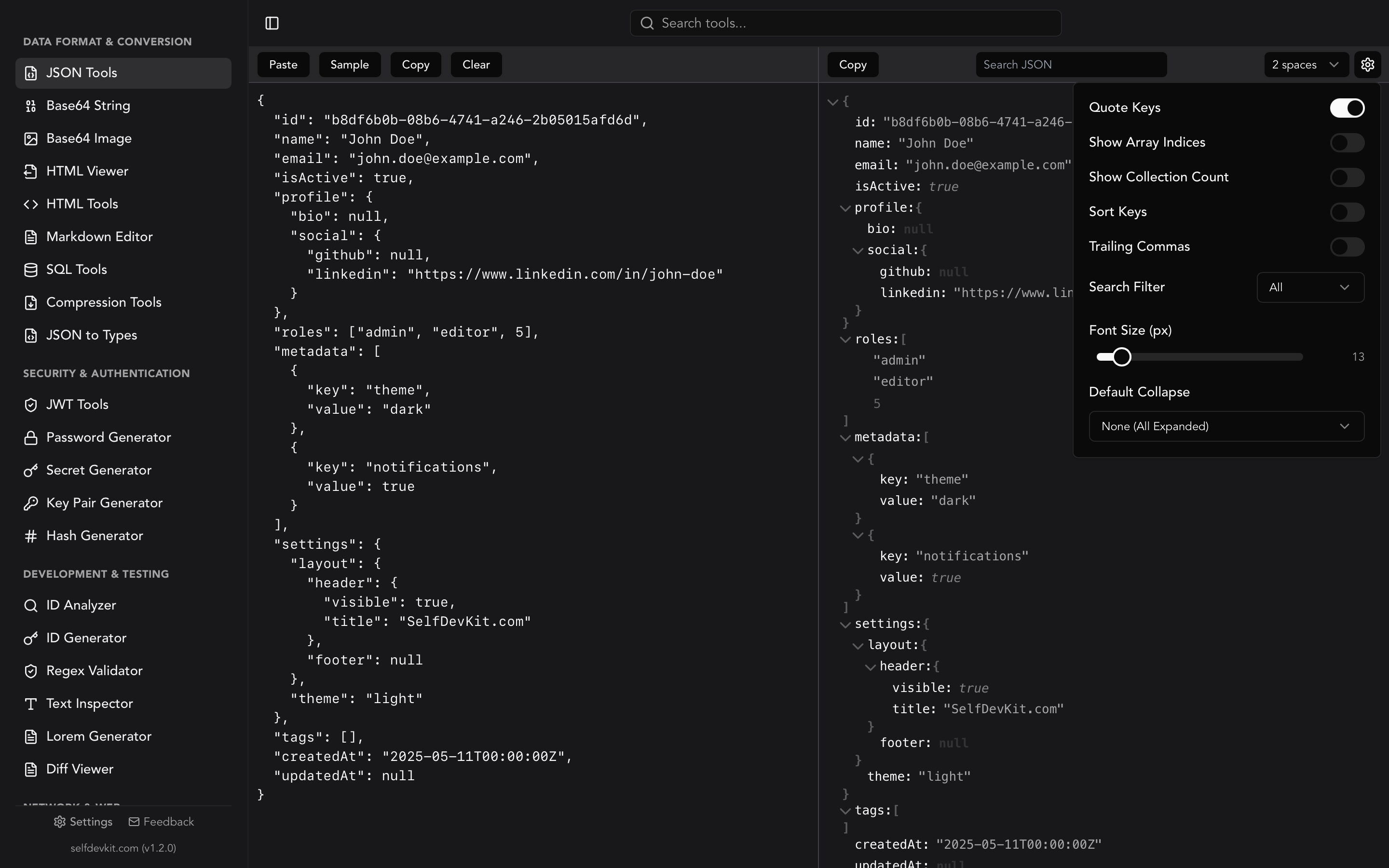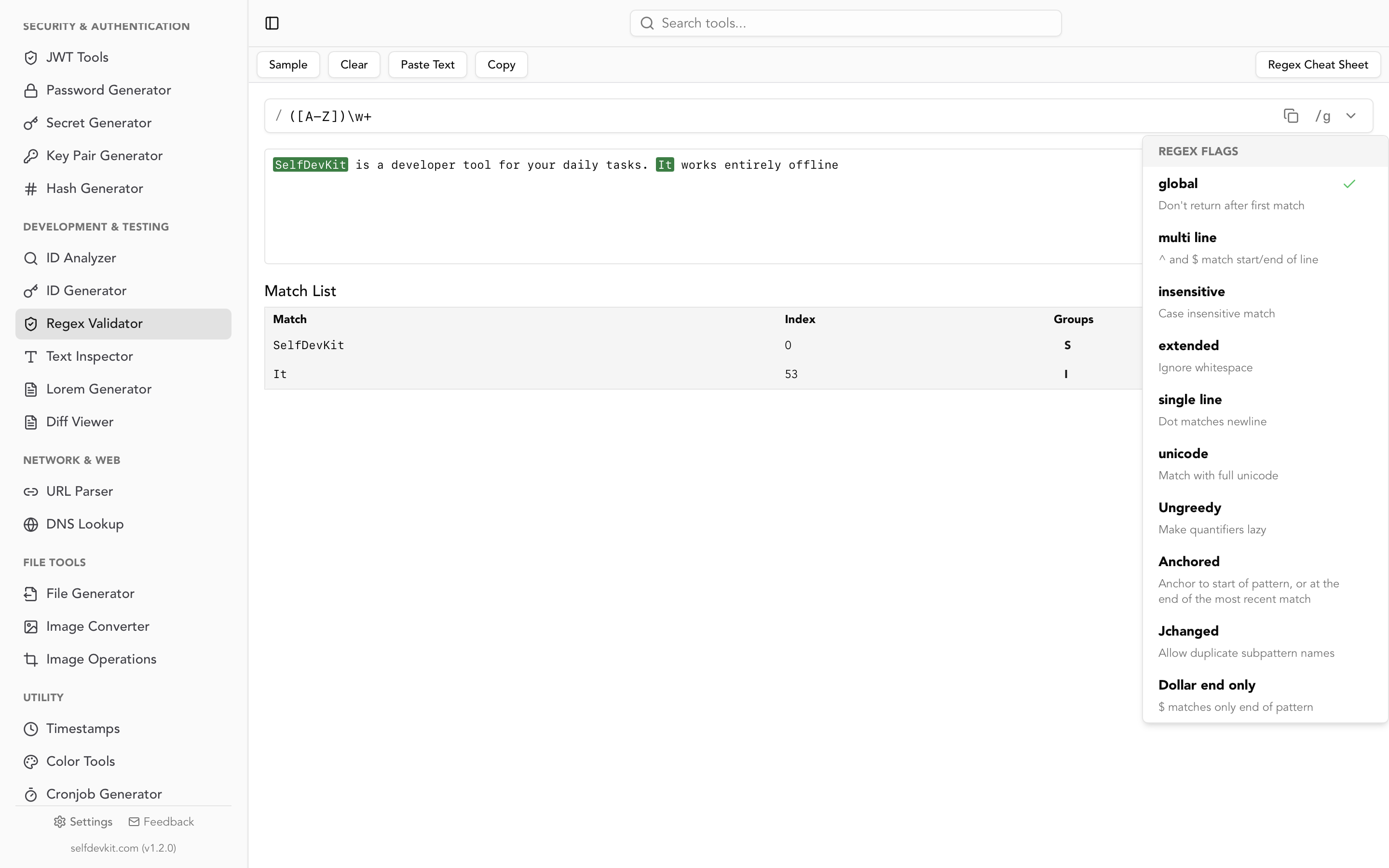
What is an HTML formatter?
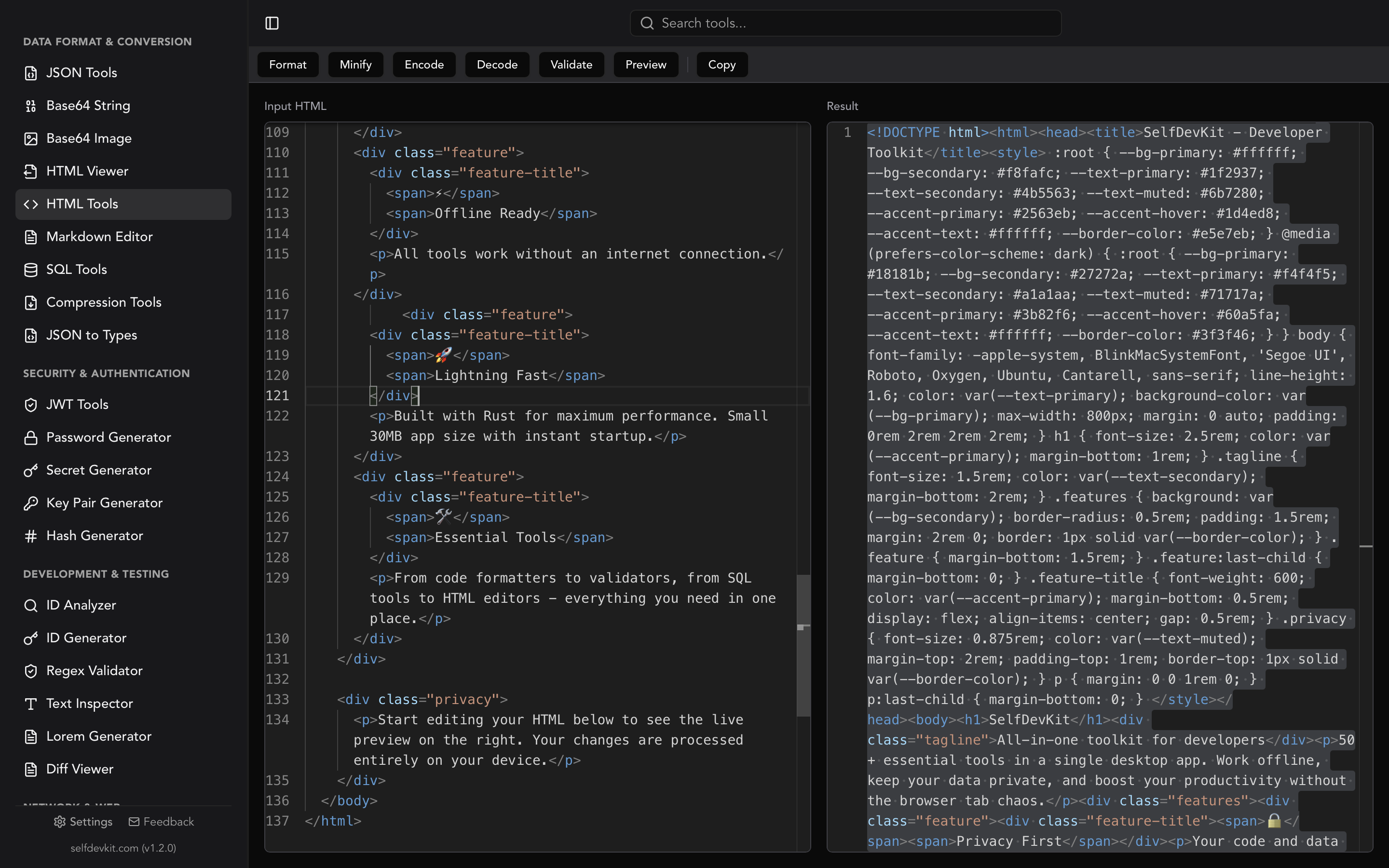
An HTML formatter is a tool that takes raw or compressed HTML markup and restructures it with proper indentation, line breaks, and consistent spacing. Good formatters also handle minification, entity encoding/decoding, and validation, giving developers a complete toolkit for working with HTML source code.
Every web page starts as HTML. And every developer has, at some point, stared at a wall of unindented markup wondering where a missing closing tag went. An HTML formatter turns that mess into readable, structured code in seconds. But formatting is only part of the story. The best HTML tools also minify markup for production, encode and decode entities, and catch validation errors before they reach the browser.
This guide covers how HTML formatting actually works under the hood, when to beautify versus minify, how to handle HTML entities safely, and why the tool you choose for these tasks matters more than you might expect.
Table of contents
- Why HTML formatting matters for developers
- How an HTML formatter works
- Beautify vs minify: choosing the right output
- HTML entity encoding and decoding
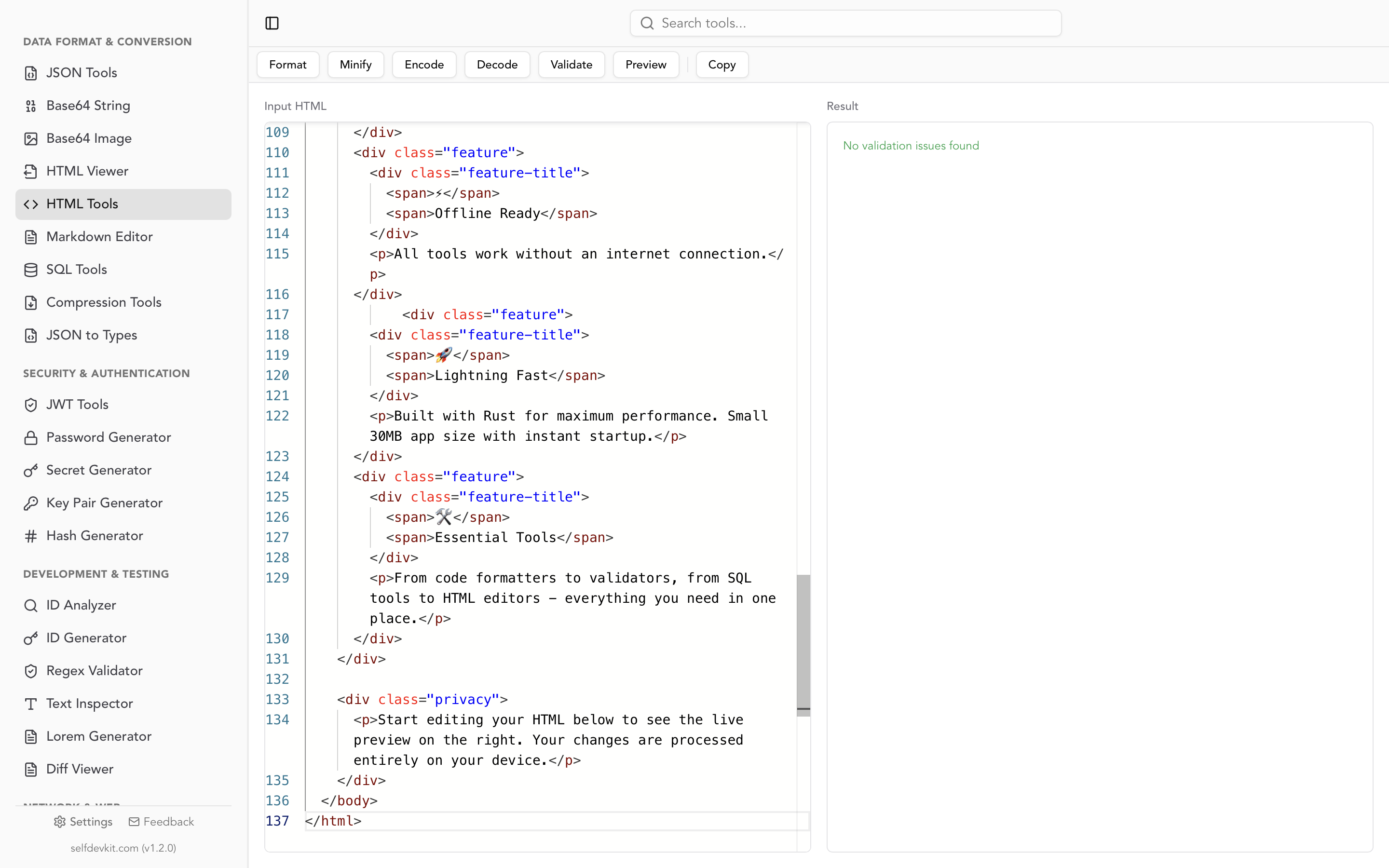
- Validating HTML: catching errors before the browser does
- Formatting HTML in code: programmatic approaches
- Why online HTML formatters are a security risk
- Frequently asked questions
- Format HTML without compromise
Why HTML formatting matters for developers
Readable HTML is not a cosmetic preference. It directly affects how quickly you can debug layout issues, review pull requests, and onboard new team members to a codebase.
Consider this markup pulled from a production page's source:
<div class="container"><div class="row"><div class="col-md-8"><h1>Dashboard</h1><p>Welcome back, <span class="username">Jane</span>.</p><ul><li>Projects: 12</li><li>Tasks: 47</li><li>Messages: 3</li></ul></div><div class="col-md-4"><aside class="sidebar"><nav><a href="/settings">Settings</a><a href="/profile">Profile</a></nav></aside></div></div></div>
That single line is valid HTML. The browser renders it just fine. But good luck finding where the sidebar <aside> starts, or verifying that every <div> has its closing tag.
After formatting:
<div class="container">
  <div class="row">
    <div class="col-md-8">
      <h1>Dashboard</h1>
      <p>Welcome back, <span class="username">Jane</span>.</p>
      <ul>
        <li>Projects: 12</li>
        <li>Tasks: 47</li>
        <li>Messages: 3</li>
      </ul>
    </div>
    <div class="col-md-4">
      <aside class="sidebar">
        <nav>
          <a href="/settings">Settings</a>
          <a href="/profile">Profile</a>
        </nav>
      </aside>
    </div>
  </div>
</div>
The nesting is immediately clear. You can visually confirm that every opening tag has a match. Code reviews go faster because reviewers can scan the structure instead of parsing it mentally.
This is why an HTML formatter belongs in every developer's toolkit, alongside tools like a JSON formatter or regex tester.
How an HTML formatter works
An HTML formatter parses your input into a document tree (the DOM), then serializes it back with consistent whitespace rules. The steps are straightforward:
- Parsing: The formatter reads your HTML string and builds an internal tree structure. Each element becomes a node with its tag name, attributes, and children.
- Normalization: Self-closing tags like
<br>,<img>, and<input>are handled correctly. Attribute quotes are normalized. - Serialization: The tree is written back to a string, inserting line breaks after each element and adding indentation based on nesting depth.
Indentation styles
Most formatters let you choose your indentation:
| Style | Common in | Pros |
|---|---|---|
| 2 spaces | JavaScript/React projects | Compact, fits more on screen |
| 4 spaces | Python/Java shops, W3C examples | More visual separation |
| Tabs | Accessibility-focused teams | Users control display width |
The choice is largely a team convention. What matters is consistency. Pick one style and stick with it across your project.
What good formatters handle that basic ones miss
Not all formatters are equal. Simple regex-based formatters break on edge cases. A proper HTML formatter should handle:
- Inline vs block elements: A
<span>inside a<p>should not get its own line, but a<div>inside another<div>should. - Void elements: Tags like
<br>,<hr>,<img>, and<input>never have closing tags. The formatter should not add them. - Preserved whitespace: Content inside
<pre>and<code>blocks must not be re-indented, or you will break preformatted text. - Embedded scripts and styles:
<script>and<style>blocks have their own formatting rules. Treating JavaScript as HTML markup produces garbage output. - Attributes with special characters: Attribute values containing quotes, angle brackets, or ampersands need proper handling.
SelfDevKit's HTML Tools use a proper parser rather than regex matching, so all of these cases are handled correctly.
Beautify vs minify: choosing the right output
To beautify HTML is to add whitespace for readability. To minify is to strip it out for performance. These are opposite operations, and you need both at different stages of your workflow.
When to beautify
- During development: You are writing, editing, or debugging HTML templates.
- Code reviews: Reviewers need to understand the markup structure quickly.
- Documentation: Example code in docs should always be formatted.
- Debugging production issues: You pulled the page source and need to find a layout bug.
When to minify
- Production builds: Every byte matters for page load speed. HTML minification typically reduces file size by 20 to 30 percent, and heavily commented files can shrink by 40 to 50 percent.
- Email templates: Many email clients have size limits for rendered HTML.
- Embedded HTML strings: When HTML lives inside JavaScript or a database field, minifying keeps payloads small.
- API responses: If your server returns HTML fragments, minified responses mean lower bandwidth costs.
Size impact in practice
Here is a real comparison using a typical dashboard page template:
| Version | Size | Reduction |
|---|---|---|
| Beautified (2 spaces) | 14.2 KB | baseline |
| Beautified (4 spaces) | 16.8 KB | +18% |
| Minified | 9.7 KB | -32% |
| Minified + Gzip | 3.1 KB | -78% |
The minified version is meaningful on its own, but combining minification with compression (Gzip or Brotli) gives you the biggest gains. For high-traffic pages, that 78% reduction translates directly to faster time-to-first-byte and lower CDN costs.
According to MDN's HTML performance guide, minimizing the amount of HTML transferred is one of the foundational steps for web performance optimization.
HTML entity encoding and decoding
HTML entity encoding converts special characters into safe representations that browsers render correctly. This is where formatting and security intersect, and most online HTML formatters ignore it entirely.
The characters that break things
Five characters have special meaning in HTML:
| Character | Entity | Named Entity | Purpose |
|---|---|---|---|
< |
< |
< |
Opens a tag |
> |
> |
> |
Closes a tag |
& |
& |
& |
Starts an entity |
" |
" |
" |
Delimits attribute values |
' |
' |
' |
Delimits attribute values |
If you want to display <script> as text on a page (not execute it), you must encode it as <script>. Failing to encode user-supplied content is the root cause of Cross-Site Scripting (XSS) vulnerabilities, which remain in the OWASP Top 10 year after year.
Encoding in practice
Say you are building a code snippet viewer. A user submits this content:
<p>Use the <code><div></code> element for layout.</p>
Without proper encoding, the browser would try to render <div> as an actual element instead of displaying it as text. Your snippet viewer would break or, worse, execute injected markup.
Decoding: the reverse operation
Decoding converts entities back to their original characters. You need this when:
- Displaying content stored with encoded entities in a database
- Processing HTML scraped from web pages
- Migrating content between systems that handle encoding differently
- Editing markup that was double-encoded by a previous tool
Double encoding is a common headache. You end up with &lt; instead of <, which renders as the literal text < instead of <. A good HTML tool lets you decode entities to inspect the actual content, then re-encode cleanly.
SelfDevKit's HTML Tools include both encoding and decoding built in. Paste your markup, click encode or decode, and the output is immediate. No round-trip to a server.
Validating HTML: catching errors before the browser does
Browsers are extremely forgiving with malformed HTML. They will silently fix unclosed tags, rearrange misplaced elements, and guess what you meant. That forgiveness is a curse in disguise because it means bugs hide until they cause layout issues in a specific browser or screen size.
An HTML validator catches these problems before they reach production.
Common validation errors
Unclosed tags: The most frequent HTML error. A missing </div> somewhere in a deeply nested layout shifts everything that follows.
<div class="card">
  <h2>Title</h2>
  <p>Description
  <!-- Missing </p> and </div> -->
Invalid nesting: Putting block elements inside inline elements violates the HTML specification. Browsers fix it, but the result may not be what you intended.
<!-- Invalid: <div> inside <span> -->
<span><div>This breaks the spec</div></span>
Deprecated or invalid tags: Using tags that do not exist in the HTML standard (like <blink> or custom tags without a hyphen) will trigger validation errors.
Self-closing tags with children: Tags like <br>, <img>, and <input> are void elements. They must not have closing tags or child content.
Why validation matters alongside formatting
Formatting makes code readable. Validation makes it correct. The two operations complement each other, and the best workflow runs them together.
SelfDevKit validates HTML using html5ever, the same HTML parsing library used in Mozilla's Servo engine. It checks tag validity, catches self-closing tag misuse, and reports parse errors with specific messages rather than a generic "invalid HTML" response.
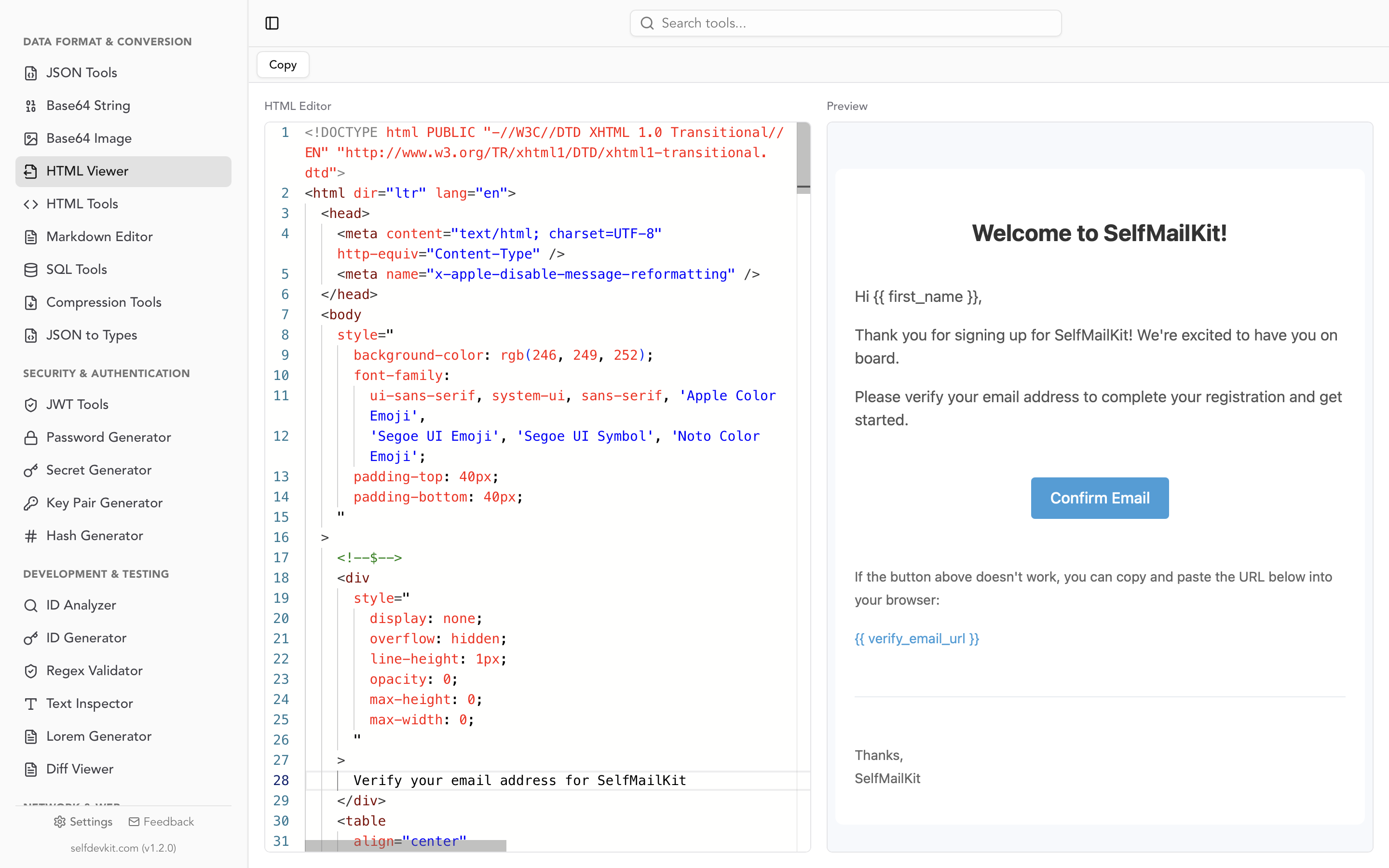
You can also preview your HTML output visually using the HTML Viewer, which renders your markup in real time. This lets you see exactly how the browser will interpret your code, formatted or not.
Formatting HTML in code: programmatic approaches
Sometimes you need to format HTML inside a build script, CI pipeline, or application. Here are the most common approaches across languages.
JavaScript / Node.js
The js-beautify library is the standard choice:
const beautify = require('js-beautify').html;

const messy = '<div><p>Hello</p><ul><li>One</li><li>Two</li></ul></div>';

const formatted = beautify(messy, {
  indent_size: 2,
  indent_char: ' ',
  preserve_newlines: false,
  indent_inner_html: true
});

console.log(formatted);
For minification, html-minifier-terser is widely used in build pipelines:
const { minify } = require('html-minifier-terser');

const result = await minify(html, {
  collapseWhitespace: true,
  removeComments: true,
  removeRedundantAttributes: true,
  minifyCSS: true,
  minifyJS: true
});
Python
Python's BeautifulSoup handles formatting with its prettify() method:
from bs4 import BeautifulSoup

html = '<div><p>Hello</p><ul><li>One</li><li>Two</li></ul></div>'
soup = BeautifulSoup(html, 'html.parser')
print(soup.prettify())
For stricter formatting, the lxml library gives you more control:
from lxml import etree

parser = etree.HTMLParser()
tree = etree.fromstring(html, parser)
print(etree.tostring(tree, pretty_print=True, method='html').decode())
CLI tools
For quick formatting from the terminal, Prettier handles HTML alongside CSS and JavaScript:
npx prettier --parser html --write index.html
Or use tidy, the classic HTML formatter available on most Unix systems:
tidy -indent -quiet -output formatted.html input.html
These programmatic approaches are useful in automation. But for day-to-day work, when you are debugging a template or cleaning up markup from a CMS, a dedicated tool is faster. Paste, format, copy. No setup, no dependencies.
Why online HTML formatters are a security risk
Most online HTML formatters ask you to paste your code into a text box on their website. That is a bigger risk than it sounds.
What your HTML contains
Think about the markup you actually work with:
- CMS templates with database connection strings in comments
- Email templates containing customer data or tracking tokens
- Admin panels with internal URLs and API endpoints
- Embedded scripts with authentication logic or API keys
When you paste this into an online formatter, your code travels to their server, gets processed, and the response comes back. But what happens in between?
The page may include third-party analytics scripts that capture form inputs. The server may log requests for debugging. A CDN may cache your content. You have no visibility into any of this.
The offline alternative
An offline HTML formatter processes everything on your machine. No network requests. No server logs. No third-party scripts.
This is not just a privacy preference. For teams working under compliance requirements like GDPR, HIPAA, or SOC 2, sending internal markup to external services can be a policy violation. Some client contracts explicitly prohibit sharing code with third parties.
SelfDevKit runs entirely on your desktop. Your HTML never leaves your device, whether you are formatting, minifying, encoding entities, or validating. For more on why this approach matters, see our guide on why offline-first developer tools are essential.
If you handle sensitive data in other formats too, the same principle applies to tools like the JWT decoder (tokens contain claims), the JSON formatter (API responses contain user data), and the base64 decoder (encoded payloads can contain anything).
Frequently asked questions
What is the difference between an HTML formatter and an HTML beautifier?
They are the same thing. "Formatter" and "beautifier" both refer to a tool that adds proper indentation and line breaks to HTML markup. Some tools use one term, some use the other. The output is identical: readable, well-structured HTML.
Does formatting HTML change how the browser renders it?
No. Browsers ignore whitespace between HTML tags when rendering a page (with exceptions inside <pre> elements). Formatted and minified versions of the same HTML produce identical visual output. The only difference is file size and human readability.
Should I minify HTML for production?
Yes, but it is usually not the highest-impact optimization. Minifying HTML saves 20 to 30 percent of file size, while enabling Gzip or Brotli compression can reduce the transfer size by 70 to 80 percent. Do both for the best results. Most build tools and CDNs handle minification and compression automatically.
Can I format HTML that contains embedded JavaScript or CSS?
A good formatter handles embedded <script> and <style> blocks separately from the surrounding HTML. It should format the HTML structure while leaving script and style content intact (or formatting them with their own language rules). Regex-based formatters often fail here, which is why parser-based tools are more reliable.
Format HTML without compromise
Formatting HTML should be instant, private, and correct. SelfDevKit's HTML Tools handle beautification, minification, entity encoding and decoding, and validation in a single tool that works offline.
No browser tabs. No server uploads. No guessing whether your markup is valid.
Download SelfDevKit to get 50+ developer tools, including HTML formatter, JSON tools, and more, all offline and private.