
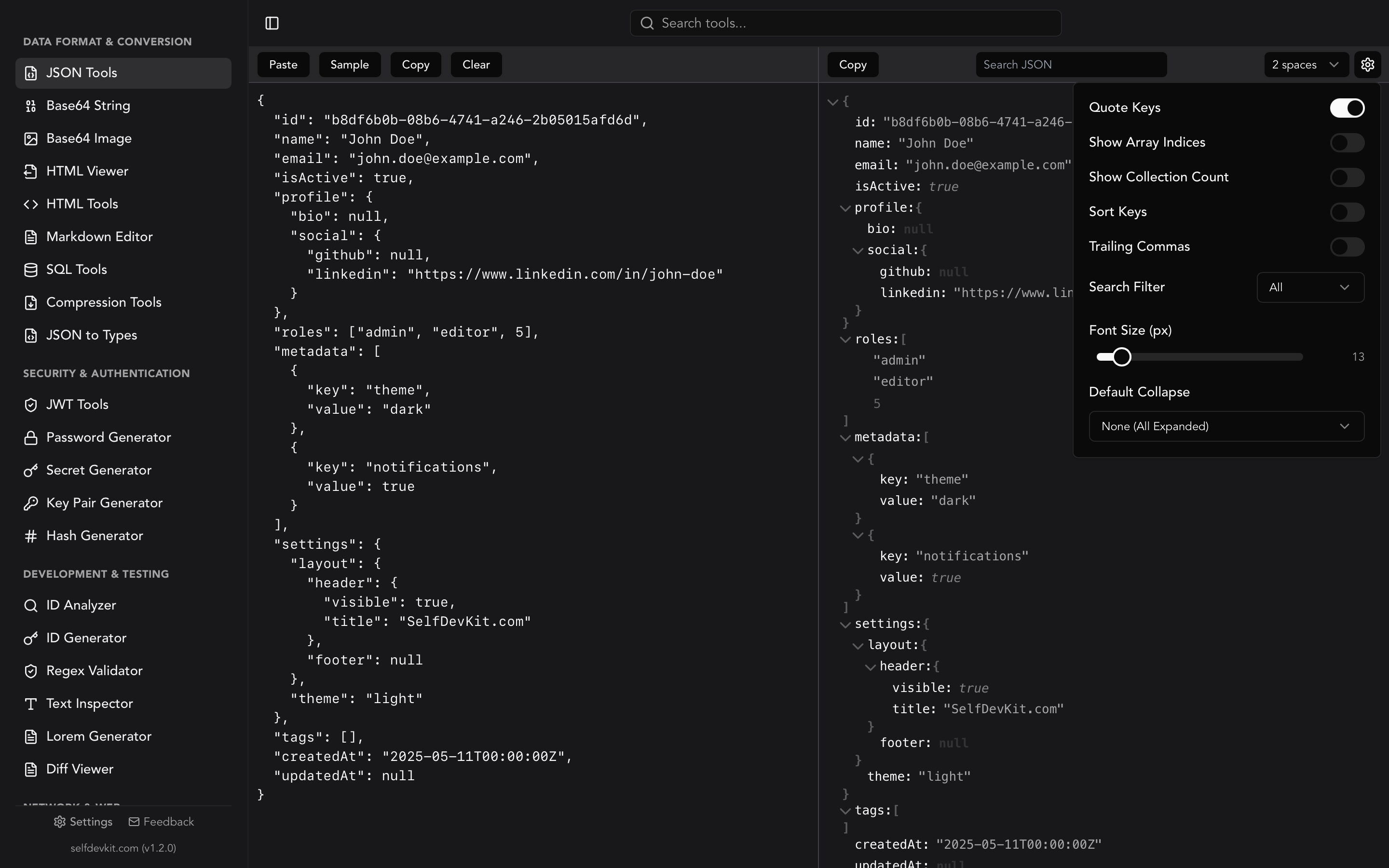
What is a JSON validator? A JSON validator checks whether a string of text conforms to the JSON specification (RFC 8259). It detects syntax errors like missing commas, unquoted keys, trailing commas, and mismatched brackets, then reports the exact location of each problem so you can fix it quickly.
Every developer has been there. An API returns a 400 error. A config file silently fails. A data pipeline chokes on malformed input. In most of these cases, the root cause is the same: invalid JSON.
A json validator catches these problems before they cascade into runtime failures, deploy breakages, or hours of confused debugging. This guide covers the JSON syntax rules you need to know, the most common validation errors with concrete fixes, and how to validate JSON both manually and programmatically.
Table of contents
- The 8 rules of valid JSON
- Common JSON validation errors and how to fix them
- The errors that pass validation but break your code
- How to debug JSON validation errors systematically
- How to validate JSON in your code
- JSON vs JSON5 vs JSONC: know what you are validating
- JSON Schema: validating structure, not just syntax
- Why you should not use an online JSON validator for sensitive data
- Frequently asked questions
- Validate JSON without the risk
The 8 rules of valid JSON
Valid JSON must follow every rule defined in RFC 8259, the authoritative specification published by the IETF. Here is the complete set of syntax rules, distilled into eight points.
1. The root value must be an object, array, string, number, boolean, or null
Most APIs return an object {} or array [] at the top level, but a bare string like "hello" or number like 42 is also technically valid JSON per RFC 8259. Many older parsers only accept objects and arrays, so you will see both conventions in the wild.
2. Keys must be double-quoted strings
// Invalid
{ name: "Alice" }

// Valid
{ "name": "Alice" }
Single quotes do not work either. JSON is strict about this, even though JavaScript object literals accept both.
3. Strings must use double quotes
// Invalid
{ "name": 'Alice' }

// Valid
{ "name": "Alice" }
4. No trailing commas
// Invalid
{
  "name": "Alice",
  "age": 30,
}

// Valid
{
  "name": "Alice",
  "age": 30
}
This is the single most common JSON error. JavaScript and TypeScript allow trailing commas, so developers constantly introduce them when hand-editing JSON files.
5. No comments
// Invalid
{
  // this is a comment
  "name": "Alice"
}
JSON has no comment syntax. Not //, not /* */, not #. If you need comments, you are probably looking for JSONC or JSON5 (more on that below).
6. Values must be one of six types
The only valid JSON value types are: string, number, object, array, true, false, and null. There is no undefined, no NaN, no Infinity, and no date type.
// Invalid
{ "value": undefined }
{ "value": NaN }

// Valid
{ "value": null }
{ "value": 0 }
7. Numbers cannot have leading zeros
// Invalid
{ "code": 007 }

// Valid
{ "code": 7 }
Hexadecimal (0xFF) and octal (0o77) number formats are also invalid in JSON.
8. Special characters in strings must be escaped
Certain characters inside strings require a backslash escape: \", \\, \/, \b, \f, \n, \r, \t, and Unicode escapes like \u00E9. Unescaped control characters (U+0000 through U+001F) are invalid.
If you need to work with escaped JSON strings, check out our guide on how to unescape JSON.
Common JSON validation errors and how to fix them
Here is a catalog of the errors you will actually encounter in practice, ranked roughly by frequency. Each includes the invalid input, the error message a validator typically reports, and the corrected version.
Missing comma between properties
// Invalid
{
  "first": "Alice"
  "last": "Smith"
}
// Error: Expected comma or closing brace at line 3

// Fixed
{
  "first": "Alice",
  "last": "Smith"
}
Trailing comma after last element
// Invalid
{ "items": [1, 2, 3,] }
// Error: Unexpected token ] at position 20

// Fixed
{ "items": [1, 2, 3] }
Single quotes instead of double quotes
// Invalid
{ 'name': 'Alice' }
// Error: Expected property name at line 1

// Fixed
{ "name": "Alice" }
Unquoted keys
// Invalid
{ name: "Alice" }
// Error: Expected string at line 1

// Fixed
{ "name": "Alice" }
Mismatched brackets or braces
// Invalid
{ "users": [{ "name": "Alice" }
// Error: Unexpected end of input

// Fixed
{ "users": [{ "name": "Alice" }] }
This error is especially hard to spot in deeply nested structures. A JSON viewer with collapsible tree navigation makes it much easier to trace bracket pairs visually.
Using undefined or JavaScript-specific values
// Invalid
{
  "callback": undefined,
  "count": NaN,
  "max": Infinity
}

// Fixed (use null or valid numbers)
{
  "callback": null,
  "count": 0,
  "max": 9999999
}
Unescaped special characters
// Invalid
{ "path": "C:\new\folder" }
// The \n is interpreted as a newline character

// Fixed
{ "path": "C:\\new\\folder" }
Multi-line strings
// Invalid
{ "bio": "Line one
Line two" }

// Fixed
{ "bio": "Line one\nLine two" }
JSON does not allow literal newlines inside strings. Use \n instead.
The errors that pass validation but break your code
The errors above are syntax errors. A validator catches them. The following problems are worse: they produce valid JSON that silently corrupts your data. No validator will flag them because the JSON is technically correct.
Duplicate keys
{
  "role": "admin",
  "role": "viewer"
}
This is valid JSON per RFC 8259, which says keys "SHOULD be unique" but does not require it. Every major parser handles it differently, but most (JavaScript, Python, Go) silently keep the last value. The first "role": "admin" disappears without warning.
This happens most often when merging JSON objects by hand, or when XML-to-JSON converters produce repeated keys from sibling elements. The fix: use a linter like jq with the --exit-status flag, or run a duplicate-key check before parsing.
# Detect duplicate keys with Python
python3 -c "
import json
from collections import Counter
def check_dupes(pairs):
    keys = [k for k, v in pairs]
    dupes = [k for k, c in Counter(keys).items() if c > 1]
    if dupes:
        raise ValueError(f'Duplicate keys: {dupes}')
    return dict(pairs)
json.loads(open('data.json').read(), object_pairs_hook=check_dupes)
"
Large integer precision loss
JSON.parse('{"id": 9007199254740993}')
// Result: { id: 9007199254740992 }  ← silently rounded
JavaScript numbers are IEEE 754 doubles, which means integers above 2^53 - 1 (9,007,199,254,740,991) lose precision silently. This bites anyone working with database IDs, Snowflake IDs, or Twitter/X post IDs. The JSON is valid. The parsed value is wrong.
The fix: serialize large IDs as strings ("id": "9007199254740993"), or use BigInt-aware parsers. In Python, this is not an issue because json.loads handles arbitrary-precision integers natively.
BOM (Byte Order Mark)
# Check for BOM
hexdump -C data.json | head -1
# If it starts with ef bb bf, you have a BOM
A UTF-8 BOM (U+FEFF) is an invisible 3-byte prefix that some editors (notably Windows Notepad) add to files. Many JSON parsers choke on it with an error like "Unexpected token" pointing to line 1, column 1, even though the file looks perfectly valid in your editor.
The fix: strip the BOM with sed '1s/^\xEF\xBB\xBF//' data.json > clean.json or configure your editor to save without BOM.
Invisible Unicode characters
{
"name": "Alice",
"city": "Tokyo"
}
There is a zero-width space (U+200B) after the colon on the city line. You cannot see it. Your editor does not show it. But JSON.parse will reject it with a baffling error pointing at a line that looks perfectly fine.
These characters sneak in when copying JSON from Slack, Google Docs, Notion, or any rich-text editor. Other culprits include non-breaking spaces (U+00A0), zero-width joiners (U+200D), and left/right double quotation marks (U+201C / U+201D) replacing standard ASCII quotes.
The fix: pipe your JSON through cat -v data.json to reveal non-ASCII characters, or use tr -cd '\11\12\15\40-\176' < data.json > clean.json to strip everything outside printable ASCII.
Wrong file encoding
JSON must be UTF-8 (RFC 8259, Section 8.1). If a file is saved as UTF-16, Latin-1, or Shift-JIS, parsers will either reject it or silently produce garbage characters in string values.
# Check encoding
file -bi data.json
# Expected: application/json; charset=utf-8
# Problem: text/plain; charset=utf-16le
The fix: convert with iconv -f UTF-16 -t UTF-8 data.json > clean.json.
How to debug JSON validation errors systematically
When a validator says your JSON is broken and the error is not obvious, resist the urge to stare at the file. Follow this process instead.
Step 1: Pretty-print first. Minified JSON is impossible to debug visually. Run jq . broken.json or paste it into SelfDevKit's JSON formatter to get indented output with line numbers. If the file is too broken for jq to parse, move to step 2.
Step 2: Read the error position. Every parser reports a line number, column number, or character offset. Go to that exact position. The error is usually on the line before where the parser reports it, because parsers only notice the problem when they hit the next token. If the error says line 47, look at lines 46 and 47.
Step 3: Binary search. For large files where the error position is unhelpful, delete the second half of the JSON (being careful to close any open brackets/braces) and validate again. If it passes, the error is in the deleted half. If it fails, the error is in the remaining half. Repeat until you isolate the problem. This finds any error in a 10,000-line file in about 13 iterations.
Step 4: Check for invisible characters. If the line the parser points to looks correct, you likely have a BOM, zero-width space, or wrong encoding. Run cat -v data.json | head -50 to reveal hidden characters, or check the file encoding with file -bi data.json.
Step 5: Verify the format. Before fixing anything, confirm whether the file is supposed to be strict JSON, JSONC, or JSON5. A tsconfig.json with comments is not broken. A package.json with trailing commas is. See the comparison table below.
This five-step process systematically eliminates every category of JSON error. Most problems resolve by step 2. The ones that don't are almost always invisible character issues caught by step 4.
How to validate JSON in your code
Catching invalid JSON at runtime is straightforward in most languages. The pattern is the same everywhere: try to parse, catch the error, handle it.
JavaScript / TypeScript
function validateJSON(text) {
  try {
    JSON.parse(text);
    return { valid: true, error: null };
  } catch (e) {
    return { valid: false, error: e.message };
  }
}

// Usage
const result = validateJSON('{"name": "Alice",}');
// { valid: false, error: "Unexpected token } in JSON at position 17" }
For Node.js APIs, validate incoming request bodies early:
app.post('/api/data', (req, res) => {
  try {
    const data = JSON.parse(req.body);
    // process data...
  } catch (e) {
    return res.status(400).json({
      error: 'Invalid JSON',
      details: e.message
    });
  }
});
Python
import json

def validate_json(text: str) -> tuple[bool, str | None]:
    try:
        json.loads(text)
        return True, None
    except json.JSONDecodeError as e:
        return False, f"Error at line {e.lineno}, col {e.colno}: {e.msg}"

# Usage
valid, error = validate_json('{"name": "Alice",}')
# (False, "Error at line 1, col 18: Expecting property name enclosed in double quotes")
Python's json.JSONDecodeError gives you the exact line number and column, which is useful for reporting errors back to users or logging.
Command line (jq)
# Validate a JSON file
jq empty config.json

# Validate and get a useful error message
echo '{"key": "value",}' | jq .
# parse error (Invalid numeric literal at line 1, column 18)
The jq empty command is a quick validation check. It parses the file and outputs nothing if valid, or prints an error if invalid. It is available on macOS (brew install jq), Linux (apt install jq), and Windows (choco install jq).
Command line (Python one-liner)
If you do not have jq installed, Python works as a quick validator from any terminal:
python3 -c "import json; json.load(open('config.json'))"
No output means valid JSON. An exception means invalid.
Validating JSON in CI/CD pipelines
Adding JSON validation to your CI pipeline catches config errors before they reach production. Here is a GitHub Actions step that validates all JSON files in a repository:
- name: Validate JSON files
  run: |
    find . -name "*.json" -not -path "./node_modules/*" | while read file; do
      python3 -c "import json; json.load(open('$file'))" 2>&1 || {
        echo "Invalid JSON: $file"
        exit 1
      }
    done
For Node.js projects, you can add a validation script to package.json:
{
  "scripts": {
    "validate:json": "node -e \"const fs=require('fs'); const files=['config.json','data/fixtures.json']; files.forEach(f => JSON.parse(fs.readFileSync(f)));\""
  }
}
Run npm run validate:json in your CI pipeline or as a pre-commit hook to catch errors early. This is especially valuable for teams where multiple developers edit shared configuration files.
JSON vs JSON5 vs JSONC: know what you are validating
A strict JSON validator will reject input that is perfectly valid in a relaxed format. Before you fix an "error," make sure you know which format you are actually working with.
| Feature | JSON (RFC 8259) | JSONC | JSON5 |
|---|---|---|---|
| Comments | No | // and /* */ |
// and /* */ |
| Trailing commas | No | Yes | Yes |
| Single-quoted strings | No | No | Yes |
| Unquoted keys | No | No | Yes |
| Multi-line strings | No | No | Yes (backslash) |
| Used by | APIs, data exchange | VS Code settings, tsconfig.json | Config files |
JSONC is what VS Code uses for its settings.json and what TypeScript uses for tsconfig.json. If your validator flags comments or trailing commas in those files, the file is not broken. Your validator is just running in strict JSON mode.
JSON5 is a superset of JSON designed to be easier for humans to write. It allows comments, trailing commas, unquoted keys, and single-quoted strings.
The takeaway: when someone says "my JSON won't validate," the first question should be "is it actually JSON, or is it JSONC/JSON5?" If your data goes over the network or into an API, it must be strict RFC 8259 JSON. If it is a local config file for VS Code or TypeScript, JSONC rules apply.
For formatting strict JSON after validation, see our JSON formatter guide or try the JSON minifier for production-ready output.
JSON Schema: validating structure, not just syntax
Syntax validation confirms that JSON is well-formed. Schema validation goes further: it checks whether the JSON contains the right fields, with the right types, matching the right constraints.
JSON Schema is a vocabulary for annotating and validating JSON documents. Here is a simple example:
{
  "$schema": "https://json-schema.org/draft/2020-12/schema",
  "type": "object",
  "required": ["name", "email"],
  "properties": {
    "name": {
      "type": "string",
      "minLength": 1
    },
    "email": {
      "type": "string",
      "format": "email"
    },
    "age": {
      "type": "integer",
      "minimum": 0
    }
  }
}
This schema enforces that name and email are required, name must be a non-empty string, email must be formatted as an email address, and age (if present) must be a non-negative integer.
When to use schema validation
Syntax validation is enough when you just need to parse JSON safely. Schema validation matters when you need guarantees about structure:
- API request validation: Reject malformed requests before they hit your business logic
- Configuration files: Ensure required settings exist before an app starts
- Data pipelines: Validate incoming records before inserting into a database
- CI/CD checks: Validate JSON fixtures and config files in your test suite
Popular schema validation libraries include AJV (JavaScript, the fastest), jsonschema (Python), and serde with validation attributes (Rust).
If you are working with typed languages, you might prefer generating types directly from JSON. SelfDevKit's JSON to Types tool converts JSON to TypeScript, Rust, Go, Python, and Ruby interfaces, giving you compile-time safety instead of runtime schema checks. See our JSON to TypeScript guide for a deep dive.
Why you should not use an online JSON validator for sensitive data
Every top result for "json validator" is an online tool where you paste your JSON into a text box on someone else's server. For throwaway test data, that is fine. For real-world development data, it is a problem.
Think about what your JSON actually contains:
- API responses with user data, email addresses, and access tokens
- Configuration files with database connection strings and API keys
- JWT payloads with user IDs, roles, and session information
- Webhook payloads with business logic and customer data
When you paste this into an online validator, you are sending it to a third-party server. Most online tools do not publish clear data retention policies. Some log inputs for analytics or debugging. Some operate under jurisdictions with different privacy laws.
This is not a theoretical risk. In 2023, Samsung employees accidentally leaked proprietary source code and internal meeting notes through an online tool. Your JSON payloads might contain equally sensitive information.
The offline alternative
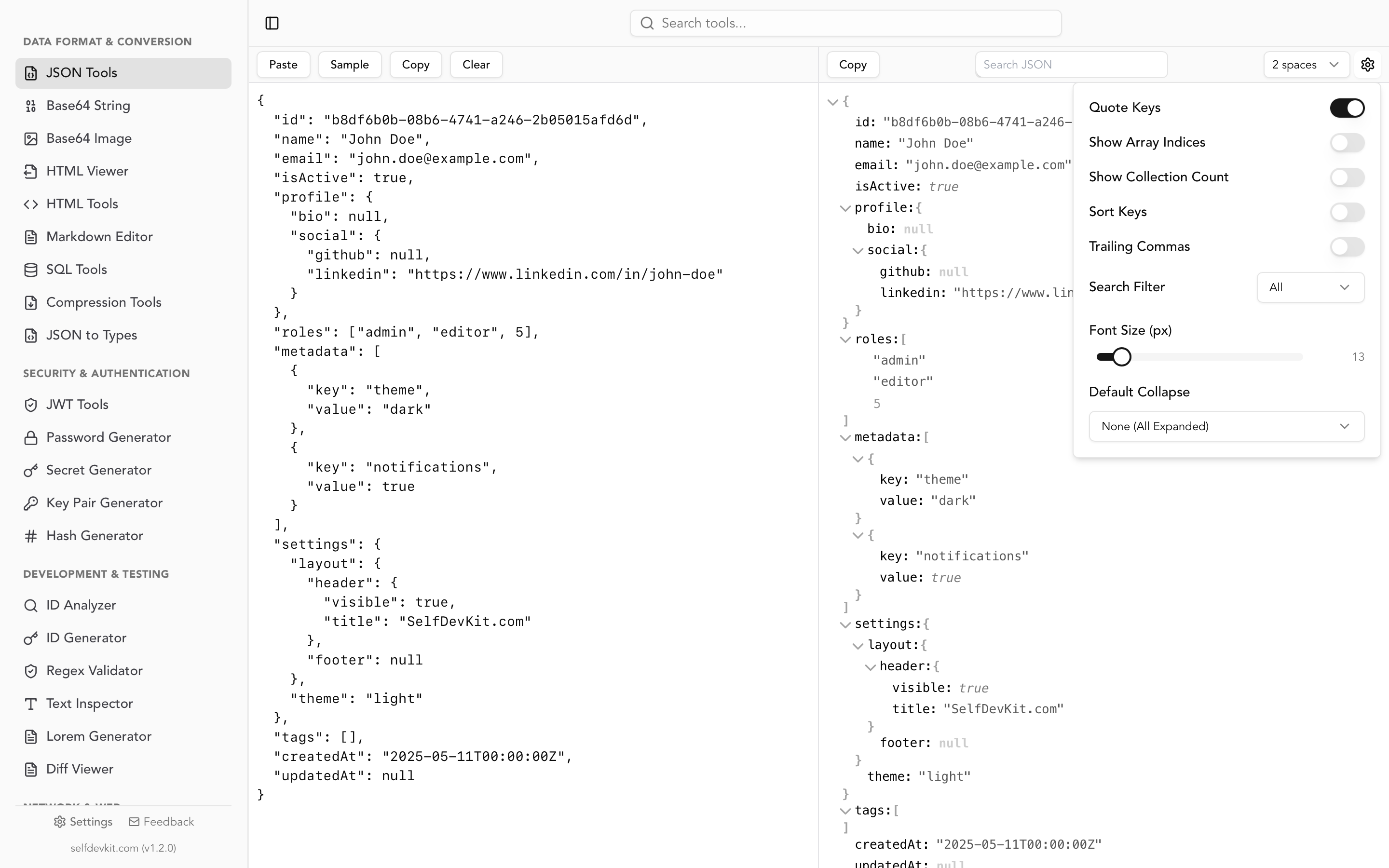
SelfDevKit's JSON tools validate, format, and inspect JSON entirely on your machine. Nothing leaves your computer. There is no network request, no server-side processing, no data retention policy to worry about. The validation engine runs in Rust via serde_json, the same library used in production systems at Cloudflare, Figma, and Discord.
This matters most when you are debugging production issues. You are already stressed, already in a hurry. You should not also be worrying about whether the API response you just pasted contains a customer's personal information.
For teams handling sensitive data under GDPR, HIPAA, or SOC 2 requirements, offline validation is not just convenient. It is a compliance requirement.
Frequently asked questions
How do I check if a JSON string is valid?
Paste the JSON into a validator tool, or parse it programmatically with JSON.parse() in JavaScript or json.loads() in Python. If parsing succeeds without throwing an exception, the JSON is valid. SelfDevKit validates in real time as you type, highlighting errors with line numbers.
What is the difference between JSON validation and JSON Schema validation?
JSON validation checks whether a string follows the JSON syntax rules defined in RFC 8259. It answers: "Is this valid JSON?" JSON Schema validation checks whether a JSON document matches a specific structure, answering: "Does this JSON have the right fields and types?" You need syntax validation before schema validation can run.
Why does my JSON fail validation but work in JavaScript?
JavaScript object literals are more permissive than JSON. They allow single quotes, unquoted keys, trailing commas, comments, and values like undefined. When you copy a JavaScript object into a JSON file, these features will cause validation errors. Use a JSON formatter to convert the object to strict JSON, or check if your file is actually a JSONC file (like tsconfig.json).
Can I validate JSON from the command line?
Yes. Use jq empty file.json to validate a file silently (no output means valid). Alternatively, run python3 -c "import json; json.load(open('file.json'))". Both approaches are available on macOS, Linux, and Windows with the appropriate tools installed.
Validate JSON without the risk
Bad JSON costs debugging time. Online validators cost your privacy. You should not have to choose between the two.
Download SelfDevKit to validate, format, and inspect JSON offline. Fifty-plus developer tools, one desktop app, zero data leaving your machine.