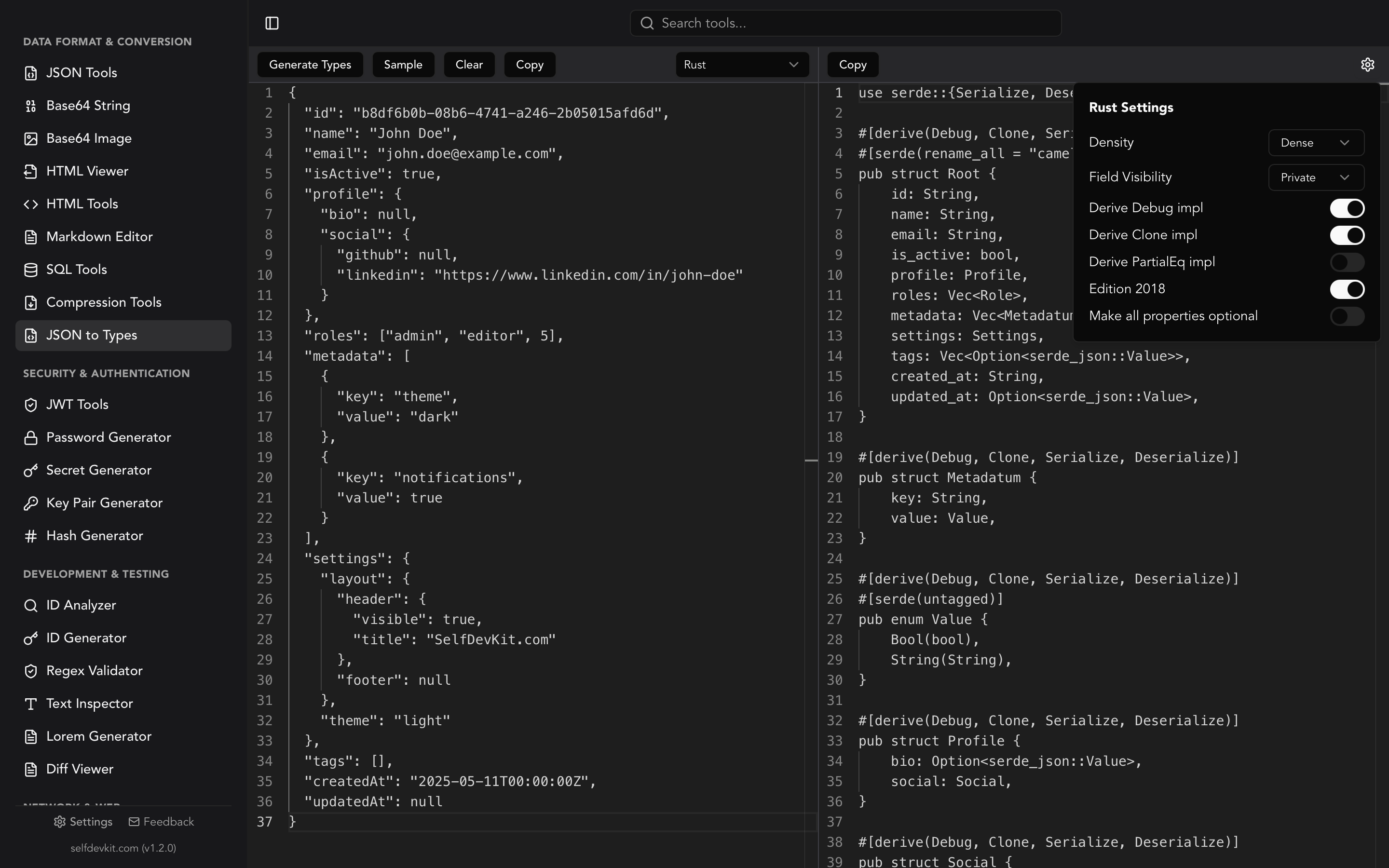
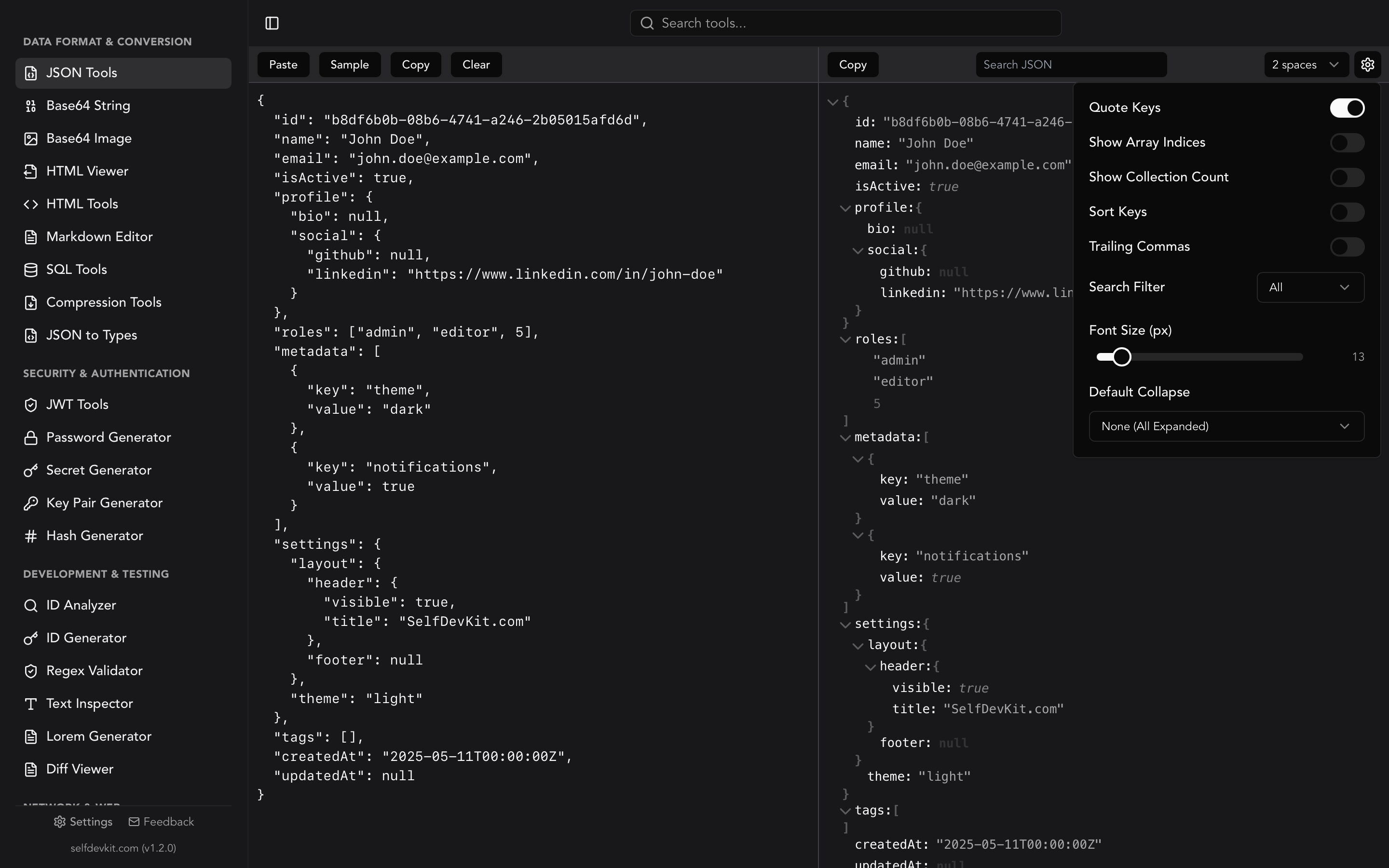
What is a JSON viewer?
A JSON viewer is a tool that parses raw JSON data and presents it as an interactive, navigable structure. Unlike plain text editors, a JSON viewer renders collapsible tree nodes, applies syntax highlighting by data type, and lets you search for specific keys or values inside deeply nested objects.
If you work with APIs, configuration files, or any modern web service, you deal with JSON constantly. And while JSON is technically "human-readable," anyone who has stared at a 5,000-line minified API response knows that readability is relative.
A good JSON viewer turns that wall of text into something you can actually work with. This guide covers what to look for in a JSON viewer, how to use tree view for real debugging workflows, and why where you view your JSON matters more than you might think.
Table of contents
- Why raw JSON is hard to read
- How a JSON viewer works
- Tree view: the core of any JSON viewer
- JSON viewer comparison
- Debugging API responses with a JSON viewer
- Viewing JSON by structure type
- Handling large JSON files
- Code examples: viewing JSON programmatically
- jq cheat sheet for JSON viewing
- Online JSON viewers and the privacy problem
- What to look for in a JSON viewer
- Frequently asked questions
Why raw JSON is hard to read
JSON was designed as a data interchange format, not a format optimized for human scanning. The JSON specification (RFC 8259) defines a minimal syntax: curly braces for objects, square brackets for arrays, colons for key-value pairs, commas as delimiters. No comments. No trailing commas. No room for annotation.
That's fine when a parser is consuming the data. It's a nightmare when you're the one reading it.
Consider a typical API response from a payment processor:
{"id":"txn_1234","amount":4999,"currency":"usd","customer":{"id":"cus_abc","email":"jane@example.com","metadata":{"signup_date":"2024-03-15","plan":"pro","feature_flags":["beta_dashboard","new_billing"]}},"charges":{"data":[{"id":"ch_001","amount":4999,"status":"succeeded","payment_method":{"type":"card","last4":"4242","exp_month":12,"exp_year":2026}}]},"created":1716422400}
That's a single line. Finding the customer's plan or checking which payment method was used requires you to mentally parse nested braces and brackets. With a JSON viewer, the same data becomes an expandable hierarchy you can navigate in seconds.
How a JSON viewer works
A JSON viewer parses your input string into an in-memory data structure (typically an abstract syntax tree), then renders each node as an interactive element in the UI. The parsing step is identical to what JSON.parse() does in JavaScript or serde_json::from_str() does in Rust. The difference is the rendering.
Instead of outputting formatted text, a JSON viewer creates visual nodes for each element:
- Objects become collapsible containers showing their key count
- Arrays become collapsible lists showing their length
- Strings, numbers, booleans, and null become leaf nodes with type-specific styling
This is fundamentally different from a JSON formatter. A formatter outputs pretty-printed text. A viewer creates an interactive document you can explore.
Tree view: the core of any JSON viewer
Tree view is what separates a JSON viewer from a text editor with syntax highlighting. It transforms flat JSON text into a navigable hierarchy where you control what's visible.
Here's what that payment response looks like in tree view:
▼ root {5}
  ├─ id: "txn_1234"
  ├─ amount: 4999
  ├─ currency: "usd"
  ▼ customer {3}
  │ ├─ id: "cus_abc"
  │ ├─ email: "jane@example.com"
  │ ▼ metadata {3}
  │   ├─ signup_date: "2024-03-15"
  │   ├─ plan: "pro"
  │   ▼ feature_flags [2]
  │     ├─ [0]: "beta_dashboard"
  │     └─ [1]: "new_billing"
  ▼ charges {1}
  │ ▼ data [1]
  │   ▼ [0] {4}
  │     ├─ id: "ch_001"
  │     ├─ amount: 4999
  │     ├─ status: "succeeded"
  │     ▼ payment_method {3}
  │       ├─ type: "card"
  │       ├─ last4: "4242"
  │       ├─ exp_month: 12
  │       └─ exp_year: 2026
  └─ created: 1716422400
You can collapse the charges node entirely if you only care about customer data. You can expand just payment_method to verify card details. The point is selective visibility. You see what you need and hide everything else.
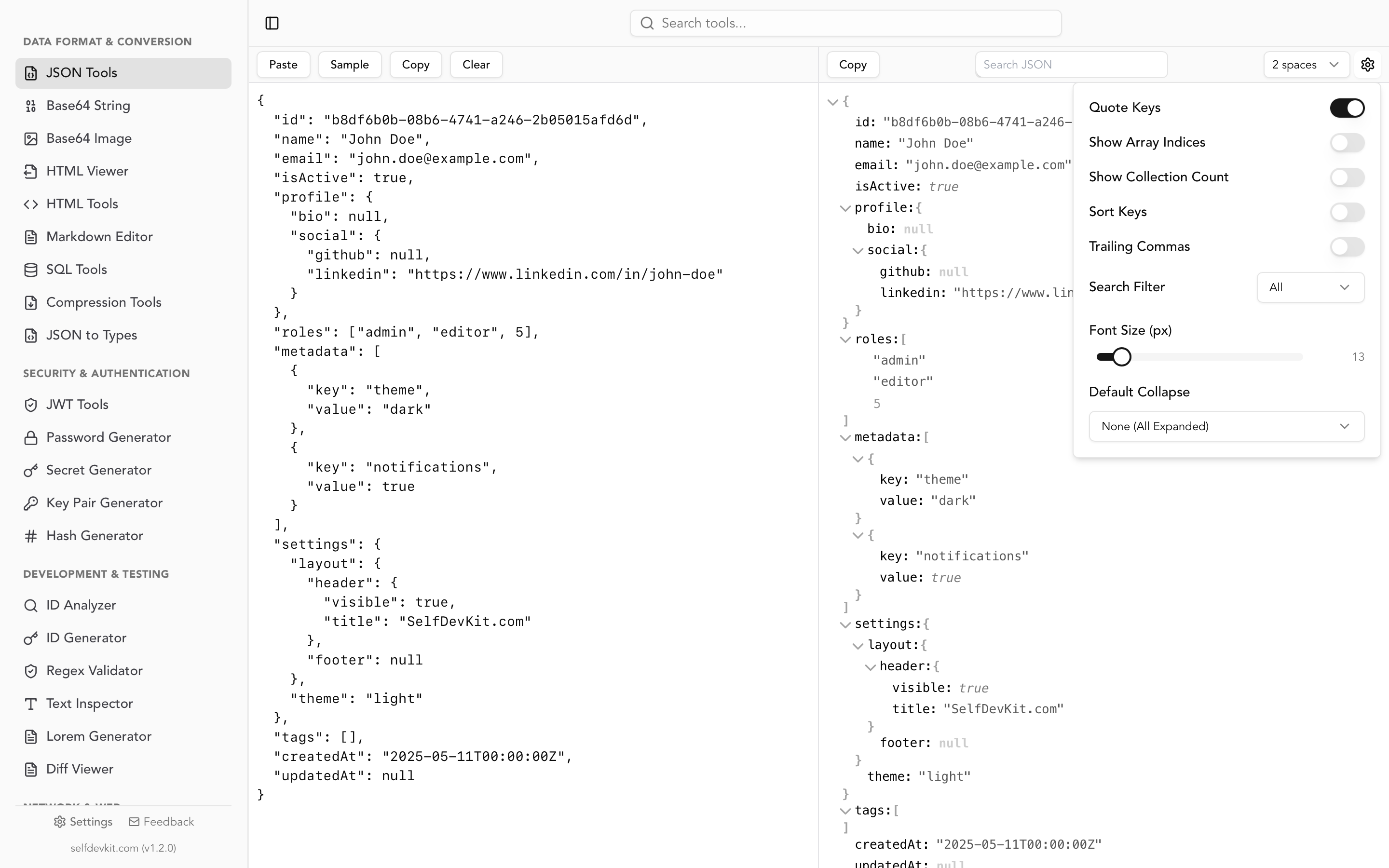
Collapse strategies
Good JSON viewers let you control the default collapse behavior:
| Strategy | When to use it |
|---|---|
| Expand all | Small JSON (under 100 lines). You want the full picture. |
| Collapse all | Huge responses. Start closed, then drill into specific paths. |
| Collapse arrays only | API responses with large data arrays but small config objects. |
| Collapse objects only | Array-heavy data where you want to scan list items first. |
SelfDevKit's JSON Tools support all four strategies. For most API debugging, "collapse all" with selective expansion gives you the fastest path to the data you need.
Search and filter
Scrolling through a tree with hundreds of nodes is still slow. Search changes everything.
Type a key name like email and the viewer highlights every match, filtering out non-matching branches. Type a value like 4242 and you jump straight to the node containing it. Filter by keys only, values only, or both.
This is especially powerful when you know what you're looking for but not where it lives in the structure. If an API returns a deeply nested error object, searching for error or message gets you there instantly.
JSON viewer comparison
If you're choosing a JSON viewer, the decision depends on what you're viewing, how large it is, and whether the data is sensitive. Here's how the main options compare across features that actually matter during debugging.
| Feature | SelfDevKit | VS Code (built-in) | Browser DevTools | Online viewers | jq (CLI) |
|---|---|---|---|---|---|
| Interactive tree view | Yes | Outline only | Nested expand | Varies | No (text output) |
| Collapse all / expand all | Yes | No | Partial | Some | N/A |
| Search by key or value | Yes | Find in file only | Filter bar | Some | jq select |
| Syntax highlighting by type | Yes | Yes | Yes | Yes | Yes |
| Large file handling (50 MB+) | Native memory | Slows significantly | Tab crash likely | Upload limits | Streams natively |
| Offline / no network | Yes | Yes | Yes | No | Yes |
| Privacy (no third-party scripts) | Yes | Yes | Yes | No | Yes |
| Format + minify toggle | Yes | With extensions | No | Some | Manual flags |
| Copy node path | Yes | No | Copy property path | Some | N/A |
| Diff two JSON files | Yes (diff viewer) | Built-in diff | No | Rare | Manual |
| Multi-format support (YAML, TOML) | Yes (50+ tools) | With extensions | No | No | No |
| Platform | macOS, Windows, Linux | All | All | Browser only | All |
| Price | Free tier available | Free | Free | Free | Free |
When to use each:
- SelfDevKit: Production data, regulated environments, large files, or when you need formatting + viewing + diffing in one place without browser tab overhead.
- VS Code: You're already in the editor and the file is small. Good enough for quick looks, but lacks dedicated tree view controls.
- Browser DevTools: Inspecting live API responses during development. Limited to what the network tab captures.
- Online viewers: Quick one-off checks on non-sensitive data. Convenient, but your data leaves your machine and third-party scripts have access to it.
- jq: Scripting, pipelines, filtering before viewing. Pairs well with a GUI viewer for the explore-then-extract workflow.
Debugging API responses with a JSON viewer
Viewing JSON is rarely an end in itself. You're usually debugging something. Here's a practical workflow that goes beyond just "paste and look."
The three-step debugging workflow
Step 1: Validate first. Before exploring the structure, confirm the JSON is valid. Invalid JSON will cause your viewer to show a parse error instead of a tree. Common culprits: truncated responses from network timeouts, extra commas from hand-edited configs, or unescaped characters in string values. If you're dealing with escaped JSON strings, the unescape tool can clean them up before viewing.
Step 2: Collapse and scan. Open the response in tree view with everything collapsed. The top-level keys give you the response shape at a glance. For REST APIs, you'll typically see a pattern like data, meta, errors, or pagination at the root level. Expand only the branch you need.
Step 3: Compare against expected. If the response doesn't match what you expected, the issue is either in the request you sent or the server's logic. Copy the relevant subtree and compare it against your API documentation or a known-good response. SelfDevKit's diff viewer can show you exactly what changed between two JSON responses.
Real-world example: debugging a webhook payload
Suppose your Stripe webhook handler is failing silently. The payload arrives but your code doesn't process it correctly. Here's the debugging flow:
- Log the raw webhook body
- Paste it into your JSON viewer
- Collapse everything, then expand
data.object - Check if the
statusfield contains the value your code expects - Look at
data.object.metadatato see if your custom fields made it through
Without a tree view, you'd be doing a text search through a 200-line minified string. With tree view, you navigate directly to data > object > status in three clicks.
Connecting JSON viewing with type generation
Once you understand the shape of an API response, the next step is often generating type definitions for your code. Copy the JSON from your viewer and pass it to a JSON to TypeScript converter to get interfaces that match the actual response structure, not the documentation (which may be outdated).
Viewing JSON by structure type
Developers don't view "generic JSON." They view specific structures with known patterns. Matching your viewer strategy to the structure type gets you to the data faster.
| Structure | What to look for first | Viewer strategy | Example command (jq) |
|---|---|---|---|
| REST API (paginated) | meta.total, pagination.next |
Collapse data array, check pagination fields first |
jq '.meta' |
| REST API (error) | errors[0].message, status |
Search for error or message |
jq '.errors[0]' |
| GraphQL response | data vs errors at root |
Expand data, check for null fields indicating resolver failures |
jq '.data | keys' |
| Webhook payload (Stripe) | type, data.object.status |
Collapse all, expand data.object, verify event type matches handler |
jq '{type, status: .data.object.status}' |
| Kubernetes manifest | kind, metadata.name, spec |
Collapse spec, check metadata.labels for selector mismatches |
jq '.spec.containers[].image' |
| Terraform state | resources[].type, resources[].instances |
Collapse everything, search for specific resource name | jq '.resources[] | select(.type == "aws_instance")' |
| package.json | dependencies, scripts |
Expand scripts first (most common debug target) |
jq '.scripts' |
| tsconfig.json | compilerOptions.paths, include |
Expand compilerOptions, check strict and paths |
jq '.compilerOptions.strict' |
| JWT payload (decoded) | exp, iat, sub, roles |
Flat structure, scan for expiry timestamp | jq '.exp | todate' |
The pattern is consistent: collapse everything, identify the 1-2 keys that tell you whether the data is healthy, expand only those branches. The jq commands in the right column are for when you want to script the same check or filter a large file before opening it in a viewer.
For JWT payloads specifically, SelfDevKit's JWT decoder handles the Base64 decoding and displays the payload in tree view automatically. For TypeScript configs, the JSON to TypeScript converter can generate types directly from the response structure you're viewing.
Handling large JSON files
Most browser-based JSON viewers start to struggle around 5-10 MB. The DOM gets heavy, scrolling becomes laggy, and your browser tab may crash entirely. A 100 MB JSON file can easily consume 300-500 MB of RAM when parsed and rendered as DOM nodes.
Strategies for large files
Streaming parsers read JSON incrementally without loading the entire file into memory. In Python, the ijson library processes multi-gigabyte files with constant memory usage. In Node.js, libraries like JSONStream provide similar functionality.
Pagination at the source is the best solution when you control the API. Instead of returning 50,000 records in one response, paginate with limit and offset parameters. Your viewer only needs to handle one page at a time.
Desktop viewers have an advantage here. Native applications can use system memory more efficiently than browser tabs, which are sandboxed and memory-limited. A desktop JSON viewer built with Rust (like SelfDevKit) can parse and render large files significantly faster than a web-based alternative.
Command-line tools like jq excel at filtering large files before you even open a viewer. Extract just the section you need:
# Extract only the first 10 items from a large array
cat large-response.json | jq '.data[:10]'

# Find all objects where status is "failed"
cat events.json | jq '.events[] | select(.status == "failed")'

# Get just the keys at the top level
cat complex.json | jq 'keys'
Then paste the filtered output into your JSON viewer for visual exploration.
Code examples: viewing JSON programmatically
Sometimes you need to view and navigate JSON within your own code, not just in a standalone tool. Here are patterns for common languages.
JavaScript / Node.js
// Pretty-print with built-in JSON methods
const data = JSON.parse(rawJson);
console.log(JSON.stringify(data, null, 2));

// Navigate to a specific nested value
const plan = data?.customer?.metadata?.plan;
console.log(`Customer plan: ${plan}`);

// List all top-level keys
console.log('Response shape:', Object.keys(data));
Python
import json

data = json.loads(raw_json)

# Pretty-print with indentation
print(json.dumps(data, indent=2, sort_keys=True))

# Recursive key finder
def find_key(obj, target):
    if isinstance(obj, dict):
        for key, value in obj.items():
            if key == target:
                yield value
            yield from find_key(value, target)
    elif isinstance(obj, list):
        for item in obj:
            yield from find_key(item, target)

# Find all "email" values anywhere in the structure
emails = list(find_key(data, "email"))
Bash with jq
# View a JSON file with syntax highlighting
cat config.json | jq '.'

# Extract nested values
cat response.json | jq '.customer.metadata.plan'

# View array length without expanding it
cat response.json | jq '.items | length'

# Pretty-print with sorted keys
cat response.json | jq -S '.'
These code snippets are useful for scripting and automation. But when you need interactive exploration, where you don't know exactly what you're looking for yet, a visual JSON viewer is faster. The two approaches complement each other.
jq cheat sheet for JSON viewing
jq is the most common command-line JSON viewer. These 15 patterns cover the operations developers run most often. Bookmark this section or screenshot the table.
| What you want | jq command | Example output |
|---|---|---|
| Pretty-print a file | jq '.' file.json |
Formatted with colors |
| Pretty-print with sorted keys | jq -S '.' file.json |
Keys in alphabetical order |
| Get a nested value | jq '.user.address.city' |
"Tokyo" |
| Get array length | jq '.items | length' |
42 |
| Get first N items | jq '.items[:5]' |
First 5 elements |
| Get last item | jq '.items[-1]' |
Last element |
| List all top-level keys | jq 'keys' |
["data","meta","status"] |
| Filter by field value | jq '.[] | select(.status == "failed")' |
Matching objects only |
| Extract specific fields | jq '.users[] | {name, email}' |
Objects with 2 fields each |
| Count unique values | jq '[.items[].category] | unique | length' |
7 |
| Flatten nested arrays | jq '[.data[].tags[]] | unique' |
Flat deduplicated array |
| Find all values of a key (any depth) | jq '.. | .email? // empty' |
Every email value found |
| Convert to CSV | jq -r '.[] | [.name,.email] | @csv' |
"Jane","jane@co.com" |
| Compact output (minify) | jq -c '.' file.json |
Single line |
| Pipe curl into jq | curl -s url | jq '.data[0]' |
First item from API |
For anything beyond filtering and extraction, switch to a GUI viewer. The workflow that saves the most time: use jq to narrow a large file down to the relevant subset, then paste that subset into SelfDevKit's JSON Tools for interactive exploration.
Online JSON viewers and the privacy problem
Every major search result for "json viewer" is a web-based tool. They're convenient. They're also a potential data leak.
Think about what you paste into a JSON viewer during a typical workday:
- API responses containing user emails, IDs, and personal data
- Configuration files with database connection strings
- JWT tokens with authentication claims and user identities
- Webhook payloads with payment information
- Internal API responses revealing your system architecture
Even tools that claim "client-side processing" still load third-party scripts. Analytics trackers, ad networks, and error monitoring services all execute JavaScript in the same page context as your pasted JSON. A single compromised dependency in their supply chain exposes every piece of data their users have ever pasted.
The compliance dimension
If you work in healthcare, finance, or any industry handling regulated data, pasting that data into an online tool may violate compliance requirements:
- GDPR: Processing EU citizen data through third-party services requires explicit data processing agreements
- HIPAA: Protected health information cannot be transmitted to arbitrary web services
- SOC 2: Requires documented controls over how sensitive data is handled
- PCI DSS: Cardholder data has strict handling requirements
An offline JSON viewer eliminates these concerns entirely. The data never leaves your machine. There's no network request to intercept, no server log to breach, no third-party script to exploit.
Offline viewing vs. online viewing
| Factor | Online viewer | Offline viewer |
|---|---|---|
| Setup time | None (open browser) | One-time install |
| Privacy | Data sent/exposed to third parties | Data stays local |
| Performance with large files | Limited by browser tab memory | Uses full system resources |
| Works without internet | No | Yes |
| Compliance-friendly | Requires due diligence | Inherently compliant |
| Third-party script risk | Present | None |
For quick checks on non-sensitive data, online viewers are fine. For anything involving real user data, production configs, or regulated information, an offline viewer is the responsible choice.
What to look for in a JSON viewer
Not all JSON viewers are equal. Here's what separates a useful viewer from a basic one.
Interactive tree view with collapse control. This is non-negotiable. You need to expand and collapse nodes, ideally with keyboard shortcuts. Bonus points for collapse-all and expand-all controls.
Syntax highlighting by type. Strings, numbers, booleans, null, keys: each should have distinct visual styling. This lets your eyes scan for data types without reading every value.
Search with filtering. Highlighting matches is a start. Filtering the tree to show only matching branches is what makes search truly powerful in large documents.
Real-time validation. The viewer should tell you immediately if your JSON is invalid, with a clear error message pointing to the problem location. No one wants to stare at a blank tree wondering why nothing rendered.
Format and minify. A good viewer doubles as a formatter. You should be able to switch between pretty-printed output and a minified version without leaving the tool.
Copy options. Copy the entire formatted JSON, copy a specific subtree, or copy a path to a node (like customer.metadata.plan). These small features save significant time during debugging.
SelfDevKit's JSON Tools check all of these boxes and run entirely offline. The dual-pane interface shows your raw input on one side and the interactive tree view on the other, with search, configurable indentation, and one-click formatting built in.
Download SelfDevKit to get a JSON viewer that keeps your data private, handles large files natively, and includes 50+ other developer tools in one app.
Frequently asked questions
What is the difference between a JSON viewer and a JSON formatter?
A JSON formatter takes minified or messy JSON and outputs it as indented, readable text. A JSON viewer goes further by rendering the data as an interactive tree with collapsible nodes, search, and type-based highlighting. Most modern tools like SelfDevKit's JSON Tools include both capabilities in one interface.
Can I view JSON files larger than 10 MB?
Browser-based JSON viewers typically struggle with files over 5-10 MB due to DOM rendering limits. Desktop JSON viewers handle larger files more efficiently since they can use system memory directly. For extremely large files (100 MB+), consider using command-line tools like jq to filter the data first, then view the relevant subset in a GUI viewer.
Is it safe to paste sensitive JSON into an online viewer?
It depends on the tool, but the safest approach is to use an offline viewer. Online viewers may log data on their servers, and third-party scripts on the page can access your pasted content. If your JSON contains user data, API keys, or anything covered by GDPR, HIPAA, or PCI DSS, use a local tool like SelfDevKit that processes everything on your machine.
How do I view JSON from the command line?
The most popular option is jq, which pretty-prints JSON with syntax highlighting by default. Run cat file.json | jq '.' to view a file, or pipe an API response directly: curl -s https://api.example.com/data | jq '.'. Python's built-in module also works: python3 -m json.tool file.json.