
What does it mean to generate a crontab entry?
Generating a crontab entry means producing a complete line of the form
<schedule> <command>, where the schedule is five time fields and the command is a fully qualified, self-contained shell invocation. Most crontab generators only build the first half. The second half is where scheduled jobs actually fail.
Search for a way to crontab generate a schedule and you will land on a dropdown form that hands you 30 2 * * * and calls it done. That expression is correct. It is also about 20% of a working cron job. The other 80% lives to the right of the fifth asterisk, in the part every generator leaves as an empty text box labeled "command to execute".
This guide covers that empty box. We will generate the schedule quickly, then walk the eight decisions that turn a schedule into a job that survives contact with a real server, and finish with generating crontabs from code instead of by hand.
Table of contents
- What a crontab generator gives you and what it omits
- Generate the schedule: five fields in one screen
- Generate the command: eight decisions no generator makes
- Generated crontab lines for seven real jobs
- Crontab generate at scale: rendering crontabs from code
- Verify the generated line before you install it
- Frequently asked questions
What a crontab generator gives you and what it omits
A crontab generator produces the five schedule fields; it does not produce the command. A crontab line has two halves that fail for completely different reasons, and only one of them is a syntax problem.
30 2 * * *   /usr/local/bin/backup.sh
└─────────┘  └──────────────────────┘
  schedule            command
 generated by      typed by you,
 the tool          usually wrong
The schedule half is a constrained grammar. It has five fields, a handful of operators, and a generator can validate it exhaustively. If your expression is wrong you find out immediately, because cron rejects the file or the tool shows you the wrong next-run times.
The command half has no grammar and no validation. It runs in a shell you did not choose, with an environment you did not set, as a user you may not have thought about, with its output going somewhere you never look. Nothing rejects it. The line installs cleanly, cron dutifully fires it every night at 2:30, and it fails silently for six weeks until somebody asks where the backups went.
That asymmetry is the whole reason this post exists.
Generate the schedule: five fields in one screen
To generate a cron schedule, fill five space-separated fields in the order minute, hour, day of month, month, day of week. Each field accepts a number, a range (1-5), a list (1,15,30), a step (*/15), or * for every value.
| Field | Range | Notes |
|---|---|---|
| Minute | 0-59 | |
| Hour | 0-23 | 24-hour clock, no AM/PM |
| Day of month | 1-31 | |
| Month | 1-12 or JAN-DEC |
|
| Day of week | 0-7 or SUN-SAT |
0 and 7 both mean Sunday |
Two rules trip people up regardless of which generator they used. Steps restart at zero every cycle, so */7 * * * * fires at minutes 0, 7, 14, 21, 28, 35, 42, 49, 56 and then again at 0, leaving a four-minute gap across the hour boundary. And if you restrict both day of month and day of week, cron treats them as OR, not AND, so 0 0 13 * 5 runs on the 13th of every month and on every Friday.
That is the compressed version. For the full operator reference, the shortcut strings like @daily, and how the same syntax behaves in Kubernetes CronJobs and GitHub Actions, see the crontab generator guide. If you would rather learn to read expressions in your head instead of pasting them into a tool, the crontab guru walkthrough goes field by field.
Now the interesting half.
Generate the command: eight decisions no generator makes
Generating the command half of a crontab line means making eight explicit decisions that an interactive shell would have made for you. Here they are in the order they tend to bite.
1. Absolute paths, always
Cron gives your job a nearly empty PATH, typically just /usr/bin:/bin. Anything installed in /usr/local/bin, /opt, ~/.nvm, ~/.cargo/bin, or a language version manager is invisible. The classic symptom is a job that runs perfectly when you paste it into your terminal and produces command not found on schedule.
Two fixes, and you want both. Use absolute paths in the command, and declare a PATH at the top of the crontab so scripts that shell out to other binaries also work:
PATH=/usr/local/sbin:/usr/local/bin:/usr/sbin:/usr/bin:/sbin:/bin
2. Which shell runs the line
Cron executes your command with /bin/sh. On Debian and Ubuntu, /bin/sh is a symlink to dash, not bash. This matters more than it sounds.
I checked on the machine I wrote this on:
$ ls -l /bin/sh
lrwxrwxrwx 1 root root 4 Mar 31  2024 /bin/sh -> dash

$ bash -c 'echo "[$RANDOM]"'
[8682]

$ dash -c 'echo "[$RANDOM]"'
[]
$RANDOM is a bash builtin. In dash it silently expands to an empty string. So a line like sleep $((RANDOM % 1800)) && /usr/local/bin/sync.sh becomes sleep 0 under cron and your carefully staggered fleet all fires at the same instant. No error, no warning. Same story for [[ ]], source, arrays, and set -o pipefail.
Either set SHELL=/bin/bash at the top of the crontab, or write POSIX-only command lines. The Cronitor guide to cron environment variables is a good reference for what else cron does and does not hand you.
3. Escape every percent sign
This is the single most common way a generated backup line breaks, because almost every backup command contains date +%F or similar. From crontab(5) on my system, verbatim:
Percent-signs (%) in the command, unless escaped with backslash (\), will be changed into newline characters, and all data after the first % will be sent to the command as standard input.
So this line does not do what it looks like it does:
0 2 * * * pg_dump app > /backups/app-$(date +%F).sql
Cron cuts it at the first %, runs pg_dump app > /backups/app-$(date + and feeds F).sql to it on stdin. Escape them:
0 2 * * * pg_dump app > /backups/app-$(date +\%F).sql
Better yet, put the command in a script file and call the script. Scripts are not parsed by cron, so percent signs inside them are ordinary characters. The cron and crontab anatomy guide covers the surrounding environment rules in more depth.
4. Decide where output goes
By default, anything your job writes to stdout or stderr is emailed to the crontab owner. On a modern server with no mail transfer agent installed, that mail is discarded and your error messages vanish. Three sane options:
# Append everything to a log file, the usual choice
0 2 * * * /usr/local/bin/backup.sh >> /var/log/backup.log 2>&1

# Discard stdout, keep errors so failures still generate mail
0 2 * * * /usr/local/bin/backup.sh > /dev/null

# Silence completely, only when something else is monitoring the job
0 2 * * * /usr/local/bin/backup.sh > /dev/null 2>&1
Note the ordering: >> file 2>&1 redirects stdout to the file and then points stderr at the same place. Writing 2>&1 >> file sends stderr to the old stdout instead, which is a subtle and popular mistake.
Set MAILTO="" at the top if you never want cron mail, or MAILTO=ops@example.com if you have a working MTA and want it.
5. Prevent the job from overlapping itself
Cron does not check whether the previous run finished. It forks each due job independently, so a five-minute job scheduled every minute will happily run five copies at once, and by hour three you have a load average problem and a corrupted export file.
flock from util-linux solves this in one wrapper. The -n flag means fail immediately rather than queue up:
* * * * * /usr/bin/flock -n /var/lock/sync.lock /usr/local/bin/sync.sh
Per the flock man page, -n reports failure to acquire the lock with exit status 1 by default, which cron treats as a normal non-zero exit. If you want a bounded wait instead of an instant skip, use -w 30 to wait up to 30 seconds.
Any long-running job scheduled more often than hourly should have a lock. It costs nine characters.
6. Add jitter if more than one host runs the line
If you deploy the same crontab to 200 instances, all 200 fire at exactly 0 3 * * *, and whatever they talk to absorbs 200 simultaneous requests. Certificate authorities, package mirrors, and your own API gateway all care about this.
The canonical example is Certbot. The official Certbot documentation recommends renewing twice daily with a random delay, and the command it gives is worth reading closely:
SLEEPTIME=$(awk 'BEGIN{srand(); print int(rand()*(3600+1))}'); \
  echo "0 0,12 * * * root sleep $SLEEPTIME && certbot renew -q" \
  | sudo tee -a /etc/crontab > /dev/null
Two details most people miss. First, it uses awk rather than $RANDOM, precisely because /etc/crontab lines run under /bin/sh. Second, the double quotes mean $SLEEPTIME is expanded when you install the line, not when it runs. Each host bakes in its own fixed offset. The fleet is spread across the hour, but any individual host runs at a predictable time, which is much easier to debug than a job that moves every day.
If you want the delay recalculated per run, defer the expansion instead:
0 0,12 * * * sleep $(awk 'BEGIN{srand(); print int(rand()*3600)}') && certbot renew -q
7. Decide which user it runs as
User crontabs edited with crontab -e run as you and have no user field. Files in /etc/cron.d and /etc/crontab are system crontabs and require a sixth field naming the user, right after the day of week:
# /etc/cron.d/backup  (system crontab, six fields)
30 2 * * *  postgres  /usr/local/bin/pg-backup.sh >> /var/log/pg-backup.log 2>&1
Paste a five-field line into /etc/cron.d and cron reads your command name as the username, fails to resolve it, and skips the line. Paste a six-field line into a user crontab and cron tries to execute the username as a program.
8. Make failure visible
A cron job that fails silently is worse than no cron job, because it creates confidence without doing work. Append a heartbeat ping that only fires on success:
0 2 * * * /usr/local/bin/backup.sh >> /var/log/backup.log 2>&1 && \
  /usr/bin/curl -fsS --retry 3 https://example.com/heartbeat/backup > /dev/null
The && matters. If the backup exits non-zero the ping never happens, your monitor notices the missing check-in, and you hear about it the same night instead of the next quarter.
Generated crontab lines for seven real jobs
Here are seven complete lines with every decision above applied. The header block goes once at the top of the crontab.
SHELL=/bin/bash
PATH=/usr/local/sbin:/usr/local/bin:/usr/sbin:/usr/bin:/sbin:/bin
MAILTO=""

# 1. Postgres dump nightly at 02:30, locked, logged
30 2 * * * /usr/bin/flock -n /var/lock/pgdump.lock \
  /usr/local/bin/pg-backup.sh >> /var/log/pg-backup.log 2>&1

# 2. Prune dumps older than 14 days, Sundays at 03:15
15 3 * * 0 /usr/bin/find /backups -name '*.sql.gz' -mtime +14 -delete

# 3. Force logrotate hourly for a chatty service
0 * * * * /usr/sbin/logrotate -s /var/lib/logrotate/app.state \
  /etc/logrotate.d/app >> /var/log/logrotate-app.log 2>&1

# 4. TLS renewal twice daily with a baked-in random offset
0 0,12 * * * sleep 1874 && /usr/bin/certbot renew -q

# 5. Clear expired sessions every 15 minutes, skip if still running
*/15 * * * * /usr/bin/flock -n /var/lock/sessions.lock \
  /usr/bin/php /srv/app/artisan session:gc > /dev/null 2>&1

# 6. Docker housekeeping, Mondays at 04:00
0 4 * * 1 /usr/bin/docker system prune -af --filter 'until=168h' \
  >> /var/log/docker-prune.log 2>&1

# 7. Weekday report at 07:00, ping heartbeat only on success
0 7 * * 1-5 /usr/local/bin/daily-report.sh >> /var/log/report.log 2>&1 && \
  /usr/bin/curl -fsS --retry 3 https://example.com/hb/report > /dev/null
A note on line 2. find -mtime +14 is a real workhorse for retention, but it uses modification time, so a file touched by a backup verification script resets its own clock. If retention accuracy matters, encode the date in the filename and match on that instead. Naming files with a Unix epoch rather than a formatted date sidesteps timezone and locale problems entirely, and makes sorting trivial; the Unix timestamp converter guide covers the tradeoffs between epoch and human-readable stamps.
Crontab generate at scale: rendering crontabs from code
To generate crontabs at scale, do not run crontab -e on each host. Render the file from a template or a manifest and install it non-interactively, so the schedule lives in version control alongside the code it runs.
The simplest version needs no tooling at all. Keep deploy/crontab in your repository and install it with a single command:
crontab deploy/crontab          # replace the current crontab with this file
cat deploy/crontab | crontab -  # same thing, reading from stdin
Both replace the entire crontab atomically. That is the point: the file in git is the source of truth, and drift on a box gets overwritten on the next deploy. One requirement that catches people out is that the file must end with a trailing newline, or the last line may be ignored. Checking that by eye is unreliable; a text inspector that shows line endings and trailing whitespace tells you in a second.
For fleets, Ansible's cron module manages individual entries idempotently. It writes a #Ansible: <name> marker comment above each entry and uses that marker to find the entry on later runs, so re-applying the playbook updates the line instead of appending a duplicate:
- name: Nightly Postgres dump
  ansible.builtin.cron:
    name: pg-backup
    user: postgres
    minute: '30'
    hour: '2'
    job: >-
      /usr/bin/flock -n /var/lock/pgdump.lock
      /usr/local/bin/pg-backup.sh >> /var/log/pg-backup.log 2>&1
    cron_file: pg-backup
The name is load-bearing. Two entries sharing a name collapse into one; renaming an entry leaves the old line orphaned in place.
From Python, the python-crontab package parses and writes crontab files with the same idempotency trick via comments. From anything else, generating the file with your normal template engine and piping it to crontab - is usually simpler than pulling in a library.
Whatever generates the file, run a syntax check in CI before it ships. Validation flags differ by implementation, so probe for both:
validate_crontab() {
  if crontab -T "$1" 2>/dev/null; then return 0; fi   # cronie
  if crontab -n "$1" 2>/dev/null; then return 0; fi   # Debian cron
  echo "no validation flag available on this host" >&2
  return 0
}
The distinction between those two flags is genuinely nasty, because -n means something entirely different under cronie. The crontab command reference covers the flag collision and the rest of the command surface.
Verify the generated line before you install it
Verify a generated crontab line by checking three things: that the expression parses, that its next run times match your intent, and that the command runs correctly under a bare shell.
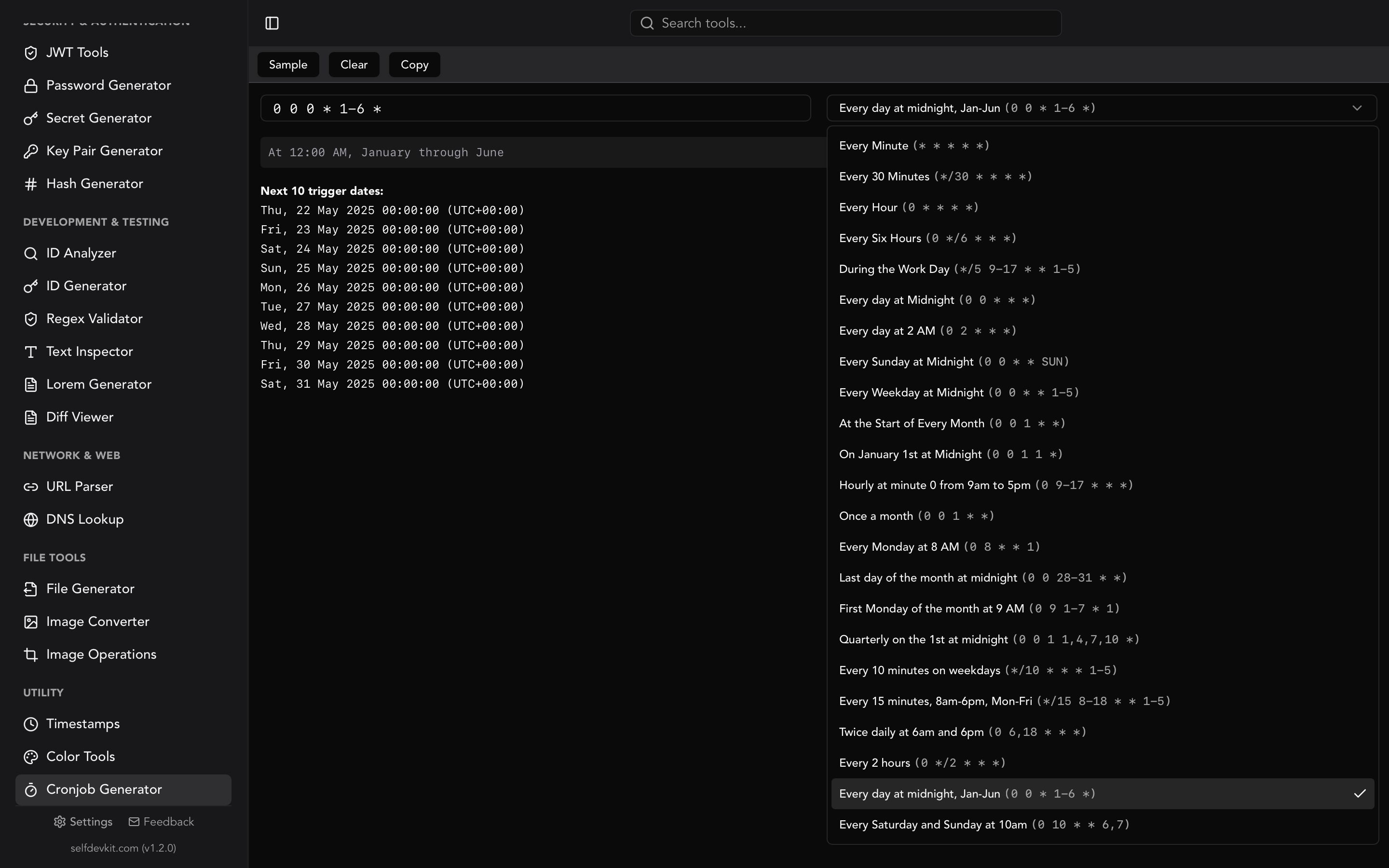
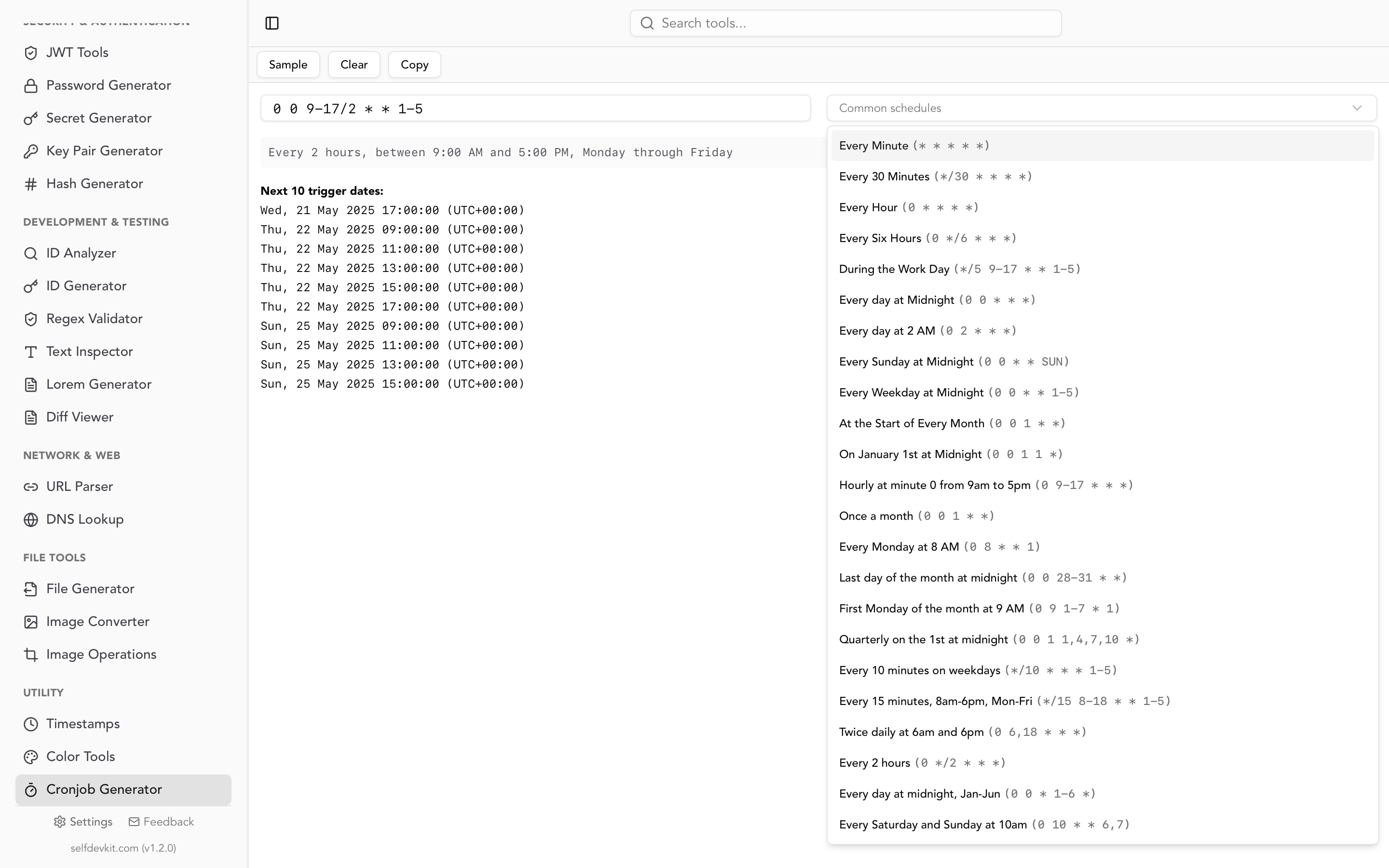
The first two are what a generator is for. Seeing 0 4 * * 1 rendered as "at 04:00 on Monday" plus a list of the next five timestamps catches off-by-one-field errors that reading the expression never will. SelfDevKit's cronjob generator builds expressions visually, translates them to plain English, and previews upcoming runs, all locally.
The third check is the one nobody does, and it is a single command:
env -i /bin/sh -c '/usr/local/bin/backup.sh'
env -i strips the environment, which approximates what cron hands your job far better than your own shell does. If it works there, it will almost certainly work on schedule.
There is also a reason to keep this work off the public web. A crontab line is an inventory of your infrastructure. It names internal hostnames, absolute paths, database users, script names, S3 buckets, and occasionally a token in a curl URL. Pasting that into a browser form to check a schedule sends all of it to a third-party server for a task that is pure arithmetic. Generation and validation of a cron expression need no network access whatsoever, which is the general argument in why offline matters.
For auditing what is already deployed, snapshot crontab -l before and after a change and compare the two. A diff viewer makes an accidental deletion obvious at a glance, and the diff checker guide covers reading the output. If you need to find every cron line matching a pattern across a config repo, a regex validator is faster than guessing at grep syntax.
Frequently asked questions
Why does my cron job work manually but not on schedule?
Almost always the environment. Cron runs your command under /bin/sh with a minimal PATH and none of your shell profile, so binaries outside /usr/bin and /bin are not found and bash-only syntax fails silently. Reproduce it with env -i /bin/sh -c 'your command' and fix what breaks.
How do I generate a crontab entry that runs every 30 seconds?
You cannot; one minute is cron's finest resolution. The usual workaround is two entries, one immediate and one delayed by sleep 30, but a job that needs sub-minute frequency is better served by a systemd timer with OnUnitActiveSec=30s or a supervised loop.
Do I need to restart cron after editing the crontab?
No. Cron detects modification times on the spool directory and /etc/cron.d and reloads changed files automatically, usually within a minute. Restarting the daemon is unnecessary and occasionally skips a job scheduled during the restart window.
Should the schedule or the command carry the complexity?
The command, and preferably inside a script file rather than on the crontab line. Cron parses crontab lines, so percent signs need escaping and long pipelines become unreadable; a script has none of those constraints, can be tested directly, and shows up properly in code review.
Before you paste the line
Run the generated line past this list. Absolute paths for every binary. A SHELL you actually chose. Percent signs escaped, or the command moved into a script. Output going to a real file. A flock wrapper if the job can outlive its interval. Jitter if more than one host runs it. The right number of fields for where the line lives. And something that notices when it stops working.
Eight checks. They take a minute, and they are the difference between a schedule and a job.
Download SelfDevKit to build and validate cron expressions offline, alongside 50+ other developer tools that never send your infrastructure details anywhere.