What does markdown to HTML conversion do?
A markdown to HTML converter parses markdown text into a syntax tree and serializes that tree as HTML elements:
#becomes<h1>,**bold**becomes<strong>, a fenced block becomes<pre><code>. The output is a body fragment with no<html>wrapper, no<head>, and no CSS, which is why converted markdown looks unstyled until you wrap and style it yourself.
Converting markdown to HTML is a solved problem in the sense that every language has a parser that does it in one line. What is not solved is everything around the conversion: the front matter that turns into a stray heading, the footnote that becomes a broken link, the images that 404 the moment you email the file, and the fact that the HTML you get back is a fragment rather than a page.
This guide covers the exact element mapping produced by a spec-compliant converter, the four failures that account for most "my markdown to HTML output looks wrong" reports, and how to convert at scale without shipping private documents to a stranger's server. Every HTML snippet below was generated by running the input through marked 18 with GitHub Flavored Markdown enabled, not written by hand.
Table of contents
- How to convert markdown to HTML
- Markdown to HTML element mapping
- Your output is a fragment, not a web page
- What gets escaped and what passes through
- Four gotchas that break conversions
- Batch converting markdown files
- Where the converted HTML ends up
- Converting markdown to HTML offline
- Frequently asked questions
How to convert markdown to HTML
To convert markdown to HTML, pass the markdown source to a parser that implements CommonMark or GitHub Flavored Markdown and take the HTML string it returns. There are three routes, and they differ mainly in what they do beyond parsing.
A tool with a preview pane. Paste markdown, read the rendered result, copy the HTML. Best for one-off conversions and for checking that a document renders the way you expect before you publish it.
The command line. Pandoc is the workhorse here because it also builds a complete document:
# fragment only
pandoc -f markdown -t html README.md -o readme.html

# complete, styled, standalone page
pandoc -s -c github-markdown.css --metadata title="README" README.md -o readme.html
A library in your build. One call, and you own the output:
import { marked } from 'marked';
const html = marked.parse(md, { gfm: true });
import markdown
html = markdown.markdown(md, extensions=['extra', 'toc'])
The route matters less than knowing what comes out the other end, which is what the rest of this guide is about.
Markdown to HTML element mapping
Every markdown construct maps to a specific HTML element. This table is the reference most converter pages leave out, and it is worth reading once because several rows surprise people.
| Markdown | HTML output |
|---|---|
# Heading through ###### Heading |
<h1>Heading</h1> through <h6> |
Heading followed by ===== |
<h1>Heading</h1> (setext form) |
| plain line of text | <p>text</p> |
**bold** or __bold__ |
<strong>bold</strong> |
*italic* or _italic_ |
<em>italic</em> |
***both*** |
<em><strong>both</strong></em> |
~~gone~~ (GFM) |
<del>gone</del> |
`code` |
<code>code</code> |
```js fenced block |
<pre><code class="language-js"> |
| four-space indented block | <pre><code> |
> quoted |
<blockquote><p>quoted</p></blockquote> |
- item |
<ul><li>item</li></ul> |
1. item |
<ol><li>item</li></ol> |
- [x] done (GFM) |
<li><input checked disabled type="checkbox"> done</li> |
[text](https://ex.com "Title") |
<a href="https://ex.com" title="Title">text</a> |
<https://ex.com> |
<a href="https://ex.com">https://ex.com</a> |
 |
<img src="/a.png" alt="alt"> |
--- or *** on their own line |
<hr> |
| two trailing spaces at line end | <br> |
| GFM pipe table | <table><thead><tr><th>… |
Three things to notice.
Fenced code blocks emit class="language-js", not highlighted markup. The class is a hook for a highlighter like Prism or highlight.js to attach to later. If you convert and publish without loading a highlighter, your code blocks are monochrome, and that is correct behavior rather than a bug.
Task list items become disabled checkbox inputs. They are inert on purpose. Clicking them does nothing unless you write JavaScript to sync state back to the source.
The <br> from two trailing spaces is invisible in your editor and easy to delete by accident, which is why some converters offer a "breaks" option that turns every single newline into <br>. That option makes output match chat apps but diverge from the CommonMark spec, so decide once per project and stay consistent.
For a deeper look at how the parse-then-serialize pipeline works internally, see our guide on the markdown viewer and rendering pipeline.
Your output is a fragment, not a web page
Markdown to HTML converters return a body fragment. No <!DOCTYPE html>, no <html>, no <head>, no <meta charset>, and no stylesheet. Open that fragment directly in a browser and you get Times New Roman on a white background with full-width text, which is the single most common reason people think a converter is broken.
The output is semantically correct. It is just unstyled.
To turn a fragment into a page, wrap it:
<!DOCTYPE html>
<html lang="en">
  <head>
    <meta charset="utf-8" />
    <meta name="viewport" content="width=device-width, initial-scale=1" />
    <title>Release notes</title>
    <link rel="stylesheet" href="github-markdown.css" />
  </head>
  <body class="markdown-body">
    <!-- converter output goes here -->
  </body>
</html>
The <meta charset="utf-8"> line is not optional. Markdown documents routinely contain curly quotes, arrows, and emoji, and without a declared charset those render as mojibake in browsers that guess wrong.
Pandoc builds this wrapper for you with -s (standalone), and it will warn [WARNING] This document format requires a nonempty <title> element if you forget to supply a title, either through --metadata title="…" or through a YAML block in the source. Treat that warning as a real defect, since a titleless page is bad for both bookmarks and search results.
Once you have a full document, run it through an HTML formatter before committing it. Converter output has inconsistent indentation and long unwrapped lines, which makes the next diff unreadable. Our post on formatting and minifying HTML covers when to pretty-print versus when to minify.
What gets escaped and what passes through
A markdown converter escapes text characters that would otherwise be read as markup, but it passes raw HTML through untouched. Those two behaviors together explain most confusion about converted output.
Here is what happens to special characters inside ordinary paragraph text:
| Input character | HTML output |
|---|---|
< |
< |
> |
> |
& |
& |
" |
" |
So writing a < b and 5 > 3 in markdown yields <p>a < b and 5 > 3</p>. The entity is correct; the browser displays the original characters. Our guide to HTML entity encoding covers why this escaping matters beyond cosmetics.
Raw HTML is a different story. Markdown is a superset of HTML by design, so this input:
<div class="callout">Heads up</div>
comes out as exactly <div class="callout">Heads up</div>. Nothing is escaped, nothing is validated, and nothing is stripped. That is convenient when you need a construct markdown has no syntax for, such as <details> blocks or a table with colspan.
It is also the entire attack surface. A <script>alert(1)</script> in the source is <script>alert(1)</script> in the output. If you convert markdown that other people wrote and inject the result into a page with innerHTML, you have shipped stored XSS. Run the output through a sanitizer such as DOMPurify before it touches the DOM, or use a converter that sanitizes for you. The security details are covered in depth in the markdown viewer guide.
Converting your own README for your own site? No sanitizer needed. Converting user-submitted comments? Always.
Four gotchas that break conversions
YAML front matter becomes a stray heading
This is the most common surprise, and it is worth seeing the actual output. Given this file:
---
title: My Post
date: 2026-08-05
---

# Hello
A CommonMark parser produces:
<hr>
<h2>title: My Post
date: 2026-08-05</h2>
<h1>Hello</h1>
The first --- is a thematic break. The metadata lines form a paragraph. The closing --- after that paragraph is setext syntax for a level-two heading, so your front matter is now an <h2> on the page.
Front matter is not part of the markdown spec, so most parsers have no idea it exists. Strip it before converting:
import matter from 'gray-matter';
const { data, content } = matter(fs.readFileSync('post.md', 'utf8'));
const html = marked.parse(content, { gfm: true });
Pandoc is one of the few converters that handles this natively, because its yaml_metadata_block extension is enabled by default and consumes the block as document metadata instead of rendering it.
Headings have no IDs, so anchor links break
Deep links like #installation work on GitHub because GitHub generates id attributes from heading text. Base converters do not. Plain marked output gives you <h1>Heading</h1> with no id, so any table of contents you hand-wrote in the markdown points at anchors that do not exist.
Behavior varies by converter, which is worth knowing before you debug:
| Converter | Heading IDs by default |
|---|---|
| marked | No, requires the marked-gfm-heading-id extension |
| Python-Markdown | No, the toc extension adds them |
| Pandoc | Yes, auto_identifiers is on by default |
| GitHub rendering | Yes |
The headerIds option in marked was deprecated in version 5 and moved into a separate extension, so code that relied on it silently stopped emitting IDs after an upgrade.
Footnotes usually do not convert
Footnote syntax is not in the GFM spec, even though github.com renders it. A standard converter has two ways to get it wrong, and neither one tells you. If only the marker is present, it survives as literal text:
<p>text[^1]</p>
If the definition is there too, it is worse. This input:
text[^1]

[^1]: note
produces a plain reference link that points nowhere useful:
<p>text<a href="note">^1</a></p>
No error, no warning, just a footnote rendered as a wrong link. If your documents use footnotes, pick a converter with an explicit footnote extension and verify the output rather than assuming.
Relative image paths break the moment the file moves
 converts to <img src="./images/arch.png">, which resolves relative to wherever the HTML file ends up. Email it, paste it into a help center, or open it from a different directory and every image is broken.
For self-contained HTML, inline the images as data URIs. Convert each file with a base64 image encoder and swap the src, or use pandoc --embed-resources --standalone to do it in one pass. The tradeoff is roughly 33 percent file size growth and no caching, which our post on converting images to base64 breaks down in detail.
Batch converting markdown files
To convert a directory of markdown files to HTML, loop over them and give each output a title derived from the filename. Pandoc keeps this to two lines:
mkdir -p build
for f in docs/*.md; do
  name=$(basename "$f" .md)
  pandoc -s --metadata title="$name" "$f" -o "build/$name.html"
done
In Node, the equivalent build step lets you strip front matter and apply your own template:
import fs from 'node:fs';
import path from 'node:path';
import matter from 'gray-matter';
import { marked } from 'marked';

const template = (title, body) => `<!DOCTYPE html>
<html lang="en"><head><meta charset="utf-8"><title>${title}</title>
<link rel="stylesheet" href="/style.css"></head>
<body class="markdown-body">${body}</body></html>`;

for (const file of fs.readdirSync('docs').filter((f) => f.endsWith('.md'))) {
  const { data, content } = matter(fs.readFileSync(path.join('docs', file), 'utf8'));
  const out = template(data.title ?? file, marked.parse(content, { gfm: true }));
  fs.writeFileSync(path.join('build', file.replace(/\.md$/, '.html')), out);
}
Two practices make batch conversion maintainable. Pin the converter version, because a minor upgrade that changes heading ID behavior or list tightness rewrites every output file and floods your next diff. And commit the generated HTML only if something downstream consumes it; otherwise generate it in CI and treat it as a build artifact.
When a converter upgrade does change output, a diff viewer run against the previous build tells you in seconds whether the change is cosmetic whitespace or a structural difference you need to care about.
Where the converted HTML ends up
The destination decides what kind of HTML you actually want, and this is where the fragment-versus-document distinction pays off.
A static site generator. You want the fragment. The generator supplies the layout, the <head>, and the CSS. Handing it a full document produces nested <html> elements that browsers silently repair in unpredictable ways.
A CMS or help center. Fragment again, but expect filtering. Many editors strip class and style attributes and some drop <script> and <iframe> entirely, so a converted document that depends on custom classes will lose its styling on paste. Convert, paste, then verify rather than assuming.
Email. This is the hardest target. Many email clients ignore <link rel="stylesheet"> and some strip <style> blocks, so styling has to be inlined onto each element with a style attribute. Images referenced by relative path will not load at all, which makes data URIs or absolute HTTPS URLs mandatory.
A file you send someone. A complete standalone document with embedded CSS and inlined images. One file, opens anywhere, no assets folder to forget.
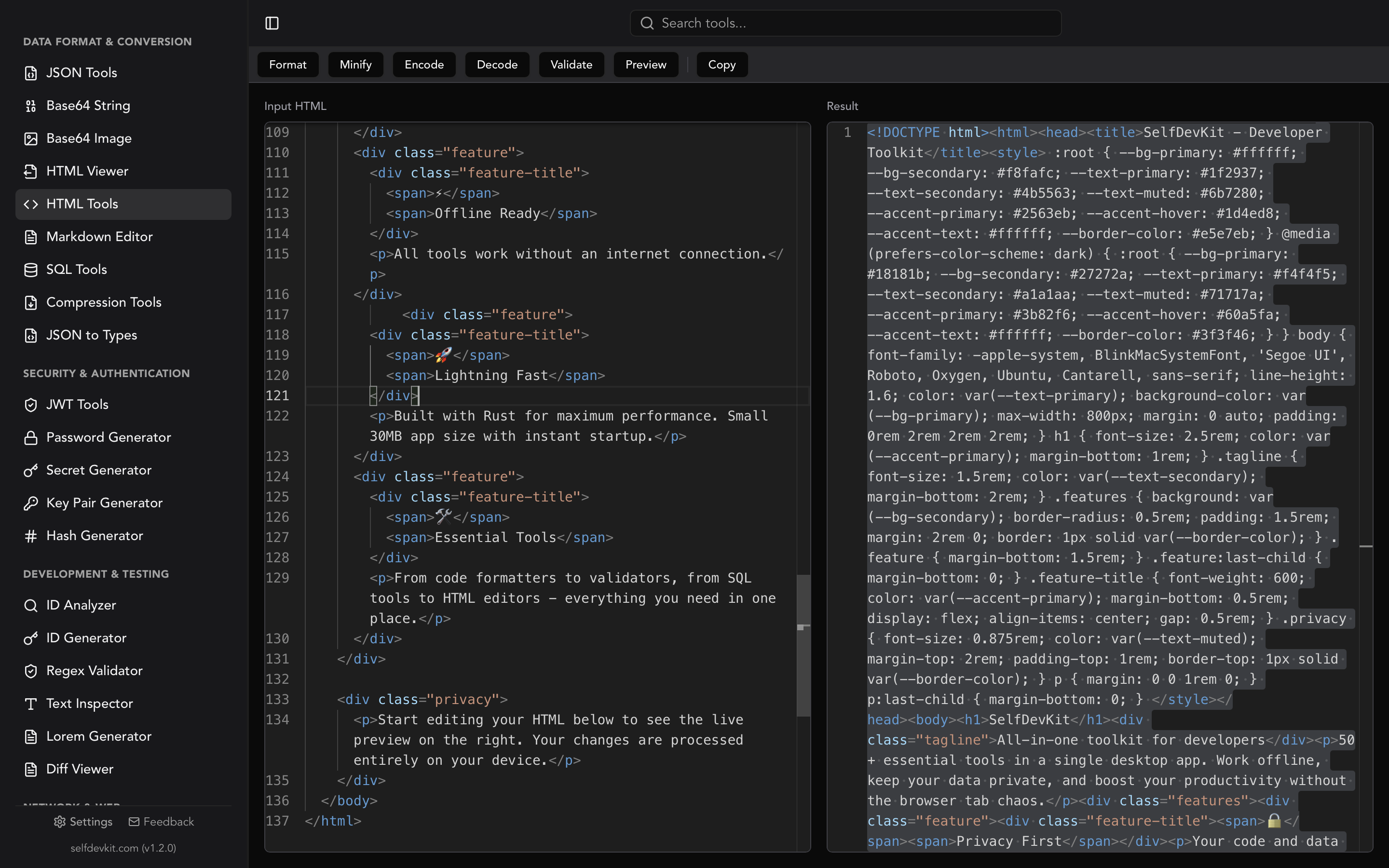
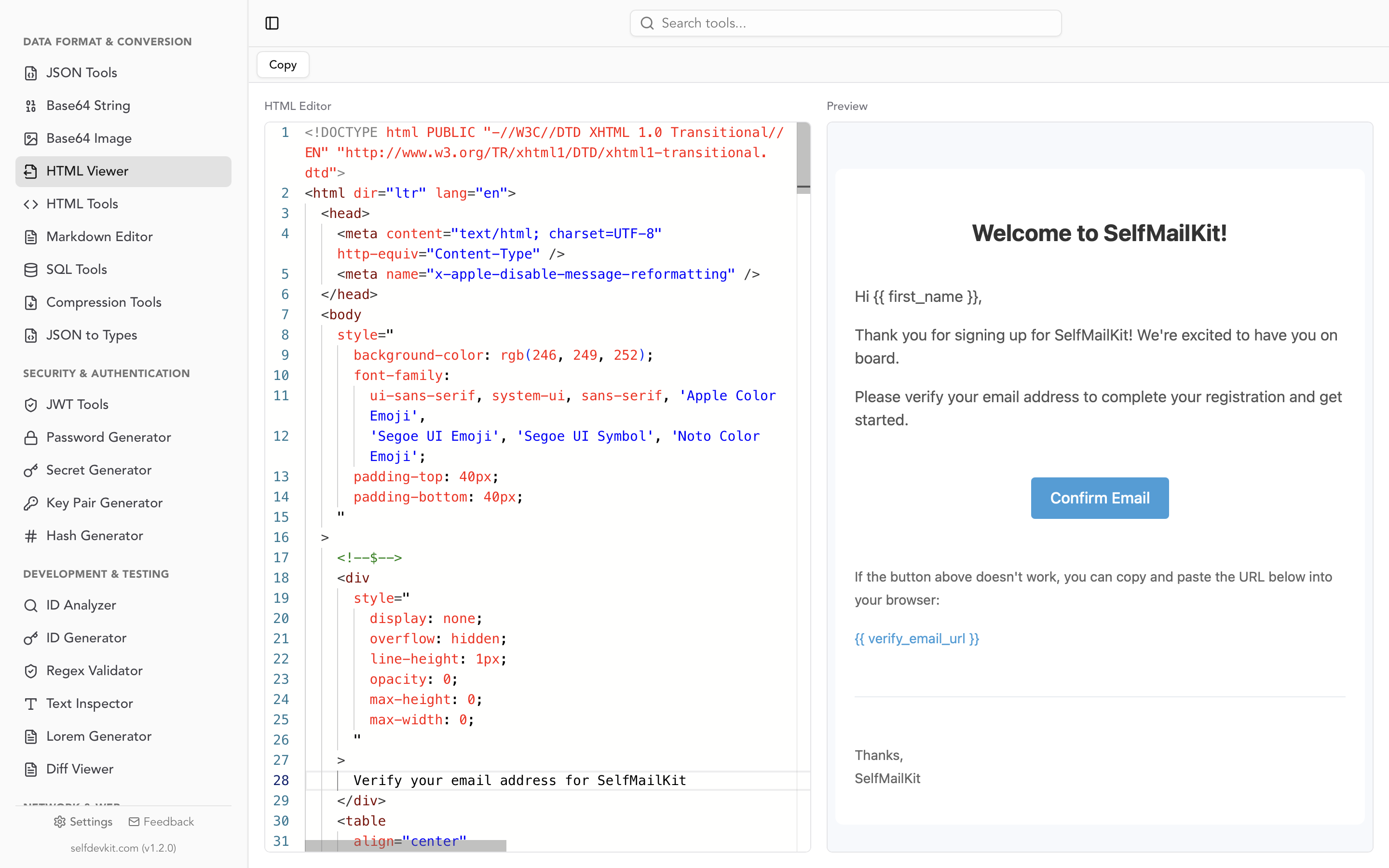
Before shipping any of these, preview the result. SelfDevKit's HTML viewer renders a fragment or a full document so you can confirm the structure survived the trip, and the HTML tools format or minify it depending on where it is headed. For a broader breakdown of markdown flavors and editor choice, see our guide to markdown editing workflows.
Converting markdown to HTML offline
Markdown files are rarely as harmless as they look. Internal runbooks, incident writeups, unreleased release notes, design docs, and API guides containing sample tokens all live as .md in private repositories. Pasting one into a web converter sends the whole document to a third-party server, where it may be logged, cached, or read by whatever analytics scripts the page loads.
That is a strange thing to do with a document your team marked confidential.
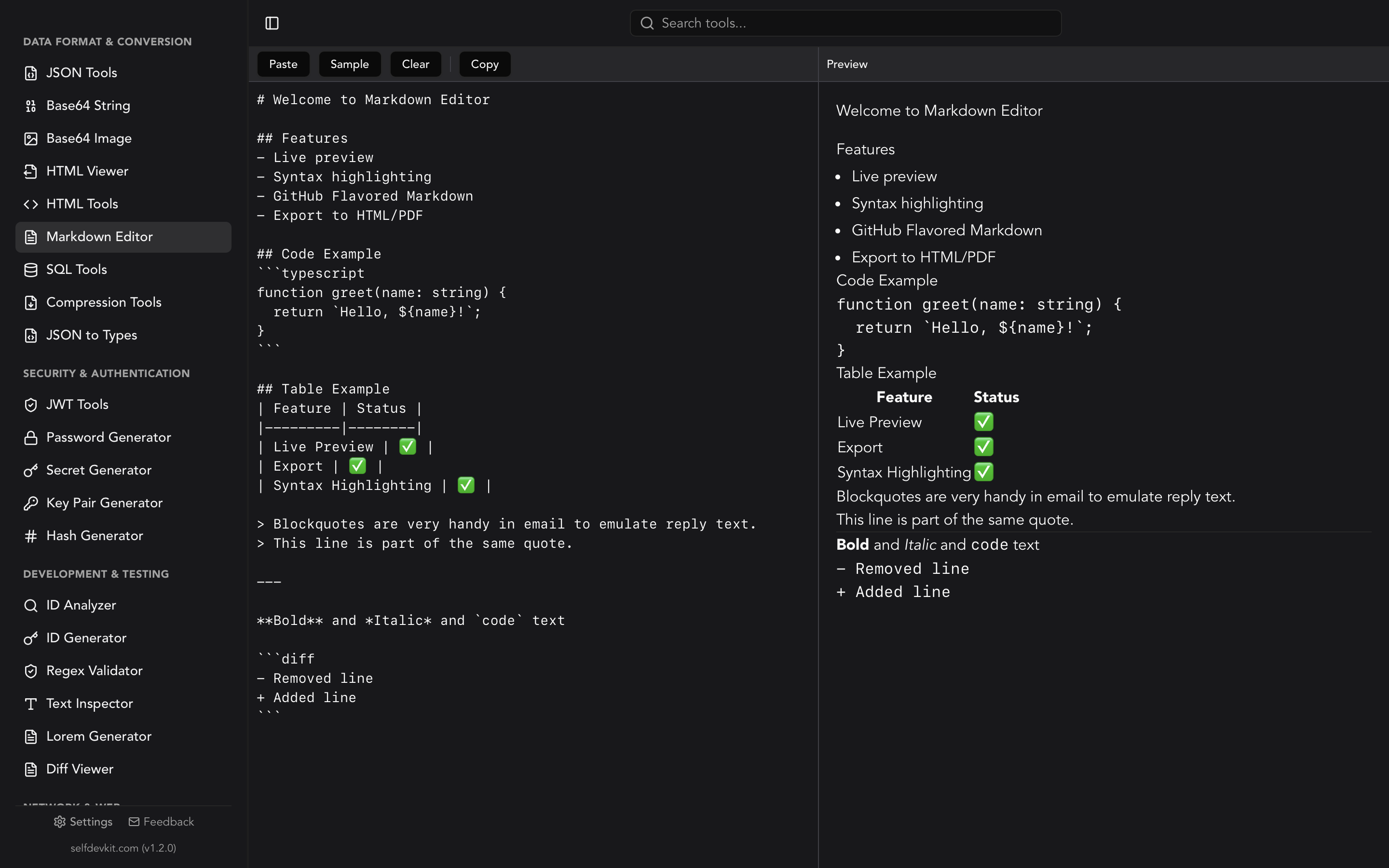
SelfDevKit's markdown editor converts markdown to HTML entirely on your machine. Paste or type markdown, watch the rendered HTML in a side-by-side preview, and export to HTML or PDF when it is ready. GitHub Flavored Markdown is supported, so tables, task lists, and strikethrough render the way they do on GitHub, and rendering is sanitized before display.
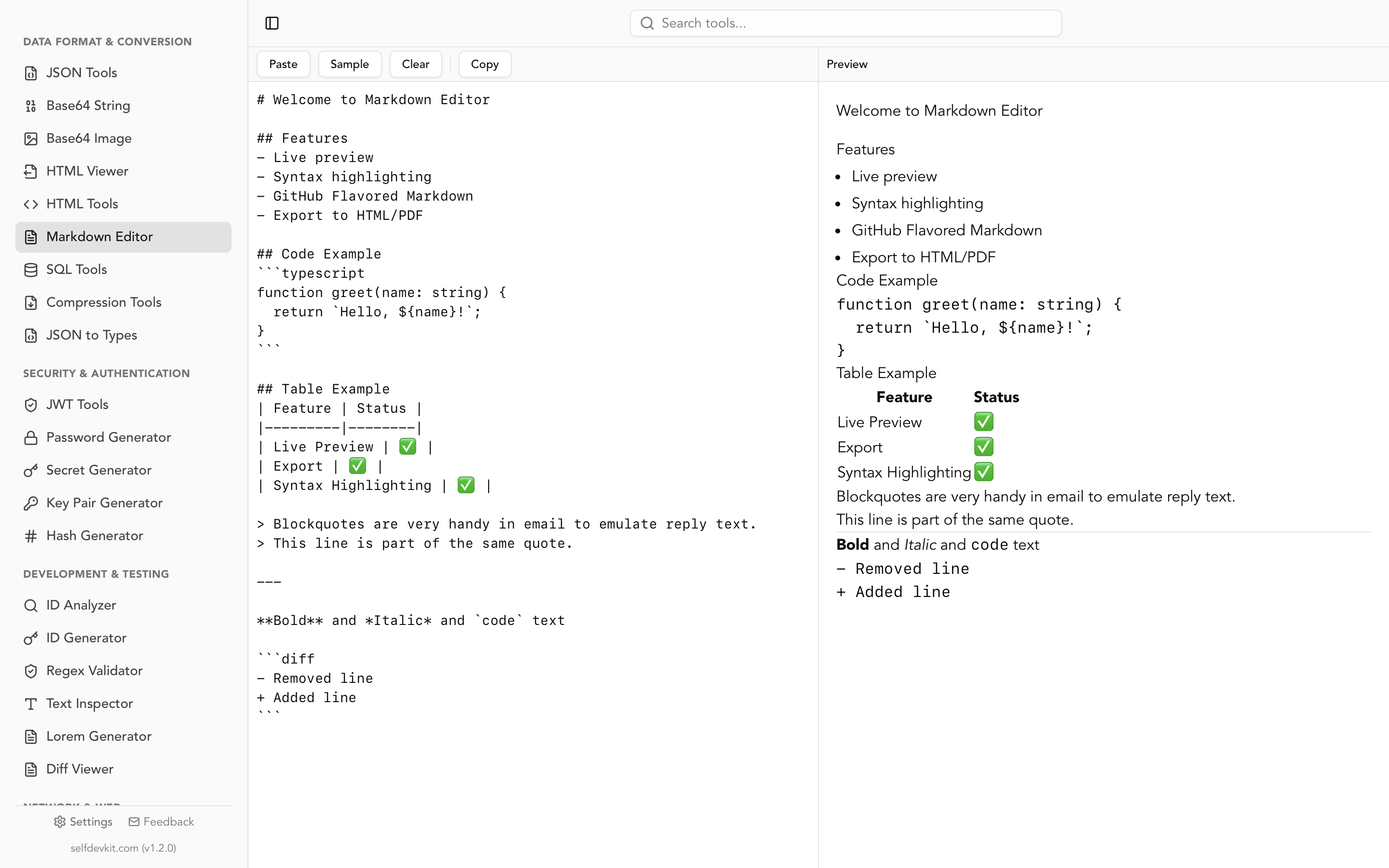
Because it runs as a native desktop app, conversion works on a plane, on an air-gapped build machine, and inside networks where pasting company documents into external sites violates policy. There is no upload step to audit and no retention policy to read. We wrote about the broader reasoning in why offline matters for developer tools.
The related tools sit in the same app rather than in four more browser tabs: format the converted markup with HTML tools, preview it in the HTML viewer, and encode any local images with the base64 image tools before you send the file.
Frequently asked questions
How do I convert a markdown file to HTML?
Run it through a converter and capture the HTML string. On the command line, pandoc -s README.md -o readme.html produces a complete page; in JavaScript, marked.parse(md, { gfm: true }) returns a fragment. For one-off conversions, a markdown editor with live preview is faster because you see the rendered result before you copy anything.
Why does my converted HTML have no styling?
Because markdown to HTML conversion produces semantic elements only, never CSS. You get <h1>, <p>, and <pre> with default browser styling. Wrap the fragment in a full document and link a stylesheet such as github-markdown-css, or convert with pandoc -s -c style.css to have the wrapper built for you.
Does markdown to HTML conversion keep my HTML tags?
Yes. Raw HTML in markdown passes through unchanged, which is why <details> blocks and custom <div> wrappers work. It also means untrusted markdown can carry <script> tags into your output, so sanitize anything you did not write yourself before inserting it into a page.
Is it safe to convert confidential markdown online?
Assume anything pasted into a web converter is transmitted, logged, and potentially retained. Internal docs, runbooks, and unpublished notes are exactly the material that should not travel to an unknown server. Converting offline in a desktop toolkit removes the question entirely.
Try it yourself
Markdown to HTML conversion is only one line of code, but the useful part is knowing what comes back: a fragment, semantically correct and completely unstyled, with your front matter possibly turned into a heading and your footnotes quietly broken. Knowing the mapping means you can debug the output in seconds instead of blaming the converter.
Download SelfDevKit to convert markdown to HTML, preview the result, and format the output without any of it leaving your machine. 50+ developer tools, one-time purchase, offline and private.