Converting MP3 to MP4 isn't a format conversion in the usual sense. An MP3 holds only audio. An MP4 is a container, and an MP4 that YouTube or Instagram will accept needs a video track. So every MP3 to MP4 converter does the same thing underneath: it puts your audio next to a picture, either a still image or a plain black frame, held for the length of the track.
That sounds trivial, and the basic command is short. It's also easy to get wrong. The obvious one-liner fails outright if the MP3 has embedded cover art. The usual -shortest flag can leave nearly a minute of silence at the end, and more on a machine with many cores. And one popular "optimization" makes the file bigger.
Everything below was tested in November 2026 with ffmpeg 9.0.2 (and 8.1.3 where noted) on a 2-core Linux VM. The source was a generated 3-minute, 192 kb/s test MP3 (4.32 MB) with ID3 tags. The image was a 1920×1080 JPEG photo. Sizes, durations, and error messages come from real runs.
The MP3 to MP4 command that works
To convert an MP3 to an MP4 with a still image, loop the image as a video input, encode it with H.264, and stop at the audio's exact length:
D=$(ffprobe -v error -show_entries format=duration -of csv=p=0 song.mp3)

ffmpeg -loop 1 -framerate 1 -i cover.jpg -i song.mp3 \
  -map 0:v -map 1:a \
  -vf "scale=trunc(iw/2)*2:trunc(ih/2)*2:out_range=tv,format=yuv420p" \
  -c:v libx264 -crf 23 \
  -c:a aac -b:a 256k \
  -t "$D" -movflags +faststart \
  song.mp4
On the test track this took 7.2 seconds and produced a 5.35 MB file. The image added about 19 kb/s; the rest is audio, since ffmpeg's built-in AAC encoder averages about 220 kb/s at the 256k setting. Each option has a job:
| Option | Why it's there |
|---|---|
-loop 1 -framerate 1 -i cover.jpg |
Repeats the image forever as a 1 fps video stream. One frame per second is plenty for a picture that never changes. |
-map 0:v -map 1:a |
Takes the picture from the image and the sound from the MP3, so ffmpeg never picks the MP3's embedded cover art by accident. |
scale=trunc(iw/2)*2:trunc(ih/2)*2 |
Rounds the image to even dimensions. libx264 stops with width not divisible by 2 (1279x719) otherwise. |
out_range=tv,format=yuv420p |
Produces standard 4:2:0 H.264 that every player decodes. Without a format step, a PNG input produced High 4:4:4 Predictive, a profile many players and phones can't play. -pix_fmt yuv420p alone isn't quite enough for JPEGs: ffprobe still reported full-range yuvj420p. |
-c:a aac -b:a 256k |
AAC is the audio codec upload platforms ask for. Use -c:a copy instead to keep the MP3 bits untouched (see below). |
-t "$D" |
Ends the output at the audio's real duration. This replaces -shortest, for reasons covered in the next-but-one section. |
-movflags +faststart |
Moves the index to the front so playback and upload processing can start before the whole file is read. |
If the platform needs a higher frame rate, change -framerate 1 to -framerate 30 and add -g 300. The size table below explains why -g matters.
Why ffmpeg -i song.mp3 song.mp4 isn't enough
The plain one-liner produces one of two bad results, depending on whether the MP3 has embedded cover art.
Without cover art, it writes an audio-only MP4: a 2.91 MB file holding one AAC stream at 128 kb/s and no video at all. Media players are fine with it. YouTube takes videos, not audio files with an .mp4 extension, and an audio-only MP4 has been reported to fail with a "could not be processed" error.
With cover art, the conversion fails. Many MP3s from stores, rippers, and podcast tools carry an embedded JPEG, and ffmpeg treats it as a video stream with the "attached picture" flag set. It re-encodes that picture to H.264, then the MP4 muxer refuses to write it:
[mp4 @ 0x55ec638f76c0] Could not find tag for codec h264 in stream #0, codec not currently supported in container
[out#0/mp4 @ 0x55ec6394d8c0] Could not write header (incorrect codec parameters ?): Invalid argument
Conversion failed!
ffmpeg 8.1.3 and 9.0.2 both fail this way, and both leave a 0-byte file behind. Clearing the flag with -disposition:v 0 gets past the error but leaves you with a single-frame video lasting 11 microseconds, which is not something you want to upload.
The cover art is still the right picture to use, though. Pull it out first, then feed it to the main command:
ffmpeg -i song.mp3 -an -c:v copy cover.jpg
-c:v copy writes the embedded JPEG out byte for byte (1000×1000 in the test file). If the art is a PNG, name the output cover.png. Square art inside a 16:9 player gets black bars on both sides, which is normal for music uploads. To fill the frame instead, resize or crop it first; the Image Operations tool does that offline.
The -shortest trap: silent seconds at the end
-shortest is meant to stop the output when the audio ends, but with a looped image and re-encoded audio it overshoots. The extra time is the last frame held over silence.
Here's what the same 180-second MP3 produced:
| Frame rate | x264 preset | Audio | Output length |
|---|---|---|---|
| 25 fps | fast | AAC | 181.64 s (181.88 s on ffmpeg 8.1.3) |
| 25 fps | fast | copied | 180.00 s |
| 1 fps | veryfast | AAC | about 200 s |
| 1 fps | medium | AAC | about 230 s |
| 1 fps | medium | copied | 177 s video, 180 s audio |
| any | any | any, with -t 180 |
180.00 s |
The overshoot tracks the encoder's frame buffer. x264 holds a few dozen frames for lookahead and B-frame decisions before writing anything (its log shows rc_lookahead=40 at the default medium preset), and -shortest only acts on frames that have come out the other side. At 25 fps those frames add up to under two seconds. At 1 fps they add up to about 20 seconds with preset veryfast and about 50 seconds with medium, which looks further ahead. The exact figure moved by a second between runs, and lowering -shortest_buf_duration to 1 second barely changed it.
Core count matters too. x264 adds roughly one frame of delay per encoding thread and picks the thread count from your CPU, 3 threads on the 2-core VM. On a 15-core Mac the same two 1 fps runs ended at 218 s and 248 s, and forcing -threads 3 brought them back to 200 s and 230 s.
The fix is to state the length yourself. Read the duration with ffprobe and pass it to -t, as in the main command. That gave exactly 180.00 seconds for audio and video in every combination tested.
What the picture costs in file size
A still picture should cost almost nothing, because every frame after the first is identical. Whether it does depends on how often the encoder writes a full keyframe. Every row below uses the same 3-minute MP3, copied without re-encoding (4.32 MB on its own), and libx264 at CRF 23:
| Video track | Video bitrate | File size | Encode time |
|---|---|---|---|
| Black 640×480, 25 fps, preset fast | 4.4 kb/s | 4.59 MB | 7.0 s |
| Black 1920×1080, 25 fps, preset fast | 14 kb/s | 4.81 MB | 42.5 s |
| Photo 1080p, 1 fps | 20 kb/s | 4.79 MB | 4.2 s |
Photo 1080p, 1 fps, -tune stillimage |
51 kb/s | 5.49 MB | 6.1 s |
Photo 1080p, 25 fps, -g 1500 |
52 kb/s | 5.66 MB | 67.4 s |
| Photo 1080p, 25 fps, preset veryfast | 146 kb/s | 7.77 MB | 34.8 s |
| Photo 1080p, 25 fps (defaults) | 187 kb/s | 8.70 MB | 65.4 s |
Photo 1080p, 25 fps, -tune stillimage |
218 kb/s | 9.40 MB | 83.7 s |
Photo 1080p, 25 fps, -g 12 |
about 2,700 kb/s | 63 to 66 MB | 111.2 s |
Three things stand out.
Keyframes are the whole cost. Each keyframe re-encodes the full photo, roughly 170 KB at 1080p. At x264's default interval of 250 frames, a 25 fps video gets a keyframe every 10 seconds, so the "static" picture costs 187 kb/s, almost as much as the music. Setting -g 1500 (one keyframe a minute) cut the video bitrate to 52 kb/s. Dropping to 1 fps does the same thing and also encodes 25 times fewer frames.
-tune stillimage made things worse here. The name suggests it fits this job, but it tunes x264's psychovisual settings for detailed still content, not for skipping identical frames. In both tests it produced a bigger file and a slower encode.
Following the YouTube GOP spec literally is expensive. YouTube's recommended upload encoding settings say "Closed GOP. GOP of half the frame rate." For a still image at 25 fps, -g 12 means a fresh keyframe of the same photo about twice a second, and the file grew to over 60 MB, more than ten times the 1 fps version. That advice is written for camera footage. For a single picture, longer keyframe intervals are the sensible choice. The frames between keyframes are nearly empty, so a player can seek through them almost instantly.
x264 output shifts a few percent with thread count, so read these as proportions, not exact sizes for your machine.
Pick frame rate and audio by destination
The right MP3 to MP4 settings depend on where the file is going, because platforms publish different requirements:
| Destination | What the spec says | Settings that fit |
|---|---|---|
| YouTube | MP4, H.264 High Profile, 4:2:0, AAC-LC (or Opus) at 48 kHz, 384 kbps recommended for stereo. Frame rates: "other frame rates are also acceptable." | The main command. Add -ar 48000 -b:a 384k to match the audio recommendation exactly. |
| Instagram Reels (Graph API) | Frame rate 23-60 FPS, AAC audio at 48 kHz maximum, 3 seconds to 15 minutes, 9:16 recommended. | -framerate 30 -g 300, -c:a aac -ar 48000, and a 1080×1920 image. A 1 fps file is out of spec. |
A <video> tag on your own site |
Whatever your visitors' browsers decode. | -c:a copy usually works; MDN lists MP3 as an MP4 audio codec. Test in the browsers you support. |
| Archive or sharing a file | None. | -c:a copy so the audio stays bit-identical. |
A 30 fps, 48 kHz, AAC 192k version for Instagram (preset veryfast) came out at 7.72 MB in 42 seconds.
YouTube's page also asks for "No Edit Lists (or the video might not get processed correctly)", and Instagram's Reels spec says "no edit lists" too. The main command writes one into both tracks, to hide x264's B-frame delay and the AAC encoder's priming samples. -use_editlist 0 removes them, but on its own it exposes that delay: the picture started two frames late and the file ran two frames long, which is 0.08 s at 25 fps and a full 2 seconds at 1 fps. Add -bf 0 as well, since a still image gains nothing from B-frames. With both flags the video started at zero and the file ran 0.023 s long, just the AAC priming, which is harmless.
Copy the MP3 audio or re-encode it to AAC?
Copying the MP3 stream keeps the audio bit-for-bit identical; re-encoding to AAC adds a second round of lossy compression. In the test, audio decoded from the -c:a copy MP4 had the same MD5 hash as audio decoded from the original MP3. MP3 is a legal MP4 audio codec too: MDN's container guide lists it alongside AAC, FLAC, and Opus.
So copy when the file stays with you or plays in a browser, and encode to AAC at a generous bitrate when a platform's spec asks for it. Platforms transcode uploads for playback anyway, so a lossy step happens either way. Neither choice adds quality back; an MP3 inside an MP4 sounds exactly as good as the MP3. How much a second lossy pass costs is measured in the M4A to MP3 guide.
Variations: waveforms, batches, and checking the result
An animated waveform. Audiogram-style videos draw the audio on top of the background with ffmpeg's showwaves filter:
ffmpeg -i song.mp3 -loop 1 -framerate 25 -i cover.jpg \
  -filter_complex "[0:a]showwaves=s=1920x300:mode=cline:scale=sqrt:rate=25:colors=white[w];[1:v][w]overlay=0:H-h-60:shortest=1,scale=out_range=tv,format=yuv420p[v]" \
  -map "[v]" -map 0:a -c:v libx264 -crf 23 -c:a aac -b:a 192k \
  -t "$D" -movflags +faststart waveform.mp4
The sizes assume a 1920×1080 background; change s= to match yours. Every frame is now different, so this is a real video encode: 30 seconds took 13.8 seconds on the test VM and ran at about 233 kb/s. scale=sqrt makes quiet passages visible; drop it for loud, compressed masters.
A folder of MP3s. Loop over the files and reuse one image:
for f in *.mp3; do
  out="${f%.mp3}.mp4"
  [ -e "$out" ] && continue
  d=$(ffprobe -v error -show_entries format=duration -of csv=p=0 "$f")
  ffmpeg -nostdin -loop 1 -framerate 1 -i cover.jpg -i "$f" \
    -map 0:v -map 1:a -vf "scale=trunc(iw/2)*2:trunc(ih/2)*2:out_range=tv,format=yuv420p" -c:v libx264 -crf 23 \
    -c:a aac -b:a 256k -t "$d" -movflags +faststart "$out"
done
-nostdin stops ffmpeg from swallowing keyboard input inside a loop, and the existence check makes reruns safe.
Checking what you made. Before uploading, confirm there's a video stream, the lengths match, and the pixel format is yuv420p:
ffprobe -v error -show_entries stream=codec_type,codec_name,profile,pix_fmt,duration \
  -of json song.mp4
The JSON output is easy to scan in the JSON Tools viewer. Comparing two attempts' JSON in the Diff Viewer shows exactly which settings changed.
Converting MP3 to MP4 in SelfDevKit
SelfDevKit's Video Converter turns an MP3 into an MP4 with a black screen, on your own machine. Open the tool, select the MP3, and the mode switches to "Audio → Video" with MP4 (with black screen) as the output. Click Convert. You can preview the audio before converting, and the finished file appears in the Converted Videos list, where you can open it or reveal it in your file manager. It also accepts WAV, FLAC, M4A, AAC, and OGG.
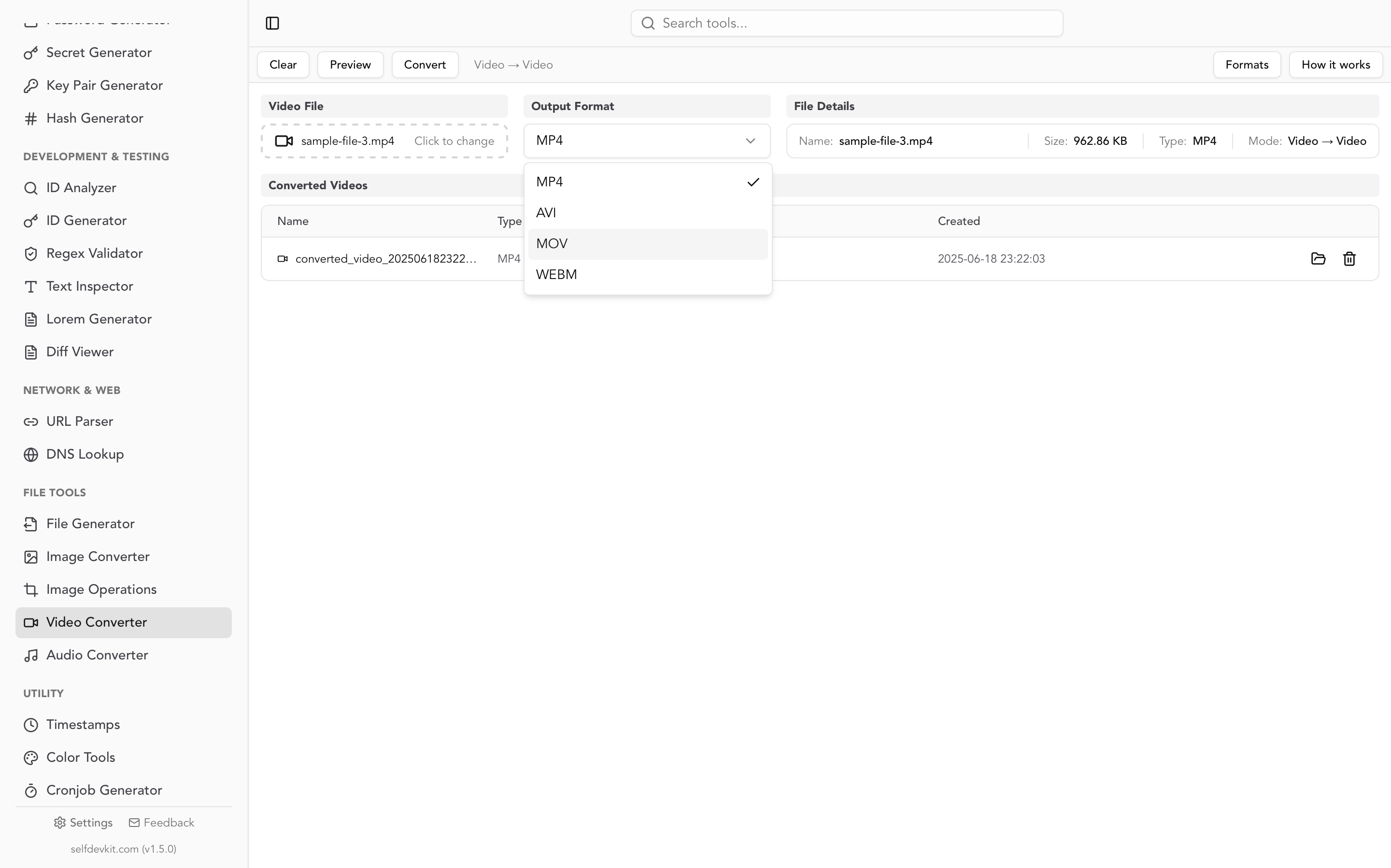
Under the hood it runs FFmpeg with a 640×480 black frame at 25 fps (libx264, preset fast, CRF 23), the same video settings as the first row of the size table, plus AAC audio. The 3-minute test MP3 (4.55 MB with its cover art) became a 4.97 MB MP4. What you should know:
- The picture is always black. There's no image option. For a cover-art or photo video, use the ffmpeg commands above. For many uploads a black frame is all you need, and the aspect ratio stops mattering because the bars are black too.
- Tags carry over, cover art doesn't. In the test, title, artist, album, date, and track number were all present in the MP4. The embedded cover was ignored, so the cover-art failure above doesn't affect it.
- Audio is re-encoded to AAC. The settings ask for 320k plus a VBR quality level, and the VBR level wins; the test track came out at about 210 kb/s. That's a reasonable choice for uploads, but not a bit-exact copy.
- Expect a short black tail. It uses
-shortest, so the test file ran 1.6 seconds past the audio on the 2-core VM and 2 seconds on a 15-core Mac, as in the trap table. - FFmpeg downloads on first use. After that, conversions run offline and the audio never leaves your computer. The tool reads the whole file into memory first, so it suits songs and episodes rather than multi-hour recordings.
That last point matters more than it sounds. An online MP3 to MP4 converter uploads your audio to someone else's server, where it is usually stored for a while after conversion. That's fine for a public song. It's a different decision for an unreleased mix, an internal all-hands recording, or a client interview. The broader argument is in why offline matters.
Frequently asked questions
Does converting MP3 to MP4 improve audio quality?
No. The MP4 can only carry the audio the MP3 already has. Copying the stream keeps it identical, and re-encoding to AAC can only lose a little more.
How do I convert MP4 back to MP3?
Extract and encode the audio track with ffmpeg -i video.mp4 -vn -c:a libmp3lame -q:a 2 audio.mp3. -vn drops the video. If the MP4 holds copied MP3 audio, -vn -c:a copy audio.mp3 gets the original bits back with no loss.
What to do next
Pick the destination first. For YouTube, use the main command and keep the frame rate low. For Reels, go to 30 fps with a long keyframe interval and AAC at 48 kHz. Copy the audio for anything that stays on your own disk or website. Whatever you choose, set the length with -t, not -shortest, and run ffprobe once before you upload.
When a black screen is all the upload needs, download SelfDevKit and convert the MP3 to MP4 offline, alongside the MOV to MP4, MKV to MP4, AVI to MP4, and WebM to MP4 conversions it handles too.