
What is a JSON formatter online?
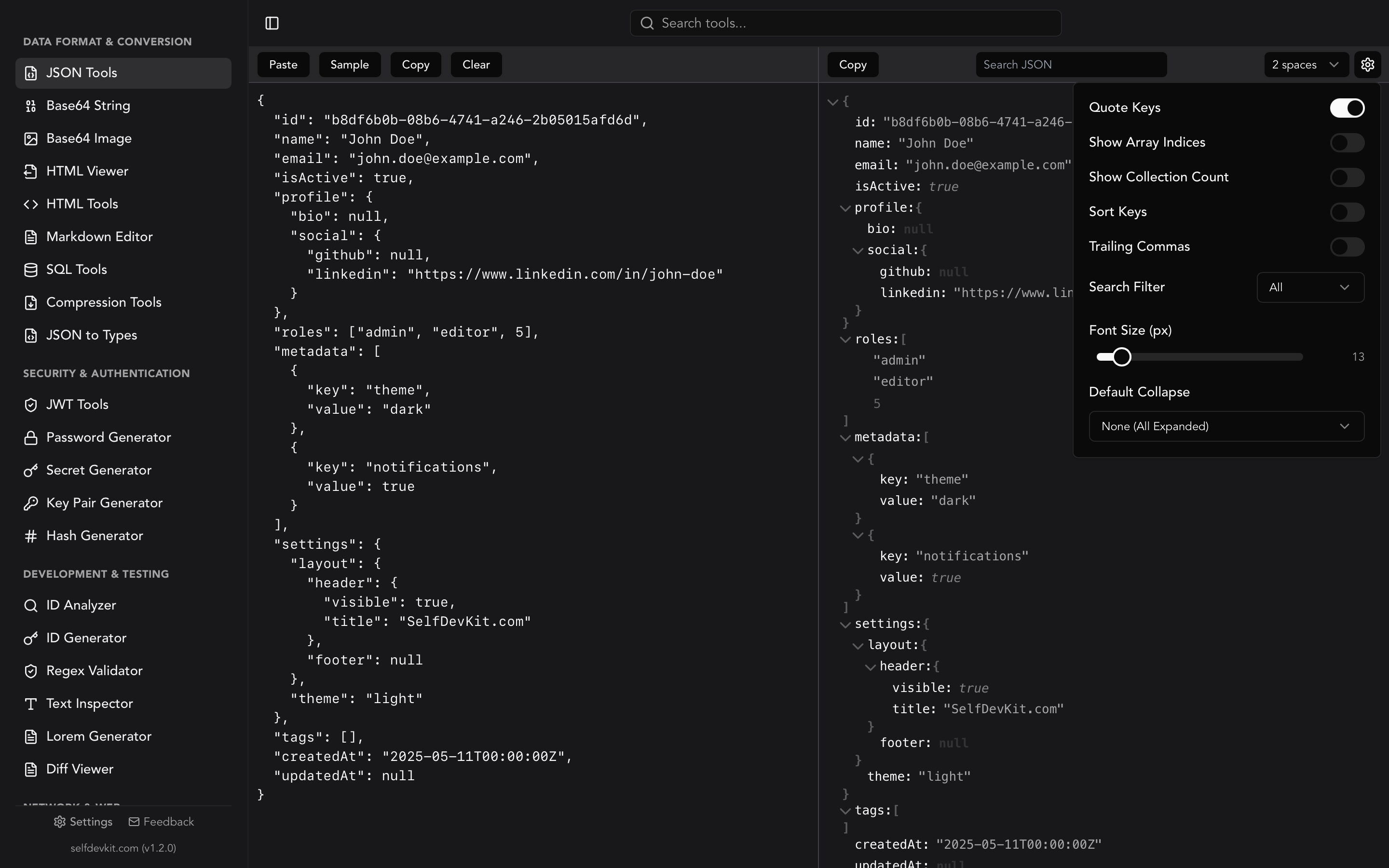
A JSON formatter online is a web-based or desktop tool that takes raw, minified, or messy JSON and reformats it with proper indentation, line breaks, and syntax highlighting. It makes JSON human-readable so you can inspect, debug, and understand data structures without manually parsing the text.
Every developer has been there. An API returns a wall of minified JSON. A log file dumps thousands of characters on a single line. A config file has a syntax error somewhere, and you have no idea where. You need a JSON formatter online, and you need it fast.
But not all formatters are created equal. Some expose your data to third-party servers. Others choke on large payloads. A few lack validation entirely, so you format invalid JSON without ever knowing it was broken.
This guide covers how JSON formatting actually works, how to do it in code when you need programmatic control, what to look for in an online formatter, and why the tool you choose matters more than you might expect.
How a JSON formatter online works
A JSON formatter online parses your input string into an abstract syntax tree, then serializes it back with consistent whitespace rules. The process has three steps: lexing (tokenizing the raw text), parsing (building a tree of objects, arrays, and values), and pretty-printing (outputting the tree with indentation).
Most formatters let you configure the output:
- Indentation: 2 spaces, 4 spaces, or tabs
- Key sorting: alphabetical ordering for consistent output
- Collapse depth: how many levels to expand in tree view
Here is what happens under the hood when you paste minified JSON:
Input (minified):
{"user":{"id":"usr_123","email":"jane@example.com","roles":["admin","editor"],"settings":{"theme":"dark","notifications":true}}}
Output (formatted with 2-space indent):
{
  "user": {
    "id": "usr_123",
    "email": "jane@example.com",
    "roles": [
      "admin",
      "editor"
    ],
    "settings": {
      "theme": "dark",
      "notifications": true
    }
  }
}
The data is identical. Only whitespace changes. That distinction matters because formatting is a lossless operation; the semantic content stays exactly the same. This is defined by the JSON specification (RFC 8259), which considers insignificant whitespace between structural characters as purely cosmetic.
Format JSON in code: JavaScript, Python, and CLI
Online tools are convenient for quick one-off formatting, but developers often need to format JSON programmatically. Here is how to do it in the languages and tools you already use.
JavaScript / Node.js
The built-in JSON.stringify method handles formatting with its third parameter:
const data = {"user":{"id":"usr_123","email":"jane@example.com"}};

// Pretty print with 2-space indent
const formatted = JSON.stringify(data, null, 2);
console.log(formatted);

// Minify (no whitespace)
const minified = JSON.stringify(data);
The second parameter is a replacer function. Pass null to include all properties. The third parameter controls indentation.
Python
Python's json module provides similar functionality:
import json

raw = '{"user":{"id":"usr_123","email":"jane@example.com"}}'
data = json.loads(raw)

# Pretty print with sorted keys
formatted = json.dumps(data, indent=2, sort_keys=True)
print(formatted)
The sort_keys=True option is particularly useful for diffing JSON files, since it produces deterministic output regardless of insertion order. Check our guide on comparing JSON documents for more on that workflow.
Command line with jq
jq is the standard command-line JSON processor:
# Format a JSON file
cat response.json | jq '.'

# Format with 4-space indent
cat response.json | jq --indent 4 '.'

# Format and sort keys
cat response.json | jq -S '.'

# Minify
cat response.json | jq -c '.'

# Format output from curl
curl -s https://api.example.com/users | jq '.'
That last pattern is one of the most common in daily development. Pipe an API response directly through jq and you get formatted, syntax-highlighted output in your terminal. No browser tab required.
When to use code vs. a GUI tool
Code-based formatting works best for automation: CI pipelines, pre-commit hooks, log processing scripts. A visual formatter works best for exploration: debugging an unfamiliar API response, inspecting a large payload, or searching for a specific nested value.
Most developers use both. The trick is knowing when each one fits.
What makes a good JSON formatter online
Not every JSON formatter deserves your data. Here is what separates a solid tool from a mediocre one.
Validation on input
A formatter that silently accepts invalid JSON is worse than useless. It gives you false confidence. The best formatters validate as they format, catching errors like:
- Trailing commas (legal in JavaScript, illegal in JSON)
- Single-quoted strings (JSON requires double quotes)
- Unquoted property names
- Comments (JSON does not support them per RFC 8259)
- Missing closing brackets or braces
If you want a deep dive on JSON syntax errors and how to fix them, see the JSON validator guide. You can also generate type definitions from formatted JSON using the JSON to Types tool once your data is clean.
Tree view for navigation
Raw formatted text works for small payloads. For anything over a few hundred lines, you need a tree view that lets you collapse sections, jump to specific keys, and see the structure at a glance.
▼ user
  ├─ id: "usr_123"
  ├─ email: "jane@example.com"
  ▼ roles (2 items)
  │  ├─ [0]: "admin"
  │  └─ [1]: "editor"
  ▼ settings
     ├─ theme: "dark"
     └─ notifications: true
A good tree view also shows data types with color coding and lets you copy individual nodes. For a deeper look at navigating complex JSON structures, see our JSON viewer guide.
Performance with large payloads
Try pasting a 5 MB JSON file into most online formatters. Many will freeze, crash the tab, or timeout. A well-built formatter handles large files without breaking a sweat.
This is where desktop tools have an inherent advantage. Browser-based formatters are limited by the browser's memory model and single-threaded JavaScript execution. A native app built in Rust or C++ can parse and render the same file orders of magnitude faster.
Keyboard shortcuts and copy support
Speed matters. A formatter that requires you to click a button, wait for output, then manually select and copy the result adds friction to a workflow you repeat dozens of times per day. Look for:
- Auto-format on paste
- One-click or keyboard-shortcut copy
- Configurable indent settings that persist between sessions
The privacy problem with online JSON formatters
Every time you paste JSON into a web-based formatter, you are trusting that service with your data. Most developers do this without a second thought.
Think about what your JSON typically contains:
| Data type | Example | Risk |
|---|---|---|
| API responses | User emails, IDs, addresses | PII exposure |
| JWT tokens | Authentication claims, roles | Session hijacking |
| Config files | API keys, database URLs | Credential leak |
| Database exports | Customer records, transactions | Compliance violation |
| Debug logs | Internal service names, error details | Infrastructure mapping |
When you paste this into an online tool, several things can happen:
- Server-side logging. Many tools process JSON on the server. Your data hits their logs, which may be retained indefinitely.
- Third-party scripts. Analytics trackers, ad networks, and error-monitoring scripts on the page can access form inputs.
- Browser extensions. If you have extensions that read page content, they can capture your pasted data too.
- Network interception. If the site uses HTTP (not HTTPS), or if you are on a compromised network, the data is visible in transit.
Some online tools explicitly process everything client-side in the browser. That is better, but you still trust their JavaScript bundle, any third-party scripts on the page, and whatever browser extensions you have installed.
Compliance is not optional
For teams working under GDPR, HIPAA, SOC 2, or PCI DSS, using an arbitrary online tool to process production data can be a compliance violation. GDPR in particular requires you to document where personal data is processed and ensure appropriate safeguards. Pasting EU customer data into a US-based web tool creates a data transfer that may not have a legal basis.
For more on why offline-first tools solve this problem, see our guide on why offline matters for developers.
Online formatter vs. desktop app vs. browser extension
There are three main ways to format JSON outside of your code editor. Each approach has trade-offs.
| Feature | Online tool | Browser extension | Desktop app |
|---|---|---|---|
| Setup required | None | Install extension | Install app |
| Works offline | No | Partial | Yes |
| Large file handling | Poor (5-10 MB limit) | Moderate | Excellent |
| Privacy | Data may leave device | Client-side, but extension has page access | Fully local |
| Speed | Network-dependent | Fast | Fastest |
| Feature depth | Varies widely | Basic formatting | Full toolset |
| Persistence | None (loses state on refresh) | Limited | Full settings persistence |
Online tools win on convenience. No install, no setup. Open a URL and paste. But they lose on privacy, performance, and reliability. If the service goes down or changes, your workflow breaks.
Browser extensions like JSON Formatter for Chrome are great for automatically formatting JSON responses in browser tabs. But they only work inside the browser, they cannot format arbitrary JSON you have in a file or clipboard, and they add another extension with access to your browsing data.
Desktop apps require an install but give you the best combination of speed, privacy, and features. Everything runs locally. No network dependency. No data leakage. And they handle large files that would crash a browser tab.
SelfDevKit's JSON Tools fall into this third category. The formatter, validator, tree view, and minifier all run offline in a native Rust-powered app. Your data never leaves your machine.
Real debugging workflows with formatted JSON
Formatting is not just about making JSON pretty. It is a debugging tool. Here are three workflows where a good formatter saves real time.
Workflow 1: Finding the missing field
You are integrating a payment API. Your code expects a transaction.metadata.refund_id field, but it is coming back undefined. You grab the raw API response and paste it into a formatter with tree view.
Immediately you see the problem: the field exists, but it is nested under transaction.details.metadata, not transaction.metadata. The API documentation was wrong (or you misread it). Without formatting, you would be staring at a 2,000-character string trying to trace the nesting by counting braces.
Workflow 2: Comparing before and after
A database migration changed some JSON structures. You need to verify the output matches expectations. Format both the old and new JSON with sorted keys, then run them through a diff checker to see exactly what changed.
Sorting keys before diffing is critical. Without it, two semantically identical JSON objects with different key orders will show false differences everywhere. SelfDevKit's Diff Viewer can handle this comparison side by side.
Workflow 3: Validating config files
Your application fails to start after a config change. The error message says "unexpected token at position 847." Paste the config into a formatter with validation. It immediately highlights line 23, character 12: a trailing comma after the last item in an array.
{
  "features": [
    "dark_mode",
    "notifications",
    "beta_access",
  ]
}
That trailing comma is valid JavaScript but invalid JSON. A formatter with validation catches it instantly. Without one, you are counting characters manually.
JSON formatting tips most guides skip
Here are a few practical tips that are easy to miss.
Escaped JSON strings
Sometimes JSON arrives double-encoded, as a string within a string. This happens frequently with message queues, logging systems, and some API gateways.
"{\"user\":{\"id\":\"usr_123\",\"email\":\"jane@example.com\"}}"
A regular formatter will just show you this as a single string value. You need to unescape it first, then format the result. SelfDevKit's JSON tools handle both escaped and unescaped JSON. For more details, see our unescape JSON guide.
Sorting keys for consistency
The JSON specification (RFC 8259) explicitly states that objects are unordered collections of name/value pairs. Two objects with the same keys in different orders are semantically equivalent. But when you are comparing JSON visually or in version control, key order matters a lot.
Always sort keys when:
- Committing JSON to version control (reduces noisy diffs)
- Comparing two JSON payloads for semantic equality
- Generating deterministic output for testing
Indentation is a team decision
Two spaces? Four spaces? Tabs? The answer depends on your team and project conventions. What matters is consistency. Set your formatter's default once and forget about it. If your team uses .editorconfig or Prettier, match those settings.
| Convention | Common in | File size impact |
|---|---|---|
| 2 spaces | JavaScript, TypeScript, JSON configs | Smallest |
| 4 spaces | Python, Java, enterprise projects | ~20% larger than 2-space |
| Tabs | Go, accessibility-focused teams | Smallest (1 char per level) |
For production JSON that gets transmitted over the wire, indentation does not matter. Minify it to save bandwidth.
Frequently asked questions
Is it safe to use a JSON formatter online?
It depends on the tool. Browser-based formatters that process JSON entirely in JavaScript on your device are safer than server-side tools. But even client-side tools may have third-party scripts that can access your data. For sensitive data like API keys, tokens, or customer records, an offline formatter like SelfDevKit eliminates the risk entirely.
What is the difference between a JSON formatter and a JSON validator?
A JSON formatter restructures valid JSON with proper indentation and line breaks. A JSON validator checks whether a string is syntactically valid JSON according to RFC 8259. Good tools do both: they validate first, then format. If the input is invalid, they show you where the error is instead of silently failing.
Can I format large JSON files online?
Most online formatters struggle with files larger than 5-10 MB because they run in a browser's single-threaded JavaScript engine. For large files, use a CLI tool like jq or a native desktop app. SelfDevKit handles large JSON files without the browser memory limitations.
How do I format JSON in the command line?
Use jq, the standard command-line JSON processor. Run cat file.json | jq '.' to format a file, or pipe output from curl directly: curl -s https://api.example.com/data | jq '.'. Add the -S flag to sort keys or --indent 4 for custom indentation.
Try it yourself
SelfDevKit gives you a JSON formatter online experience that runs entirely on your desktop. Format, validate, minify, and explore JSON with tree view, syntax highlighting, and search. All offline. All private.
Download SelfDevKit to get 50+ developer tools, including the JSON formatter, in a single app.