
What is an RGB color picker?
An RGB color picker is a tool that lets you select a color by adjusting red, green, and blue channel values (each 0 to 255), then outputs the corresponding color code in RGB, HEX, HSL, and other formats. Developers use an RGB color picker to find exact color values for CSS, design systems, and UI code.
Table of contents
- How the RGB color model works
- Modern CSS rgb() syntax
- Converting RGB to hex, HSL, and back
- Working with RGB in JavaScript and Python
- When to use RGB vs hex vs HSL
- RGB color picker workflows for developers
- Accessibility and contrast with RGB values
- Why offline color tools matter
- Frequently asked questions
How the RGB color model works
The RGB color model represents colors by mixing three channels of light: red, green, and blue. Each channel takes an integer value from 0 (no light) to 255 (full intensity). Combining all three at full intensity produces white. Setting all three to zero produces black.
This is an additive color model. Unlike CMYK (used in print), which works by subtracting light from a white surface, RGB adds light together on a screen. Every pixel on your monitor, phone, or TV is a cluster of tiny red, green, and blue subpixels firing at different intensities.
The math is simple. Each channel gets 8 bits, which gives 256 possible values per channel. The total color space is 256 x 256 x 256 = 16,777,216 colors. That is the "true color" range that 24-bit displays support.
Some reference points:
| RGB value | Color | Why |
|---|---|---|
rgb(255, 0, 0) |
Red | Red channel maxed, others zero |
rgb(0, 255, 0) |
Green | Green channel maxed, others zero |
rgb(0, 0, 255) |
Blue | Blue channel maxed, others zero |
rgb(255, 255, 0) |
Yellow | Red + green at full intensity |
rgb(0, 255, 255) |
Cyan | Green + blue at full intensity |
rgb(255, 0, 255) |
Magenta | Red + blue at full intensity |
rgb(128, 128, 128) |
Gray | All channels at half intensity |
Notice the pattern. Equal values across all three channels always produce a shade of gray. The closer those equal values are to 255, the lighter the gray. The closer to 0, the darker.
Reading RGB values at a glance
Once you get used to the model, you can approximate a color without rendering it. High red with low green and blue? Some shade of red or orange. High blue with moderate green and low red? A teal or sky blue. This intuition is valuable when you are scanning CSS files or debugging theme configurations and do not have an RGB color picker open.
Modern CSS rgb() syntax
CSS has supported rgb() since the earliest days, but the syntax has evolved significantly. The CSS Color Module Level 4 specification introduced a cleaner, more flexible format that many developers still have not adopted.
Legacy syntax (comma-separated)
This is the format you probably learned first:
.card {
  background-color: rgb(59, 130, 246);
  color: rgba(255, 255, 255, 0.9);
}
It still works everywhere. But there is a better way now.
Modern syntax (space-separated)
The modern CSS syntax drops commas and uses a forward slash to separate the alpha channel:
.card {
  background-color: rgb(59 130 246);
  color: rgb(255 255 255 / 0.9);
}
This matches how other modern CSS color functions work (hsl(), oklch(), lab()), making your stylesheets more consistent. All current browsers support this syntax.
One important detail: rgba() is now just an alias for rgb(). They are identical. You can write rgb(59 130 246 / 0.5) instead of rgba(59, 130, 246, 0.5). There is no reason to use rgba() in new code.
color-mix(): blending colors in CSS
The color-mix() function lets you blend two colors directly in CSS without any JavaScript. It reached baseline support across all major browsers (Chrome 111+, Firefox 113+, Safari 16.2+) and is production-ready.
:root {
  --brand: rgb(59 130 246);
}

.button:hover {
  /* 70% brand color, 30% white */
  background-color: color-mix(in srgb, var(--brand) 70%, white);
}

.card-muted {
  /* 50/50 blend with transparent */
  background-color: color-mix(in srgb, var(--brand), transparent);
}
You can also blend in perceptually uniform color spaces like OKLCH for more natural-looking results:
.gradient-midpoint {
  background-color: color-mix(in oklch, rgb(59 130 246), rgb(246 59 130));
}
This replaces the JavaScript color-blending functions that developers used to write by hand. If you are generating hover states, disabled states, or tinted backgrounds, color-mix() handles it natively.
Relative color syntax
The newest addition to CSS lets you derive new colors from existing ones using channel math:
:root {
  --brand: rgb(59 130 246);
}

.card-hover {
  /* Lighten by boosting all channels */
  background-color: rgb(from var(--brand) calc(r + 40) calc(g + 40) calc(b + 40));
}

.card-muted {
  /* Same color at 50% opacity */
  background-color: rgb(from var(--brand) r g b / 0.5);
}
This is powerful for building color systems directly in CSS without preprocessors. Relative color syntax has strong browser support at roughly 89% global coverage (Chrome 111+, Safari 15.4+, Firefox 113+). Check Can I Use for the latest numbers before relying on it without fallbacks.
Percentage values
You can also express RGB channels as percentages instead of integers:
.badge {
  background-color: rgb(23% 51% 96%);
}
Here, 100% maps to 255 and 0% maps to 0. This is less common in practice, but useful when you want to express ratios rather than absolute values.
Converting RGB to hex, HSL, and back
RGB, hex, and HSL all describe the same color space, just with different notation. Converting between them is straightforward once you know the formulas.
RGB to hex
Each RGB channel maps to a two-digit hexadecimal value. rgb(59, 130, 246) becomes #3b82f6:
- 59 in hex =
3b - 130 in hex =
82 - 246 in hex =
f6
In JavaScript:
function rgbToHex(r, g, b) {
  return '#' + [r, g, b]
    .map(v => v.toString(16).padStart(2, '0'))
    .join('');
}

rgbToHex(59, 130, 246); // '#3b82f6'
Hex to RGB
The reverse: parse each two-character pair as a base-16 number.
function hexToRgb(hex) {
  const r = parseInt(hex.slice(1, 3), 16);
  const g = parseInt(hex.slice(3, 5), 16);
  const b = parseInt(hex.slice(5, 7), 16);
  return { r, g, b };
}

hexToRgb('#3b82f6'); // { r: 59, g: 130, b: 246 }
For more on hex notation, including shorthand and 8-digit alpha formats, see the hex color picker guide.
RGB to HSL
HSL (hue, saturation, lightness) is more intuitive for generating color variants because you can adjust lightness or saturation independently. The conversion from RGB to HSL involves normalizing the RGB values and computing hue from the channel deltas:
function rgbToHsl(r, g, b) {
  r /= 255; g /= 255; b /= 255;
  const max = Math.max(r, g, b);
  const min = Math.min(r, g, b);
  const l = (max + min) / 2;

  if (max === min) return { h: 0, s: 0, l: Math.round(l * 100) };

  const d = max - min;
  const s = l > 0.5 ? d / (2 - max - min) : d / (max + min);

  let h;
  if (max === r) h = ((g - b) / d + (g < b ? 6 : 0)) / 6;
  else if (max === g) h = ((b - r) / d + 2) / 6;
  else h = ((r - g) / d + 4) / 6;

  return {
    h: Math.round(h * 360),
    s: Math.round(s * 100),
    l: Math.round(l * 100)
  };
}

rgbToHsl(59, 130, 246); // { h: 217, s: 91, l: 60 }
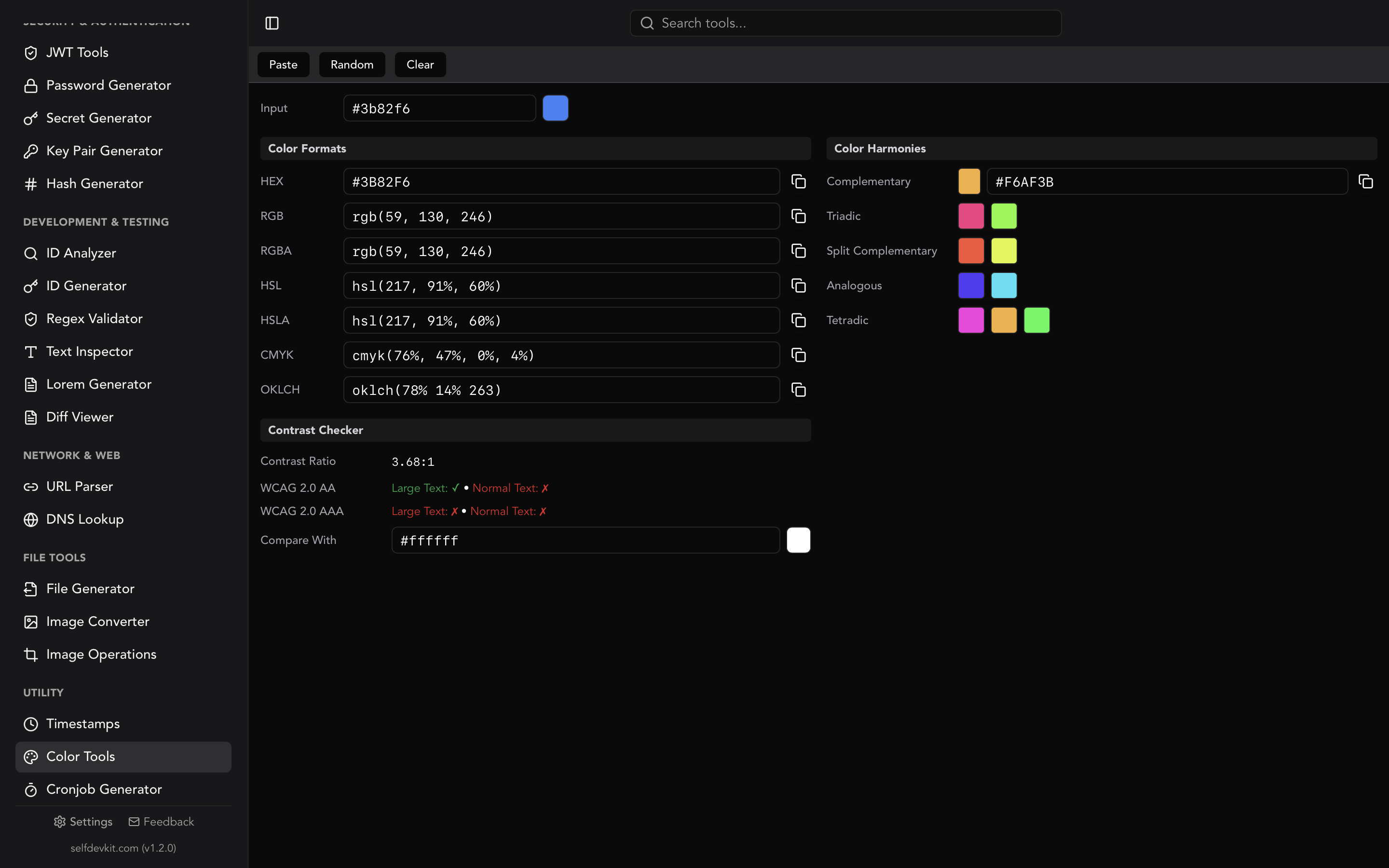
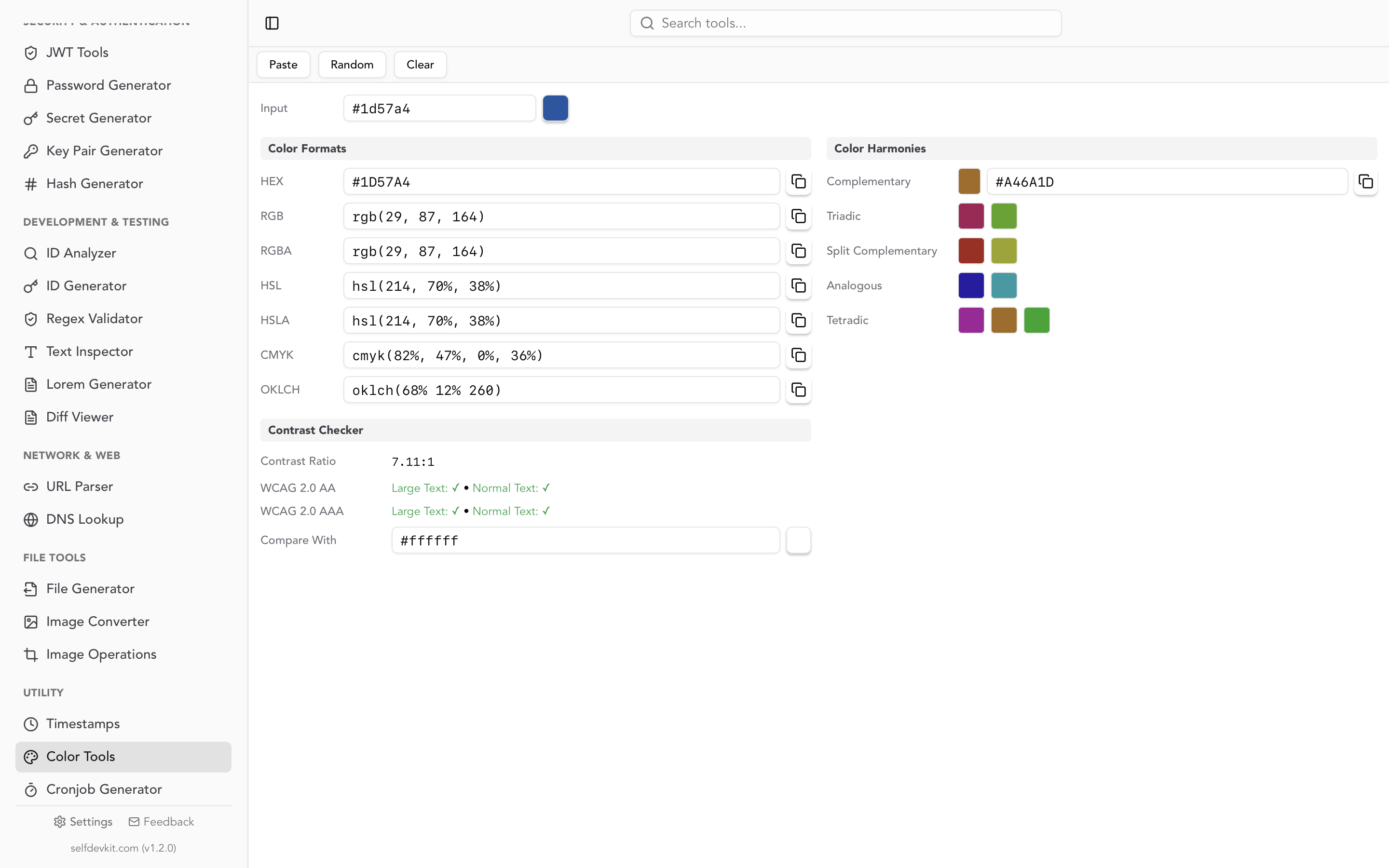
SelfDevKit's Color Tools handle all of these conversions instantly. Enter any RGB value and every other format updates in real time with one-click copy buttons.
Working with RGB in JavaScript and Python
Most competitor RGB color picker guides stop at the conversion formulas. But as a developer, you often need to manipulate colors programmatically: lighten a background, generate a palette, or blend two colors. Here is how to do that with raw RGB values.
Lightening and darkening in JavaScript
The simplest approach: add or subtract a fixed amount from each channel, clamping to the 0-255 range.
function lighten(r, g, b, amount) {
  return {
    r: Math.min(255, r + amount),
    g: Math.min(255, g + amount),
    b: Math.min(255, b + amount),
  };
}

function darken(r, g, b, amount) {
  return {
    r: Math.max(0, r - amount),
    g: Math.max(0, g - amount),
    b: Math.max(0, b - amount),
  };
}

lighten(59, 130, 246, 40); // { r: 99, g: 170, b: 255 }
darken(59, 130, 246, 40);  // { r: 19, g: 90, b: 206 }
This works for quick adjustments, but it shifts the hue slightly because you are adding the same absolute amount to channels with different starting values. For perceptually uniform adjustments, convert to HSL first, adjust lightness, then convert back. Or use color-mix() in CSS to let the browser handle it.
Blending two colors
Linear interpolation between two RGB colors is how CSS color-mix() works under the hood:
function mixColors(c1, c2, weight = 0.5) {
  return {
    r: Math.round(c1.r + (c2.r - c1.r) * weight),
    g: Math.round(c1.g + (c2.g - c1.g) * weight),
    b: Math.round(c1.b + (c2.b - c1.b) * weight),
  };
}

const blue = { r: 59, g: 130, b: 246 };
const white = { r: 255, g: 255, b: 255 };

mixColors(blue, white, 0.3); // { r: 118, g: 168, b: 249 }
Python: working with RGB tuples
Python developers often work with RGB as tuples. Here are the equivalent operations:
def rgb_to_hex(r, g, b):
    return f'#{r:02x}{g:02x}{b:02x}'

def hex_to_rgb(hex_color):
    hex_color = hex_color.lstrip('#')
    return tuple(int(hex_color[i:i+2], 16) for i in (0, 2, 4))

def lighten(r, g, b, amount):
    return (min(255, r + amount),
            min(255, g + amount),
            min(255, b + amount))

rgb_to_hex(59, 130, 246)   # '#3b82f6'
hex_to_rgb('#3b82f6')       # (59, 130, 246)
lighten(59, 130, 246, 40)   # (99, 170, 255)
For more complex color work in Python, the colorsys module in the standard library handles RGB to HSL/HSV conversions natively.
When to use RGB vs hex vs HSL
All three formats describe the same colors, but each has situations where it is the better choice. Most guides treat them as interchangeable. They are not, at least in practice.
| Situation | Best format | Why |
|---|---|---|
| CSS shorthand | HEX | Compact, universally recognized |
| Transparency needed | RGB or HSL | Alpha channel with / syntax |
| Generating tints/shades | HSL | Adjust lightness independently |
| Canvas API / WebGL | RGB | APIs accept numeric channel values |
| Design tokens (Tailwind, etc.) | HEX | Config files expect hex strings |
| Programmatic manipulation | RGB | Channel math is simpler with integers |
| Print design handoff | CMYK | Required by print workflows |
| Perceptually uniform adjustments | OKLCH | Lightness changes look consistent |
Use RGB when you are working with APIs that expect numeric values (Canvas 2D, WebGL, image processing), when you need transparency and prefer explicit channel control, or when you are doing arithmetic on color values in code.
Use hex when you are writing CSS by hand and do not need transparency. It is the most compact format and the one designers typically share.
Use HSL when you need to create color scales, adjust brightness without shifting hue, or build dark mode variants. HSL separates the "what color" (hue) from "how vivid" (saturation) and "how bright" (lightness), making it far more intuitive for systematic adjustments.
For a deeper dive into hex notation, shorthand, and 8-digit alpha, check the hex color picker guide linked in the conversion section above.
RGB color picker workflows for developers
An RGB color picker is not just for finding a single color value. Here is how it fits into real development workflows.
Building CSS custom properties from RGB channels
A technique that unlocks dynamic theming: store individual RGB channels as custom properties, then compose them with rgb().
:root {
  --primary-r: 59;
  --primary-g: 130;
  --primary-b: 246;
  --primary: rgb(var(--primary-r) var(--primary-g) var(--primary-b));
  --primary-light: rgb(var(--primary-r) var(--primary-g) var(--primary-b) / 0.1);
}

.button {
  background-color: var(--primary);
}

.button:hover {
  background-color: var(--primary-light);
}
This pattern lets you create transparent variants of any color without defining separate variables for each opacity level. Pick your base color with an RGB color picker, extract the three channel values, and your entire transparency system follows automatically.
Worth noting: with color-mix() now baseline in all browsers, you have an alternative approach. Instead of splitting channels, you can blend directly: color-mix(in srgb, var(--primary) 10%, transparent). Choose whichever fits your project. The channel-splitting pattern gives more granular control; color-mix() is cleaner for simple opacity and blending.
Extracting colors from existing designs
When you inherit a codebase or receive a design file, you need to map existing colors to your system. An RGB color picker that supports multiple input formats speeds this up. Paste a hex value, get the RGB breakdown. Paste an HSL value, get the RGB equivalent. Copy whichever format your code needs.
SelfDevKit's Color Tools accept input in any format (HEX, RGB, HSL, HSLA, CMYK, OKLCH) and show all conversions simultaneously. You never need to visit a separate converter for each format. If you are working with images that need format conversion, the same app handles that too, one sidebar click away.
Generating color harmonies
Starting from one RGB value, you can generate an entire palette using color wheel relationships. Complementary colors sit 180 degrees apart on the wheel. Triadic colors are spaced 120 degrees apart. Analogous colors sit adjacent at roughly 30-degree intervals.
These relationships are computed in HSL space (by rotating the hue), but you pick your starting color in RGB and get results in RGB. SelfDevKit generates complementary, triadic, split complementary, analogous, and tetradic harmonies from any input color, with copy buttons for every format.
For the full breakdown of harmony types and the math behind them, see the color harmonies section in the hex color picker guide.
Using the HTML color input element
If you need a quick color picker directly in a web page or internal tool, the native HTML <input type="color"> element gives you one for free:
<input type="color" id="picker" value="#3b82f6">

<script>
  document.getElementById('picker').addEventListener('input', (e) => {
    const hex = e.target.value;
    const { r, g, b } = hexToRgb(hex);
    console.log(`RGB: ${r}, ${g}, ${b}`);
  });
</script>
The browser renders its native color picker UI. The value is always returned as a hex string, so you will need the hexToRgb() function from earlier to get the RGB channels. This is handy for prototyping or building internal admin tools without pulling in a color picker library.
Accessibility and contrast with RGB values
Picking a color that looks good is only half the job. You also need to verify that text remains readable against its background. The Web Content Accessibility Guidelines (WCAG 2.1) define minimum contrast ratios that all web content should meet.
WCAG contrast requirements
| Level | Normal text (< 18px) | Large text (18px+ or 14px bold) |
|---|---|---|
| AA | 4.5:1 | 3:1 |
| AAA | 7:1 | 4.5:1 |
How contrast relates to RGB values
The contrast ratio formula depends on relative luminance, which is computed directly from RGB channel values. The calculation is not a simple average. It weights each channel according to how the human eye perceives brightness:
Luminance = 0.2126 * R' + 0.7152 * G' + 0.0722 * B'
Where R', G', and B' are the linearized (gamma-corrected) channel values. Green contributes the most to perceived brightness, which is why pure green text on white (rgb(0, 255, 0) on #ffffff) has better contrast than pure blue (rgb(0, 0, 255) on #ffffff), even though both have one channel at maximum.
This is exactly why you cannot just eyeball contrast. A yellow badge at rgb(250, 204, 21) on a white background looks bright and visible on your retina display. The actual contrast ratio is 1.07:1, which fails every WCAG level.
Checking contrast in practice
Rather than computing luminance by hand, use a tool. SelfDevKit's Color Tools include a built-in WCAG contrast checker. Enter your foreground and background colors in any format, and it displays the contrast ratio alongside pass/fail indicators for AA and AAA at both text sizes.
If a color fails, you do not need to abandon it. Use it for decorative elements, borders, or large headings (which have a lower contrast requirement). For body text, pick a darker or lighter variant of the same hue. You can also format your HTML to verify that your color classes are applied consistently across your markup.
Why offline color tools matter
Most online RGB color picker tools work fine for casual use. But for professional development, a desktop tool has real advantages.
Your color palette is intellectual property
When building a product or working on a client rebrand, the color system is part of unreleased IP. Pasting brand colors into an online tool means that data hits an external server. Many free color picker websites run ad networks and analytics scripts from multiple third parties. Your color values could end up in request logs, analytics pipelines, or browser extension telemetry.
For personal projects, this is not a concern. For client work under NDA, or a startup preparing for launch, it matters. The same logic applies to passwords and secrets: sensitive data belongs on your machine, not someone else's server.
No network dependency
Offline tools work on planes, on trains, and on air-gapped machines. SelfDevKit runs as a native desktop app. The Color Tools load instantly with zero network requests. Your data never leaves your machine.
Part of a larger toolkit
The real win with a desktop RGB color picker is staying in flow. When building a feature, you might need to pick a color, then format some JSON, then generate a UUID, then decode a JWT from your auth service. With SelfDevKit, all 50+ tools are in the same app, one click away in the sidebar. No juggling browser tabs.
Download SelfDevKit to get an RGB color picker, format converter, harmony generator, contrast checker, and 50+ other developer tools in one native app. One-time purchase, free updates forever.
Frequently asked questions
What is the difference between RGB and RGBA?
RGBA adds an alpha channel to the standard RGB model, controlling transparency. The alpha value ranges from 0 (fully transparent) to 1 (fully opaque). In modern CSS, rgba() is simply an alias for rgb(). You can write rgb(59 130 246 / 0.5) instead of rgba(59, 130, 246, 0.5). Both are equivalent per the CSS Color Module Level 4 specification.
How do I convert an RGB value to a hex color code?
Convert each channel (0-255) to a two-digit hexadecimal string, then concatenate with a # prefix. For example, rgb(59, 130, 246) converts to #3b82f6 because 59 = 3b, 130 = 82, and 246 = f6. SelfDevKit's Color Tools do this conversion instantly for any input format.
Can I use color-mix() and relative color syntax in production?
Yes for color-mix(), which is baseline across all major browsers since Chrome 111, Firefox 113, and Safari 16.2. Relative color syntax has roughly 89% global browser support as of early 2026 (Chrome 111+, Safari 15.4+, Firefox 113+), so consider adding fallbacks if your audience includes older browsers. Check Can I Use for current numbers.
Why does my color look different on different screens?
Color appearance depends on the display's color profile, brightness calibration, and panel technology. An rgb(59, 130, 246) value might appear more vivid on an OLED screen and duller on a low-end TN panel. For consistent results across devices, work with a calibrated display and test on multiple screens. Newer color spaces like OKLCH are designed to be perceptually uniform, meaning adjustments look more consistent across devices.