What does converting JSON to CSV actually involve?
Converting JSON to CSV means turning a tree of nested objects and arrays into a flat table of rows and columns. Each object in the top-level array becomes a row, each property becomes a column, and every nested structure has to be flattened, exploded into extra rows, or serialized into a single cell. The conversion is lossy by definition, so the real work is deciding what to lose.
Most guides to converting JSON to CSV show you a flat array of three objects, run it through a converter, and call it done. That example never happens in production. Real JSON has nested objects, arrays of arrays, keys that exist on some records and not others, nulls that mean three different things, and string values containing commas and newlines that will quietly destroy your file if the writer is naive.
This guide covers the parts that actually break. Flattening strategies and when to pick each one, the escaping rules from RFC 4180 that hand-rolled converters get wrong, working code in Python, Node and jq, the CSV injection vulnerability sitting in most export endpoints, and why your correct CSV still looks wrong the moment somebody opens it in Excel.
Table of contents
- How to convert JSON to CSV
- The hard part: JSON is a tree, CSV is a rectangle
- The escaping rules most converters get wrong
- Converting JSON to CSV in code
- CSV injection: the bug hiding in your export endpoint
- Why your correct CSV looks wrong in Excel
- Inspect the JSON before you convert it
- The privacy problem with online JSON to CSV converters
- Frequently asked questions
How to convert JSON to CSV
To convert JSON to CSV, start with a top-level array of objects, collect the union of every key across all objects to build the header row, then write one row per object with values in header order. Anything that is not a scalar has to be flattened or serialized first.
The clean case looks like this:
[
  { "id": "usr_001", "email": "jane@example.com", "plan": "pro" },
  { "id": "usr_002", "email": "sam@example.com", "plan": "free" }
]
Which becomes:
id,email,plan
usr_001,jane@example.com,pro
usr_002,sam@example.com,free
Three rules are doing all the work here, and they are worth stating explicitly because they are the rules that break later:
- The top level must be an array. A single object produces a one-row CSV. A JSON object keyed by ID (
{"usr_001": {...}, "usr_002": {...}}) has to be converted to an array first, usually by promoting the key into a column. - The header is the union of all keys, not the keys of the first record. If record 1 has
planand record 47 hastrial_ends_at, both are columns. Every record that lacks a key gets an empty cell. - Key order is not guaranteed by the format. JSON objects are unordered per the specification. Most parsers preserve insertion order in practice, but if you want a stable column order across exports, define it explicitly rather than relying on whatever the parser hands you.
That is the entire happy path. Everything below is what happens when your data has more than one level.
The hard part: JSON is a tree, CSV is a rectangle
JSON is a recursive tree structure with arbitrary depth. CSV is a two-dimensional grid with a fixed number of columns. There is no lossless mapping between them, so every converter has to make a choice about nested data, and most converters make that choice for you without saying so.
Take a realistic record:
[
  {
    "id": "usr_001",
    "email": "jane@example.com",
    "address": { "city": "Berlin", "country": "DE" },
    "tags": ["beta", "enterprise"],
    "orders": [
      { "sku": "A-100", "total": 49.0 },
      { "sku": "B-220", "total": 12.5 }
    ]
  }
]
There are four defensible ways to put that in a table, and they produce four completely different files.
| Strategy | What it does | Good for | Cost |
|---|---|---|---|
| Dot-notation flatten | address.city, address.country become columns |
Nested objects of fixed shape | Column count explodes with depth |
| Unwind (explode) | One row per element of orders, parent fields repeated |
Arrays of objects you need to analyze | Row duplication, parent fields denormalized |
| Serialize to cell | orders cell contains the raw JSON string |
Preserving data you do not need to query | Unreadable in a spreadsheet, needs re-parsing |
| Join to a delimited string | tags becomes beta; enterprise |
Short arrays of scalars | Ambiguous if values contain the join character |
Dot-notation flattening
Flattening walks the object depth-first and joins the path segments with a separator, usually .:
id,email,address.city,address.country
usr_001,jane@example.com,Berlin,DE
This is the right default for nested objects because it is reversible. Given address.city, you can reconstruct the original nesting. It works badly for deep or variable structures: a five-level config object with optional branches produces a header row hundreds of columns wide, most of them empty.
Pick a separator that does not appear in your keys. If your API returns keys like user.name as a literal string, dot-flattening becomes ambiguous and you should use __ or / instead.
Unwinding arrays into rows
Unwinding turns orders into two rows, repeating the parent columns:
id,email,orders.sku,orders.total
usr_001,jane@example.com,A-100,49.0
usr_001,jane@example.com,B-220,12.5
This is what you want when the array is the thing you actually care about. If you are exporting for analysis in a spreadsheet or loading into a database, one row per order is far more useful than one row per user with orders crammed into a cell.
The trap is unwinding two arrays in the same record. A user with 3 tags and 2 orders unwound on both produces 6 rows, a cartesian product that silently inflates every aggregate you compute afterwards. Unwind one array per pass, or split the export into separate files that share a key.
Serializing to a cell
The laziest option and the default for most online converters:
id,email,orders
usr_001,jane@example.com,"[{""sku"":""A-100"",""total"":49.0}]"
Note the doubled quotes. That is correct CSV escaping, and it is why this output is technically valid but practically useless in a spreadsheet. Use it only when the nested data is a passenger, something you need to carry through a pipeline but never read.
The ragged keys problem
Real JSON arrays are rarely homogeneous. Optional fields, schema changes mid-dataset, and API versions all produce records with different key sets:
[
  { "id": 1, "name": "Widget" },
  { "id": 2, "name": "Gadget", "discount_pct": 15 },
  { "id": 3, "sku": "X-9" }
]
A converter that builds the header from the first record silently drops discount_pct and sku. A converter that builds the union produces three columns with holes. The second behaviour is correct, but you should know the holes exist before you hand the file to somebody who will read empty cells as zero.
Scanning the full dataset for key variance before converting is the step nobody documents, and it is the one that catches the bug.
The escaping rules most converters get wrong
CSV escaping is defined by RFC 4180, published in 2005. Fields containing commas, double quotes, or line breaks must be enclosed in double quotes, and a double quote inside a quoted field is escaped by doubling it. Backslash escaping is not valid CSV and will break compliant parsers.
This is why Object.values(row).join(',') is a bug, not a shortcut.
| Value in JSON | Correct CSV field | Why |
|---|---|---|
Acme, Inc. |
"Acme, Inc." |
Contains the delimiter |
He said "hi" |
"He said ""hi""" |
Inner quotes doubled, field quoted |
line one\nline two |
Field wrapped in quotes with a real line break inside it | Newlines are legal inside a quoted field |
padded |
" padded " |
Spaces are part of the field and must be preserved |
"" (empty string) |
nothing, or "" |
Both parse as empty |
null |
nothing | See below |
A field containing a line break is legal CSV. Your file will have more physical lines than records, and any tool that processes it with readline will corrupt it. This is the single most common cause of "my CSV has 10,000 rows but the import says 10,347".
Scalars that are not strings
JSON has types. CSV does not. Every non-string value needs an explicit policy:
| JSON value | Common CSV output | Note |
|---|---|---|
null |
empty field | Indistinguishable from an empty string on re-import |
true / false |
true / false |
Excel may render as TRUE; some importers coerce to 1/0 |
49.0 |
49.0 or 49 |
Float formatting differs between writers |
1e21 |
1e+21 |
Language-dependent; can break numeric parsers |
| missing key | empty field | Same output as null, different meaning |
The null versus empty string versus missing key collision is unavoidable in plain CSV. If the distinction matters downstream, encode it: write \N for null the way PostgreSQL COPY does, or ship the nulls as a separate metadata column. Do not assume the round trip works.
RFC 4180 also specifies CRLF line endings and text/csv as the MIME type, with US-ASCII as the common charset and other encodings declared via the charset parameter. In practice you should write UTF-8 and be aware that Excel on Windows historically needs a byte order mark to detect it, which we get to below.
Converting JSON to CSV in code
The right tool depends on the shape of your data, not on your language preference. Flat records with known keys need ten lines of stdlib. Deeply nested API dumps need a library that understands normalization.
Python: standard library
For flat records, csv.DictWriter handles all the escaping correctly and requires no dependencies. The csv module docs specify opening the file with newline='', which is not optional; omitting it produces blank lines between records on Windows.
import csv
import json

with open("users.json", encoding="utf-8") as f:
    rows = json.load(f)

# Union of all keys, first-seen order preserved
fieldnames = list({key: None for row in rows for key in row})

with open("users.csv", "w", newline="", encoding="utf-8") as f:
    writer = csv.DictWriter(f, fieldnames=fieldnames, restval="")
    writer.writeheader()
    writer.writerows(rows)
restval="" fills in missing keys rather than raising. That dict-comprehension trick for fieldnames collects the union while preserving insertion order, which beats set() because a sorted-by-accident column order makes diffs between exports unreadable.
Python: pandas for nested data
pandas.json_normalize is the shortest path from nested JSON to a rectangle. It flattens nested objects with a separator of your choice and handles missing keys as NaN:
import json
import pandas as pd

with open("users.json", encoding="utf-8") as f:
    data = json.load(f)

df = pd.json_normalize(data, sep=".")
df.to_csv("users.csv", index=False)
To unwind an array into rows instead of stringifying it, use record_path for the array and meta for the parent fields you want repeated:
df = pd.json_normalize(
    data,
    record_path="orders",
    meta=["id", "email"],
    record_prefix="order.",
)
df.to_csv("orders.csv", index=False)
One caveat: pandas will happily turn an integer column containing a null into a float column, so user_id 1001 becomes 1001.0 in your CSV. Cast with astype("Int64") (the nullable integer type) before writing if IDs matter, which they do.
JavaScript and Node
@json2csv/plainjs is the maintained successor to the old json2csv package and implements RFC 4180 properly, including the TSV variant:
npm install @json2csv/plainjs @json2csv/transforms
import { Parser } from '@json2csv/plainjs';
import { flatten, unwind } from '@json2csv/transforms';

const records = JSON.parse(await readFile('users.json', 'utf8'));

const parser = new Parser({
  transforms: [
    unwind({ paths: ['orders'] }),
    flatten({ objects: true, arrays: false, separator: '.' }),
  ],
});

const csv = parser.parse(records);
The Parser is synchronous and loads the whole dataset into memory, which blocks the event loop. For anything above a few tens of megabytes use @json2csv/node and its streaming parser instead, or you will discover your export endpoint has a denial-of-service characteristic.
If you are doing this in the browser, JSON.parse plus a small writer is fine, but implement the quoting rules from the previous section rather than joining strings.
jq on the command line
For one-off conversions and shell pipelines, jq is hard to beat. The @csv filter applies RFC 4180 quoting for you, and -r prints raw output rather than a JSON-escaped string.
Explicit headers, which is what you want for a stable export:
jq -r '["id","email","plan"],
       (.[] | [.id, .email, .plan])
       | @csv' users.json > users.csv
Headers derived from the data, using keys_unsorted to preserve document order rather than sorting alphabetically:
jq -r '(.[0] | keys_unsorted) as $keys
       | $keys, (.[] | [.[$keys[]]])
       | @csv' users.json > users.csv
Note that this reads keys from the first record only, so it inherits the ragged-keys problem described above. Unwinding an array while carrying a parent field down:
jq -r '["user_id","sku","total"],
       (.[] | .id as $uid | .orders[] | [$uid, .sku, .total])
       | @csv' users.json > orders.csv
@csv requires every element to be a scalar. If a value is an object or array, jq errors out rather than producing garbage, which is a feature. Use tostring or tojson explicitly when you want serialization into a cell.
CSV injection: the bug hiding in your export endpoint
CSV injection, also called formula injection, happens when untrusted input is written into a CSV that someone later opens in a spreadsheet. It is documented by OWASP, and none of the popular JSON to CSV guides mention it.
The mechanism is simple. Excel, LibreOffice Calc and Google Sheets treat any cell starting with =, +, - or @ as a formula. Your converter writes it as data. The spreadsheet executes it.
Suppose a user sets their display name to:
=cmd|'/c calc.exe'!A1
That value travels through your API as an ordinary JSON string, gets written to a CSV cell by a perfectly correct RFC 4180 writer, and executes when an ops person opens the export on a Windows machine. Legacy DDE behaviour turns a data export into remote code execution on an internal workstation. Less dramatic payloads exfiltrate the contents of the sheet by embedding a value into a HYPERLINK or an external reference.
The critical detail: correct CSV escaping does not help. Quoting the field satisfies the parser and the spreadsheet still evaluates the formula after unquoting.
The fix is to neutralize the leading character before writing:
DANGEROUS_PREFIXES = ("=", "+", "-", "@", "\t", "\r")

def defuse(value):
    if value is None:
        return ""
    text = str(value)
    return "'" + text if text.startswith(DANGEROUS_PREFIXES) else text
Two mitigations are in common use. Prefixing with a single quote is the OWASP-documented approach and is widely supported, though the quote is visible in some viewers and survives into the cell value. Prefixing with a tab character (0x09) inside the quoted field is more reliable against Excel specifically. Pick one, apply it at the writer boundary, and apply it to every field sourced from user input, not just the obvious ones. Company names, notes fields and email display names are all vectors.
Anything you export from a multi-tenant system needs this. If your CSV export path was written by copying a snippet from a converter tool page, it almost certainly does not have it.
Why your correct CSV looks wrong in Excel
Your CSV can be byte-perfect and still display wrong, because Excel rewrites values on import. When you double-click a CSV, Excel samples the leading rows, infers a type per column, and converts the in-memory value before displaying it. The file on disk is fine. What you see is not what you shipped.
The recurring damage:
- Leading zeros vanish. ZIP code
01234becomes1234. Product SKU007becomes7. - Long numbers go scientific. A 16-digit order ID or credit card BIN renders as
1.23457E+15. Excel caps numeric precision at 15 significant digits, so the trailing digits are not just hidden, they are gone. - Identifiers become dates. Anything shaped like
3-10orSEPT2gets coerced into a date. This is the same class of bug that forced the genomics community to rename genes. - UTF-8 renders as mojibake. Excel on Windows historically assumes the system codepage unless the file starts with a UTF-8 byte order mark (
EF BB BF). Names with accents turn intoé.
Microsoft's own guidance on keeping leading zeros and large numbers is to import through Power Query and set the column type to Text rather than opening the file directly. That is the correct answer, and it is also an answer your non-technical recipient will not follow.
Practical defenses on the producing side:
- Write a UTF-8 BOM when the CSV is destined for Excel. In Python,
encoding="utf-8-sig". - Never leave an identifier as a bare numeric string if it has meaning as text. Prefix it, or accept that it will be mangled.
- Ship
.xlsxinstead of.csvwhen the recipient is a human with Excel, and keep CSV for machine ingestion. - Document the delimiter and encoding in your API docs. European locales default to semicolons, and a comma-delimited file opens as one column per row on those machines.
Before you send an export out, checking encoding, byte size and line count catches most of this. SelfDevKit's Text Inspector reports UTF-8, UTF-16 and UTF-32 byte counts alongside character and line counts, so you can confirm the file is the encoding you think it is and that the physical line count matches your record count. When those two numbers disagree, you have unescaped newlines inside fields.
Inspect the JSON before you convert it
The most useful thing you can do before converting JSON to CSV is understand the shape of the JSON, because the shape determines the flattening strategy and every failure above traces back to a structure nobody looked at.
To be direct about it: SelfDevKit does not have a one-click JSON to CSV button. The conversion itself is a solved problem, and the code above does it in ten lines. What SelfDevKit covers is the part that actually goes wrong, which is everything on either side of the conversion.
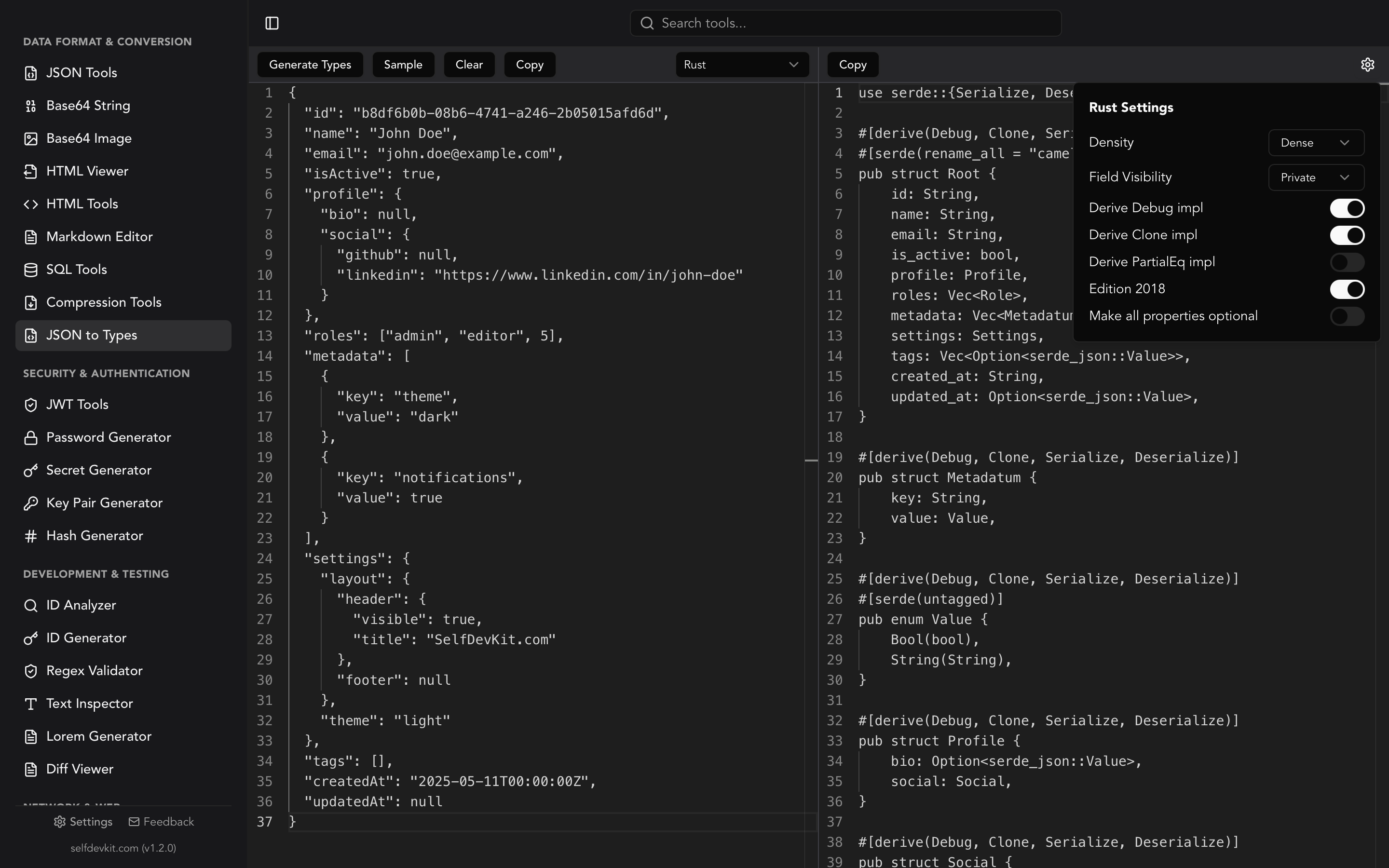
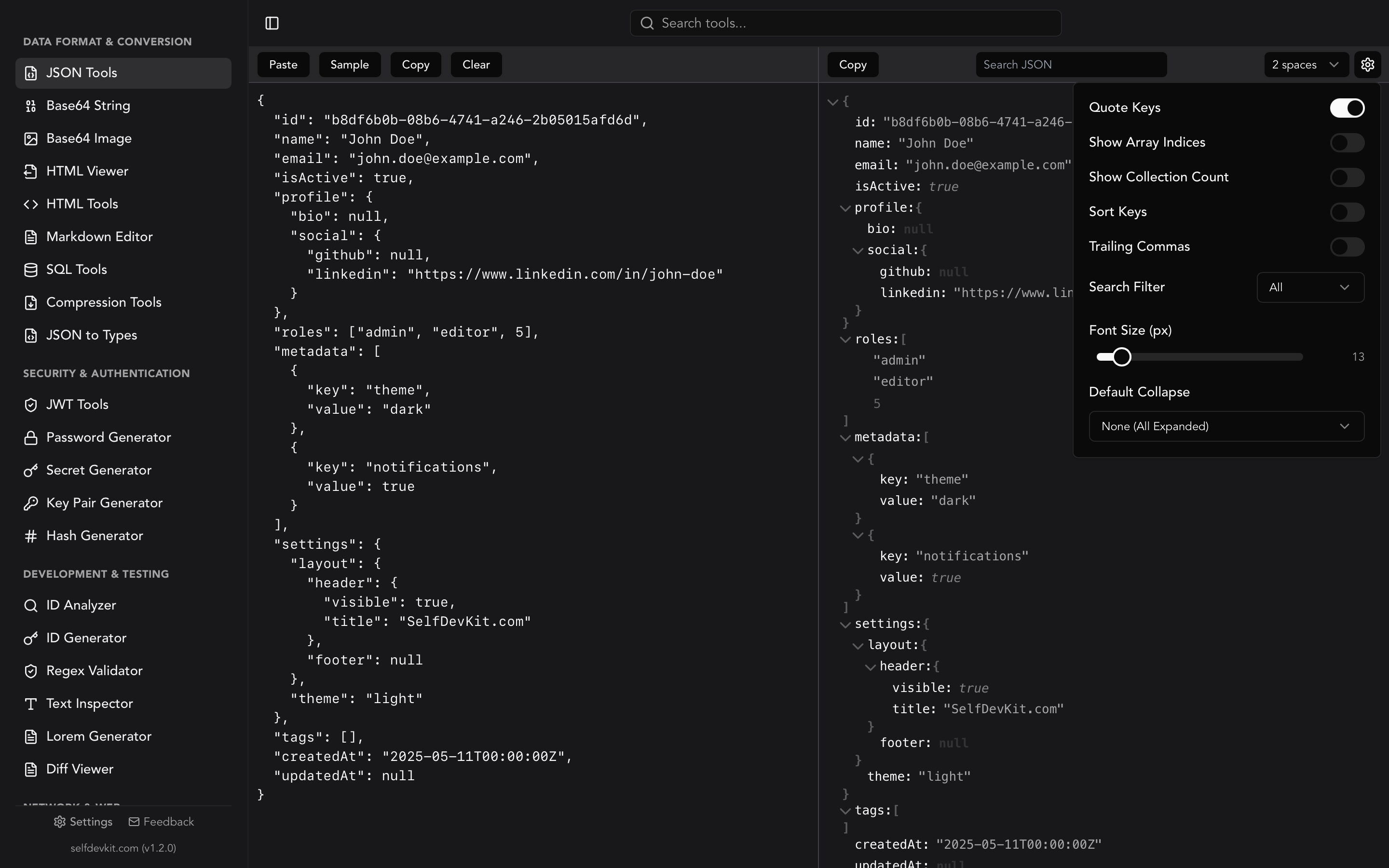
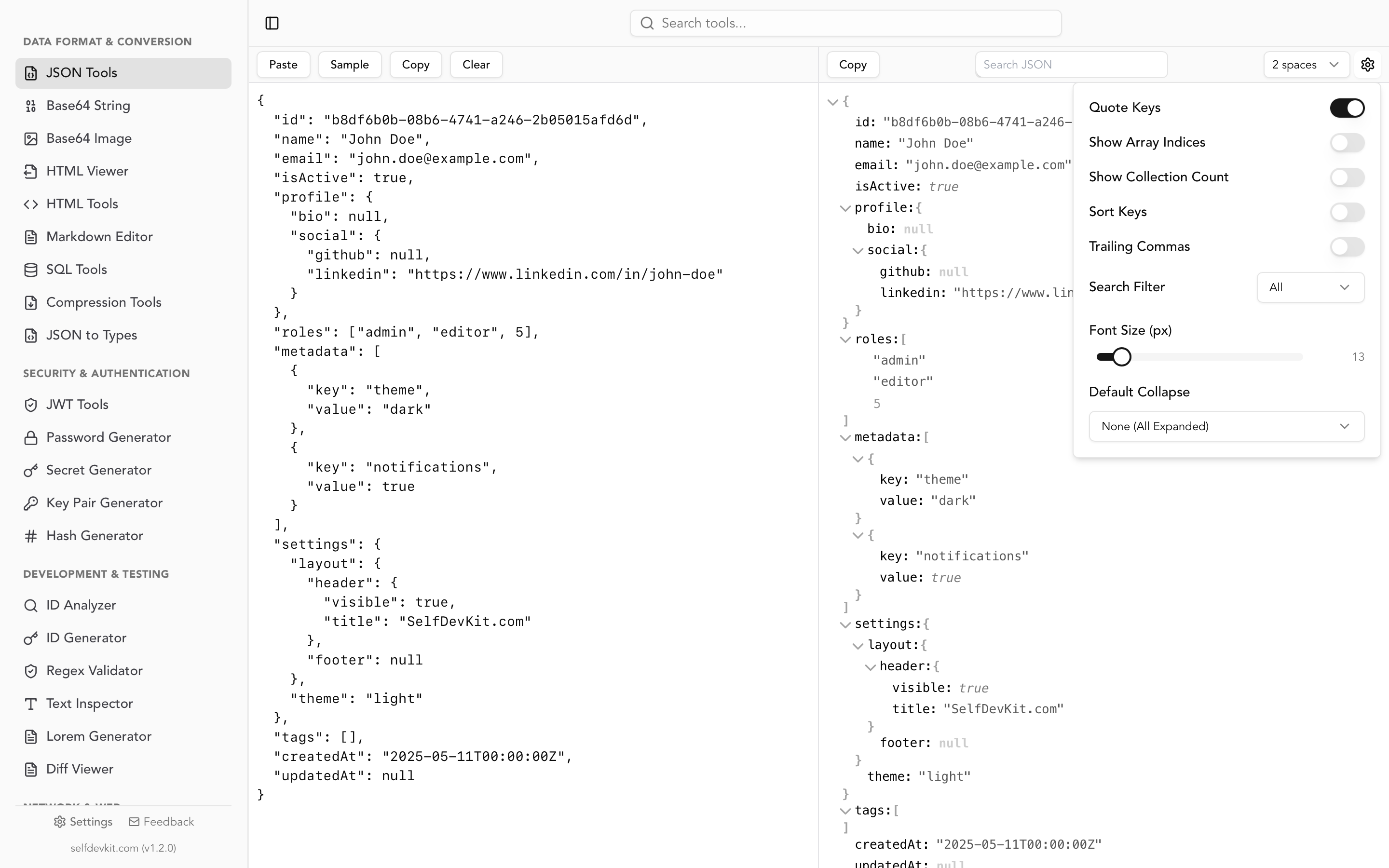
Map the structure with the tree view. Load the JSON into JSON Tools and expand the tree. You are looking for three things: how deep the nesting goes, which arrays contain objects rather than scalars, and whether the top level is actually an array. Collapse-all followed by selective expansion answers all three in about fifteen seconds on a response you have never seen before. The search and filter makes it fast to check whether a suspect key appears on every record or only some of them. Our guide to using a JSON viewer effectively covers the navigation patterns in more depth.
Validate first, convert second. A truncated or malformed payload produces a parser error that most converters report as a vague "invalid input". Real-time validation with line-level errors tells you the file was cut off at byte 8 million rather than sending you hunting through your flattening code. If you regularly hit this, the JSON validator walkthrough catalogues the common syntax failures and how they surface.
Unescape doubly-encoded payloads. JSON pulled from log aggregators and message queues is frequently a JSON string containing JSON. Feed that to a converter and you get a one-column CSV containing the whole blob. The Unescaped display mode in JSON Tools resolves it, and the details are in our post on unescaping JSON.
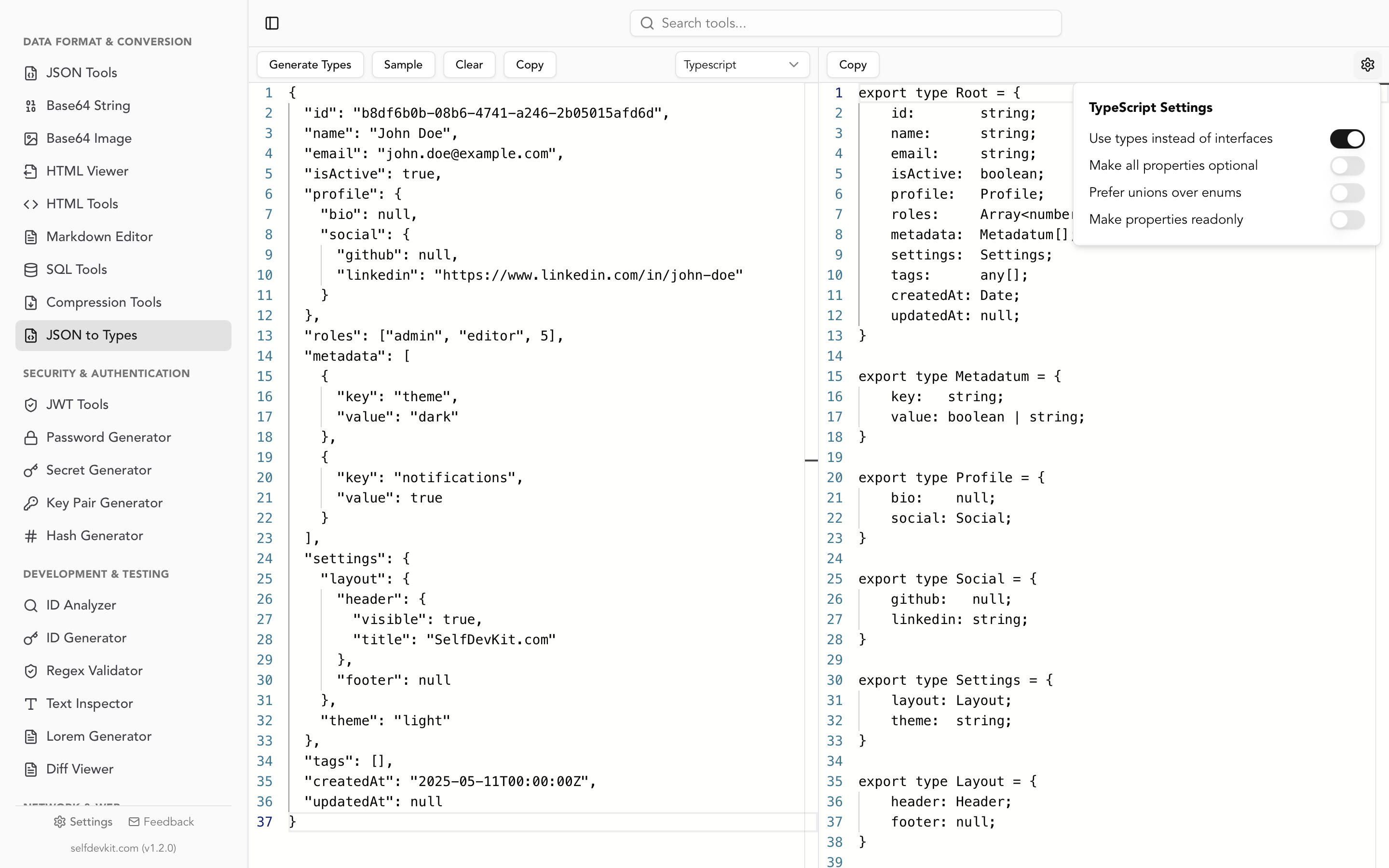
Use generated types as your column map. This is the trick worth stealing. Paste your JSON into JSON to Types and generate a TypeScript interface, a Go struct or a Python dataclass. The generated type is a precise description of your future CSV header: every scalar field is a column, every nested object needs dot-flattening, every array needs an unwind decision, and every field the generator marks optional is a column that will have holes in it. Reading a 30-line interface is faster than scrolling a 4,000-line JSON file, and it surfaces the optional fields that ragged-key bugs come from. The JSON to TypeScript guide covers the generation options.
Verify the round trip. After converting, re-import the CSV and serialize it back to JSON, then compare against the original in the Diff Viewer. Nulls that became empty strings, floats that lost precision, and booleans that became 1 all show up immediately. Our diff checker guide explains reading the output.
Test the importer before the real data arrives. If you need a realistic CSV to point an importer at while the upstream export is still being built, the File Generator produces sample CSV files with plausible employee-style records.
The privacy problem with online JSON to CSV converters
Pasting JSON into a web-based converter sends that data to a third-party server, and JSON to CSV conversion is almost never performed on toy data. That combination makes this specific tool category riskier than most.
Think about why anyone converts JSON to CSV. They are moving an export into a spreadsheet for a colleague, loading records into a database, or preparing a report. The input is a user table, an order history, a payment ledger, an analytics dump. It is production data with real names, real emails, and real revenue figures, which is precisely the data you cannot paste into an unknown domain.
Some converters do run entirely in the browser and say so. Many do not, and the ones that upload rarely make it obvious. From the outside you cannot distinguish a client-side converter from a server-side one without reading the network tab, and even a genuinely client-side page can load third-party analytics and ad scripts that have full access to the DOM your data sits in.
The compliance angle is more concrete than the security one. If your export contains EU personal data, sending it to an arbitrary US-hosted converter is a processing decision your DPA does not cover. GDPR, HIPAA and most SOC 2 control sets treat that as an unauthorized transfer regardless of whether anything bad happens. "I used a free website to reformat the customer list" is not a defense anyone wants to write up.
Local tools remove the question entirely. A script on your machine, jq in your terminal, or a desktop app that makes no network requests all produce the same CSV with no transfer to reason about. We wrote about the broader case for this in why offline-first developer tools matter, and it applies with unusual force here.
Frequently asked questions
How do I convert a JSON object to CSV when it is not an array?
Promote the keys into a column. An object like {"usr_001": {"plan": "pro"}} becomes an array of {"id": "usr_001", "plan": "pro"} by iterating the entries. In jq that is to_entries | map(.value + {id: .key}). In Python, [{"id": k, **v} for k, v in data.items()]. A single flat object with no wrapping simply produces a one-row CSV.
What is the best way to handle arrays inside JSON when converting to CSV?
It depends on what the array contains. Arrays of scalars like tags are usually joined with a separator that does not appear in the values, commonly ; . Arrays of objects should be unwound into one row per element when you need to analyze them, or exported to a separate CSV keyed by parent ID when the parent has other arrays too. Serializing the array as a JSON string in one cell is the fallback when the data is being carried rather than read.
Does converting JSON to CSV lose data?
Yes, in most cases. CSV has no type system, so nulls, booleans and numeric precision are all encoded as text and cannot be reliably distinguished on re-import. Nested structure is lost unless you flatten reversibly with a separator. If you need a round trip with fidelity, keep the JSON as the source of truth and treat the CSV as a derived view. Verifying with a diff between the original and the round-tripped output shows you exactly what was lost.
Why does my CSV open as a single column?
Almost always a delimiter mismatch. Excel uses the list separator from your Windows regional settings, which is a semicolon in many European locales, so a comma-delimited file opens unsplit. Either write the delimiter the recipient's locale expects, add a sep=, line as the first line of the file (an Excel-specific convention, not part of RFC 4180), or import through Power Query and pick the delimiter explicitly.
What to do next
If you are converting JSON to CSV once, use jq. If you are doing it inside an application, use the library for your language and make three explicit decisions before you write a line: how you flatten nested objects, how you handle arrays, and how you neutralize leading =, +, - and @ in fields that came from users. That last one is the difference between an export feature and a vulnerability.
If you are doing it repeatedly against APIs you do not control, spend the time on the input side. Open the payload in a tree view, check which keys are actually universal, generate a type from it and read the optional fields. Every CSV bug worth debugging was visible in the JSON structure before the conversion ran.
SelfDevKit gives you the JSON tools, type generation, encoding inspection and diffing for that workflow in one desktop app, running entirely on your machine with no network requests. One-time purchase, no subscription, and the full feature list covers 50+ tools beyond JSON.
Download SelfDevKit and stop pasting production data into websites you have never audited.